About
This article explains how AEM authors embed media on AEM pages using the Kaltura Video component.
Media is uploaded and prepared in Rich Media CMS by designated Content Creators. AEM authors browse approved media and embed it on AEM pages using the Kaltura Video Component.
Note about permissions: Authors can browse and embed approved media they have access to in Kaltura. If required media is not available, contact your Kaltura administrator.
Add the Kaltura Video component to a page
- Open a page in AEM’s page editor.
- Open the Components panel on the left, and drag the Kaltura Video component onto the page.
- Select the Kaltura video component on the page, and then click the wrench icon.
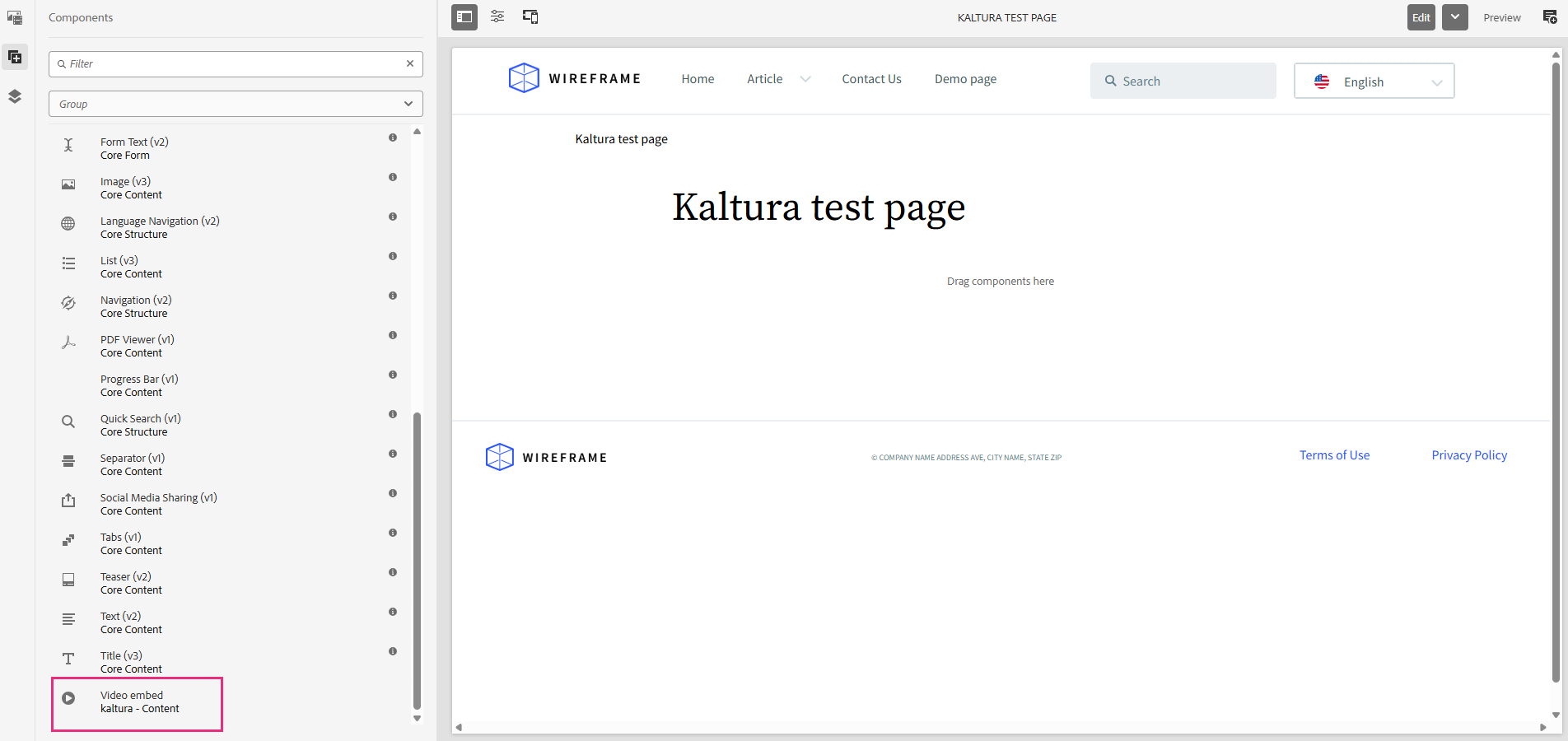
If the Kaltura Video component does not appear, it may not be enabled in the page template. See Setup guide for Kaltura Connector for AEM (Adobe Experience Manager) for guidance.
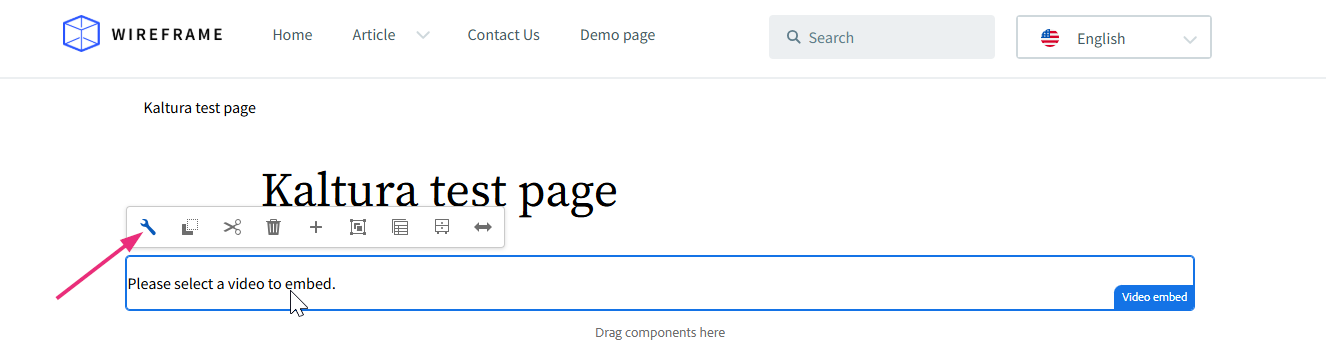
The Kaltura Video Component window opens.

Select media
In the window, you can use the search bar and filters to locate media across different repositories:
- My Media - Your personal media library. Only you can view media stored here.
- Media Gallery - Approved media available for the current AEM site.
- Shared Repository - Approved media available across all AEM sites.
You can also upload or record new videos. See Add new videos below.
See the Setup guide for Kaltura Connector for AEM (Adobe Experience Manager) for configuration of these features in the KAF settings.

- Your embed window may look different depending on how many columns your administrator has configured.
- You can embed audio files using Kaltura’s audio player. The player is available in the list of player options in the customize embed settings (see below).
- Mandatory captions before embedding - If your administrator has enabled the 'Captions Required' setting, certain media types (like video, audio, or quizzes) must have captions in order to be embedded. Items without captions will have grayed-out buttons.
To preview more details, click the eye icon next to a media item. The sidebar opens with a playable preview (if available) and media details.

Embed media
- Click the Embed button next to the media you want to embed.
- Click Embed.

The 'Customize embed' window opens.

The content is embedded.

Customize embed settings
1. Click the customize icon next to the media you want to embed.
The Customize Embed option may not be available in all environments. This feature must be enabled by your administrator in the Browseandembed module.

The Customize embed window opens.
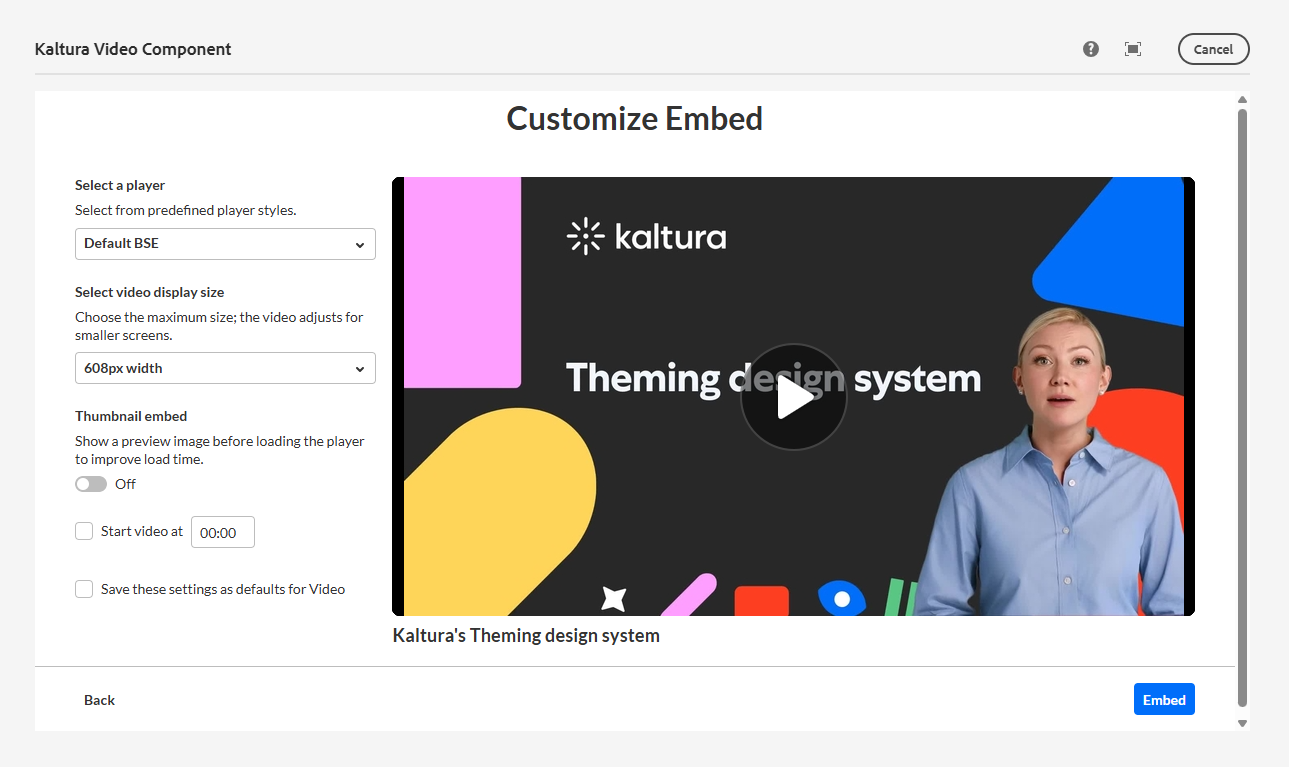
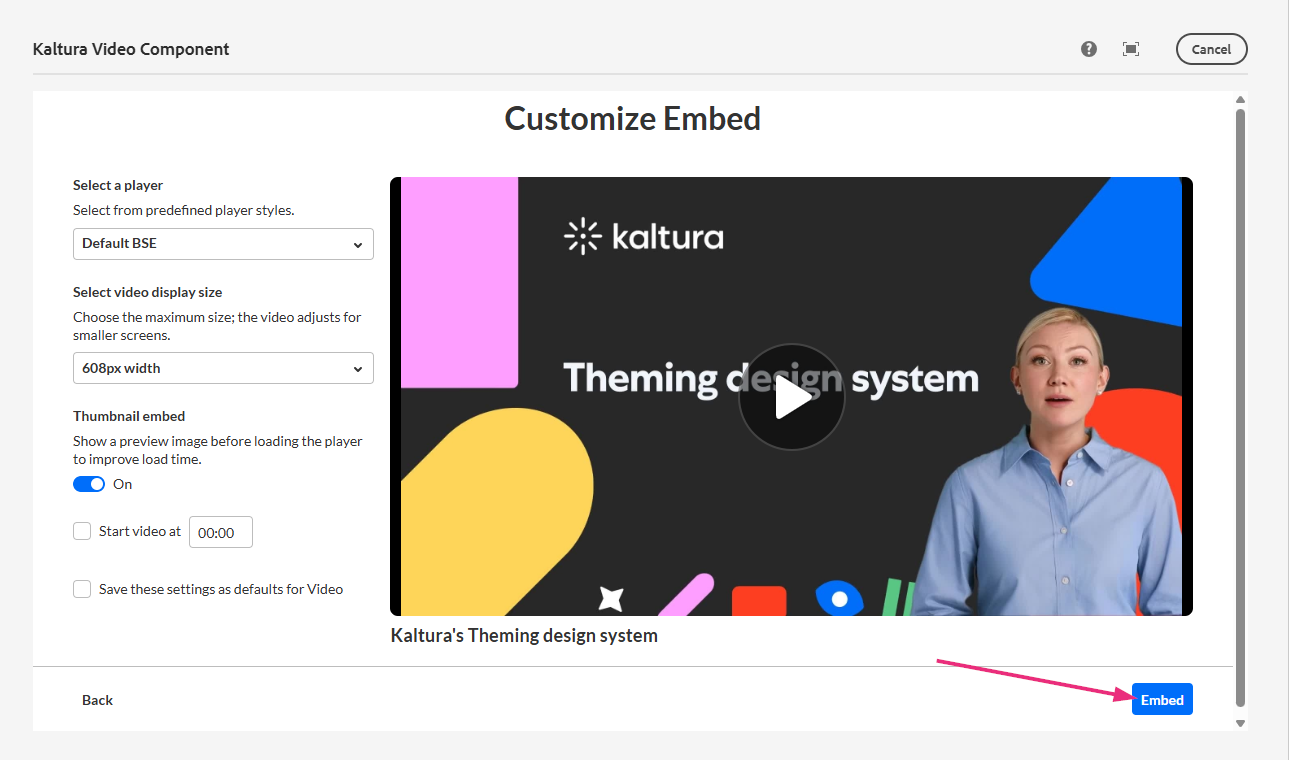
2. You can configure the following settings:
Select a player - Choose from pre-configured players set by your administrator.
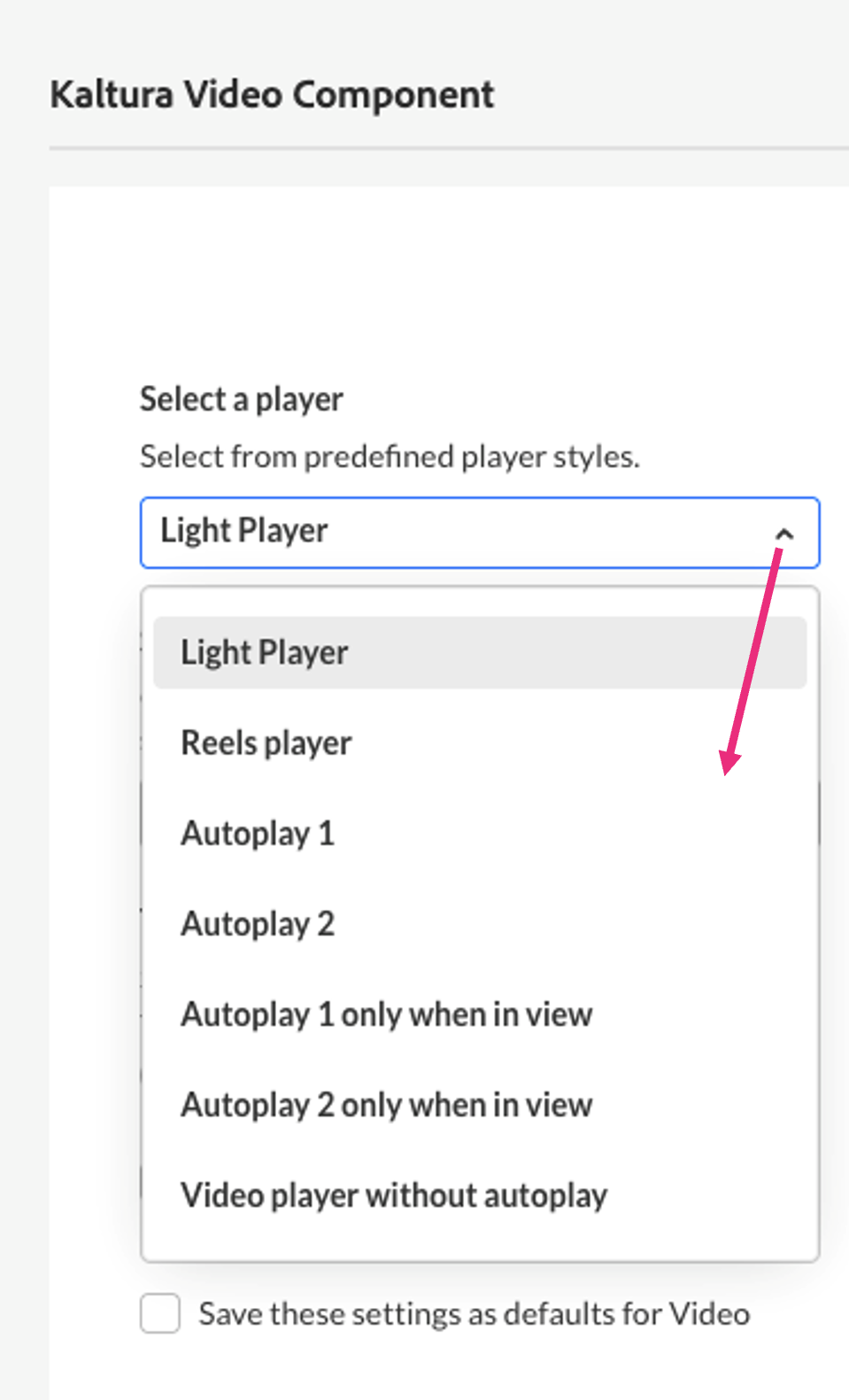
When you change the selected player, the preview updates automatically to reflect your choice.
Select video display size - Set the maximum display size of the embedded media. Your administrator defines the available embed sizes.
Thumbnail embed - Display a static thumbnail instead of loading the video player immediately.
Enabling or disabling this option will also update the preview in real time.
You can share the video from a specific time. Choose Start video at and enter the time according to the format given (00.00). For example, if you want a video to start at 1 minute and 30 seconds into the video, enter 01.30
Save these settings as defaults for videos - Enable this option to apply the same settings automatically to future embeds of this media type.
When you change a setting, the preview updates automatically.
3. Once you’re ready, click Embed.
The content is embedded.
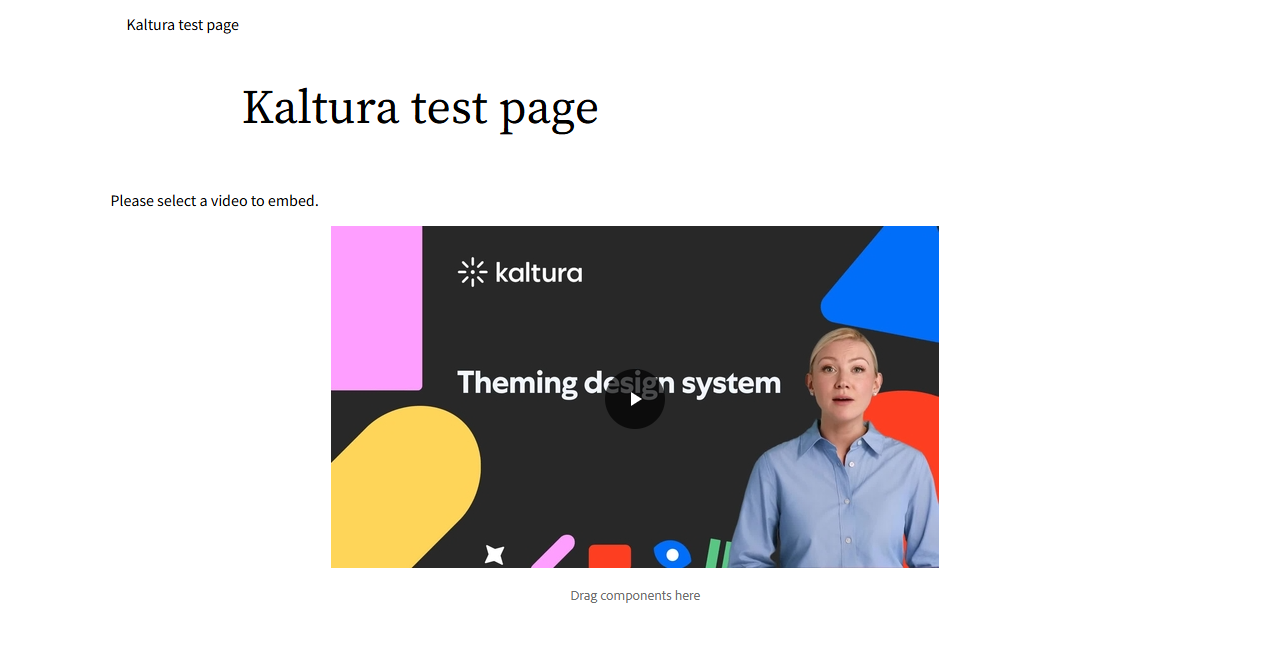
You can add multiple Kaltura Video components to the same page and embed different videos in each component.
Add new videos
To upload or record new media, use one of the following options:
- Upload - Upload one or more files. Wait for uploads to finish before clicking Save and Select. Visit our article Upload media for guidance.
- Express Capture - Record directly from your webcam. Visit our article Create a recording with Express Capture for guidance.

Once the upload is complete, click the settings icon to adjust embed options (see Customize embed settings).
If your administrator has required metadata fields (such as tags or descriptions), you must complete them before embedding.
Watch a quick tutorial: Upload and embed a Kaltura video:
Replace an embedded video
You can replace a video without removing the Kaltura Video component from the page.
- Select the existing Kaltura Video component on the page.
- Click the wrench icon.
- In the Kaltura video component window, select a different media item.
- Click Embed.
The newly selected video replaces the previous one, and the page layout remains unchanged.
Accessibility notes
Accessibility features such as captions, subtitles, audio descriptions, and keyboard navigation are controlled by the selected player and the media configuration in Kaltura.
Availability depends on:
- Whether captions or audio descriptions exist for the media
- How the selected player is configured by your administrator
If required accessibility options are missing, contact your administrator.
