About
Video, playlist, and news image components show your media on a homepage. You can show a single video, a carousel of playlists or channel content, or news images that open articles.
Here, homepages are the main page of your site and the main page of each event or campaign that you build in Content Hubs. Content Hubs calls the pages you design yourself custom pages.
To add a component to a homepage, and to set its order and who can see it, see Configure components for homepages in Content Hubs.
Applies only to Content Hubs. Requires Theming to be enabled on your site.
Single video
This component shows a single video on the page, with optional header, title, and description text.
The video is available to everyone who visits the page, including guests, regardless of media entitlements.
- headerText - Enter the text for the component header.
- titleText - Enter the title to show with the video.
- description - Enter a description of the video. Links and basic HTML are supported.
- textBoxColor - Enter the background color for the text section.
- entryId - Enter the ID of the video.
- videoSide - Select whether the video appears on the left or right side of the component.
- videoPlayback - Select how the video starts:
- Auto play - The video starts playing automatically. For accessibility, it starts muted.
- Click to play - The video starts when users select it.

Single playlist
This component shows media in a carousel.
- headerText - Enter the title shown above the playlist.
- headerLinkText - Enter the link text shown on the right side of the playlist. Leave empty to use the default text, See all.

In the type field of the playlist section, select the content for the playlist:
- Most Recent - Shows all published videos in the channel or categories, by creation date.
- Most Viewed - Shows all published videos in the channel or categories, by number of plays.
- Most Liked - Shows all published videos in the channel or categories, by number of likes.
- Trending Now - Shows the most played media in the last 24–48 hours.
- Trending this week - Shows the most played media in the last seven days.
- Trending this month - Shows the most played media in the last 30 days.
- Recently Watched - Shows each user's viewing history.
- Continue Watching - Shows each user's videos that they haven't finished watching.
- Custom playlist - Shows a playlist that you choose. See Custom playlist settings.
- Channel content - Shows content from a channel. See Channel content settings.
- Channel playlist - Shows a playlist from a channel. See Channel playlist settings.
For how the Most Viewed and Trending playlists work, and which media they include, see Trending and other dynamic playlists in Content Hubs.

Then configure the following:
- forceShowContent - Select whether to show the content to everyone:
- No - Respects entitlements. The content isn't clickable, and the See all link is removed or opens the URL in the
headerLinkActionfield. - Yes - Shows media metadata to all users, including guests. When you select Yes, the
clickableThumbsfield appears. Use it to make thumbnails clickable, so users can go directly to media pages.
- No - Respects entitlements. The content isn't clickable, and the See all link is removed or opens the URL in the
Yes is often used for public pages, for users who aren't logged in.
- itemsPerPage - Select how many thumbnails to show on the page.
- Time Shift - Enter how often the playlist thumbnails shift to the left. Leave empty to turn off automatic shifting.
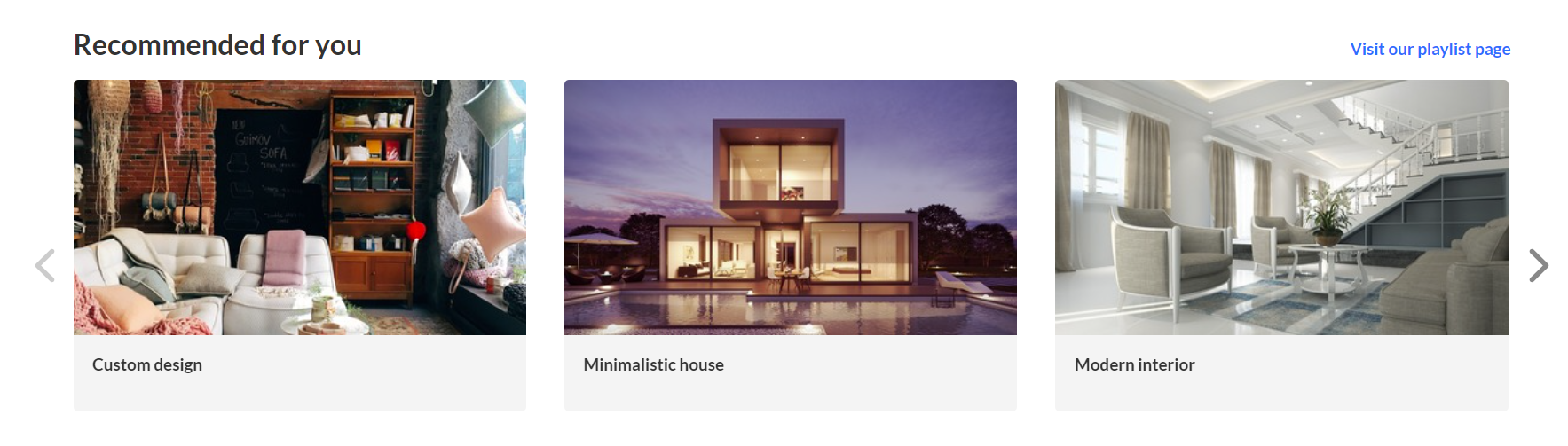 Playlist configuration with three thumbnails
Custom playlist settings
If you select Custom playlist, configure the following:
- playlistId - Enter the ID of your custom playlist.
- PlaylistDisplay - Select how the playlist opens when users select See all. Select Grid to show the list of media as a grid, or Player to show it in a playlist player.
Channel content settings
If you select Channel content, the contentType field appears. Use it to filter the channel content, for example to show only VOD.

Select one of the following options:
- All channel content - Shows all the content of the channel.
- Scheduled sessions only - Shows only the scheduled sessions.
- Choose from list - Lets you select which types of media to show.

If you select Choose from list, the mediaType field appears. Select the checkboxes for the types of media to show: VOD, Images, or Documents.

Channel playlist settings
If you select Channel playlist, configure the following:
- playlistChannelId - Select Select Channel, and then choose the channel that has the playlist you want.
- playlistEntryId - Select Load Playlists, and then choose a playlist from the channel you selected.
What happens when users select an item
- Channel content: See all opens the channel page. A thumbnail opens the video in the single entry player.
- Custom playlist: See all opens grid view or player view, depending on
PlaylistDisplay. A thumbnail opens the playlist player or the media page, depending on theThumbLinkfield in the Playlistpage module. - Dynamic playlists (except Recently Watched and Continue Watching): See all opens grid view. A thumbnail opens its media page.
News images
This component shows images and text in a carousel. Each item in the carousel opens an article. For information about creating news images, see News images playlist in Content Hubs.
- playlist ID - After you create a News Images playlist, enter its ID.
- modalBoxMaskColor - Enter the background color.
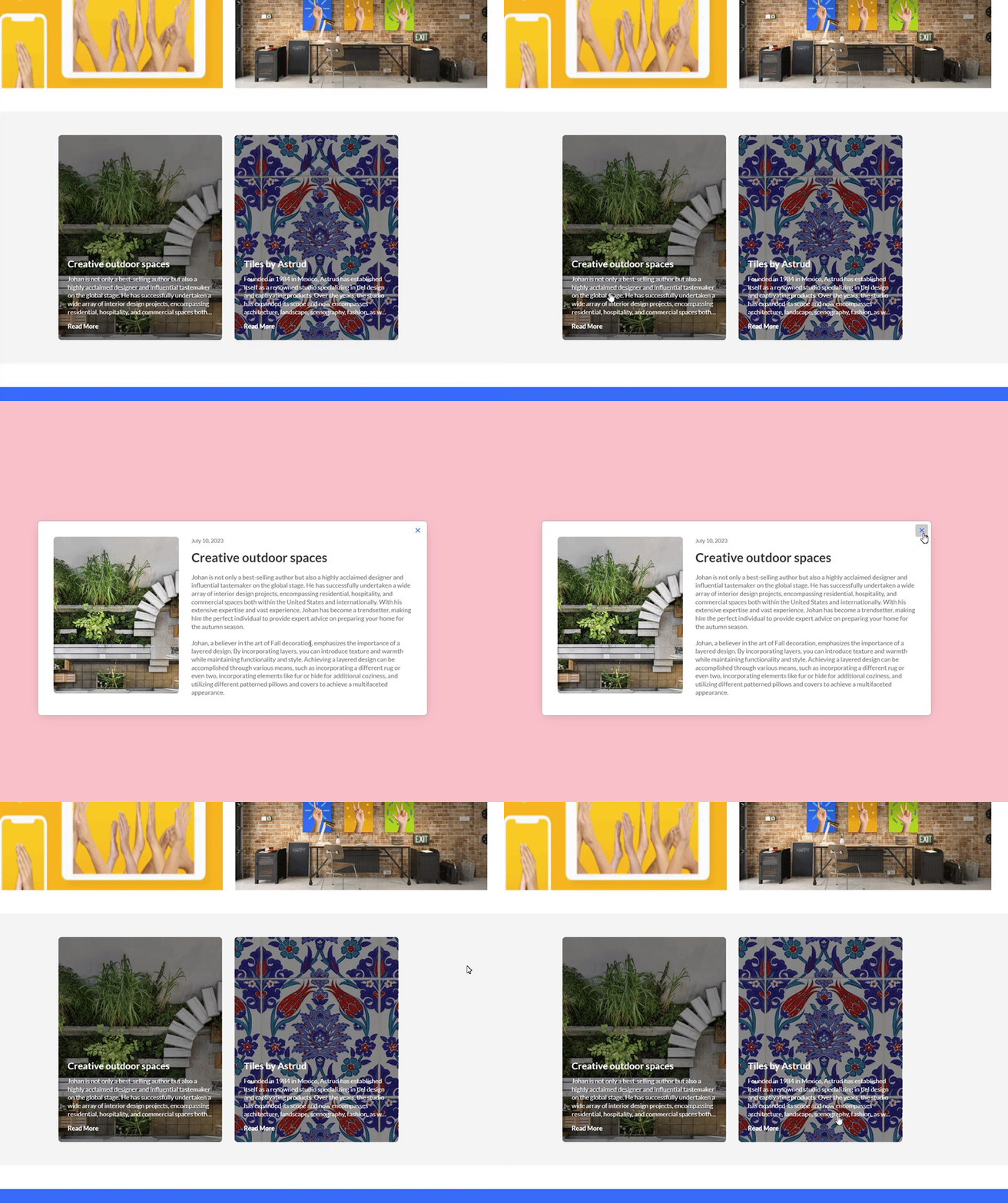 Example of two News images
Save your changes
After you configure the component, select Save at the bottom of the page. This saves your page and clears the site and module cache.
