About
The Collection of channels component shows your channel collections on a homepage, so visitors can browse your channels.
Here, homepages are the main page of your site and the main page of each event or campaign that you build in Content Hubs. Content Hubs calls the pages you design yourself custom pages.
To add a component to a homepage, and to set its order and who can see it, see Configure components for homepages in Content Hubs.
Applies only to Content Hubs. Requires Theming to be enabled on your site.
Configure the Collection of channels component
This component shows channel collections on the page. When users select See all, your channel collection page opens.
If you don't have any channel collections yet, set them up in the ChannelCollections module.
If the ChannelCollections module is disabled, users don't see this component.
- headerText - Enter a name for the component header, for example, Our channel collections.
- headerLinkText - Enter the text for the header link. Leave empty to use the default text.
- timeShift - Enter how often, in minutes, the channel thumbnails shift to the left. Leave empty to turn off shifting.
Channels appear in the order set in the sortBy field of the ChannelCollections module, which is the default sort for your channel collection. Time shift makes sure all channels appear over time.
Updated channels appear after you refresh the page.
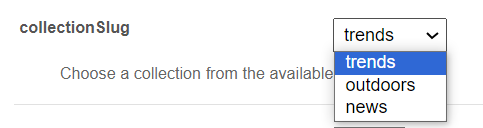
- collectionSlug - Select the channel collection to show on the page. All your channel collections appear in the dropdown.
- forceShowContent - Select Yes to show all the collection content to every user, regardless of entitlements. The items in the component then aren't clickable, but you can set a different link for them. For example, use this if the page is a public page that everyone can see.
- headerLinkAction - Enter the link to the page that the header link opens.
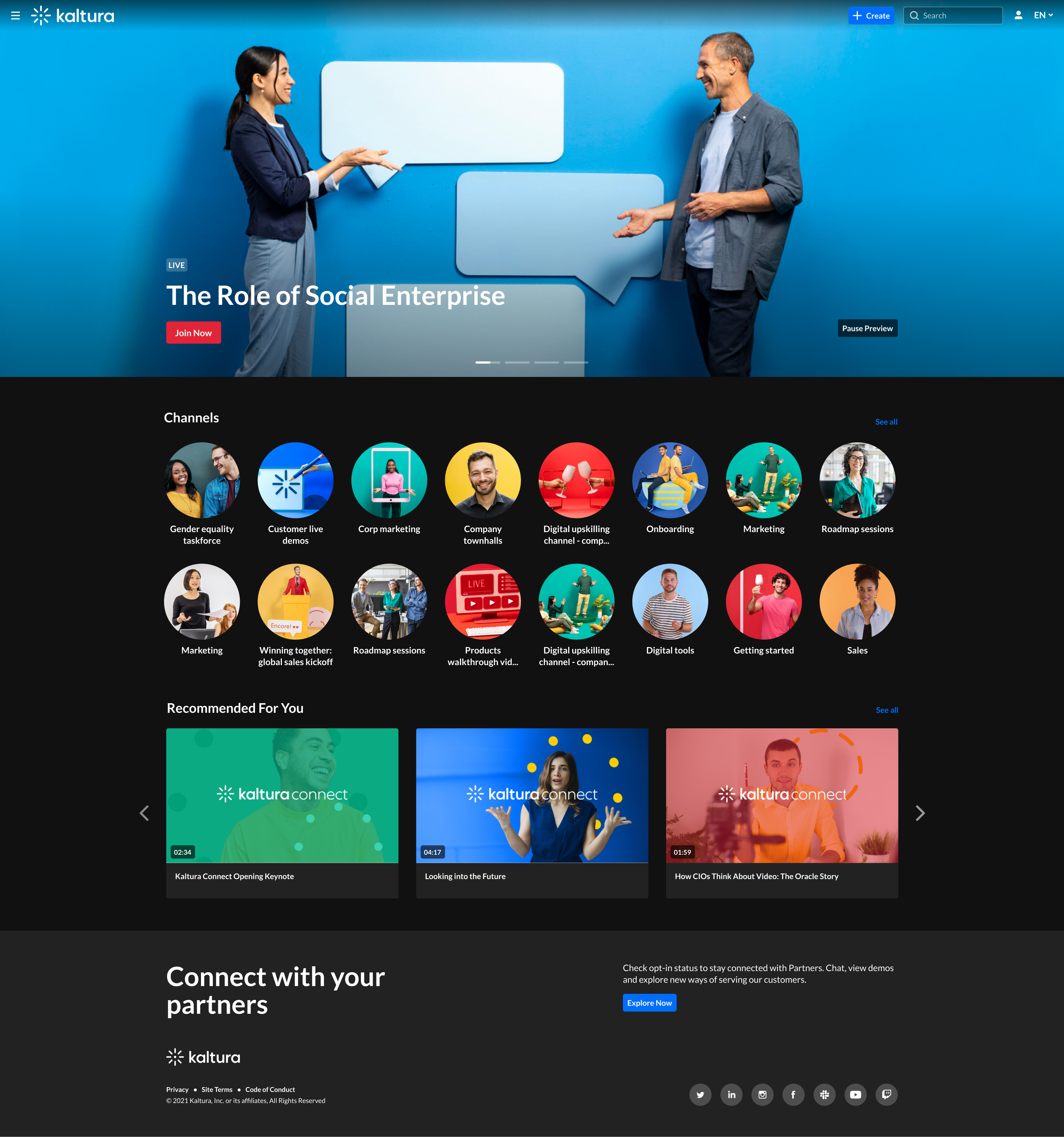
- channelsInLine - Select how many channels to show on one line: 6 or 8. With 8, each circle is smaller.
- maxLinesNumber - Select how many lines of channels to show. The default is 2.
The thumbnails come from your channels. If a channel has a banner icon, it's used as the thumbnail. Otherwise, the thumbnail uses the center of the channel's banner background. For more information, see Edit channel settings & layout in Content Hubs.
The following example shows the Collection of channels component in two rows of eight.
Save your changes
After you configure the component, select Save at the bottom of the page. This saves your page and clears the site and module cache.
