About
Metadata Enrichment helps improve your media's metadata to boost content discoverability and engagement. With AI, you can:
- Automatically generate relevant titles, descriptions, and contextual tags
- Customize the output with tone, quotes, target audience, and video title prefix
- Improve how your videos appear in search results and recommendation engines
Generated metadata will override existing data, resulting in the loss of previous metadata.
Looking for more information about this feature? Feel free to contact your Kaltura representative.
Before you start
Videos repurposed with AI must meet the following criteria:
- Video must be in "Ready" status (transcoded)
- Video must have English captions
- Video must be 60 seconds or more in length
- Account must have Content Lab enabled
- Account must have an active REACH profile enabled with relevant catalog item(s)
The Enrich metadata with AI feature is not currently available for Kaltura Virtual Events and Webinars.
Enrich metadata with AI
- Open Content Lab. For instructions, see Access Content Lab in your Kaltura application.
- Click Metadata enrichment.
-
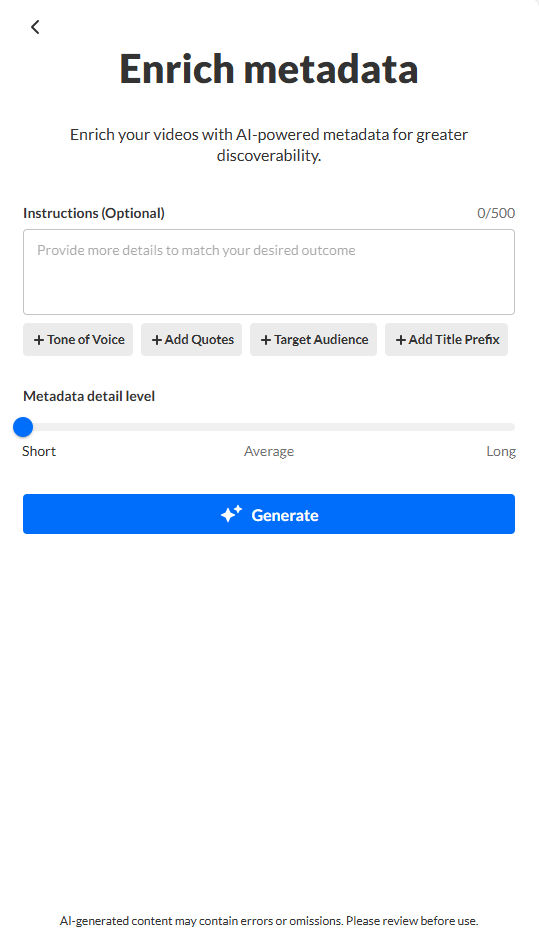
Provide clear and detailed instructions for your metadata. The more information you include, the higher the chance of achieving your desired outcome.
Option 1: Manually type your own instructions in the Instructions field.
Option 2: Click on a preset tag provided below the Instructions field. The Instructions field is populated with that tag and a list of suggestions for additional text instructions displays. Click on one of the suggestions to autocomplete the instructions.
Option 3: Click on a preset tag. The Instructions field is populated with that tag and a list of suggestions for additional text instructions displays. Instead of clicking on one of the suggestions to autocomplete the instructions, manually type in the Instructions field to complete the text.
Preset tags
- Tone of Voice - Describe the tone of voice with which you would like the metadata to be created.
- Add Quotes - Include key quotes from the session in the entry description.
- Target audience - Tailor the metadata to a target audience.
- Add Title Prefix - Add a descriptor at the beginning of the title.
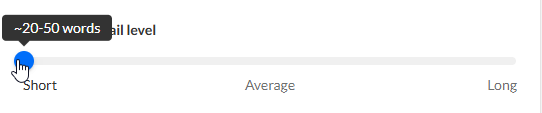
- Adjust the sliding scale with your cursor to define how long you want your metadata to be - Short, Average, or Long. The longer your metadata, the more detailed it will be. Short = approximately 20-50 words, Average = approximately 50-100 words, and Long = approximately 100-250 words.
- Select the output language for the generated title, description, and tags. The dropdown includes both Last used languages and All languages.
- Click Generate. The Content Lab begins generating your metadata.
- Select a title, then click Continue.
You are prompted to choose a description.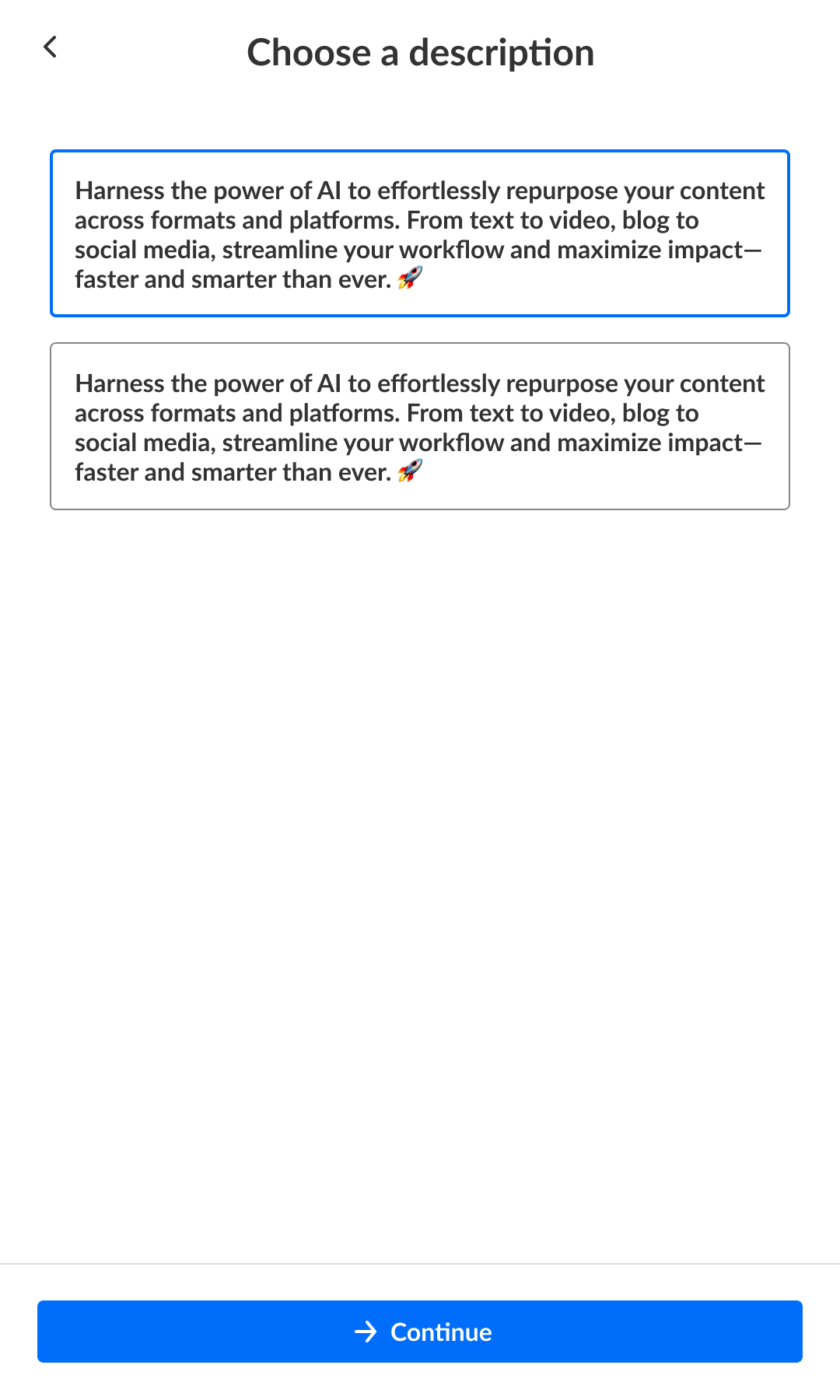
- Select a description, then click Continue.
The Enrich metadata preview page displays with the title, description, and tags chosen.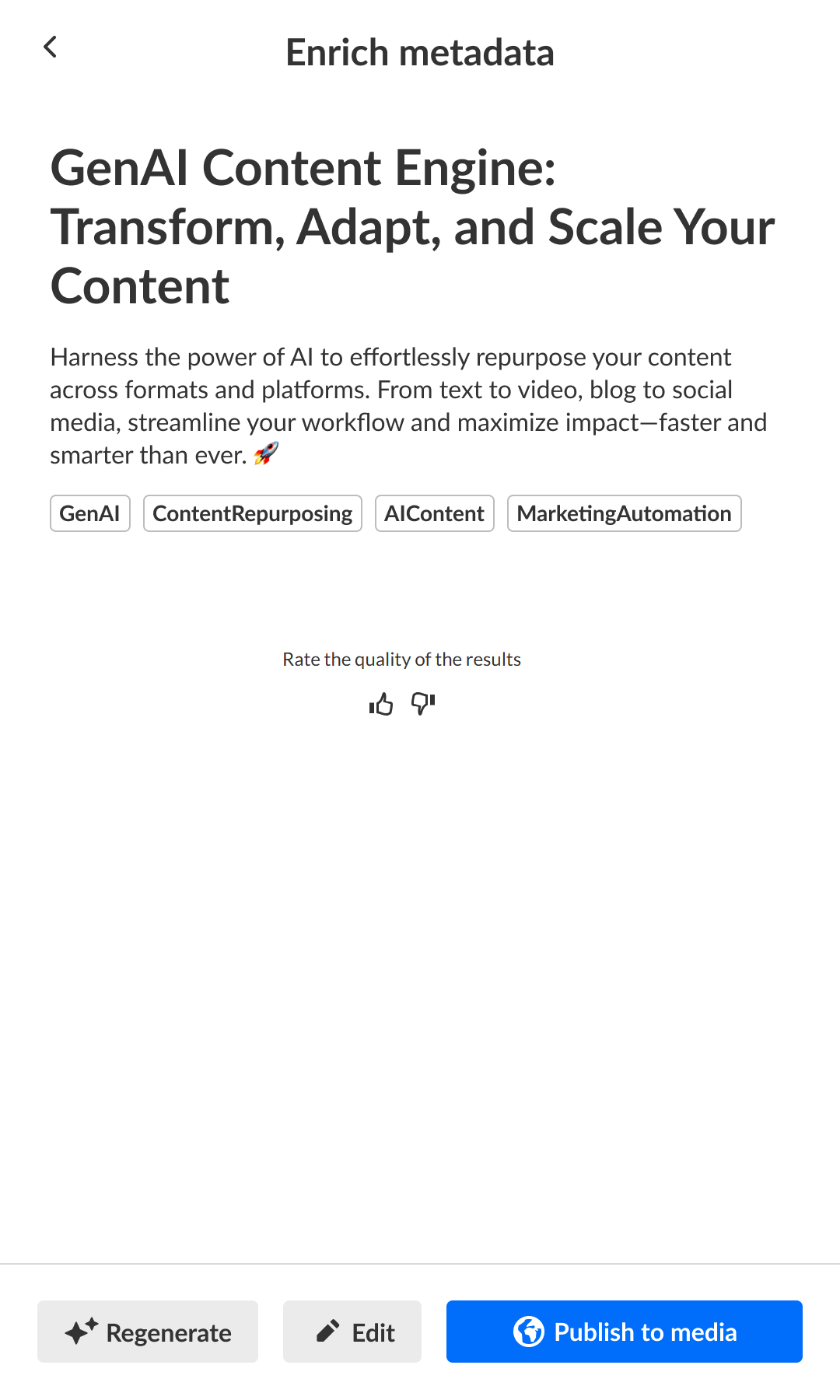



Once finished, you are prompted to choose a title.

If you leave the metadata enrichment process before completing all the steps, Content Lab will pick up where you left off the next time you open the draft.
Provide feedback on the metadata
- Click the "thumbs up" or "thumbs down" to provide your feedback on the metadata. If you click "thumbs down", an additional screen displays.
- Click to choose a reason and, optionally, add specific details about why you gave it a "thumbs down". Your feedback is important to us!
- Click Send.

Edit metadata draft
- Click Edit on the Enrich metadata preview page.

The Edit metadata screen displays.
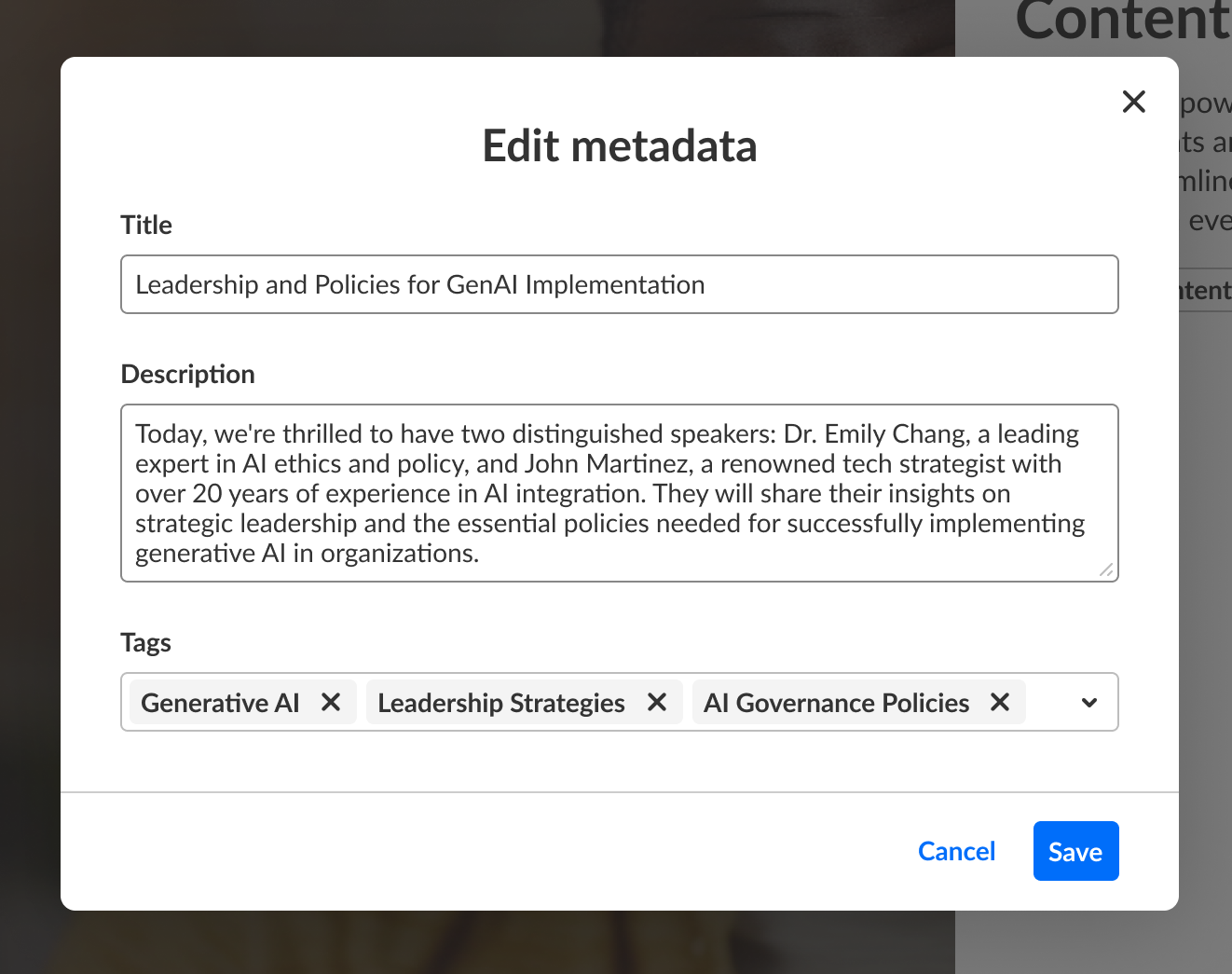
- Edit the title, description, and tags as desired. These will be saved to the metadata of the entry that is created.
- When finished, click Save.

Publish to media
- Click Publish to media on the Enrich metadata preview page.

The Publish metadata screen displays.
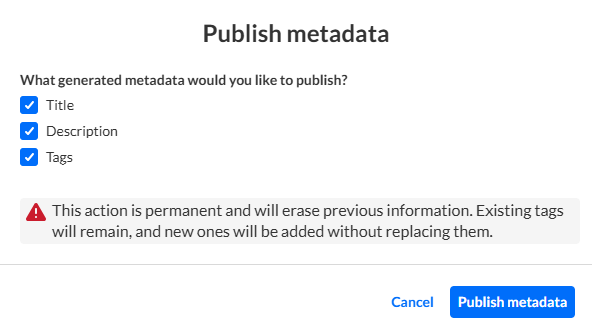
- Click to choose which metadata assets you would like to publish. Title, Description, and Tags are all available for publishing.
- Click Publish metadata to move forward with publishing the newly generated metadata or click Cancel to cancel the action. If you clicked Publish metadata, you receive confirmation that your metadata was successfully published.

Notice the warning that generated metadata will override existing data, resulting in the loss of previous metadata. This action cannot be undone.
Regenerate metadata
- Click Regenerate on the Enrich metadata preview page.

You receive a warning that you have unsaved changes. Click Keep editing to cancel regeneration or click Leave to continue regeneration.
If you clicked Leave, the Enrich metadata screen displays.
- Follow the instructions above to enrich your metadata.

Kaltura does not use customer data to train its AI models. To learn more, see Kaltura's Artificial Intelligence Principles.
