About
The captions editor lets you review and edit existing captions for your media. You can edit closed captions generated by REACH, uploaded files, or captions created manually.
Use the editor to update caption text, adjust timing, and add speaker names. If the transcript plugin is enabled, your changes are reflected in the transcript automatically.
The editor also includes features such as auto-scroll, timestamp editing, and search and replace, helping you improve caption accuracy. This is especially useful for refining machine-generated captions (ASR).
REACH must be enabled on your account, and you must have the required permissions to use these features.
Access the captions editor
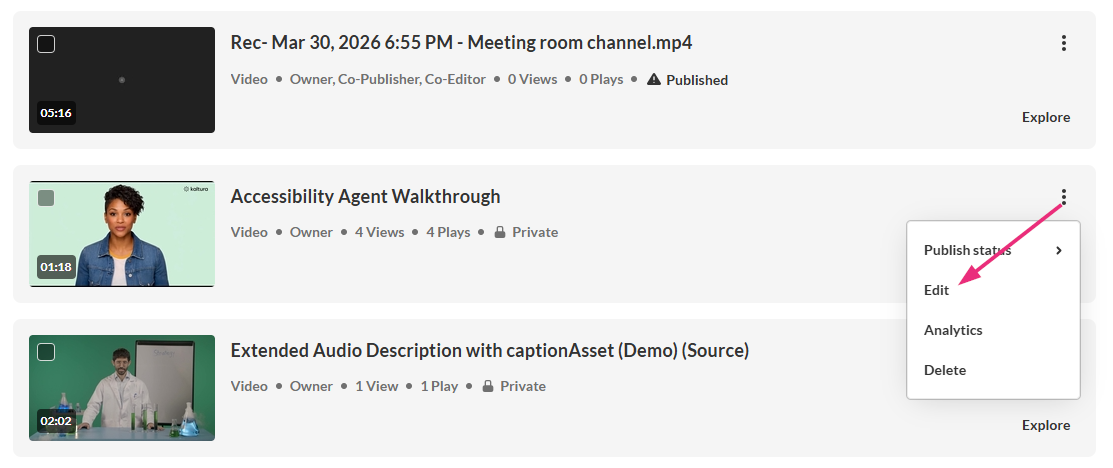
- Go to your My Media.
- Click the three dots to the right of the desired media and select Edit.
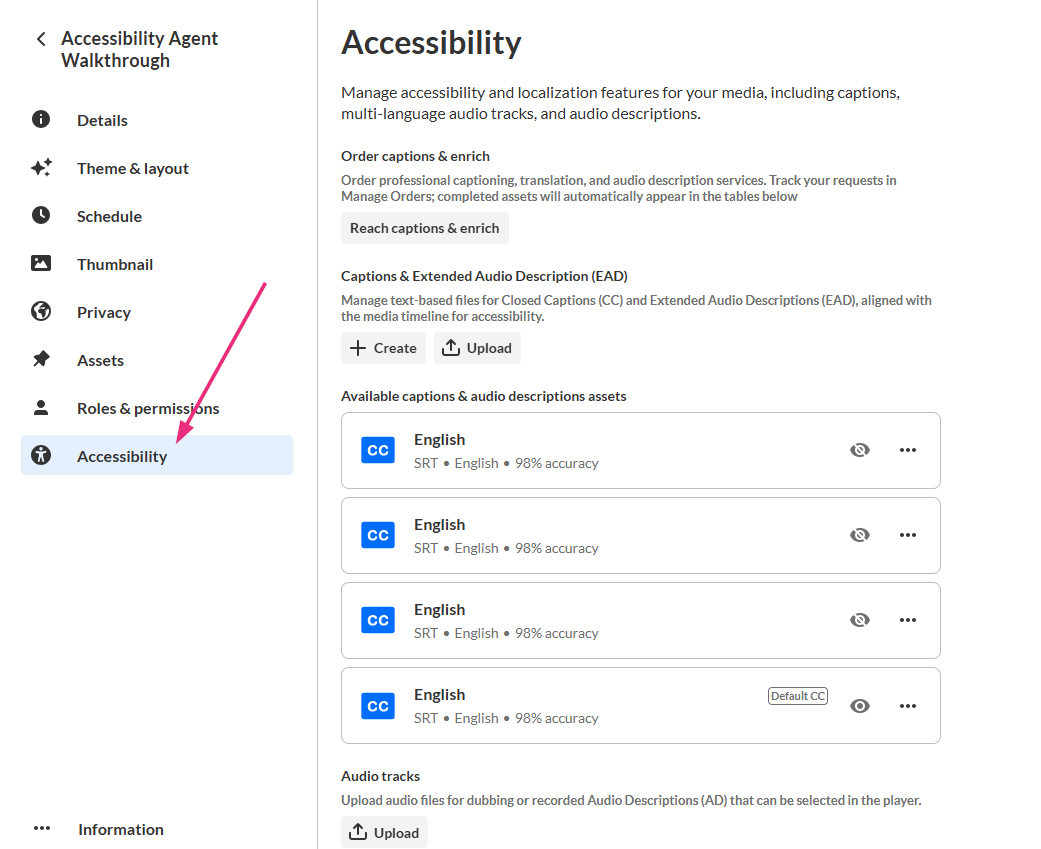
- In the left navigation, click the Accessibility tab to display the 'Accessibility' page.
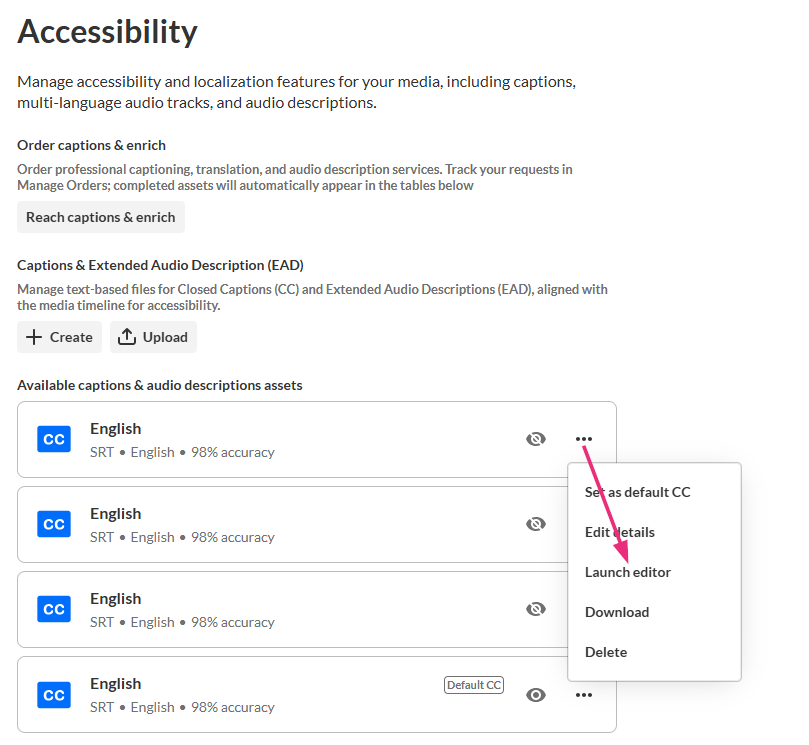
- In the Available captions & audio descriptions assets section, locate the desired caption file.
- Click the three dots next to the caption and select Launch editor.

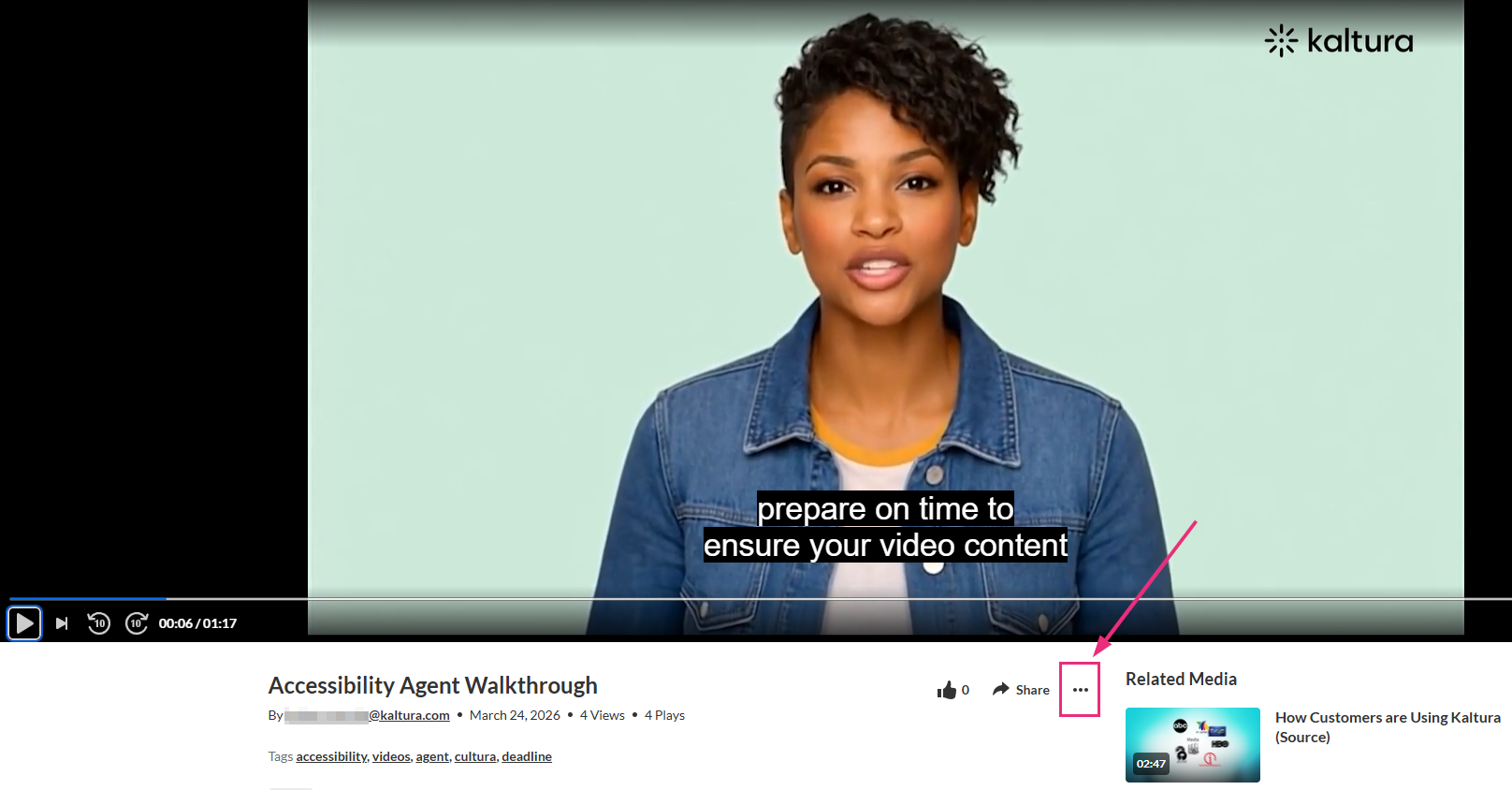
Alternatively, you can access the edit page from the media page by clicking the three-dot menu and selecting Edit.
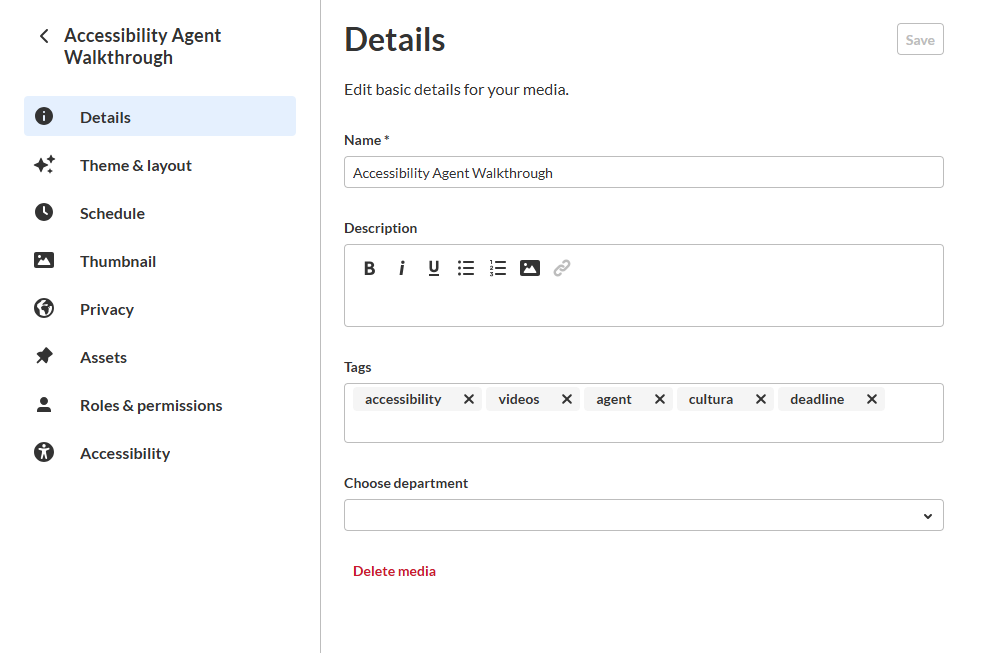
The edit media page opens on the Details tab by default, with a left-hand navigation.
Available features depend on your site configuration. Some features are shown only if enabled for your site.
The closed captions editor opens.
