About
Use the captions editor to manually create closed captions for your media.
Please note you can't manually add captions to a live webcast.
Access the caption settings
- Go to your My Media.
- Click the three dots to the right of the desired media and select Edit.
- In the left navigation, click the Accessibility tab to display the 'Accessibility' page.
- Click the +Create button then select Closed Captions (CC).

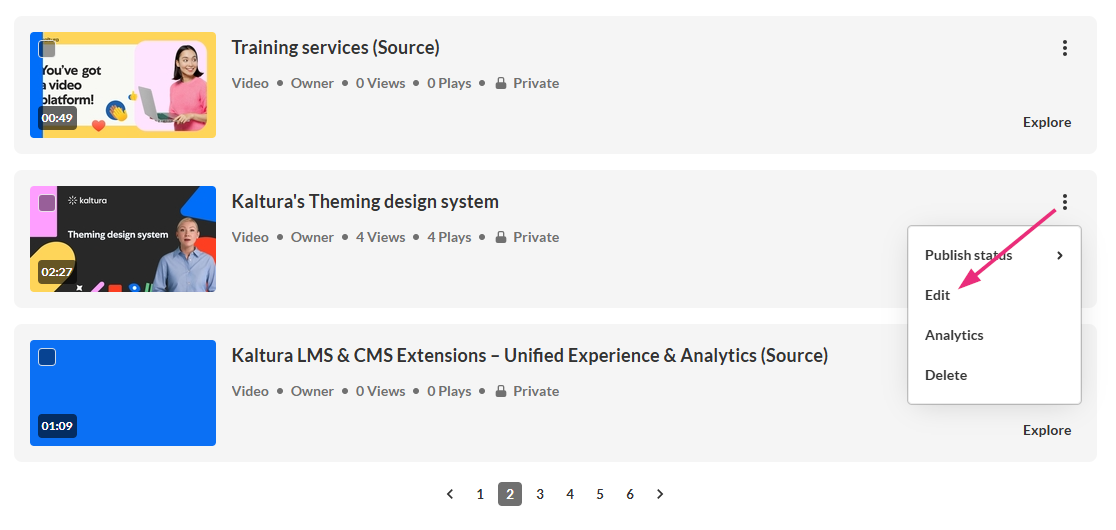
Alternatively, you can access the edit page from the media page by clicking the three-dot menu and selecting Edit.

The edit media page opens on the Details tab by default, with a left-hand navigation.


Available features depend on your site configuration. Some features are shown only if enabled for your site.
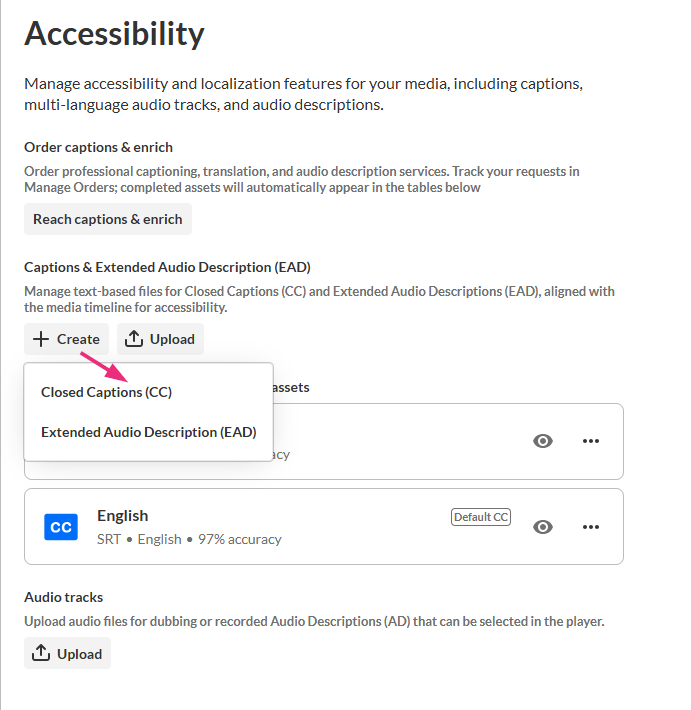
The 'Create Closed Captions' window displays.
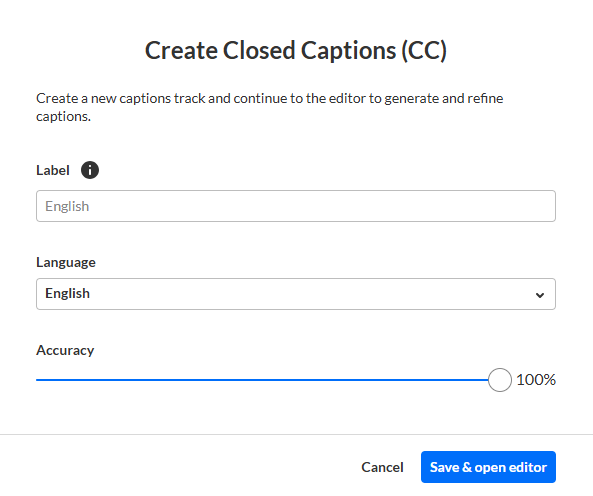
Create captions
- In the Label field, enter a name for the captions. This label appears in the player’s captions selector.
- Select a language from the Language dropdown.
- Set the Accuracy using the slider.
- Click Save & open editor.
The Closed captions editor opens.
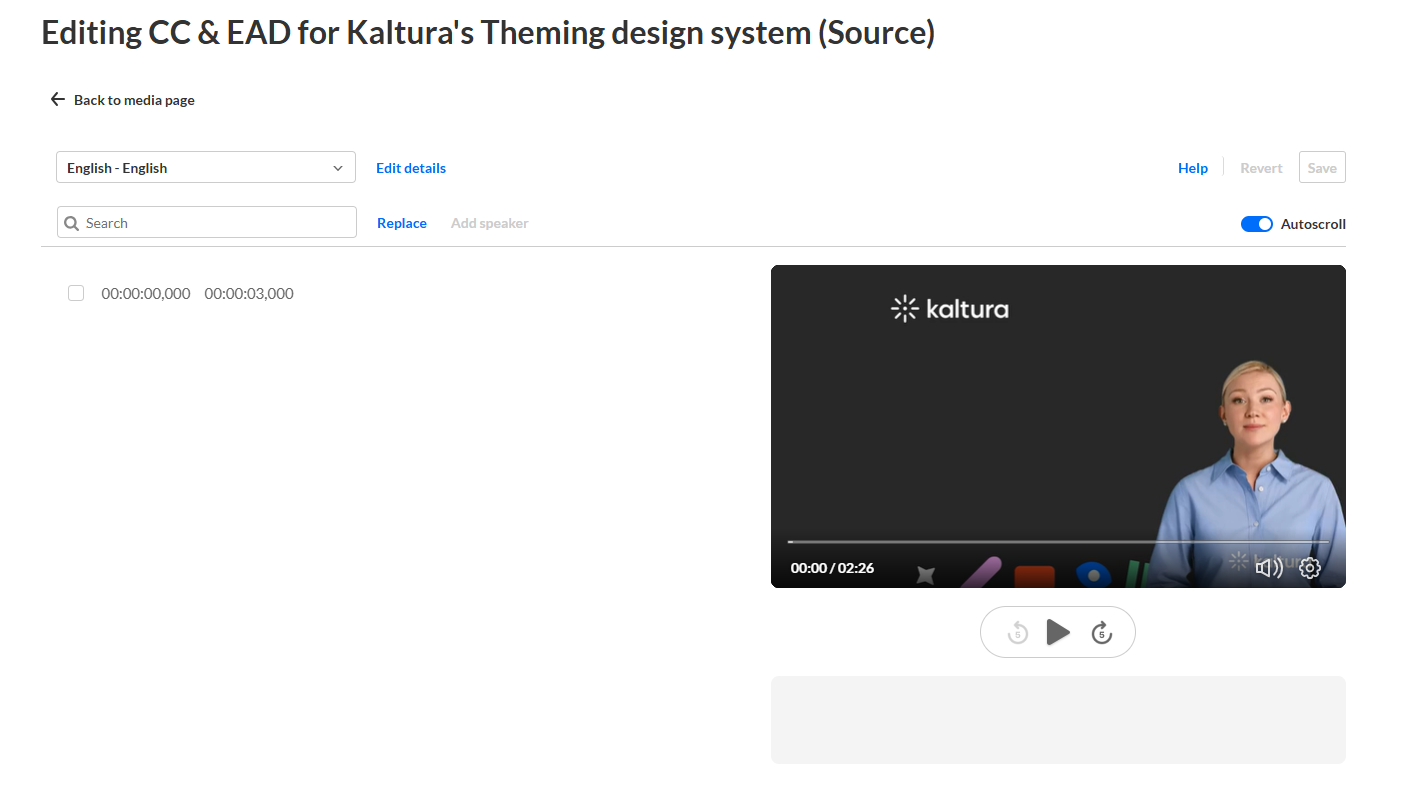
Add caption text
- Click in the text area next to a timestamp.
- Type the caption text.
- Click Save.
- Move the slider accordingly, then click Save.
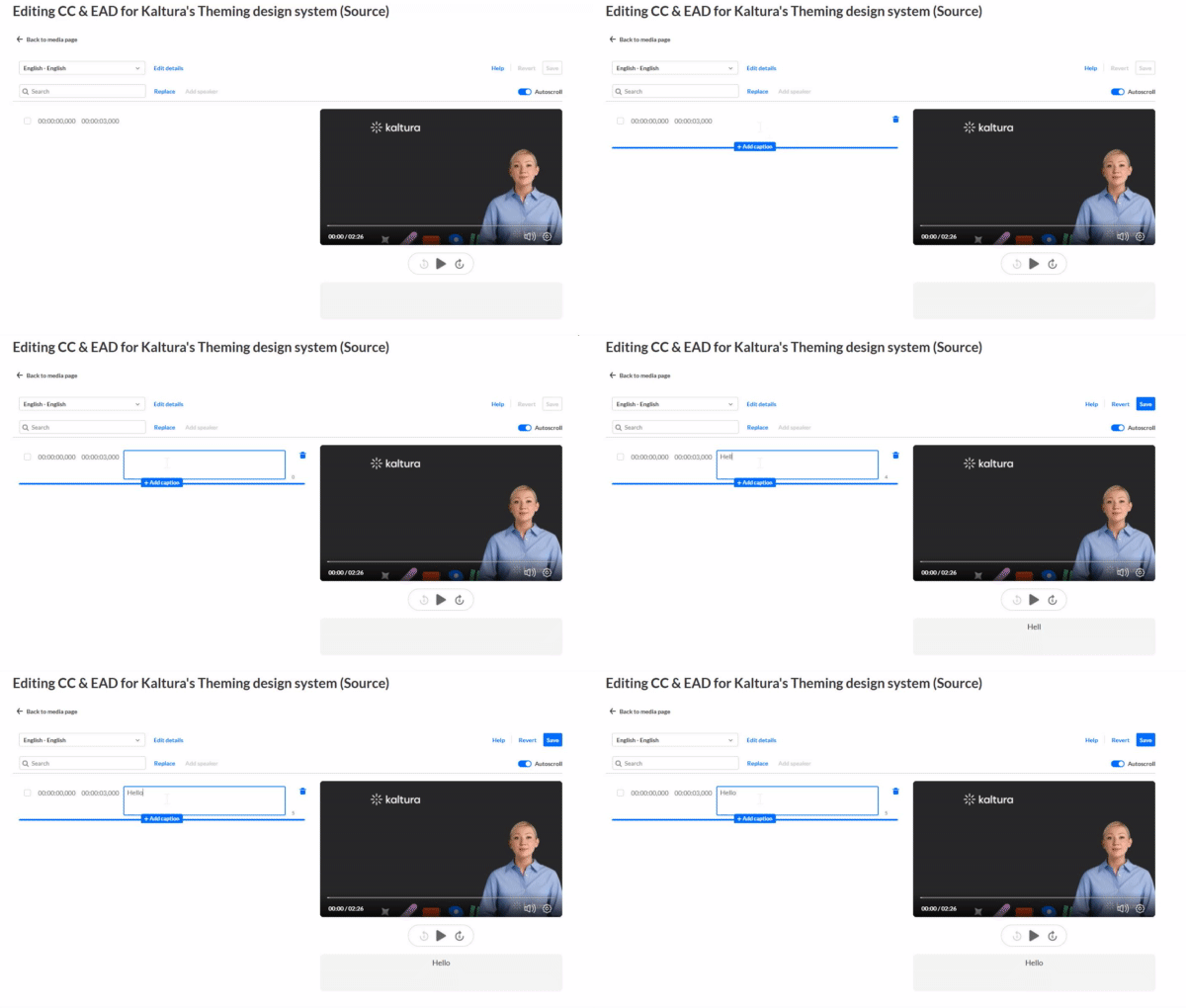
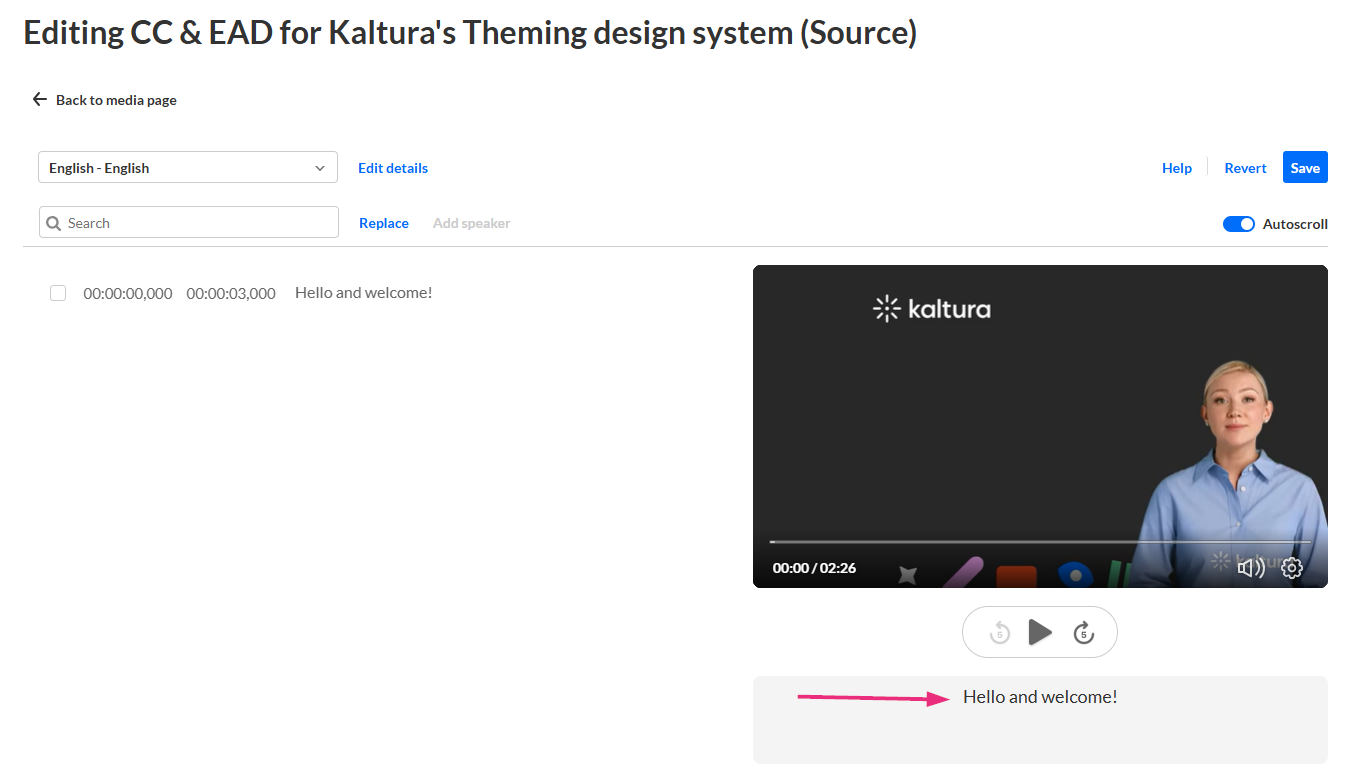
The caption appears under the video. Use the video player to play the relevant segment while typing.
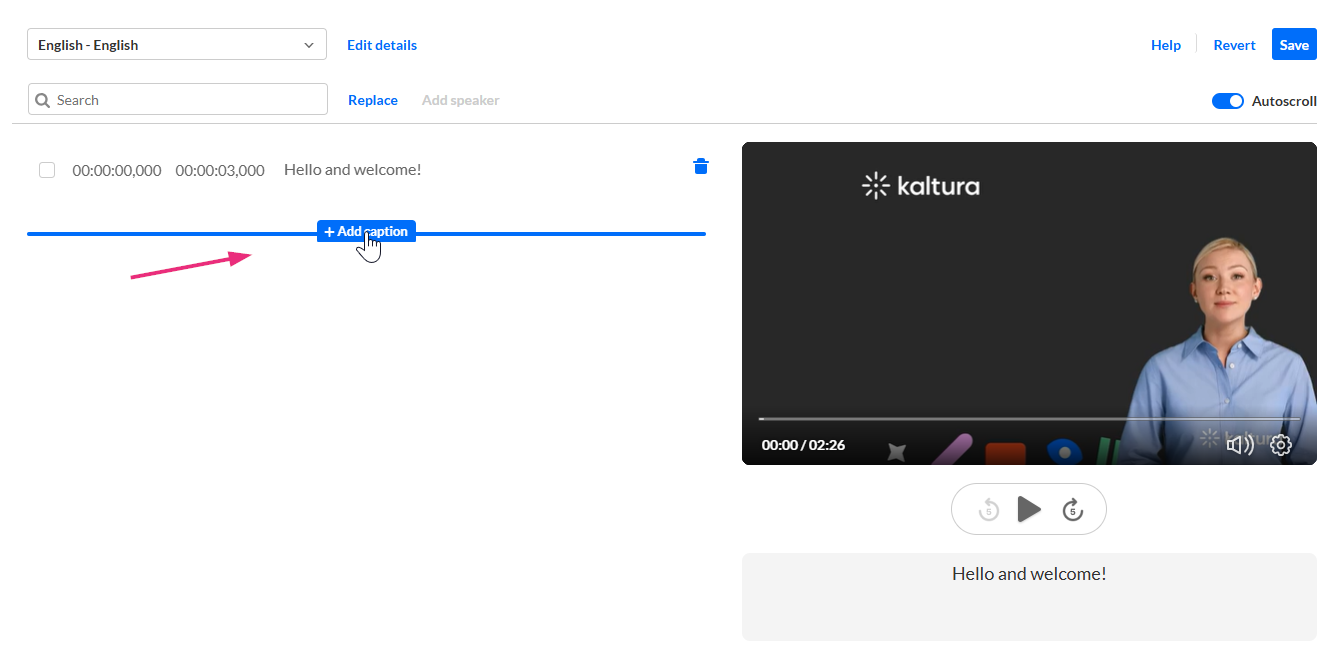
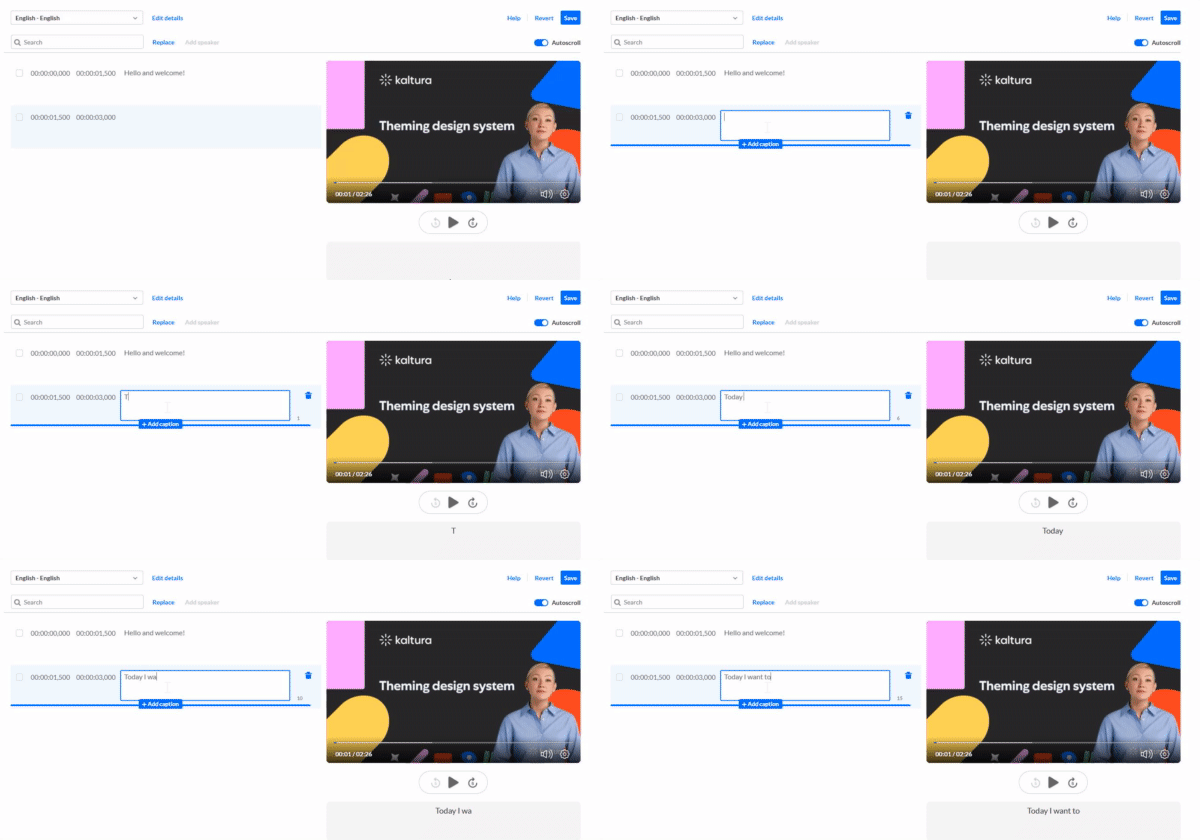
The caption line duplicates. Update the text as needed.
You are asked to confirm captions accuracy.

Adjust timing
You may need to adjust caption timing to align with the video. For more information about using playback controls and timestamp editing in the captions editor, see Editor layout.
- Click the timestamp field and enter the desired time.
- Click Save.
- Move the slider accordingly, then click Save.
If timestamps overlap, the system highlights the issue so you can correct it.

The editor uses SMPTE time format: hh:mm:ss,mmm (hours, minutes, seconds, milliseconds), allowing precise timing control.
You are asked to confirm captions accuracy.

Add speakers
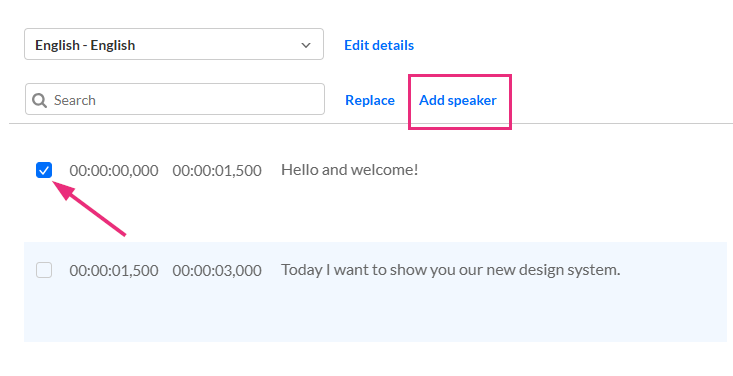
If you’ve got more than one speaker in the video, you can add speaker names to identify who is speaking.
- Click the checkbox next to the relevant caption line.
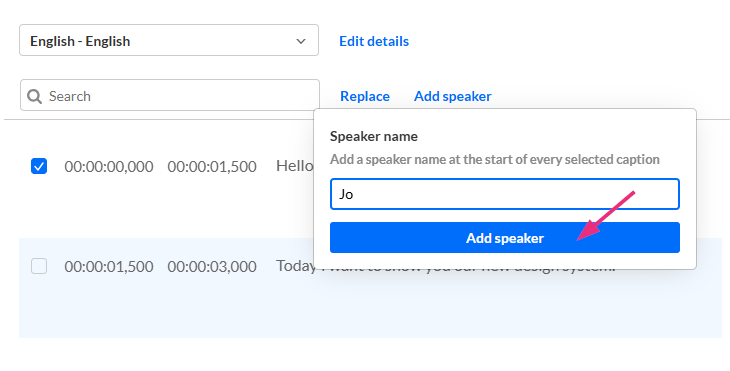
- Click Add Speaker at the top. The 'Speaker name' window opens.
- Type in the name and click Add Speaker.
- Click Save. You are asked to confirm captions accuracy.
- Move the slider accordingly, then click Save. The name appears next to the caption.

Repeat this process until all captions are added.
For information about editing captions, visit our article Use the captions editor in Content Hubs.
