About
You can upload extended audio description (EAD) files for media you own or have editing privileges for.
EAD files are time-coded text files that the Kaltura player converts into spoken narration using browser speech synthesis. They make visual content in videos accessible for people with visual impairments.
EAD files are uploaded in VTT format and managed from the Captions tab, alongside caption files, using a dedicated upload option.
For media files that don't already have EAD, learn about ordering in our article Order extended audio description (EAD).
Access the extended audio description settings
- Go to your My Media page.
- Locate the video you want to add extended audio description to and click the pencil icon to the right of it.
- Click the Captions tab to open the settings.

The edit page opens with the Details tab selected by default.


Upload an extended audio description file
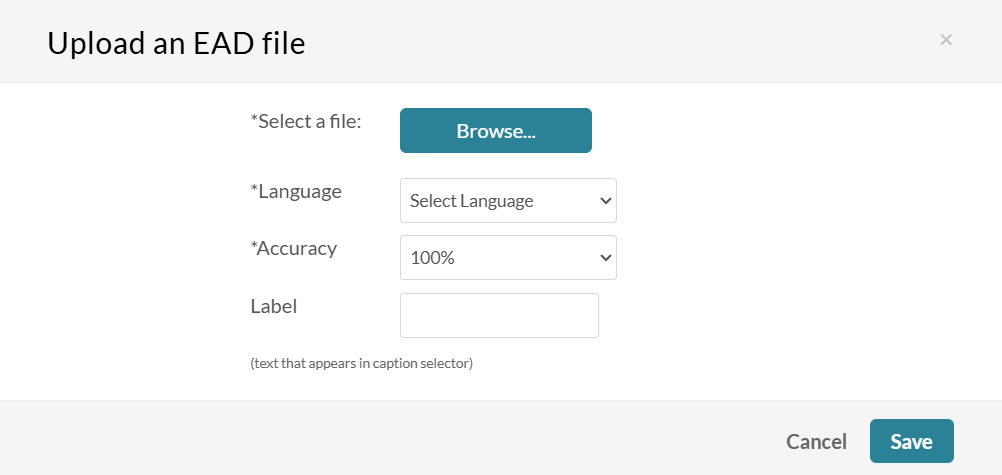
- Click Add extended audio description.
- Click Browse, and select a VTT file from your device.
- Select the language from the Language dropdown menu.
- Type in a label (it's advisable to add an “EAD” suffix to clearly identify the file as extended audio description).
- Click Save to upload the file.

The 'Upload extended audio description' window opens.
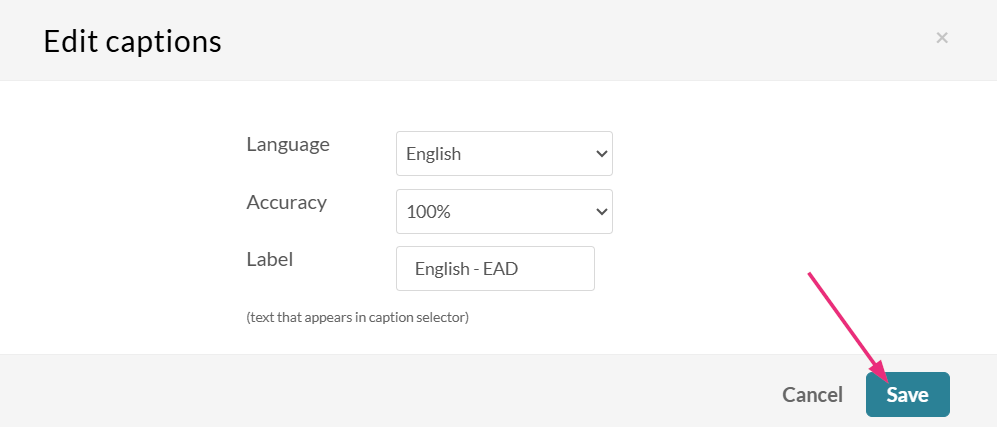

To upload another file, click Upload captions file again and repeat.
Actions
For extended audio description files, the following options are disabled:
- Display on player
- Set as default
Delete an extended audio description file
- In the captions table, locate the caption file and click x in the same row.
- Click Delete to continue.

A warning message displays: Are you sure you want to delete this file?
Deleting an extended audio description file doesn’t affect caption files. Captions and extended audio description are managed separately.
Download an extended audio description file
You can only download a media you’re the owner of. If you are the co-publisher, co-editor, or co-viewer, you will not be able to download the media.
In the captions table, locate the EAD file and click the download icon in the same row.
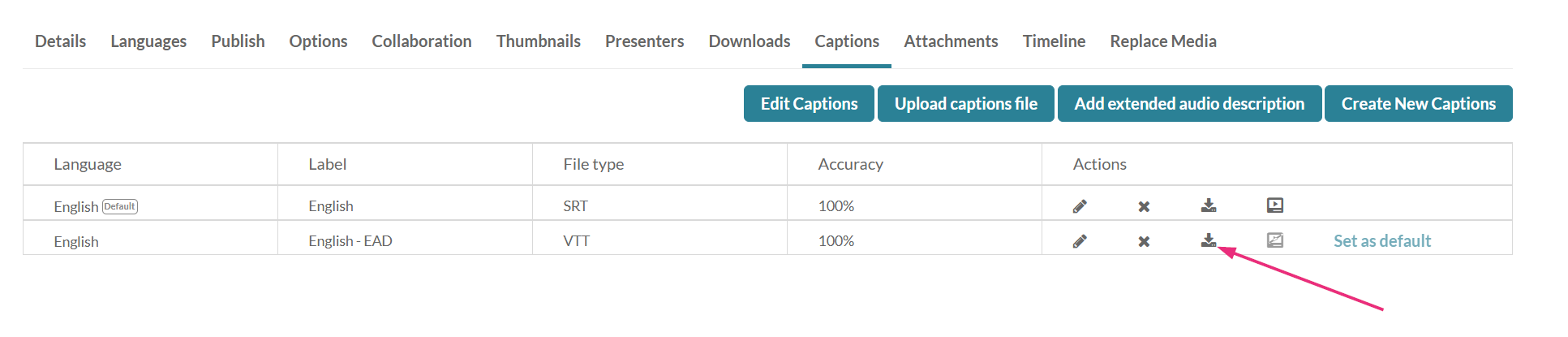
The file downloads to your device. The default file name will be “English.vtt”, but you can rename it.
