About
Express Capture needs access to your camera and microphone before it can record. The first time you open it, your browser asks for permission, and you can start recording as soon as you allow it.
If you blocked access, or your camera or microphone isn’t working, the steps here can help you get recording.
Make sure you’re using a supported desktop browser. Express Capture isn’t supported on mobile devices or tablets, including iPhones and iPads. For details, see Express Capture supported browsers and devices.
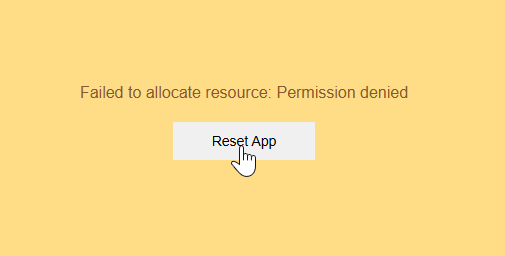
Failed to allocate resource: Permission denied
The first time you open Express Capture, your browser asks for permission to use your camera and microphone. Select Allow.
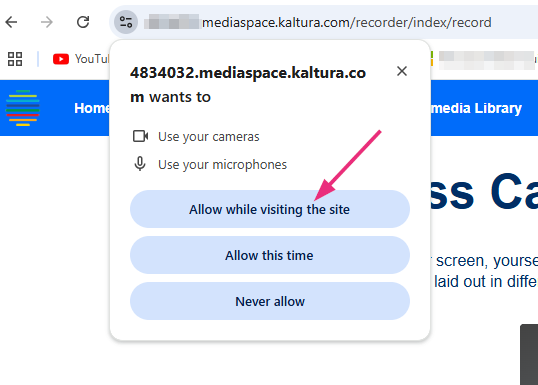 Example of the camera and microphone permission prompt in Chrome
If you select Block or Never allow, or your computer blocks access, the recorder can’t start. A message such as Failed to allocate resource: Permission denied by system appears, with a Reset App button.

To allow access again, follow the steps for your browser.
Chrome and Microsoft Edge
- In the address bar, select the site information or permissions icon next to the website address. In some browser versions, this appears as a lock icon.
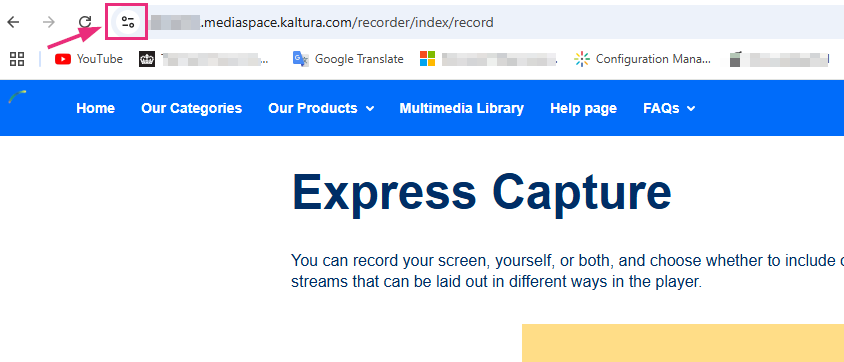
- Set Camera and Microphone to Allow.
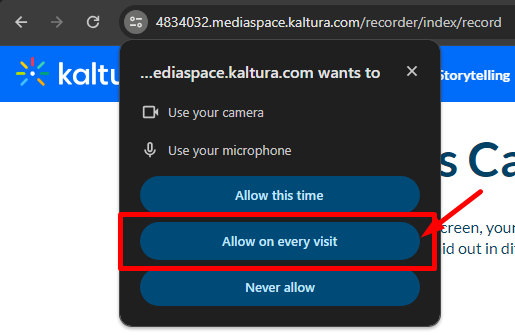
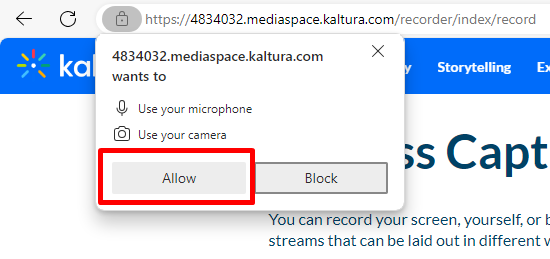
- Close the permissions window.
- Select Reset App on the Express Capture page.
If the page doesn’t reload automatically, refresh it.
Firefox
- In the address bar, select the camera and microphone permissions icons. If access is blocked, the icons have a slash through them.
- If prompted, select the camera and microphone you want to use.
- Select Allow.
- Refresh the page if necessary.

Safari on Mac
- Go to Safari, and then select Settings.
- Select Websites.
- Select Camera, and then set the permission for your Kaltura site to Allow.
- Select Microphone, and then set the permission for your Kaltura site to Allow.
- Close the settings window, and then refresh the page.
For more information, see Apple’s Customize settings for each website in Safari on Mac guide.
For more browser instructions, see Use your camera and microphone in Chrome.
Failed to allocate resource: Device in use
This message means Express Capture couldn’t start your camera, often because another application is using it. You might also see Failed to allocate resource: Could not start video source.

To start your camera:
- Make sure your camera is connected and turned on.
- Close any other applications or browser tabs that may be using the camera.
- Make sure your browser and operating system allow camera access.
- Select Reset App, or refresh the page, and try again.
Open the recorder in a new tab
If Express Capture is opened within an embedded page, browser permission policies may prevent it from accessing your camera or microphone. An administrator can configure the recorder to open in a new browser tab:
- Go to your Configuration Management console, locate the Recorder module in the left panel, then select it. You can also navigate directly using a link:
https://{your_site_url}/admin/config/tab/recorder
The Recorder page displays.
- Set recorderOpenInNewTab to Yes.
- Select Save.
This setting doesn’t apply when Express Capture is opened from the Embed Kaltura Media window in your LMS. There, the recorder always opens in the same tab.
If you still can’t access your camera or microphone
- Check that camera and microphone access is allowed in your operating-system privacy settings, as well as in your browser.
- Close other applications or browser tabs that may be using your camera or microphone.
- Close and reopen your browser.
- Try another supported desktop browser.
Test your camera and microphone
The WebRTC test page checks whether your browser can access your camera and microphone:
- Go to the WebRTC constraints test.
- Select Get Media.
- Allow your browser to access your camera and microphone.
- Wait for the video streams to appear.
If the streams don’t appear, check the camera and microphone permissions in your browser and operating-system settings. Also make sure another application isn’t using the camera or microphone.
Passing the WebRTC test confirms that your browser can access the camera and microphone using WebRTC. It doesn’t confirm Express Capture support on an unsupported device, such as an iPhone or iPad.
