About
The Simple Login module allows users to login using only email, with no verification (password, magic link, etc.). The sections herein will guide you through enabling and configuring the Simple Login module.
This module is only applicable for Content Hubs users.
For technical support, contact Kaltura Customer Care. For all other inquiries, reach out to your Customer Success Manager.
Prerequisite
This module relies on several other modules being enabled and configured, including;
Configure
1. Access your Configuration Management console.
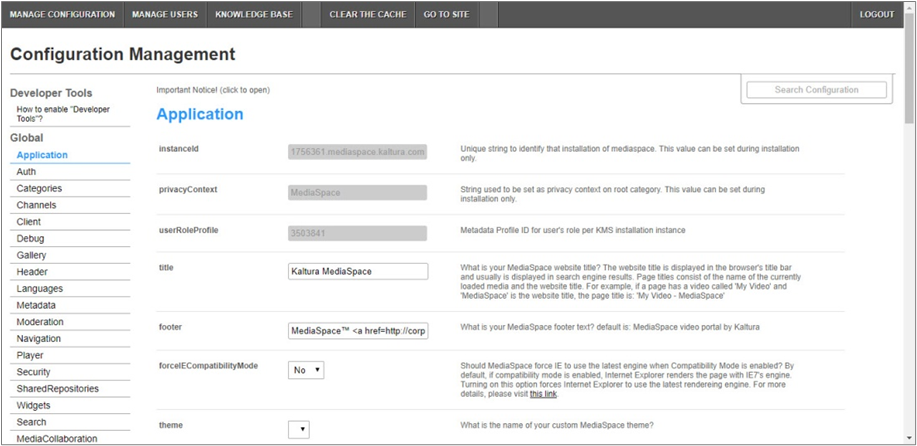
4. In the list of configurable items on the left of your screen, locate and click on simplelogin.
The simplelogin item will be crossed out because it is disabled by default.
The simplelogin window displays.

The Module Info box displays the module name, description (what enabling this module allows users to do), and version number.
5. In the enabled pull-down list, select Yes to enable the simplelogin module.
Other configurable items following the enabled pull-down list are as follows.
| Configuration Name | Options | Description |
| overrideAuth | Yes or No | Show the simple-login screen before any other configured auth adapter. |
| restrictedUsers | Click + Add "restrictedUsers" and select users/groups who are not allowed to use the simple auth method. | |
| errorMessage | Free text | Enter the error message to show for users who are not allowed to enter (unregistered, or in the restricted list). |
| showAlternativeLogin | Yes or No | Show a button to allow the user to input user id/password to login. |
| LoginAfterRegister | Yes or No | Log-in users after they register. |
| additionalLink | Add an additional link below the login button. | |
| linkText | Free text | The additional link text. |
| linkURL | Free text | The additional link URL. |
| newTab | New Tab or Same Tab | Should the link open in a new tab or the same tab? |
| postLoginEmailTemplate | List of available templates | Choose an email template to send users once they logged in using this method. Leave empty to not send any email post login. |
6. Click Save. You receive a notice that your configuration for simplelogin was saved and the cache was cleared.
End user experience
Once enabled and configured, the user dropdown menu in the header is replaced with the Login button for anonymous users.

This document is maintained by Kaltura’s Professional Services team. Please send comments or corrections to your Customer Success Manager. Ask them to forward it to the Professional Services team. We are committed to improving our documentation and your feedback is appreciated.
