About
This article describes how to enter a support email address for attendees, enter host details to display in notifications and networking, and set a custom URL.
Adjust virtual classroom settings
Navigate to the Settings page; from the site page, click the Settings tab. The Settings page displays.

Here you can enter a support email address for attendees to use to ask technical questions and report issues. The support email will appear in every text where the Customization tag {SUPPORTEMAIL} is used.
You may also enter host details. This information is displayed as the sender details in notifications and networking.
Set a custom URL
You can also change the default generated virtual classroom URL to customize it for your virtual classroom.
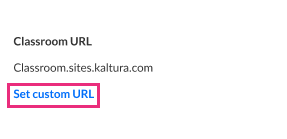
- Click the Set Custom URL button.
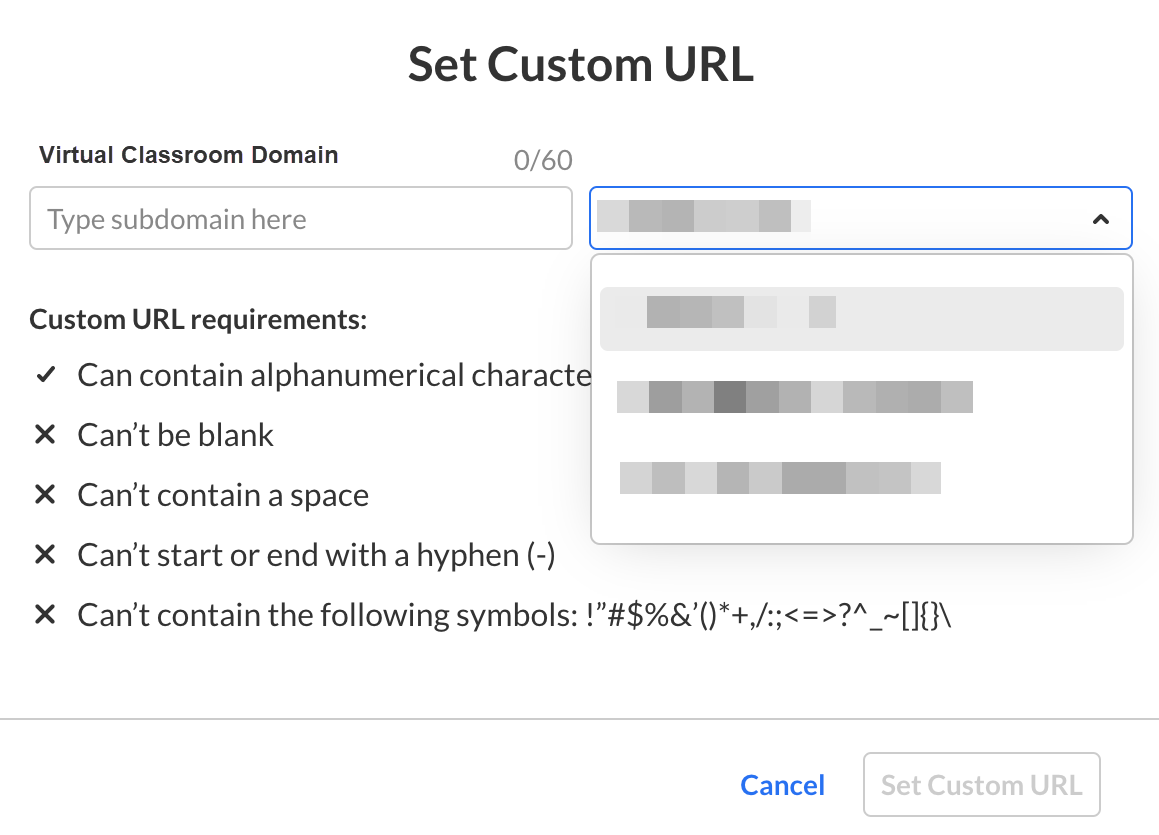
- Enter a unique virtual classroom domain according to the validation rules, then click on the right-hand list to choose from the list of root domains your Admin configured. Once finished, click Set Custom URL.
- Once you are finished editing all the event details, click Save details.
The Save details button is grayed out/dimmed upon entering the page, and only becomes 'clickable' after at least one edit is made to the page.
