About
After an upload starts, you can monitor its progress, edit metadata, publish entries, and manage multiple uploads from the Upload Media page.
To learn how to upload media, see Upload media.
This feature requires the Uploadmedia module to be enabled.
Upload statuses
The following statuses show the progress of each upload and indicate what actions, if any, are available.
| Status | Description |
|---|---|
| In Queue | Waiting to upload. You can cancel these files before the upload starts. |
| Uploading | Displays upload progress. You can still cancel the upload. |
| Processing | The file is being converted. It can no longer be cancelled. |
| Ready | Processing is complete. A thumbnail and Media Page link are available. |
| Failed | The upload was unsuccessful. The entry can't be edited or cancelled. |
| Cancelled | The upload was cancelled. You can remove it from the list. |
If multiple files are uploaded, the first file begins uploading immediately and the remaining files are added to the queue. Files with a status of Cancelled or Failed are skipped.
Manage multiple uploads
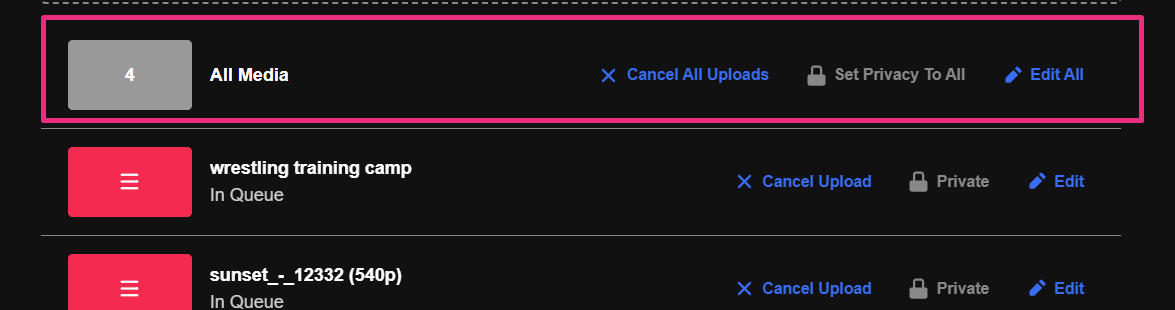
The toolbar at the top of the upload list lets you manage several uploads at once.
- Cancel All Uploads – Cancels all uploads that are in progress or waiting in the queue. Files that are already Processing or Ready aren't affected.
- Set Privacy to All – Changes the publishing status for multiple entries.
- Edit All – Applies tags and custom metadata to multiple entries.
Edit uploaded media
The Upload Media page lets you edit metadata for individual media items or multiple items at once.
Edit one media item
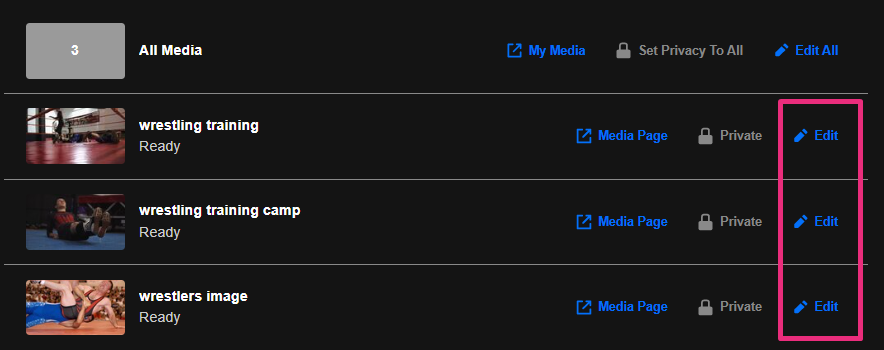
- Click Edit for the media entry.
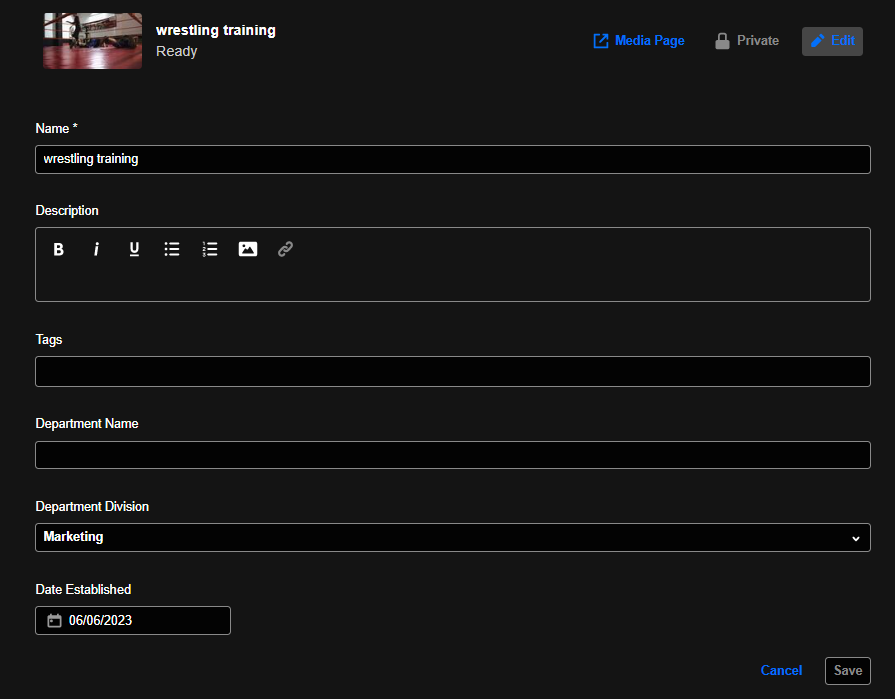
- Update the title, description, tags, and custom metadata.
- Save your changes.
The edit page displays.
Edit multiple media items
- Click Edit All at the top right.
- Update the tags. If custom metadata has been added, update those fields as needed. Scroll down to view all available fields.
- Save your changes.

Publish uploaded media
Publish one media item
- Click the current publishing status (for example, Private).
- Select the required publishing status.

For more information, see Publish media.
Publish multiple media items
- Click Set Privacy to All.
- Select the required publishing status.

For more information, see Publish media.
