About
Kaltura supports live captions that are embedded in the incoming stream from your encoder (also called ingested captions).
This setup is configured in Rich Media CMS and supports the following standards:
- CEA/EIA-608
- CEA/EIA-708
Don’t combine REACH captions with ingested captions. If both are used, the ingested captions are removed.
Access the captions tab
- Log into your Rich Media CMS. The Entries page displays.
- Locate the webcasting entry and click on its thumbnail.
- Click the Captions tab.

The entry details page displays.

The 'Captions' page displays.

Configure ingested captions
- Click User ingested captions.
- If using special characters, toggle on CEA-708.
- For each track:
- Select CEA-608 or CEA-708 protocol.
- Choose a language.
- (Optional) Enter a track label.
- Remove unnecessary tracks using the red 'minus' button
- Click Save.

Additional fields display.

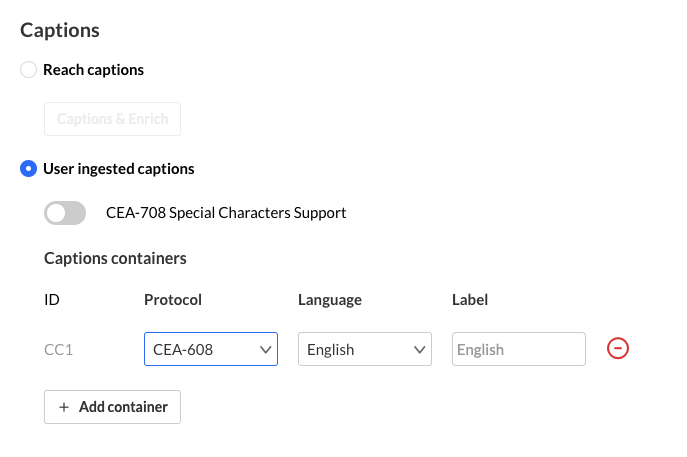 Captions tab in Rich Media CMS
Configure your encoder
Make sure your encoder sends caption tracks that match your Rich Media CMS configuration, and annotate each track with the correct language so it appears correctly in the player’s captions selector.
Live captions using onTextData or onCaptionData aren’t supported.
Display embedded captions in the live player
For Asian language character sets with CEA/EIA-708 captions, set the extract_closed_captions_feature admin tag.
This tag does not support backup stream captions, and should not be used with Reach captions.
Set up captions for recordings
To display captions correctly in session recordings, use the correct container IDs:
- CEA/EIA-608: CC1 to CC4 (use CAPITAL letters for container ids)
Examples
- id=CC1 language=eng label=english type=closedCaptions
- id=CC2 language=ger label=german type=closedCaptions
- CEA/EIA-708: SERVICE1 to SERVICE63 (use CAPITAL letters for container ids)
Examples
- id=SERVICE1 language=jpn label=japanese type=closedCaptions
- id=SERVICE2 language=chi label=chinese type=closedCaptions
- You can use both CC (608) and SERVICE (708) containers in the same session as long as each has a unique container ID.
Examples
- id=CC1 language=eng label=english type=closedCaptions
- id=CC2 language=ger label=german type=closedCaptions
- id=SERVICE3 language=jpn label=japanese type=closedCaptions
- id=SERVICE4 language=chi label=chinese type=closedCaptions
See Kaltura VPaaS API Documentation for further details about Kaltura's API.
