About
This article explains how to import media from your OneDrive account into your legacy Video Portal.
- Captions and transcripts aren’t included when importing files from OneDrive.
- The application administrator should enable the OneDrive module and set up a registered app in Microsoft Azure.
Import content from OneDrive
- Select OneDrive from the + Add New drop-down menu.
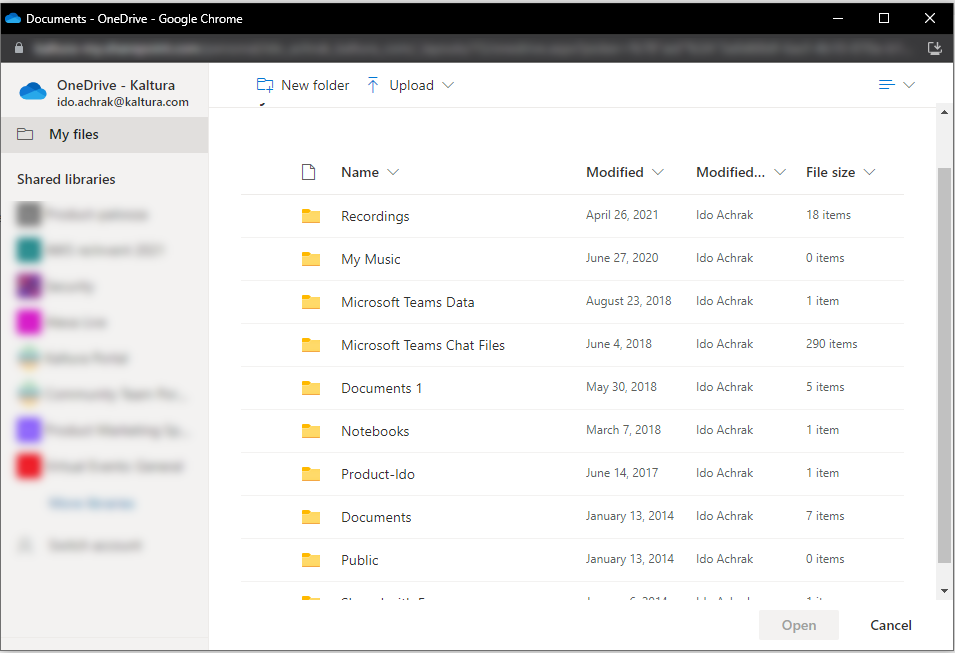
- Click Select a file from your OneDrive.

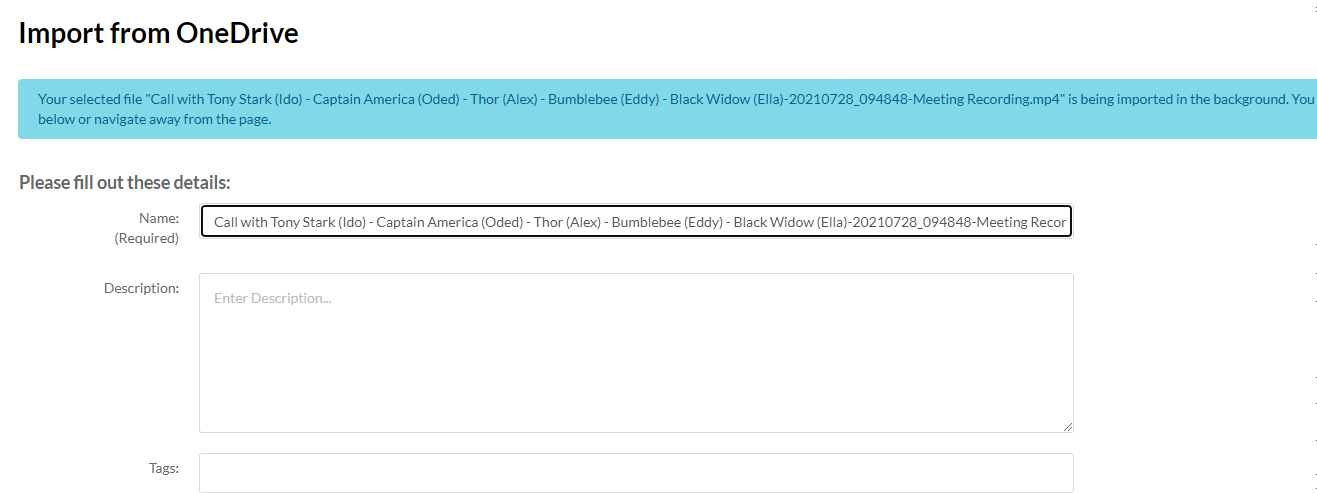
The 'Import from OneDrive' page displays.

After the import preparation is complete, the upload begins.
You can edit metadata during upload or leave the page. The upload continues in the background.
After ingestion is complete, the media is available on its entry page and in My Media.
Importing a Teams meeting recording
For non-channel Microsoft Teams meetings, recordings are saved in the Recordings folder in the OneDrive account of the user who started the recording.
- Go to the Recording folder in OneDrive.
- Select the recording file and import it as described above.