About
This guide walks you through how to submit a media assignment in Moodle. Follow these steps to upload or select a video, review your submission, and finalize it. Once submitted, your video cannot be changed, so be sure to review your work before clicking Submit!
Submit a video assignment
- Click the assignment link provided by your instructor.
- On the assignment page, click Add media submission.
- Click Embed next to the media you want to submit. Use the search bar and filters to quickly find the media you need. To add new media, click the Add New button at the top right. See instructions below for more details.
- When you're ready, click Submit media.
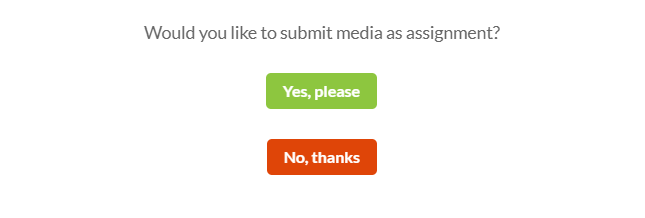
- Click Yes, please to confirm the action.

Your My Media opens.


If you see a gear icon next to the Embed button, that means you can modify the video's settings before embedding it. See Configure video settings below for details.

After clicking Embed, the media assignment page reloads with your chosen video.

(Optional) If needed, you can change the video at this stage. Just click Replace Media and repeat the steps above.

After clicking Submit media, you cannot change the video.

A pop-up window displays asking if you would like to submit the media as an assignment.
A success message confirms your submission.

That’s it - good luck with your assignment!
Add new media
Need to upload or record a new video? Use one of the options in the Add New menu in the Kaltura embed window:
- Upload (Visit our article Upload media for guidance.)
- Express Capture (Visit our article Express Capture for guidance.)
- YouTube (Visit our article Add a YouTube video for guidance.)
- Kaltura Capture (Visit our article Kaltura Capture for guidance.)

Configure your video settings
To customize your video before submitting, click the settings icon next to the media you want to embed.

1. Choose from the available options:
- Choose player: Choose from pre-configured players. Your administrator defines the available players.
- Max embed size: Set the maximum display size of the embedded video. The default size in Canvas is 1200x720, but you can adjust it to fit your layout and design preferences.
- Thumbnail embed: Display a static preview image instead of loading the full video player immediately. This helps improve page load speed and gives users control over when to play the video.
- Save these settings as default: Enable this option to apply your selected embed settings automatically to future media embeds, streamlining the process for repeated use.
2. Enable the Submit as Assignment toggle button to embed the media as an assignment.

3. Click Embed and proceed with steps 2-4 above.
