About
The History module tracks users' viewing activity and lets them continue watching videos from where they left off.
In Content Hubs, users can access the My History page to view and manage their watch history.
The module also supports Resume Playback, which displays a progress bar on video thumbnails and lets users resume playback from the last point they watched.
In LMS Extensions, viewing history is collected and used for features such as Resume Playback. The My History page isn't available in LMS Extensions, and the My History link is blocked.
Configure the History module
1. In the Configuration Management console, select History from the left panel. You can also go directly to https://{your_site_URL}/admin/config/tab/history.
The History page displays.

2. Configure the following settings:
enabled - Set to Yes to enable the History module. Default: Yes.
resumePlayback - Set to Yes to enable Resume Playback. A progress bar displays on video thumbnails to indicate viewing progress, and users can continue watching from the last point they viewed. Default: Yes.

When resumePlayback is set to Yes, the resumeplaybackOptions section displays:
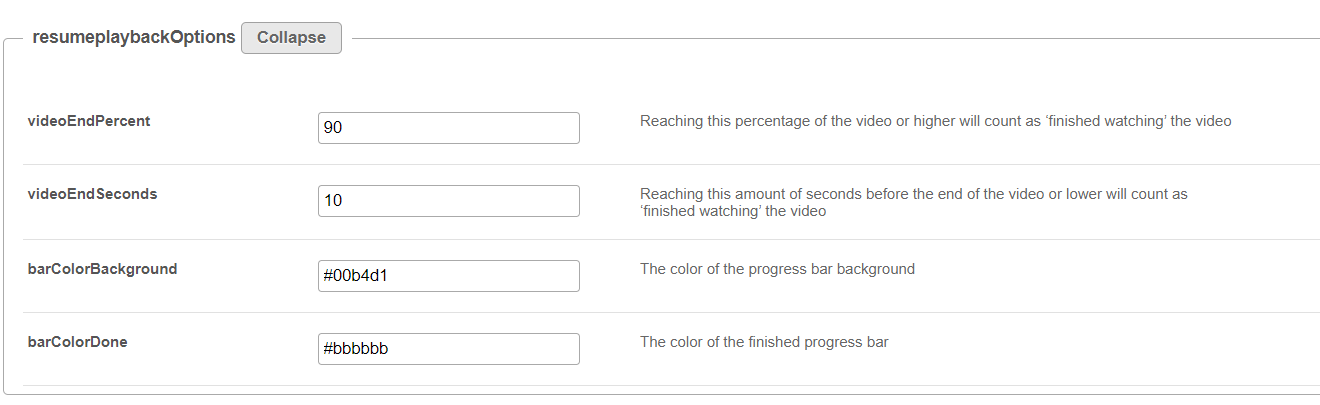
- videoEndPercent - Enter the percentage of the video that users must watch for the video to be considered finished. Default: 90.
- videoEndSeconds - Enter the number of seconds before the end of the video at which the video is considered finished. Default: 10.
- barColorBackground - Enter the hex code for the background color of the progress bar. This setting doesn't apply to the Theming-based My History page.
- barColorDone - Enter the hex code for the completed portion of the progress bar. This setting doesn't apply to the Theming-based My History page.
emptyHistory - Enter the message that displays when a user's My History page is empty. The default message is: Your feed is empty. But it doesn't have to be. Go to the homepage or browse our channels to fill your feed with amazing videos each and every day.
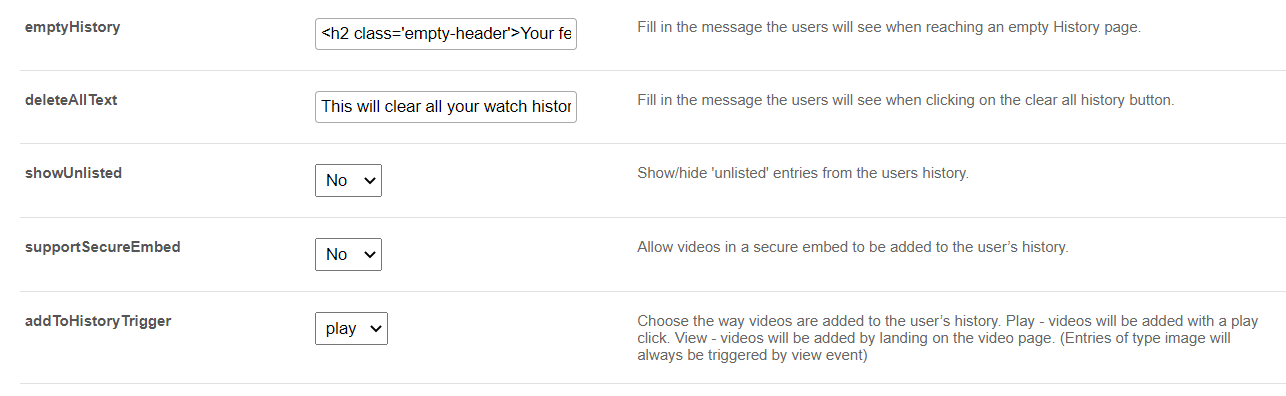
deleteAllText - Enter the confirmation message that displays when a user clicks Clear all History. The default message is: This will clear all your watch history, from other applications as well. Are you sure you want to clear your entire watch history? You can't undo this.
showUnlisted - Set to Yes to include unlisted entries in the user's history. Default: Yes.
supportSecureEmbed - Set to Yes to add securely embedded videos to the user's history. Default: No.
addToHistoryTrigger - Select when a video is added to the user's history: Play or View. Default: Play.
- Play - Adds the video to the user's history when playback starts. If autoplay is disabled, the user must click Play.
- View - Adds the video to the user's history when the user opens the video page. Image entries are always added to history when viewed.
3. Click Save.
