About
Manage how your media is visually represented by editing its thumbnails. You can upload new thumbnails, select a frame (for video), set the default thumbnail, preview, download, or remove thumbnails.
These settings are managed in the Thumbnail tab when editing a media entry.
Thumbnail editing isn't available for YouTube entries or Interactive Video Path entries.
This feature requires the following to be enabled:
- Thumbnails module
- Theming module with the 'mediaedit' feature set to 'Yes'
Who can use this
- Media owners
- Co-editors
Access the Thumbnail tab
- From the user menu, select My Media.
- Click the three dots to the right of the desired media and select Edit.
- In the left navigation, click the Thumbnail tab to display the Thumbnail page.

The 'My Media' page displays.

Alternatively, you can access the edit page from the media page by clicking the three-dot menu and selecting Edit.

The edit page opens on the Details tab by default, with a left-hand navigation.


The page displays the default thumbnail, which is created automatically when the media is uploaded. This is the thumbnail shown across the platform wherever the media appears.
All edit actions apply immediately. There is no Save button on this page.
The Thumbnail tab doesn’t appear for image media. The image file is automatically used as the thumbnail.
Create a new thumbnail
In the lower right corner, click Edit thumbnail to open the actions menu.

Choose how you want to create the thumbnail:
Upload new image
- From the actions menu, select Upload new image.
- Choose an image file from your computer.
After upload, the thumbnail is added to the list and automatically set as the default.

Upload from URL
- From the actions menu, select Upload from URL. The 'Import from URL' window opens.
- Enter the image URL and click Import.
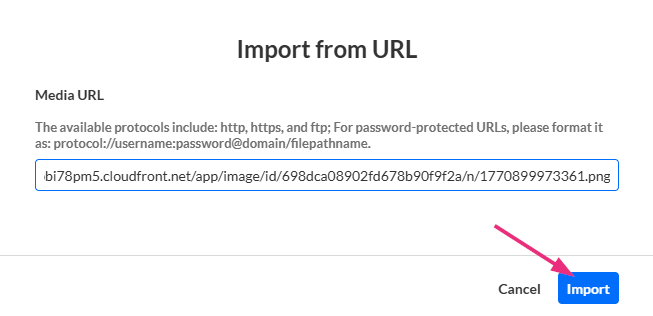
After upload, the thumbnail is added to the list and automatically set as the default thumbnail.

Grab frame (video only)
- Choose Select from frame.
- In the player window, when you see the part of the video you want, click Select this frame.
- To save it, click Use this frame. To discard it and choose another, click Change selection and repeat the process.

The selected frame displays.

The selected frame is added to the thumbnails list. To make it the default, select Set as default (see Set as default below).
Manage existing thumbnails
All thumbnails appear in a list below the main thumbnail.

Each thumbnail shows:
- Preview image
- Resolution
- File size
- Creation date
The default thumbnail is clearly indicated.

Open the three-dot menu to the right of a thumbnail to perform actions.

Set as default
Select Set as default to make that thumbnail the main thumbnail for the media. The change applies immediately.
Preview
Select Preview to view the thumbnail in full screen.
Download
Select Download to save the thumbnail file to your computer.
Delete
Select Delete to permanently remove the thumbnail.
- You can’t delete the current default thumbnail. To remove it, first set another thumbnail as the default, then return and delete it.
- At least one thumbnail must always remain assigned to the media.
