About
Administrators can add a simpler UX for downloading media. The following sections outline user capabilities.
This module is for both Theming and non-Theming users.
For technical support, contact Kaltura Customer Care. For all other inquiries, reach out to your Customer Success Manager.
Download
If your admin has enabled and configured the Easy Download module, download capability is displayed for Theming users as part of the Actions menu on the Entry page, and for non-Theming users as an additional tab - Easy Download - added to the Entry page.
Log into your Video Portal and navigate to a media's Entry page. If you need help logging in and accessing media, please follow the instructions in Log into your Video Portal and My Media.
Theming users:
- From the Actions menu -
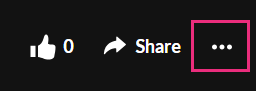 choose Easy Download.
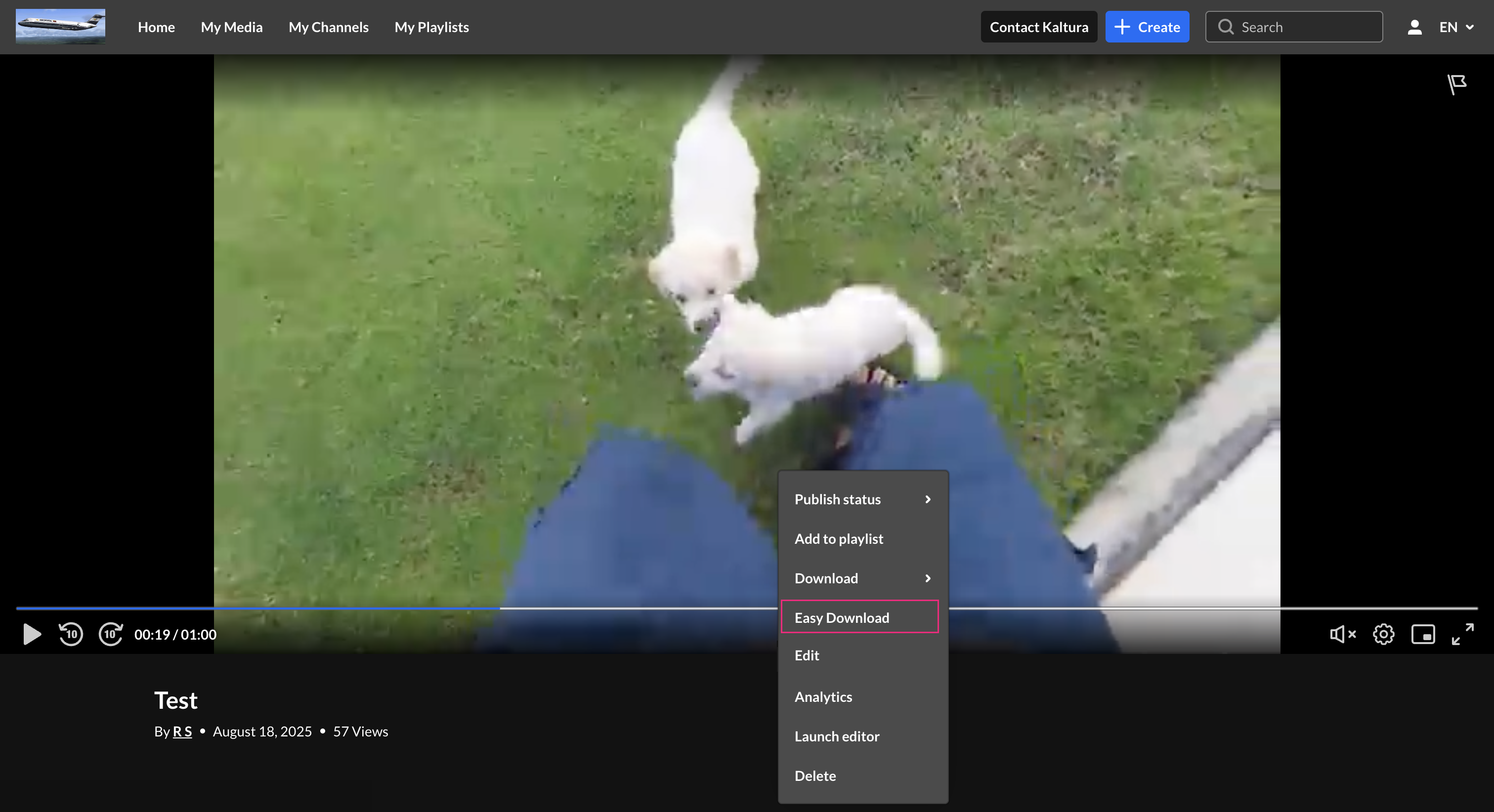 The Easy Download screen displays.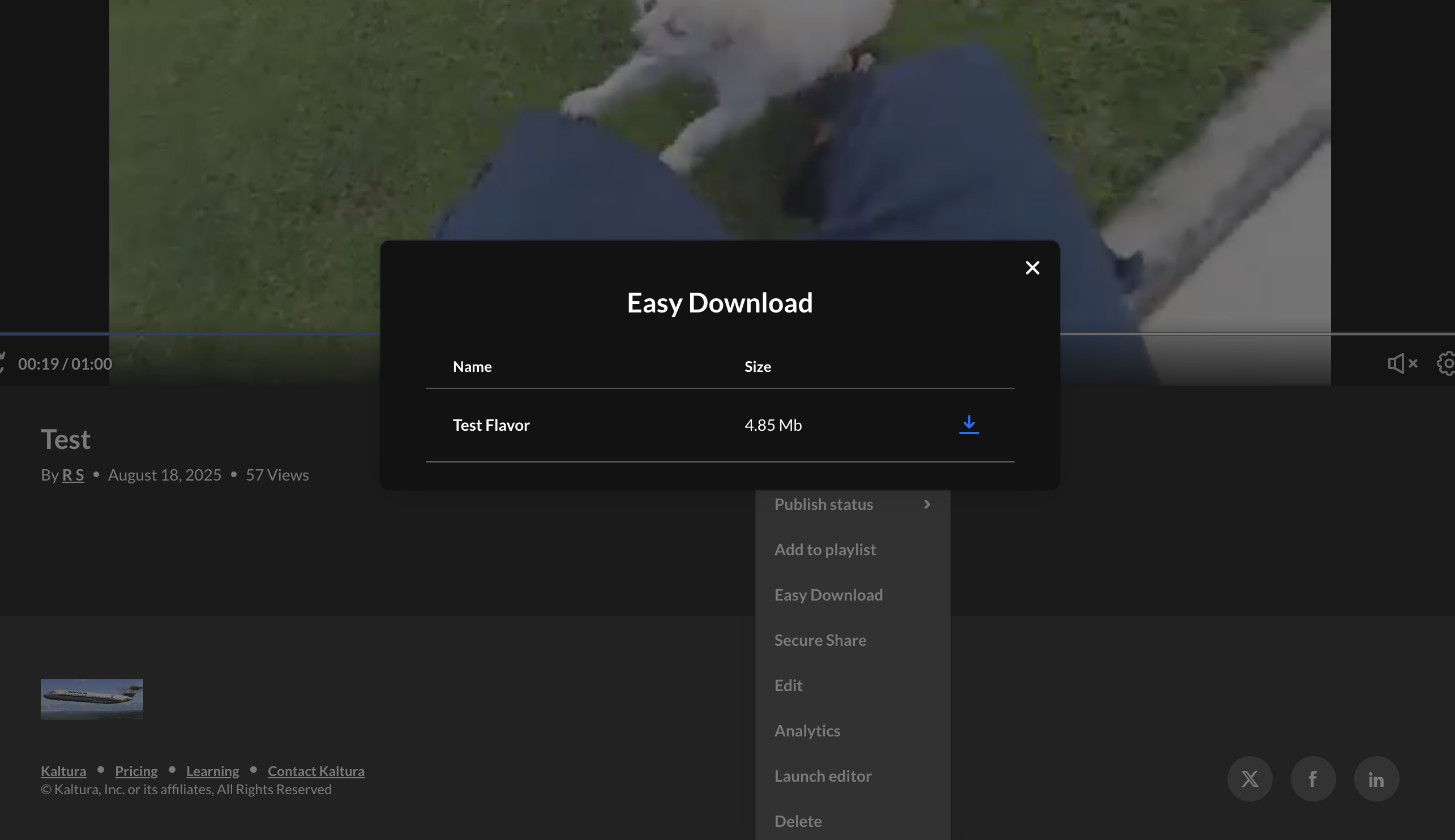
- Click the blue Download button to download the entry.
Non-Theming users:
- Click on the Easy Download tab.
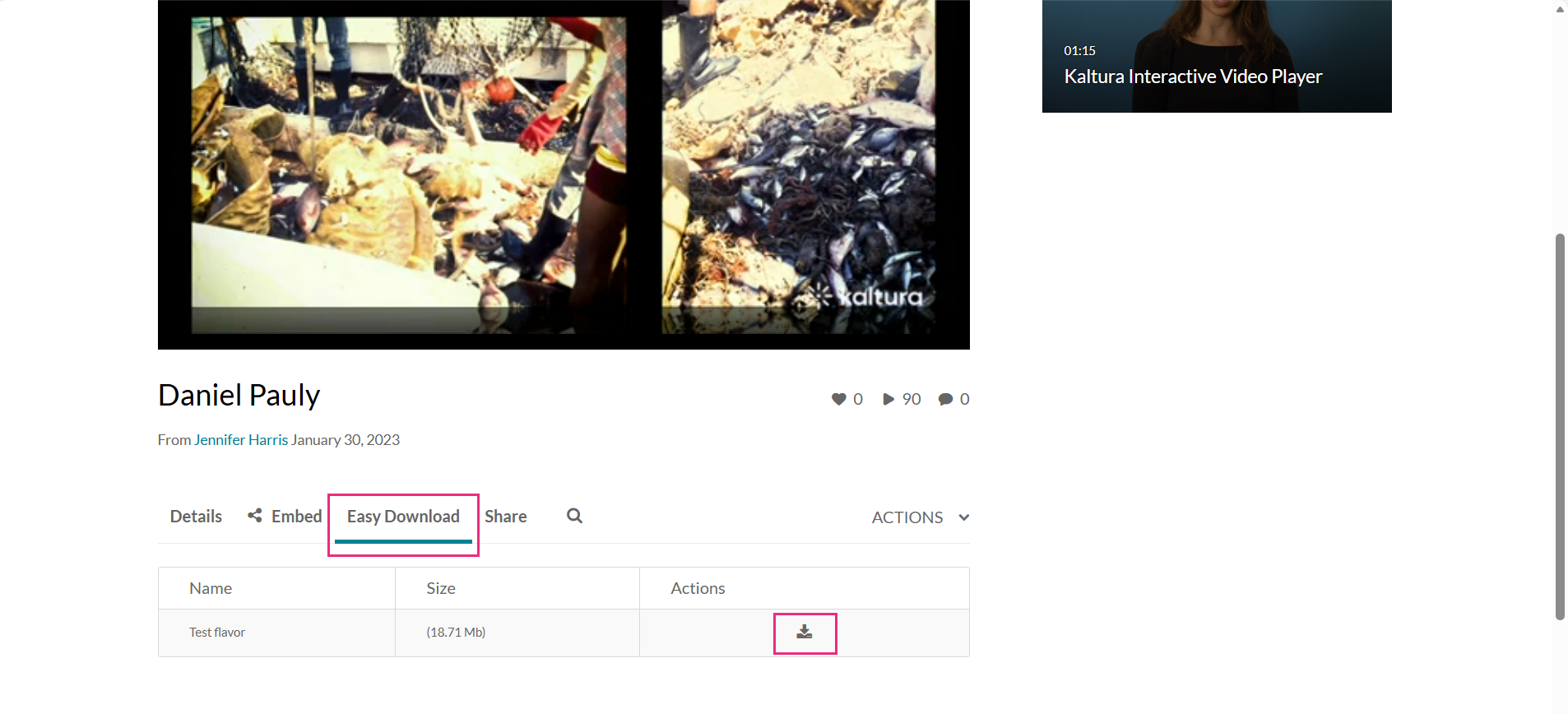
- Click the Download button to download the entry.
This document is maintained by Kaltura’s Professional Services team. Please send comments or corrections to your Customer Success Manager. Ask them to forward it to the Professional Services team. We are committed to improving our documentation and your feedback is appreciated.
