About
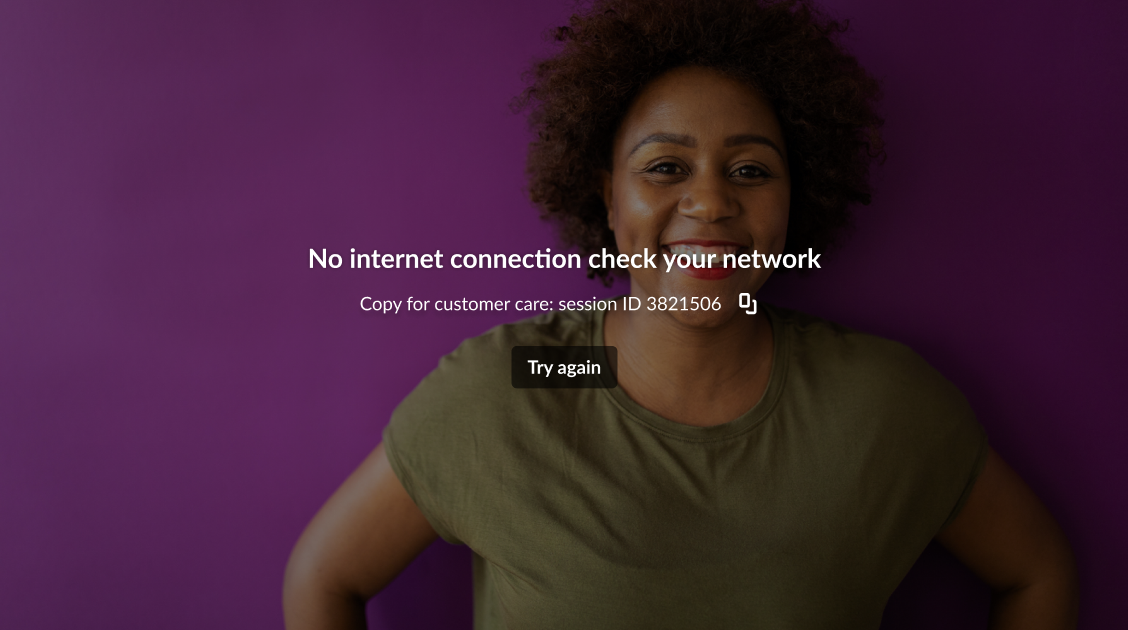
Use the Error slate setting to display a custom background image when player errors occur.
By default, player error messages are displayed on a black background.
This setting is available for video players.
Access the Visual settings
- Log into your Rich Media CMS and click the Studio tab.
- From the list, select the player you want to configure.
- Click the stars icon.


The settings tab opens.


The visual settings display.
Display a custom error image
1. Scroll down to Error slate and click the toggle to enable it.

2. Configure the following:
- Error slate image entry ID - Enter the entry ID of the image to use as the error slate. The player uses the entry thumbnail as the error slate image.
If both an Error slate image entry ID and Error slate image URL are provided, the player uses the Error slate image entry ID. If the entry ID can't be resolved, the player uses the Error slate image URL. If no URL is provided, no error slate is displayed.
- Error slate image URL- Enter the URL of the image to use as the error slate.
The image is used as the background for all player error messages.
3. Click Save at the top right of the settings page.
For the user guide, see Error slate.
