About
Content Lab uses AI to identify key moments in your media and generate highlight clips that you can review, edit, and save. You can customize the generated clips by selecting a clip duration and providing instructions to guide the AI.
Looking for more information about this feature? Feel free to contact your Kaltura representative.
Before you start
Videos repurposed with AI must meet the following criteria:
- Video must be in "Ready" status (transcoded)
- Video must have English captions
- Video must be 60 seconds or more in length
- Account must have Content Lab enabled
- Account must have an active REACH profile enabled with relevant catalog item(s)
Create clips
- Open Content Lab. For instructions, see Access Content Lab in your Kaltura application.
-
Click Clips.
The Content Lab interface may look slightly different depending on the Kaltura application you're using, but the workflow is the same.
If you've previously generated clips for this entry, click Generate new.
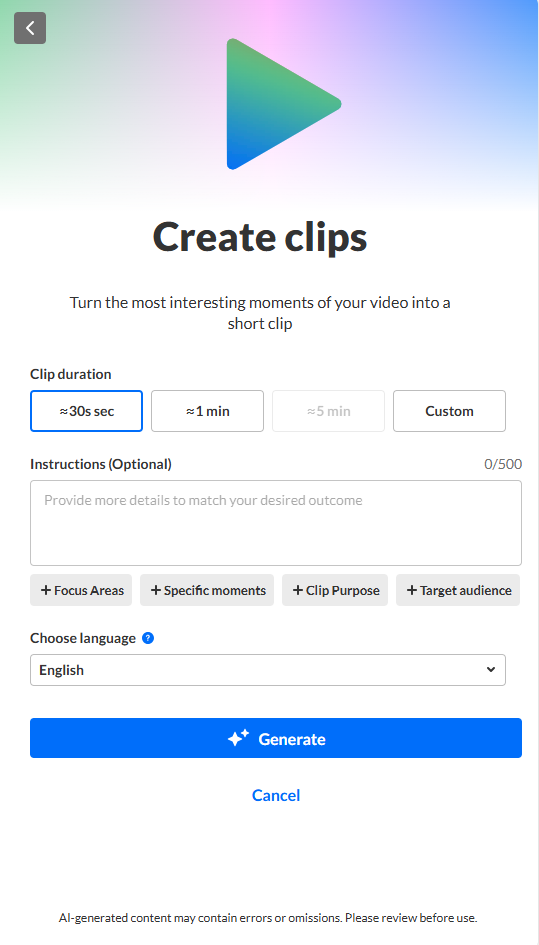
- Choose your clip duration. Only the applicable options are enabled. For instance, if the video from which you are clipping is only 2 minutes long, the "=5 min" option is disabled.
-
Provide clear and detailed instructions for your clips. The more information you include, the higher the chance of achieving your desired outcome.
Option 1: Manually type your own instructions in the Instructions field.
Option 2: Click on a preset tag provided below the Instructions field. The Instructions field is populated with that tag and a list of suggestions for additional text instructions displays. Click on one of the suggestions to autocomplete the instructions.
Option 3: Click on a preset tag. The Instructions field is populated with that tag and a list of suggestions for additional text instructions displays. Instead of clicking on one of the suggestions to autocomplete the instructions, manually type in the Instructions field to complete the text.
Preset tags
- Focus areas: The clips should focus on key insights and takeaways, actionable tips, memorable quotes, visual demonstrations, or important statistics.
- Specific moments: Describe the moments from which you would like clips created.
- Clip purpose: Design the clips to be used for social media posts, creating video summaries, internal content promotion, marketing teasers, or training reinforcement.
- Target audience: Tailor the clips to a target audience of students, sales teams, marketing professionals, doctors and medical professionals, or financial analysts.

-
Select your preferred language for the generated clip metadata, including the title, description, and tags*.
*Tags are available for Content Lab in Rich Media CMS and legacy Video Portal.
The dropdown is divided into two sections: Last used languages (based on previously generated assets) and All languages.

-
Click Generate. Content Lab begins creating your clips.
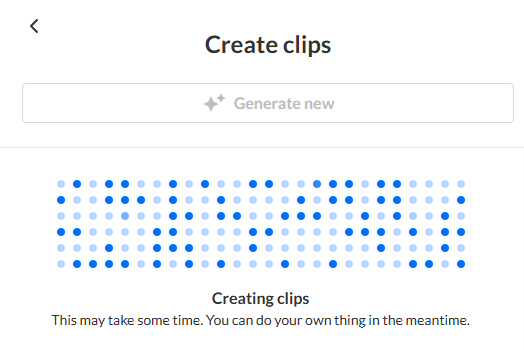
Once finished, the newly generated clips are added to the list to the right.

Each clip in the list shows:
- A thumbnail with its position and length in the original video
- Length of clip
- Auto-generated title
- A Reuse prompt button to quickly generate more clips using the same settings (your previous selections will be pre-filled). Hover over the button to view the original prompt details in a tooltip.
Content Lab creates up to 10 clips per generation. The number of clips depends on factors such as the specificity of the topic or prompt and the length of the requested clips relative to the source video.


To learn how to preview, edit, trim, save, or delete generated clips, see Manage AI-generated clips in Content Lab.
Kaltura does not use customer data to train its AI models. To learn more, see Kaltura's Artificial Intelligence Principles.
