About
After saving clips in Content Lab, you can combine them into playlists or stitched videos. You can also edit, share, download, or open the saved assets in your Kaltura application.
If you haven't created clips yet, see Create clips with AI in Content Lab.
Combine clips into playlists and videos
- Open Content Lab. For instructions, see Access Content Lab in your Kaltura application.
- Click Clips.
- Click the Combine videos button.
- Select the clips you want to combine.
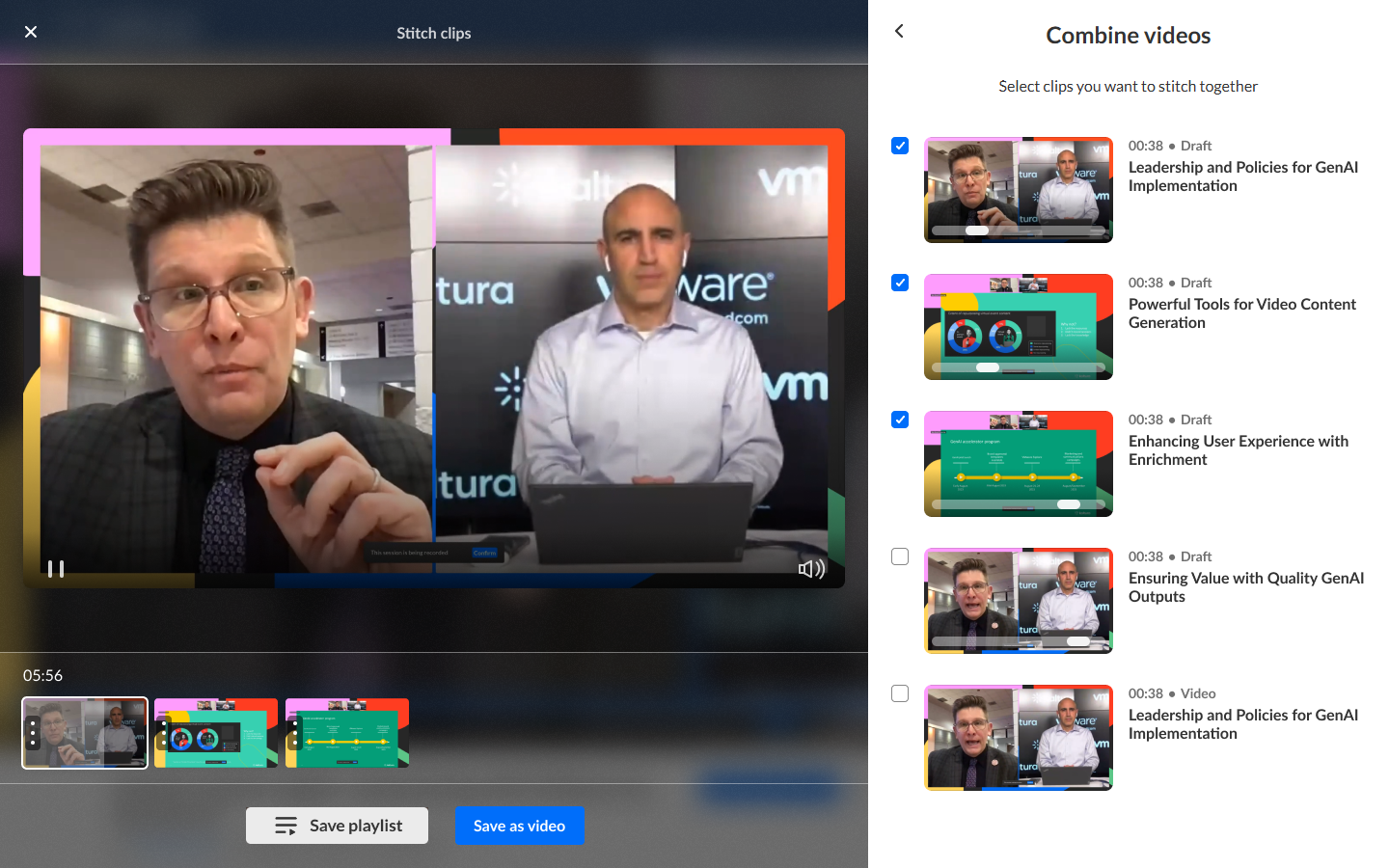
The selected clips are added to the bottom panel in the order you select them. The total duration of the combined clips is displayed above the panel.
- To preview a selected clip, click it in the bottom panel.
- To change the order of the clips, drag the handle on the left side of a clip to the desired position.
 Content Hubs
The Combine videos screen displays.

Save a playlist
Saving a playlist is currently supported in Content Lab for Rich Media CMS, legacy Video Portal, and LMS Video.
- Click Save playlist. The Save playlist screen displays.
- Review or edit the suggested title, description, and tags*.
- Click Save.

*Tags are currently available only in Content Lab for Rich Media CMS and legacy Video Portal.
The playlist is added to your Saved Clips list.

Save a stitched video
-
Click Save as video.
The Save a single video screen displays.

-
Review or edit the suggested title, description, and tags*.
Configure any of the following options as needed:
- Embed captions in video – Embed captions into the video. If multiple caption files are available, select the caption file to use.
- Create chapters & summary – Create chapters and a summary for the stitched video. Each selected clip becomes a chapter using its original title and description.
- Add transition between clips – Add transitions between clips.
-
Click Save.
The stitched video is added to your Saved Clips list.


After you save a playlist or video
After you save a playlist or stitched video, additional options are available. Select a playlist or stitched video from Saved Clips to view the available actions.
The available options depend on the Kaltura application you're using, as follows:
Playlists
| Application | Available options |
|---|---|
| Rich Media CMS | Edit playlist, Share & Embed, Go to playlist |
| Content Hubs / legacy Video Portal | Edit playlist, Go to playlist |
| LMS Rich Media Extensions / LMS Video | Edit playlist, Go to playlist |
Stitched videos
| Application | Available options |
|---|---|
| Rich Media CMS | Share & Embed, Download, Go to entry |
| Content Hubs / legacy Video Portal | Edit video, Download, Go to media page |
| Kaltura Virtual Events | Download, Go to media page |
| LMS Rich Media Extensions / LMS Video | Edit video, Download, Go to media page |
 Content Hubs
For information about editing videos, see Introduction to the Kaltura video editor.
Kaltura does not use customer data to train its AI models. To learn more, see Kaltura's Artificial Intelligence Principles.
