About
Post-event emails allow you to send a separate set of automated messages to all users specifically after an event ends. The following steps will guide you through creating your templates and enabling these fields.
Set up post-event emails
Step 1: Create post-event email templates
Post-event emails use standard email templates. You can create the templates you want to use for post-event messaging in the Emailtemplates module.
Step 2: Set the event start and end time
Post-event emails are triggered based on the event end time and the times are configured in the BaseSiteRegistration module.
- Open the BaseSiteRegistration module.
- Populate the following fields:
- loginLogFrom – defines event start time
- loginLogTo – defines event end time
- Save your changes.
Once you have done this step, all the post-event email fields become visible in the relevant modules.

Step 3: Configure emails sent after users complete registration
Use this step to configure emails sent after users complete registration, which is done in the SiteRegistration module.
- Open the SiteRegistration module.
- Locate the following post-event email fields and select the email templates to use after the event ends:
- registrationEmailTypePostEvent – email sent after a user completes registration, once the event has ended
- confirmationEmailTypePostEvent – email sent after registration confirmation, once the event has ended

Please note that if you are using 'Skip verification', only confirmationEmailTypePostEvent is sent.

Configure post-event emails for additional flows
Select post-event emails for invited users
Use this configuration only if you invite users manually using the InviteUsers module.
- Open the InviteUsers module.
- Locate the following post-event email fields and select the templates to use for each field:
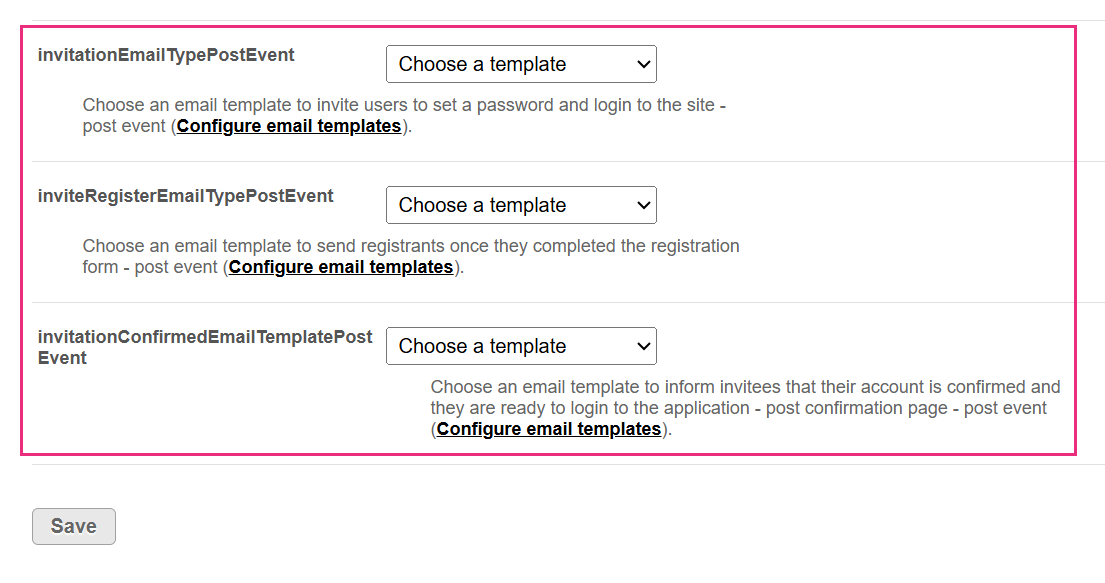
- invitationEmailTypePostEvent - email sent to invite users to set a password and log in after the event
- inviteRegisterEmailTypePostEvent - email sent after invited users complete registration, once the event has ended
- invitationConfirmedEmailTemplatePostEvent - email sent after an invited user’s account is confirmed, once the event has ended
- Save your changes.
If post-event fields are left empty, the standard invitation emails are used.
Webhook registration
If you use webhook-based registration flows, you can also configure post-event emails for those users.
- Open the WebhookSiteRegistration module.
- Locate the following post-event email fields and select the templates to use for each field:

- webhookSetPassEmailTemplatePostEvent - email asking users to set a password after the event
- webhookConfirmedEmailTemplatePostEvent - confirmation email sent after the event
