About
This article describes how to add a DIY live webcast session to your multi-session event.
DIY live webcasts give you the ability to broadcast/webcast a Kaltura live session directly from a Kaltura Studio room. Simply create a DIY live webcast session, then navigate to the Studio room and begin broadcasting.
This article applies only to multi-session events.
Once the session is created, the studio is automatically created as well and is hidden from the general attendees. Moderators and speakers may access the studio via a direct private link. This way, they can begin preparing the studio ahead of the broadcast. The agenda, on the other hand, is available to all on the event site.
Some behavior described here applies to a non-default configuration. Customer-specific variations are highlighted where applicable.
Add a DIY live webcast session
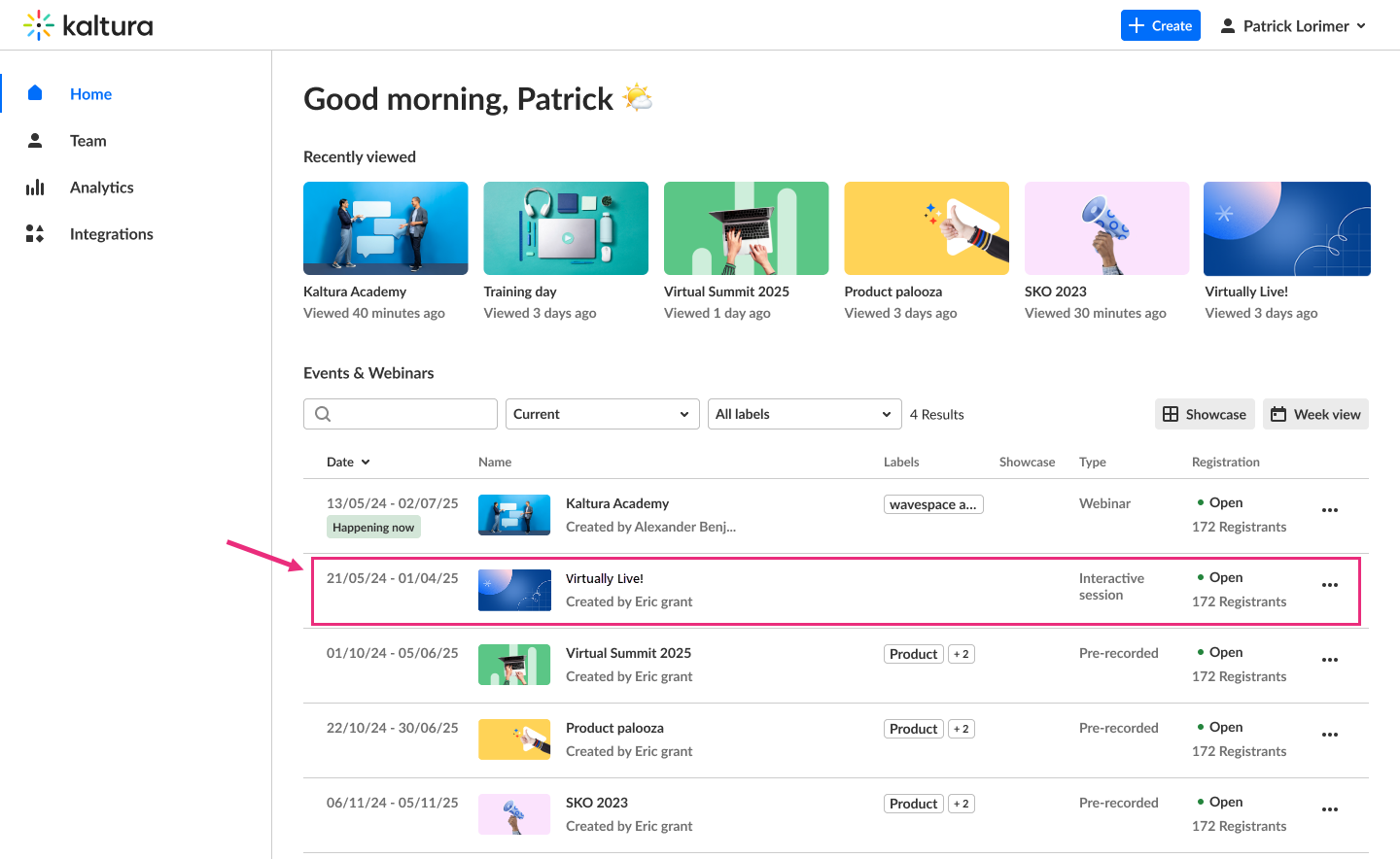
- From the Kaltura Virtual Events home page, click on the event you want to manage.
The Overview page displays.
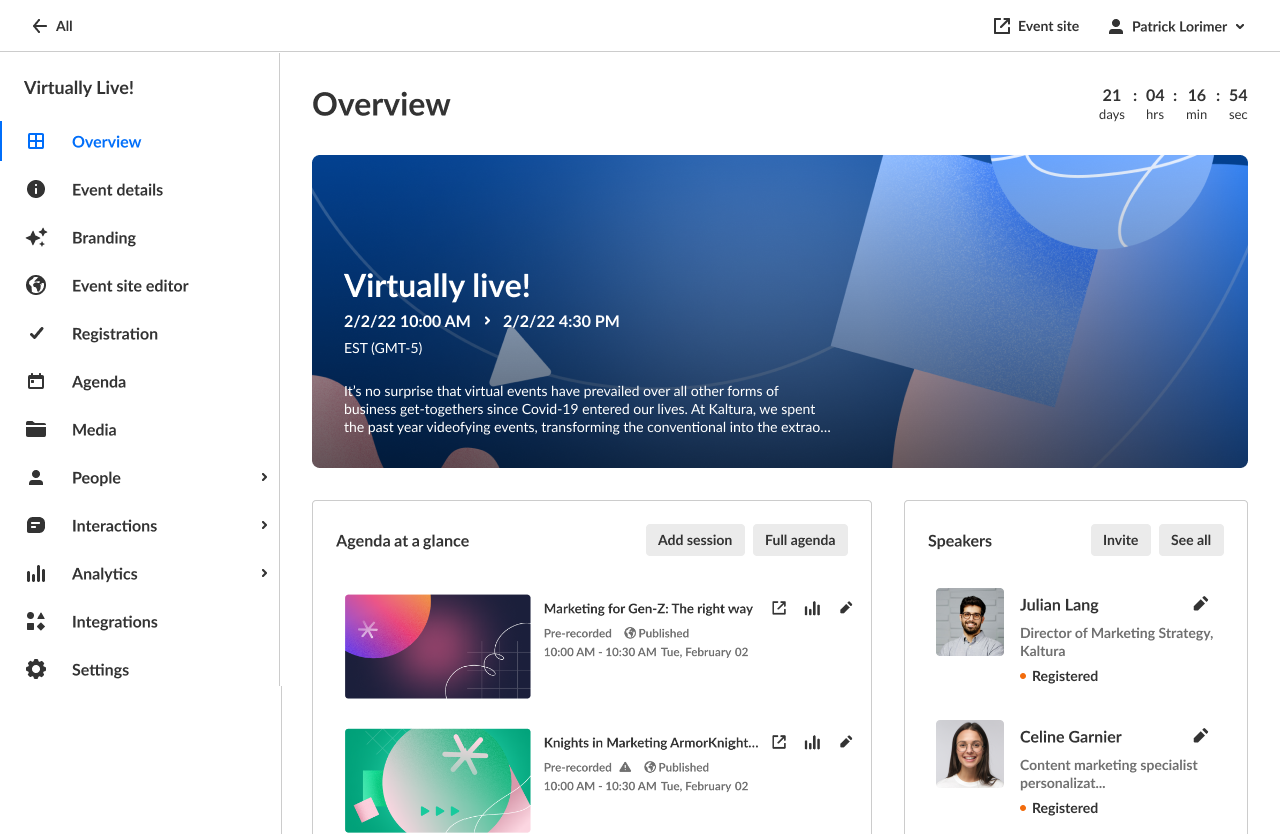
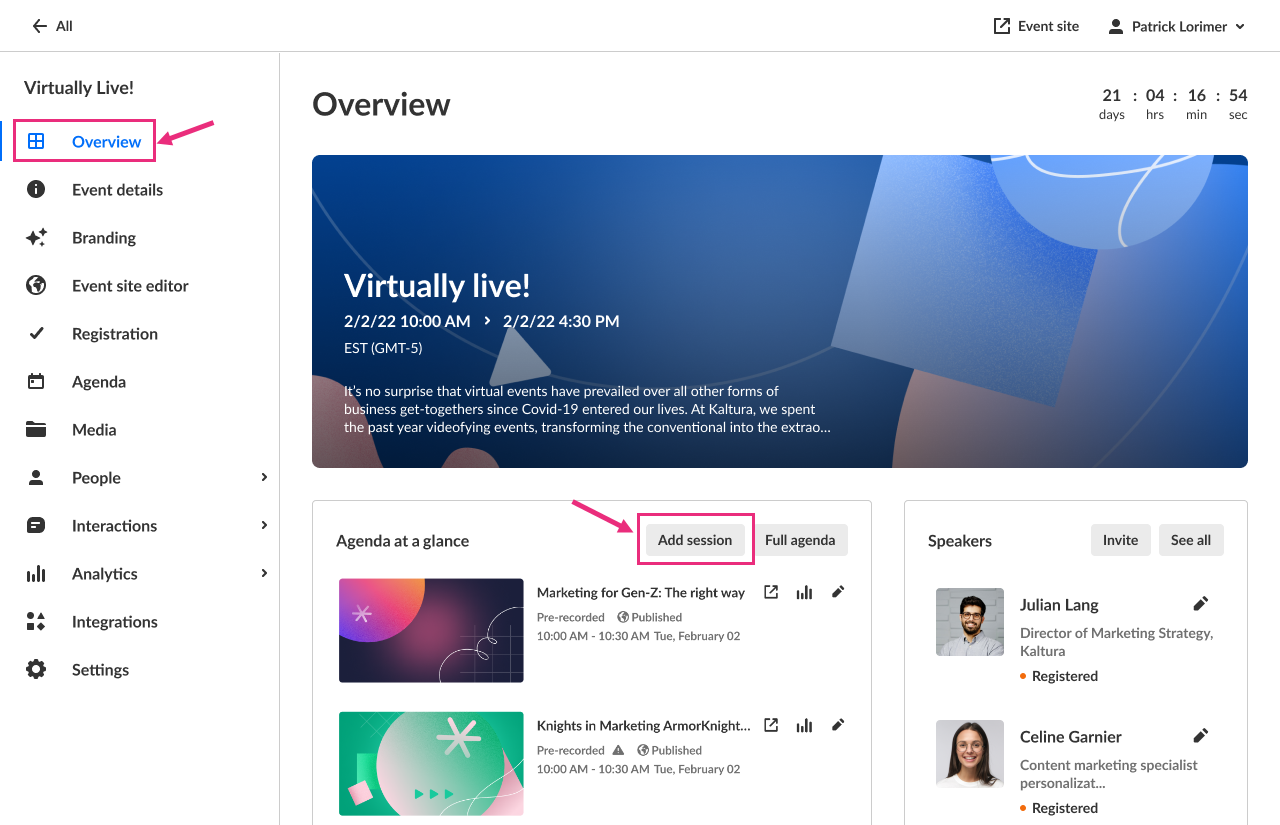
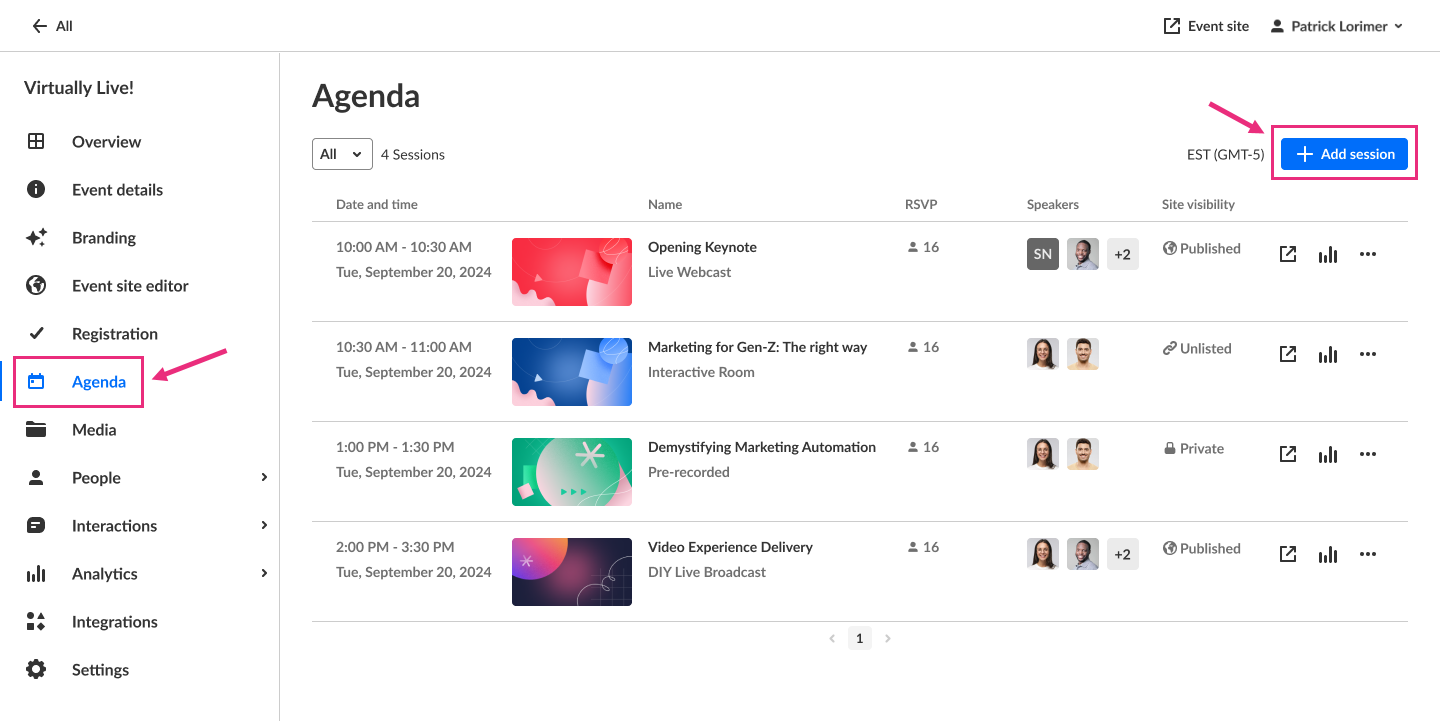
There are two ways to add a DIY live webcast session to your event:
- On the Overview page, in the Agenda at a glance section click Add session.
- On the Agenda page click + Add session.
The Add session pop-up screen displays.
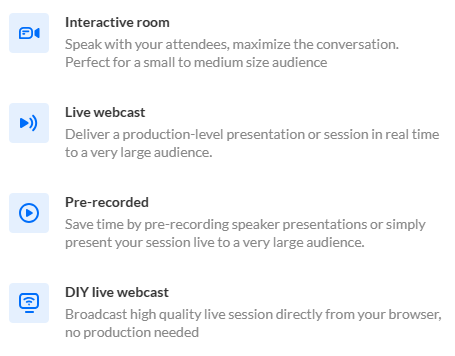
- Select DIY live webcast. The 'New session' panel displays.
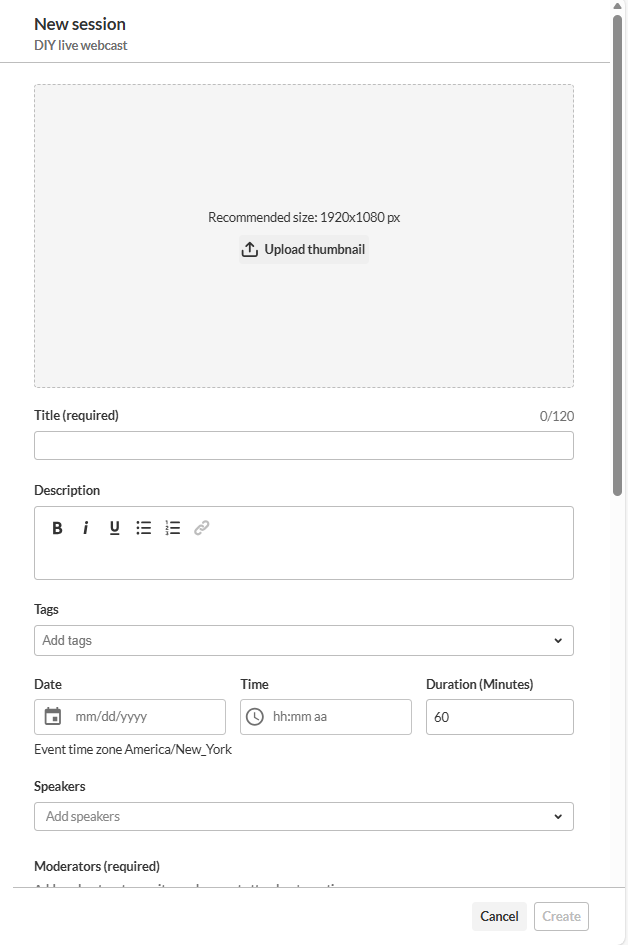
- Fill in the required fields and any additional information you want to display on the agenda (see the section below for details).
- When you're finished, click the blue Create button at the bottom right.
Your new session is added and appears on the Overview page.

Session details
Complete the required fields and any additional information you want to show on the agenda.
Thumbnail image
Click Upload thumbnail to upload an image (recommended size: 1920 × 1080 px)
Title (required)
Type a title for your session (up to 120 characters; characters < and > aren't supported).
Description
Type a description for your session.
When entering a URL in the Description field, use http(s):// (full path) for external links.
Tags
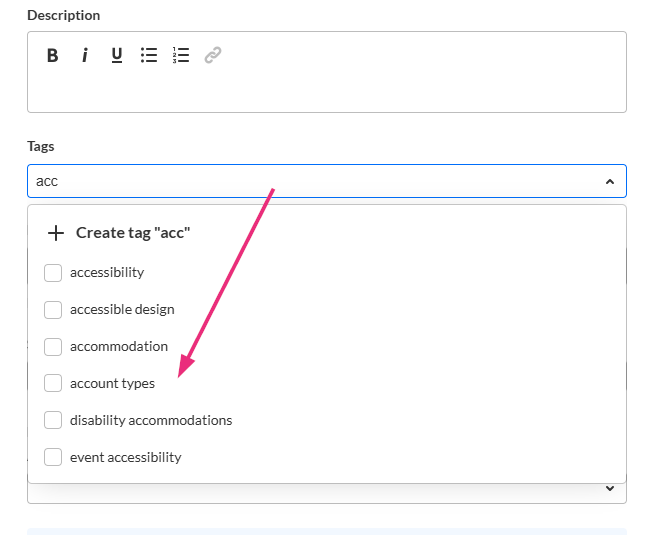
Apply existing tags or create new ones for your session. You can then filter your Agenda page and the Agenda section of Page builder based on these unique tags.
- To add an existing tag, start typing and select it from the list
- To create a new tag, type your new tag in the Add tags field, then click +Create tag "[tag name]".
- To detach a tag from a session, click "X".
Session tags are visible to event attendees.
Date and time (required)
- Date (required) - Select the session start date
- Time (required) - Select the session start time
- Duration (required) - Enter the session length in minutes (max is 1440 minutes = 24 hours).
Speakers
Add speakers who have already been assigned a Speaker role in the event.
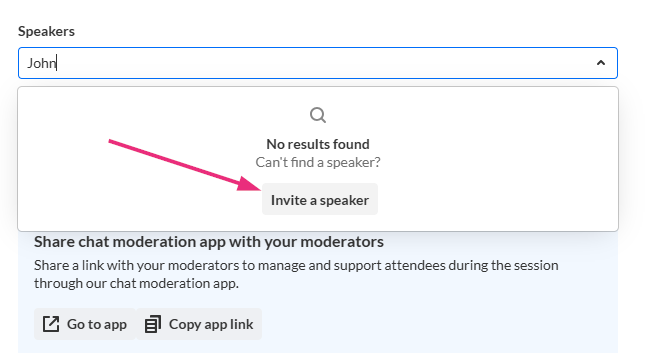
Start typing the name and select it from the list

If no results are found, click Invite a speaker. This re-directs you to the Speakers page where you can invite speakers to your event.
You can:
- Reorder speakers using the six dots to the left
- Show or hide speakers using the eye icon
- Remove speakers using the trash icon
- Set speaker permissions to Simple speaker or Advanced speaker

- To see a list of all available speakers, leave the Speakers field empty. You can browse the list and click to select speakers.
- Speakers are displayed on the event agenda in the same order you select them here.
- Click outside of the Speakers area to see the speaker line up.
Moderators (required)
To add moderators to this session, start typing the name of a user who has been assigned a Moderator role, and select the moderator from the list.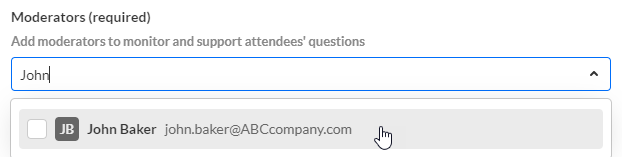
Moderation and studio links
Click Launch moderation app to access the chat moderation app, which allows you and your moderators to organize, manage, and answer Q&A threads; publish polls and Q&As; and answer private chats during the session. Click Copy app link to share a link to the moderation app with your moderators.
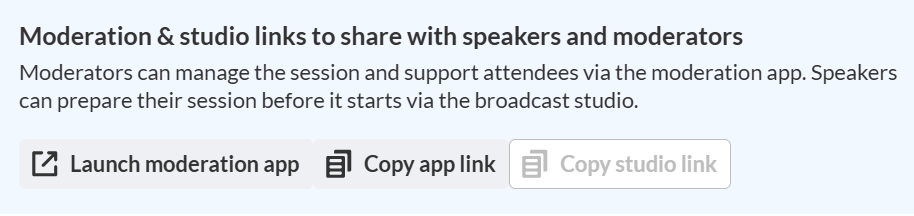
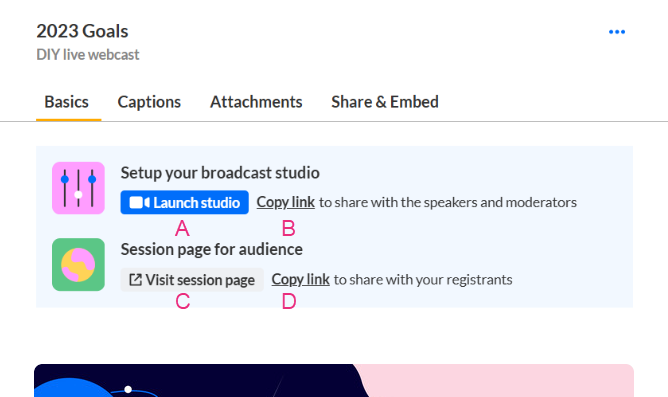
After you've saved your new session, one link becomes active and four additional links display via the
Edit session page.
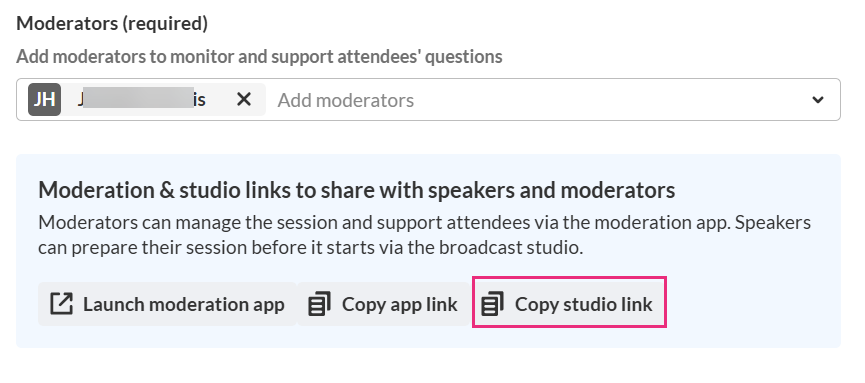
Copy studio link - Let the moderators and speakers assigned to the session access the studio and begin preparing ahead of the broadcast. See Copy Studio link to share with a moderator.
A - Launch studio - Activate your broadcast studio, add files to your playlist, and start broadcasting directly from a Kaltura room. See Launch the Studio.
B - Copy link - Let the moderators and speakers assigned to the session access the studio and begin preparing ahead of the broadcast. See Copy Studio link to share with a moderator.
C - Visit session page - Access the session directly from the Edit Session page.
D - Copy link - Copy a direct link to the session page for sharing purposes.
Site visibility
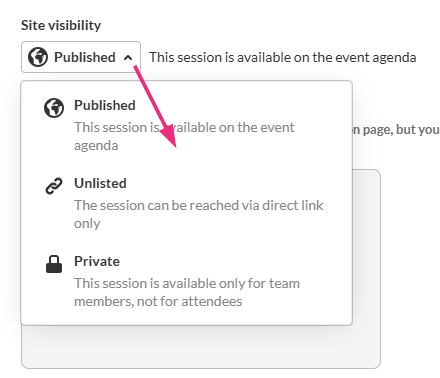
Choose one of the following options from the drop-down menu:
- Private – Visible to team members only
- Unlisted – Accessible via direct link only
- Published – Visible on the event agenda
Session recording
After the live session ends, the recording area becomes available from the edit session page. For more information, see Manage recordings.
Certification
Click the check box if you would like to assign this session to your Continuing Professional Education (CPE) program.
Additional information
This section appears only if your account includes custom metadata. The fields in the Additional information section can be used to:
- Capture internal session details
- Support certification or CPE requirements
