About
You can set the default audio language through the player’s Advanced Settings. This configuration is not exposed in the standard Player Studio interface.
Use this setting to define which audio track is selected automatically when playback begins.
Access the advanced settings
VOD Audio Reels
- Log in to your Rich Media CMS and click the Studio tab.
- Click the player you want to edit from the list (or use the search bar in the top right).
- Scroll to the bottom of the player settings and click Advanced Settings.

The Player Studio page displays.
If you haven't created a player yet, check out our article Create a player for guidance.

The player settings display.


The advanced settings editor opens.

Set default audio language
- In the Advanced Settings tab, hover over playback then click the green+ icon.
- In the box, enter audioLanguage, then click the green checkmark or press 'enter'.
- Hover over the setting and click the green edit icon.
- Replace null with a language code such as eng (English) or es (Spanish).
- Click the green check mark.
- Click Save at the top right before exiting.

The Key Name box displays.

You’ll see the new setting listed.

A box containing a null value displays.


The result looks like this:
 Configuration set to English
User experience
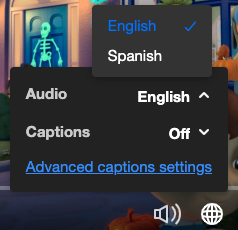 Player audio language selector
If you set the value to auto, the player selects the matching audio track automatically when available.
var config = {  playback: {    audioLanguage: 'auto'  }
};
Multi-audio playback requires a designated audio flavor for each language in the account’s transcoding profile. This setup requires Professional Services. Contact your Kaltura representative for assistance.
