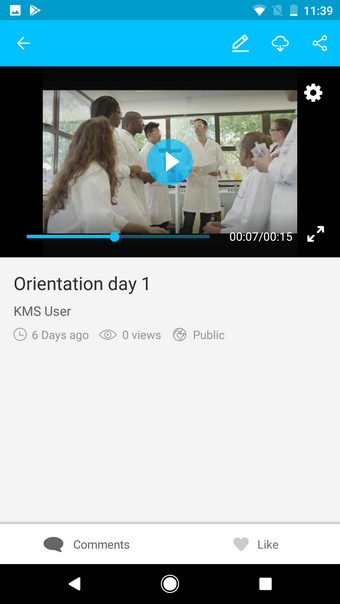
About
With KMS Go, you can create media on your Android device, upload it, edit its details, and publish it for others to watch.
Create and upload media
Use the upload icon at the bottom right of the homepage to add existing photos or record new media with your device's camera.
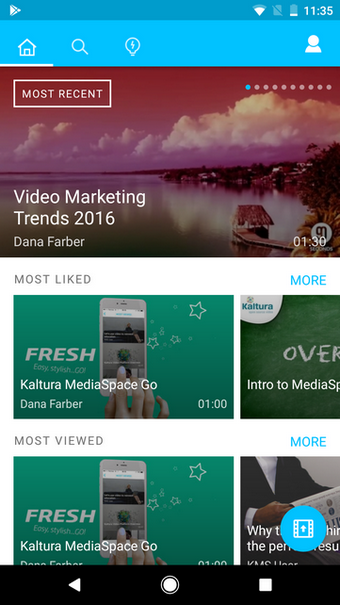
- Select the upload icon. Depending on your configuration, you may need to log in.
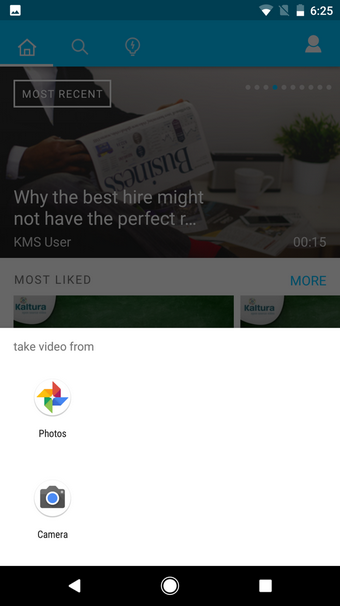
- Choose whether to upload from the device's photo gallery or to record with the camera.
- Select where to upload media from.
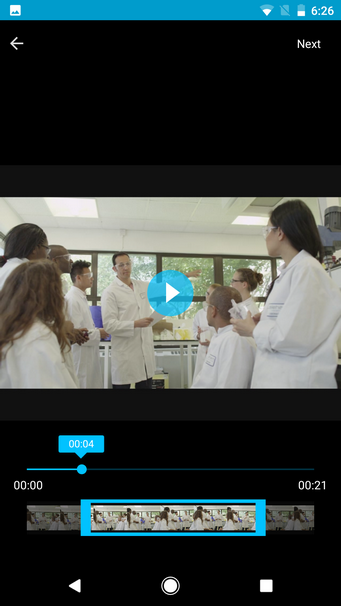
- Select the media you want to upload. The video opens on a new screen with the trim tool.
- (Optional) Drag one or both anchors to trim the video. A preview of the trimmed video appears. To cancel and return to the original, select Back. A trimmed video is saved automatically as a new file, and the original doesn't change.
- Select Next.
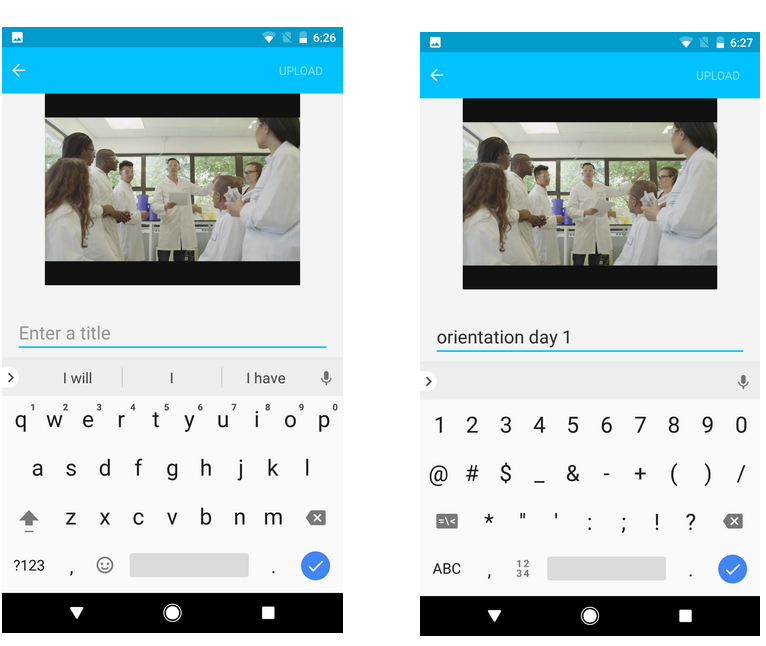
- Enter a title. You can change the title later. For more information, see Add and edit metadata.
- Press Enter on the keyboard. The upload information page opens.
- To upload later, select I will upload later. Otherwise, continue with the upload. If you upload later, a copy of the media stays in your device gallery.
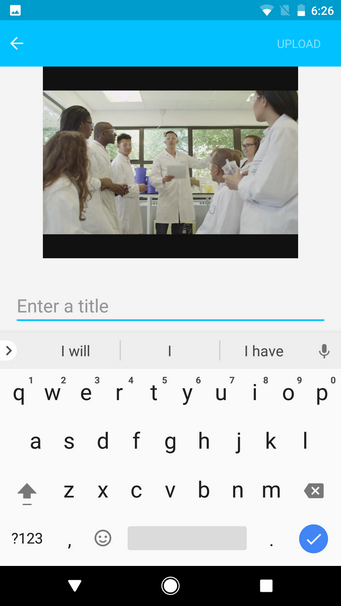
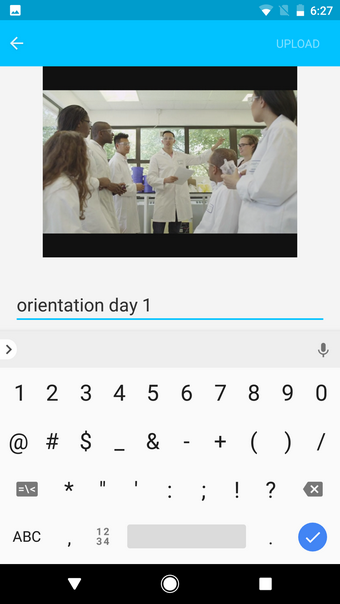
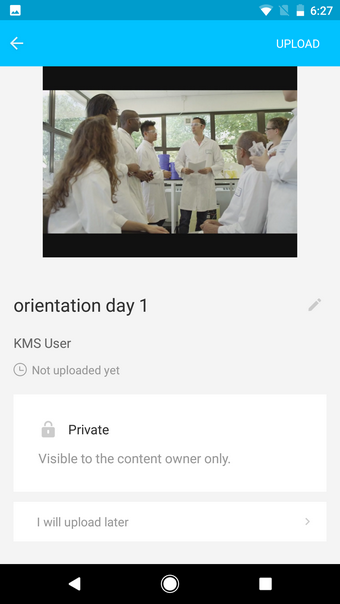
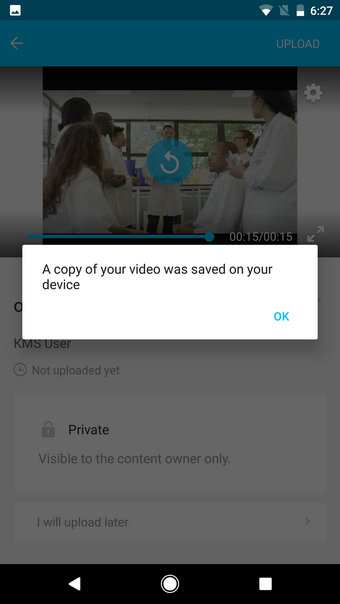
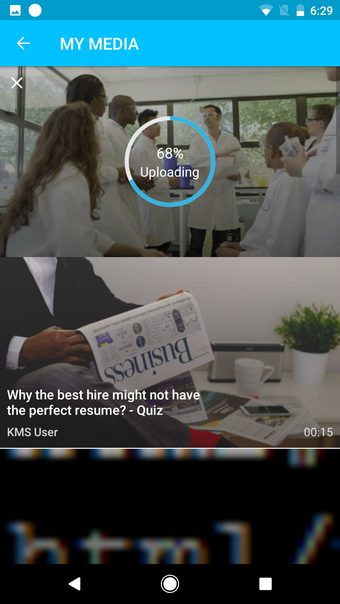
The upload progress bar appears.
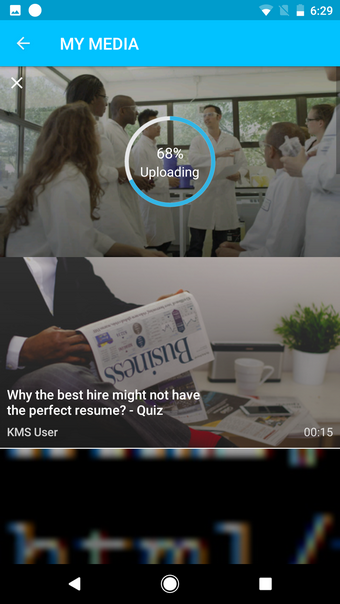
To cancel the upload, select the X in the upper right corner of the media. A confirmation prompt appears.
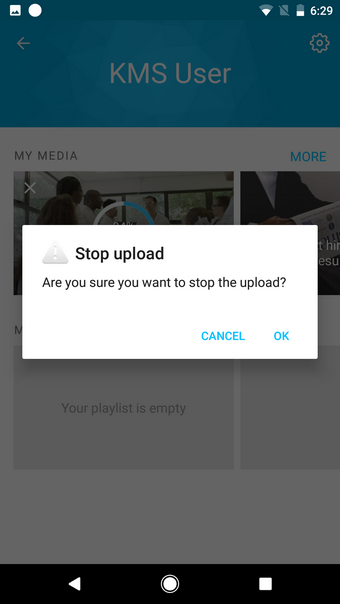
Select OK to cancel the upload, or Cancel to continue it.
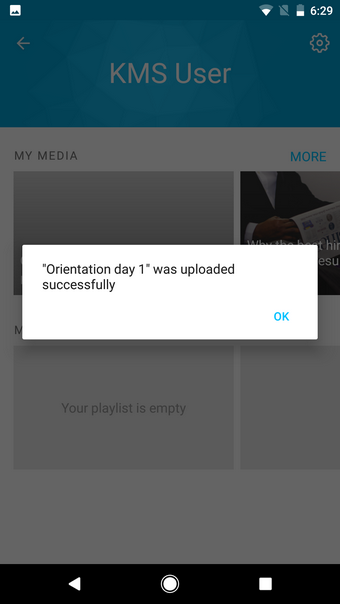
A confirmation message appears when the upload is complete.
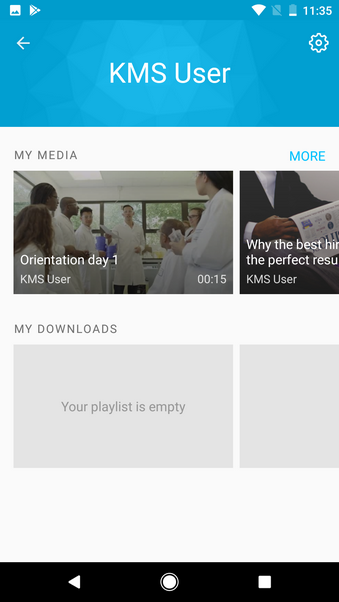
Find the video on My Page, in My Media. Your publishing settings control who can view it.
Add and edit metadata
Editing requires the right permissions. You can also change the publish settings from the edit entry screen.
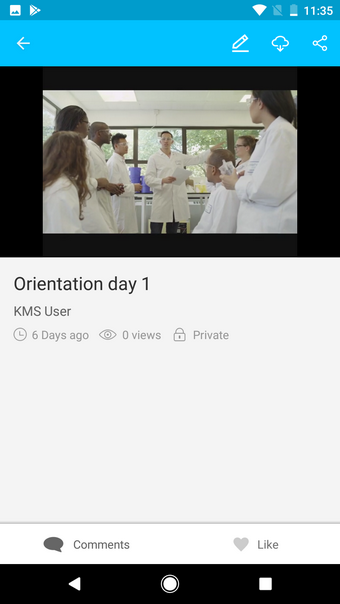
- Select the video you want to edit.
- Select the pencil icon at the top of the screen.
- Select the pencil icon next to a field. Scroll down to see all the fields.
- Edit the field.
- Select OK.
- Press Enter.
- Select Update.
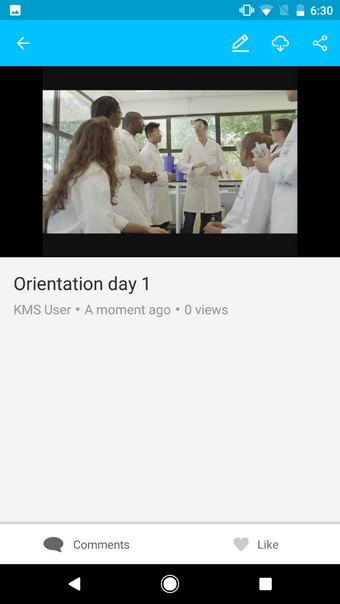
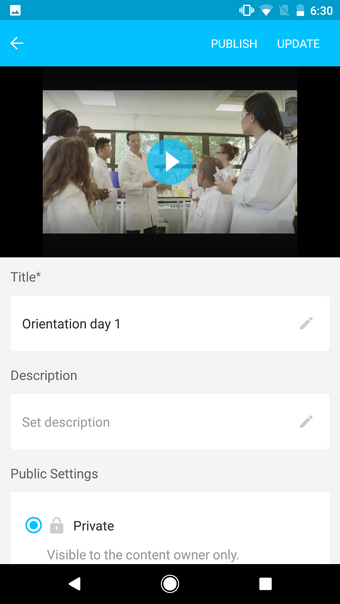
You can edit these:
- Title: Enter the title, and then press Enter.
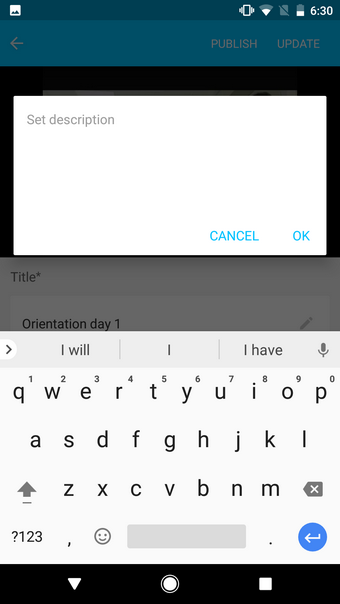
- Description: Enter the description, select OK, and then press Enter.
- Tags: Enter tags, and select OK.
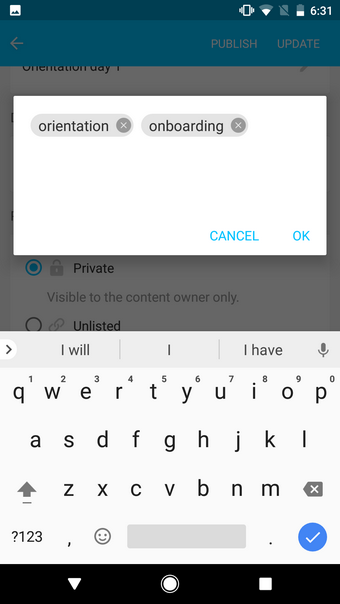
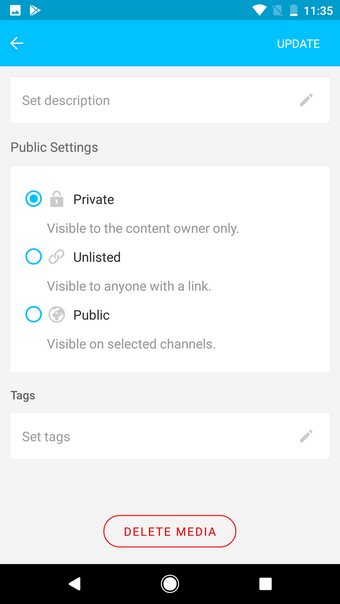
- Publishing settings: Select the setting on the screen. For more information, see Publish media.
You can also delete the media from this screen.
Publish media
- On the homepage, go to My Page. Depending on your configuration, you may need to log in.
- Select the video you want to publish. Videos are private by default.
- Select Publishing settings.
Publish as unlisted
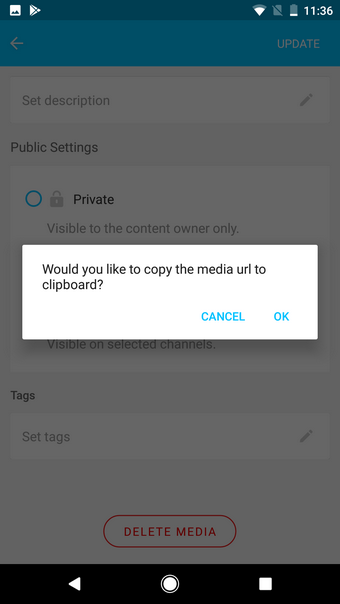
- Select Unlisted. The URL is copied to the clipboard, and a confirmation appears.
- Select OK.
- Select Update.
Publish as public
Public media can be published to channels and categories where you have permission.
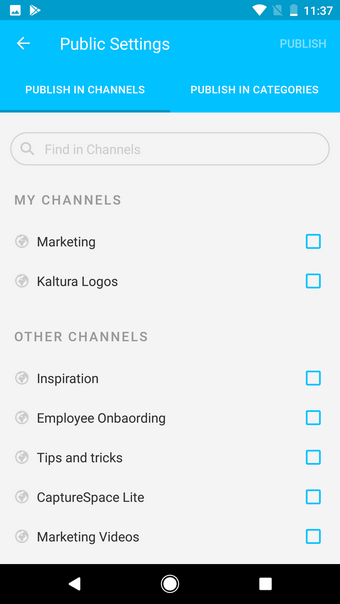
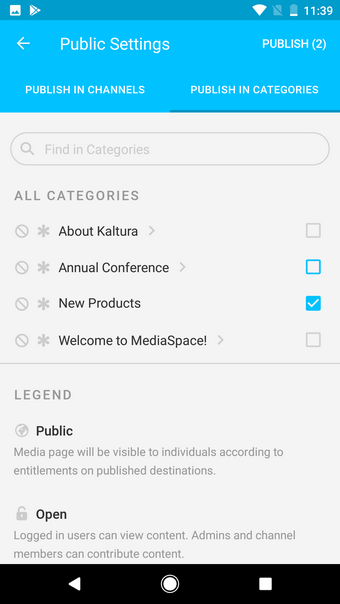
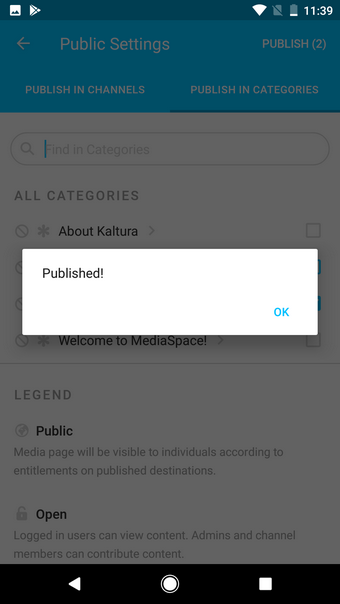
- Select Public. The publish settings screen opens with two tabs: Publish in channels and Publish in categories. A blue underline marks the active tab.
- Select the tab you want.
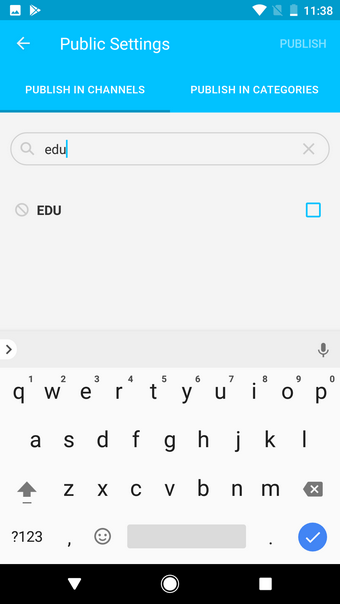
- Select the checkbox for each channel or category. You can use the search box to find one.
- Select Publish. A confirmation message appears.
On the media page, the status changes to Public.