About
KMS Go helps you find media to watch on your Android device, from galleries and channels to search and suggestions.
Discover media
Media discovery starts on the homepage. Swipe horizontally to browse a gallery, or select a gallery name to scroll vertically. The following image shows a media item in the vertical view.
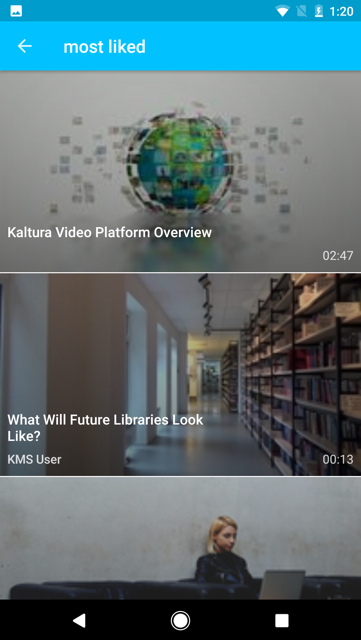
In the vertical view, swipe horizontally to open these quick actions:
- Download
- Like
- Share
To save, share, or comment on media, see Save and share media in KMS Go on Android.
Search
KMS Go searches these with one keyword search:
- Metadata
- Slides
- Captions
- Channels
- Categories
Search results
Search results appear in a magazine-style layout. The Matches section shows the media that fits your search best. Matching channels appear too.
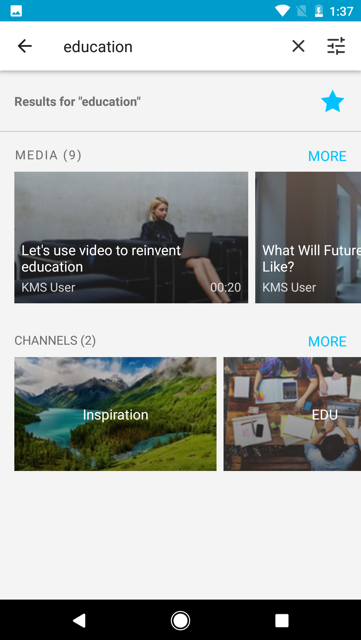
Sort and filter results
Select the filter icon at the top right of the search results page.
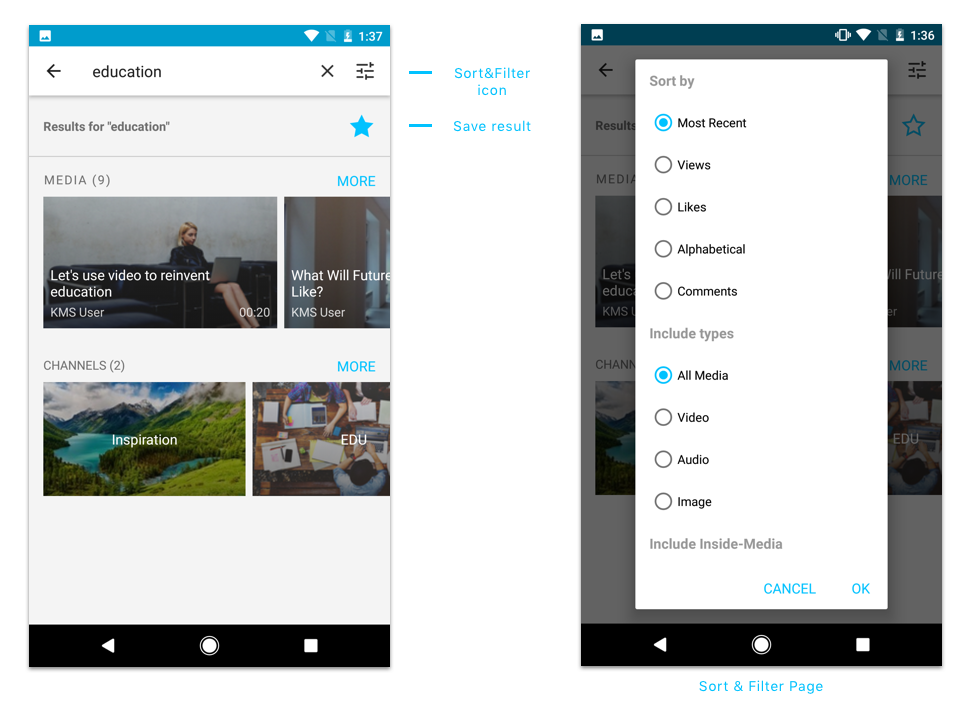
You can sort results by:
- Likes
- Most recent
- Views
- Comments
- Alphabetical
You can choose which media types to include:
- All media
- Audio
- Images
- Video
You can also search inside the media itself:
- Slides
- Captions
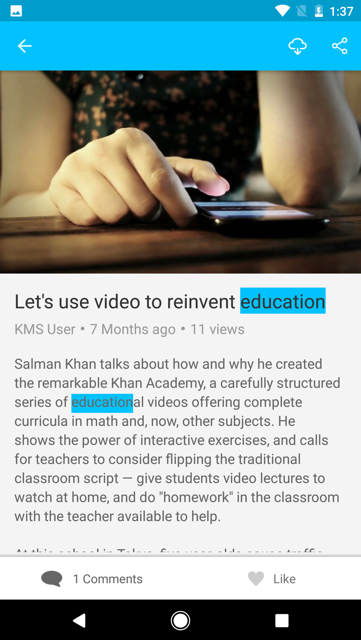
To see why a media item appears in your results, select its thumbnail. Your keyword is highlighted in the related data, based on your filters.
Save a search
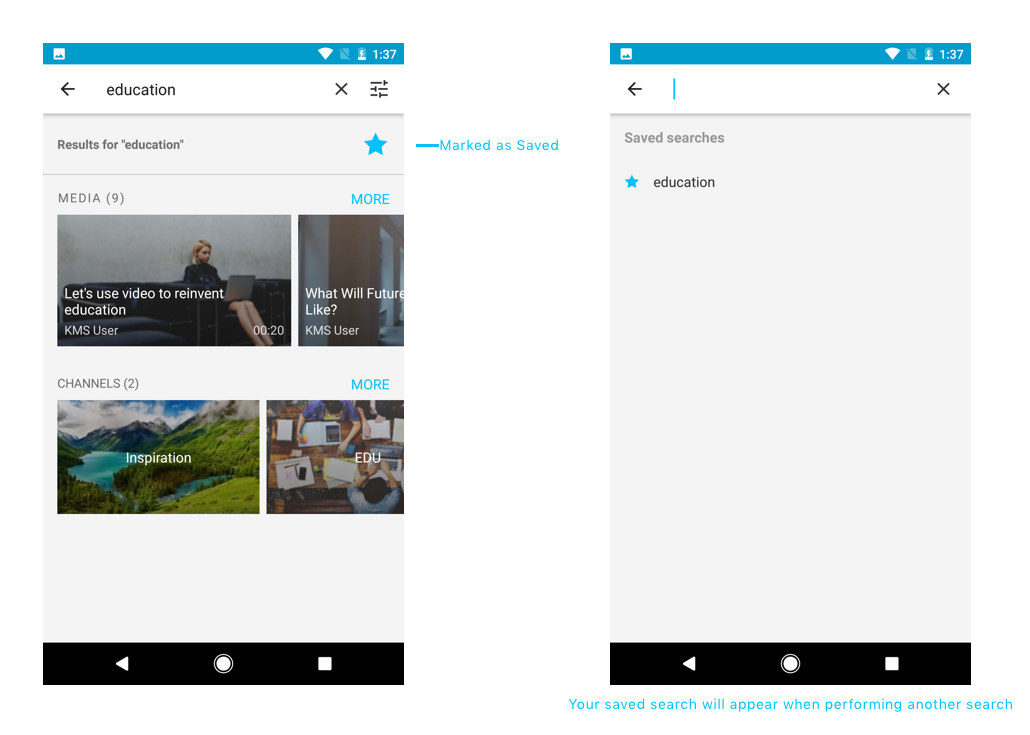
To save a search, select the star next to your keywords in the search window. To remove a saved search, select its blue star on the saved searches screen.
To open your saved searches:
- Select the magnifying glass in the bar at the bottom of the screen.
- Select the search box. The saved searches screen opens.
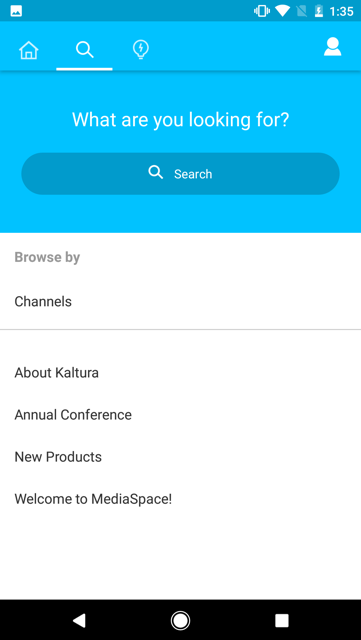
Browse media
Select the magnifying glass icon at the bottom of the screen. If you're logged in, you can also browse channels and categories on this screen.
For more information, see Galleries and channels - what are the differences?
Channels
Every channel in KMS Go has a channel page, which shows:
- All the media in the channel
- The number of channel members
- The number of channel subscribers
To open a channel page, select Channels on the browsing screen, or select a channel in your search results.
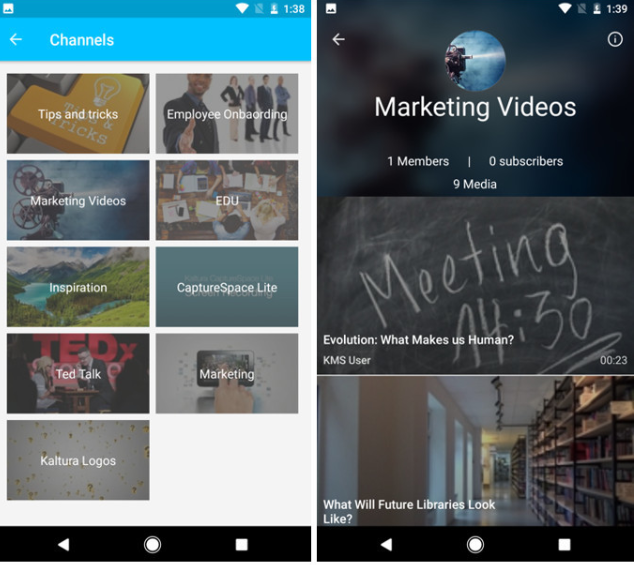
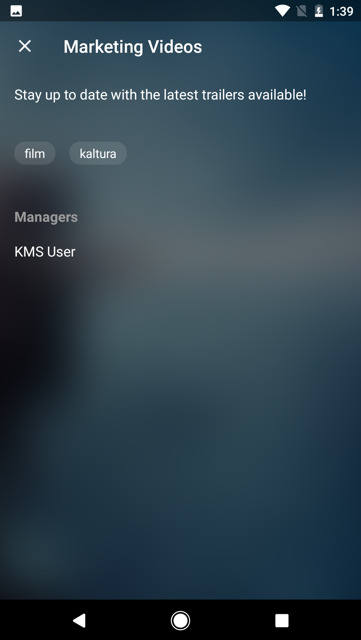
To see more about a channel, select the information icon at the top right of its page. You can see:
- Channel description
- Categories the channel appears in
- Channel managers
Media page
Every media item has its own media page, which shows:
- Media owner
- Publish date
- Number of views
- Description and tags
- Custom metadata
- Number of comments
- Number of likes
On this page, you can:
- Play the video
- Rotate your device for full screen view
- Download videos
- Add to Watch Later
- Share
- Comment
- Like
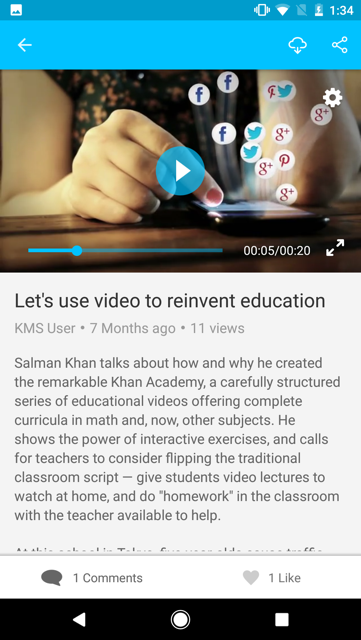
Your administrator controls which of these are available to you.
View My History
If your administrator turns it on, My History on My Page shows the videos you watched while logged in, in the app or in a mobile browser. Changes to your history sync across all your devices.
- Scroll to My History.
- Select More.
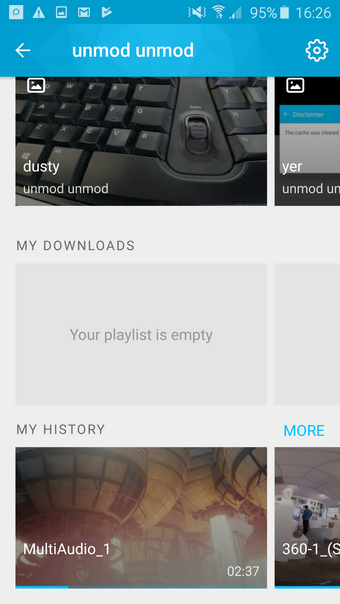
Continue watching
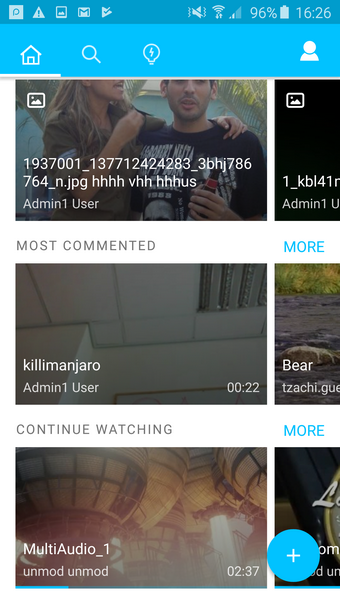
If your administrator turns it on, Continue watching on the homepage shows videos you partly watched while logged in, in the app or in a mobile browser.
- Scroll to Continue watching.
- Select More.
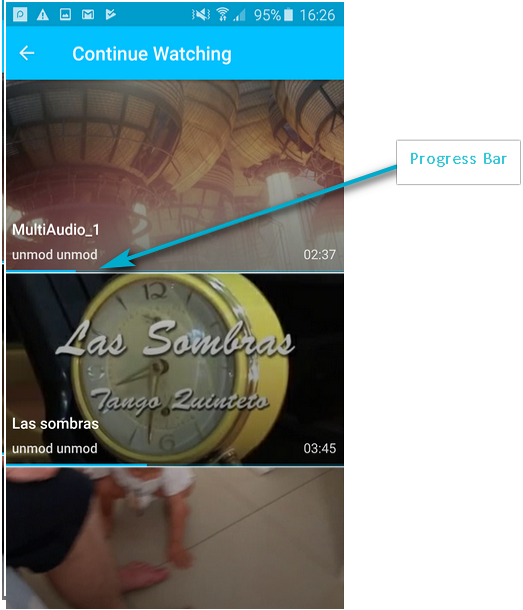
The progress bar shows where you stopped. When you return, the video resumes from that point.
A video may restart if your administrator set an earlier point at which it counts as finished.
Get inspired
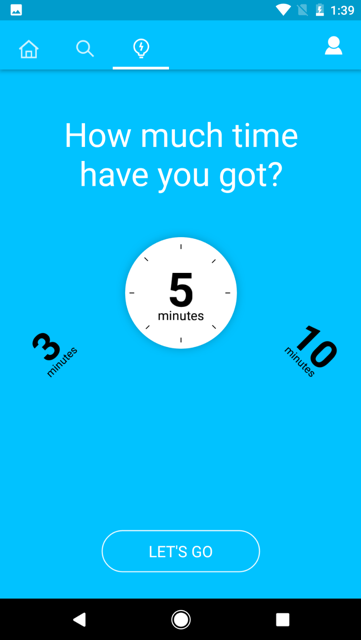
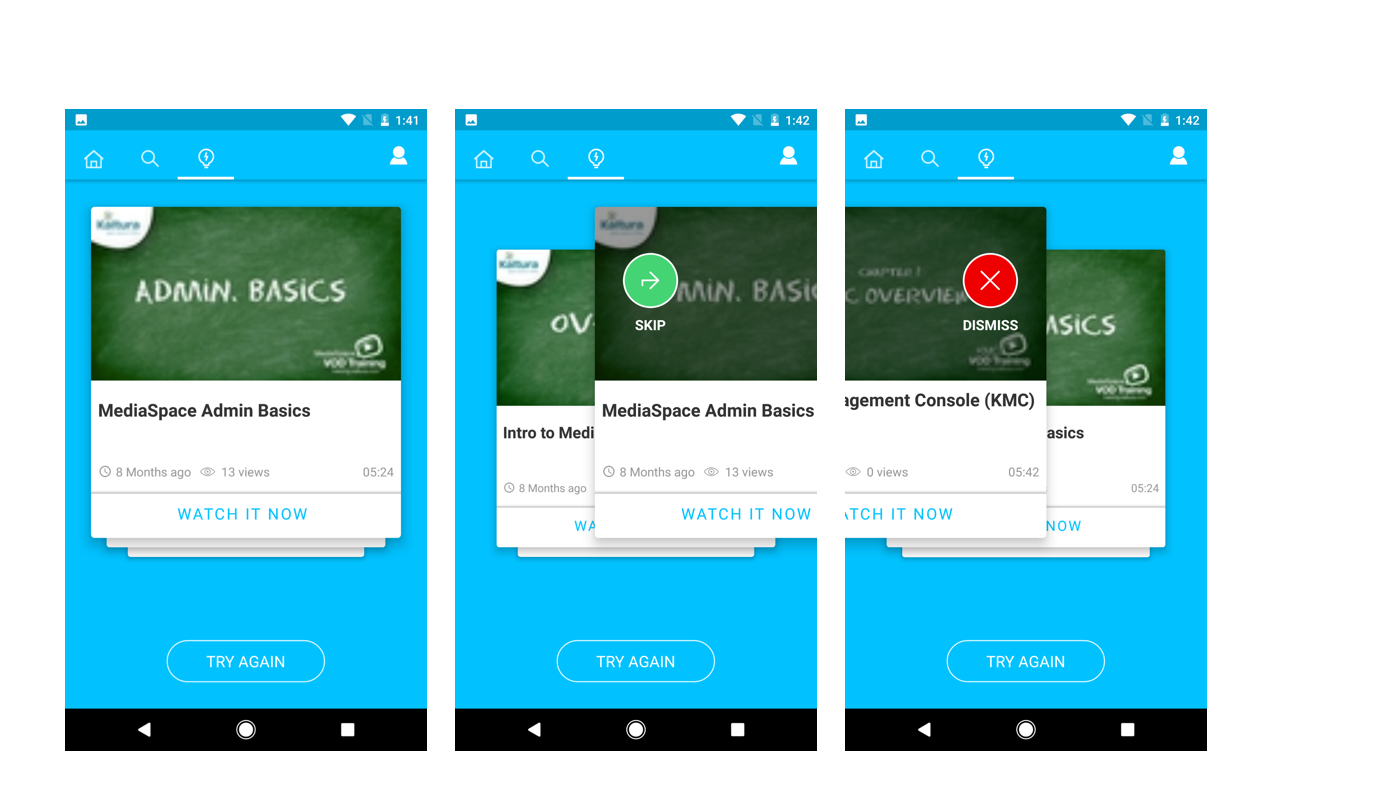
Get inspired suggests media based on the time you have.
- Select the light bulb icon in the bar at the bottom of the screen.
- Swipe to choose your available time.
- Select Let's go.
- Swipe to dismiss a suggestion, or select it to watch.