About
KMS Go lets you share and like media on your iPhone, and join the conversation with comments.
Share and like media
You can share and like media from a gallery or playlist, or from a media page.
Share or like from a gallery or playlist
- Select a gallery or playlist.
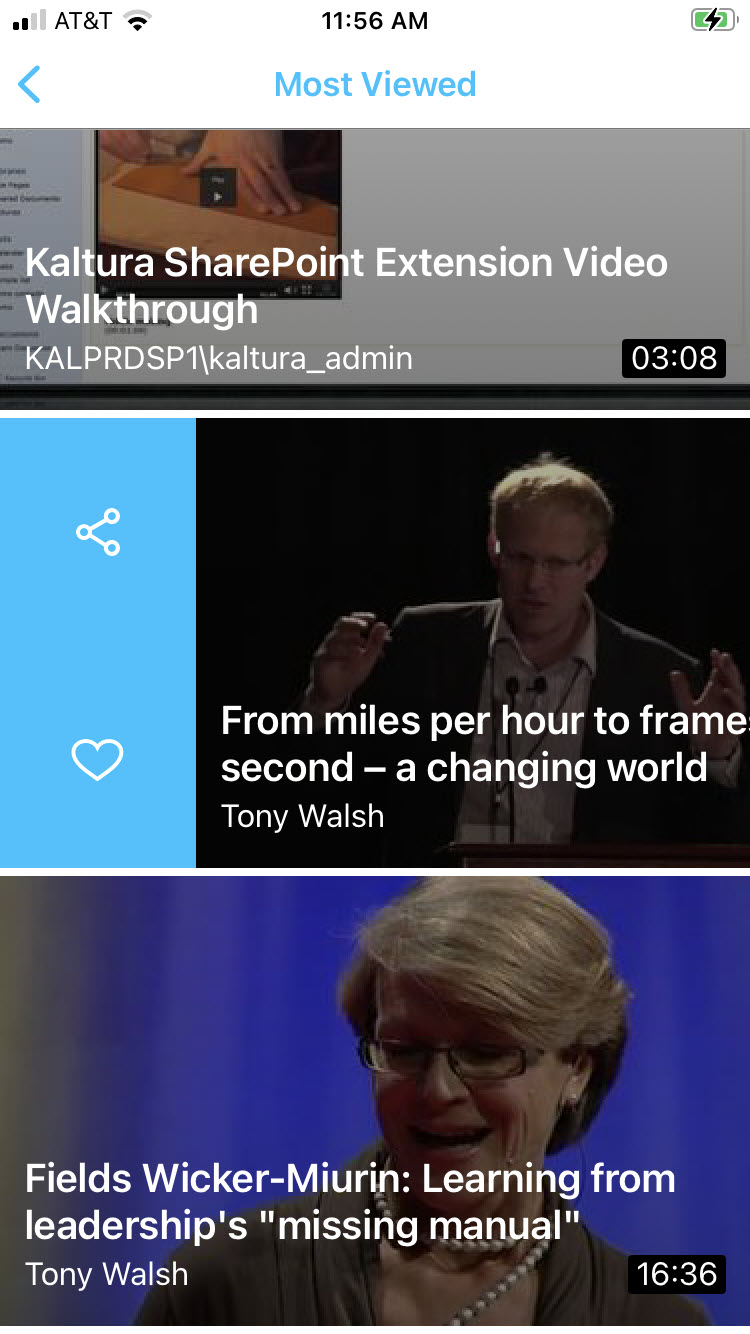
- Swipe the media item to the right. The quick action icons appear.
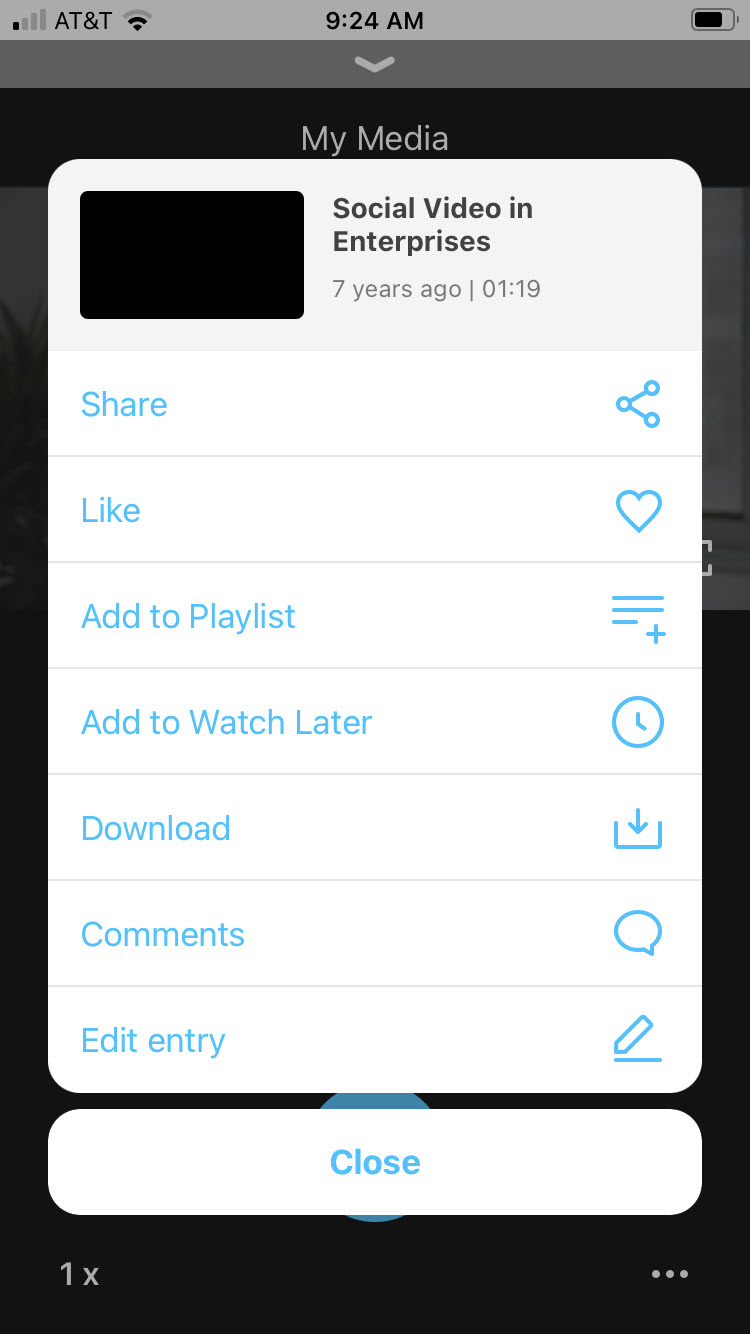
- Select the Share (two lines and three circles) or Like (heart) icon. If you're sharing, choose how to share the media, such as Messages, email, or another app.
Share or like from a media page
- Go to My Media.
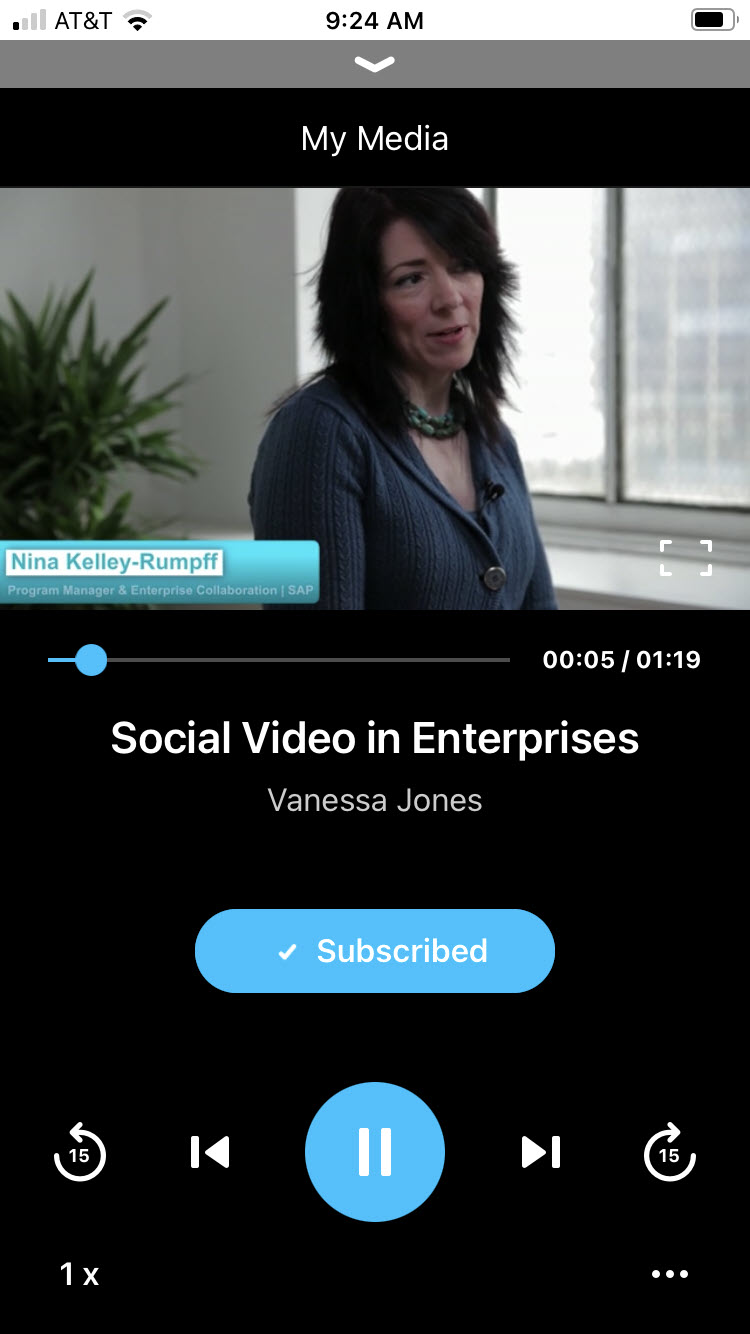
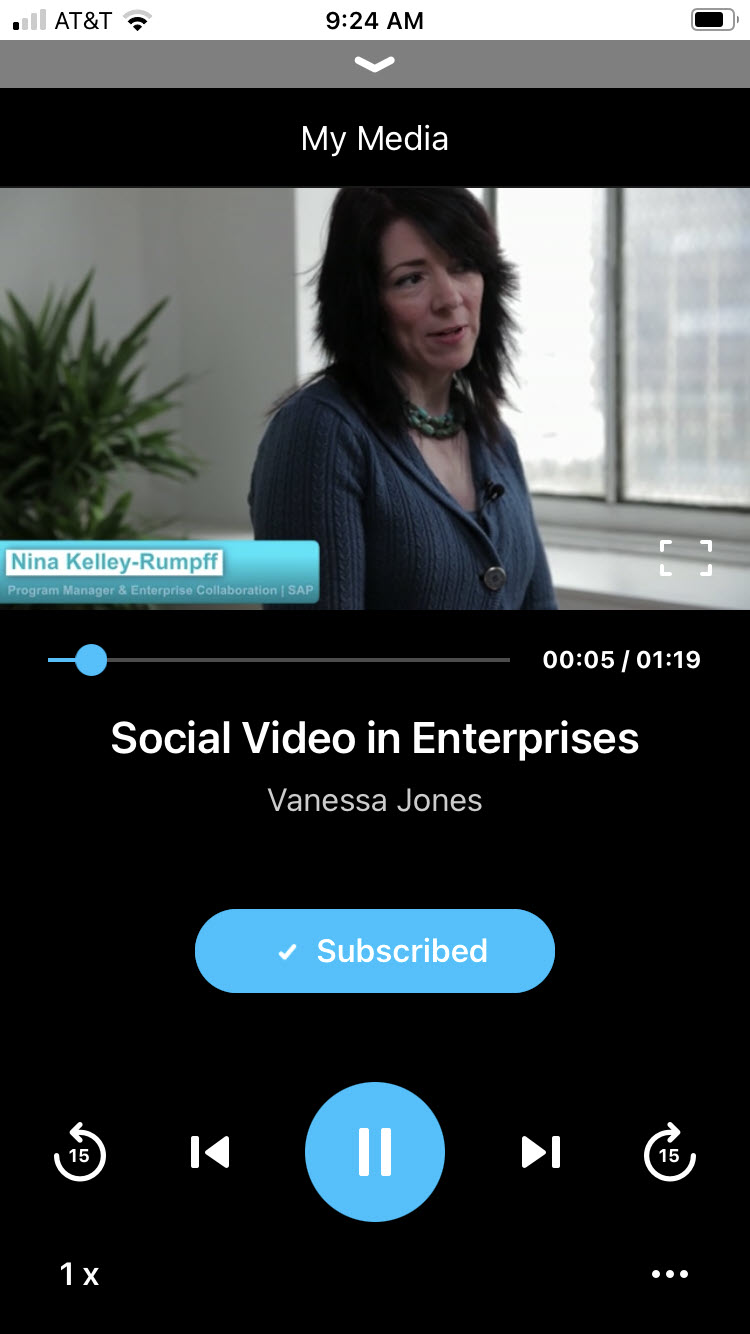
- Select a media item. The media page opens.
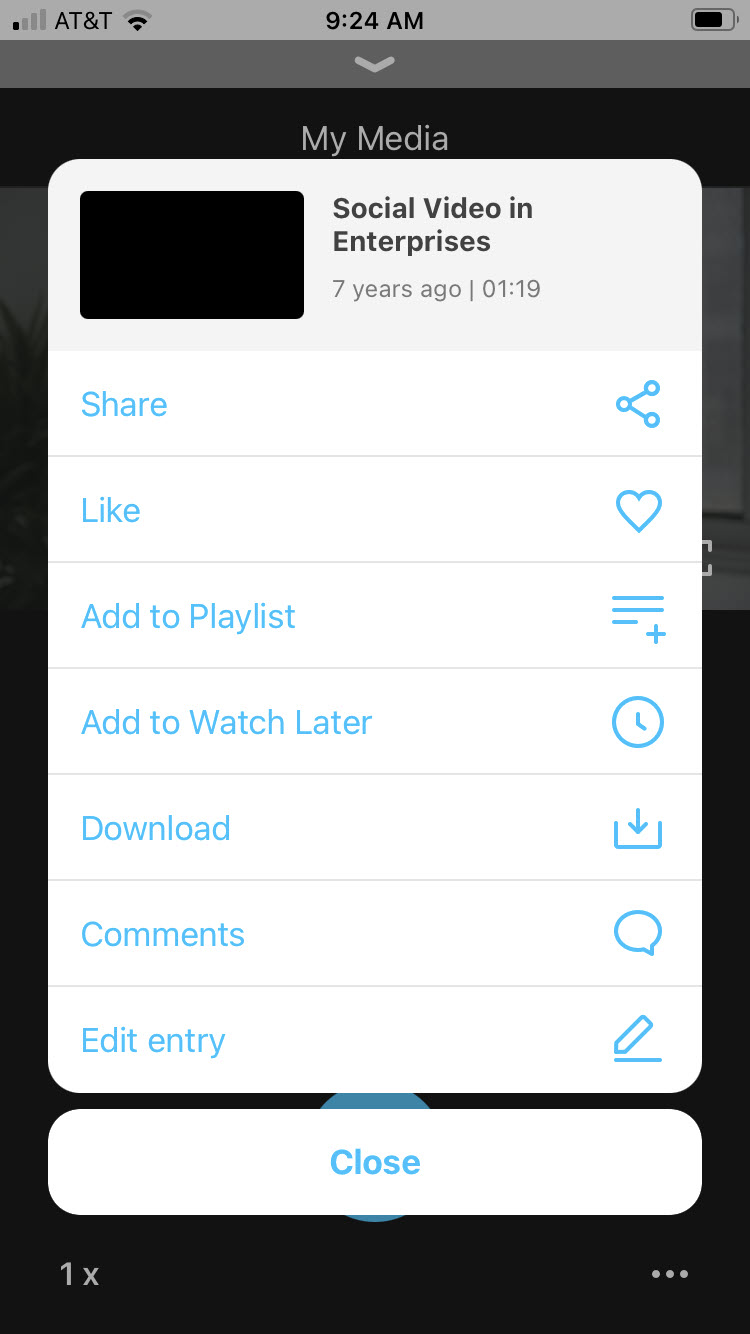
- Select the ellipsis (...) in the lower right corner. More options appear.
- Select the Share (two lines and three circles) or Like (heart) icon. If you're sharing, choose how to share the media, such as Messages, email, or another app.
Comment on media
You can comment on a media item and reply to other people's comments.
- Go to My Media.
- Select a media item. The media page opens.
- Select the ellipsis (...) in the lower right corner. More options appear.
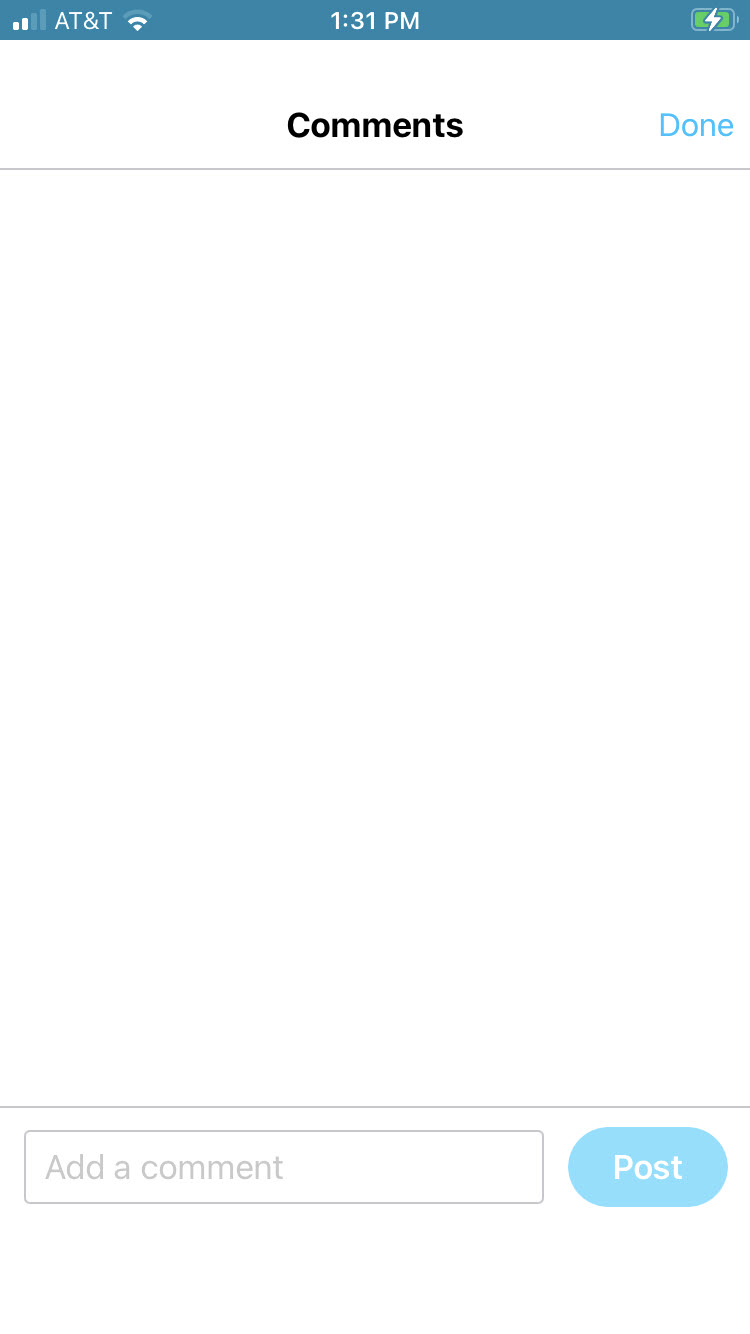
- Select the Comments (speech bubble) icon. The Comments screen opens.
- Enter a comment.
- Select Post.
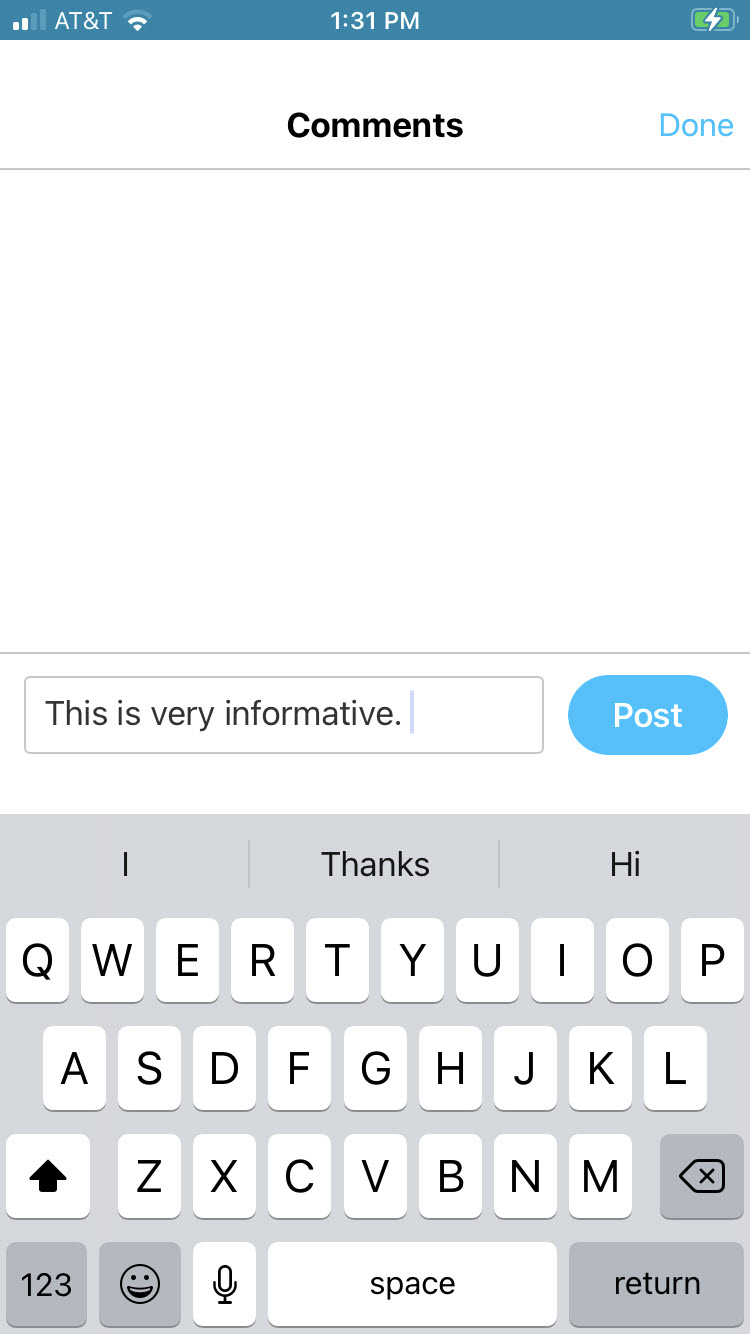
To reply to a comment, select Reply, enter your reply, and select Post.
Your administrator's settings control what you can discover and do, including whether commenting is available.