About
The Categories page includes a search feature that helps you quickly find categories and category information in your account.
You can search across category details such as names, descriptions, tags, IDs, and other searchable fields.
How to search
- Log into your Rich Media CMS.
- Click the Categories tab to open the Categories page.
- In the Search field, enter a keyword (s) and press enter on your keyboard.


The search is applied to category names and searchable category attributes.
If your search returns many results, use the Filter Categories and Refine options to narrow the results.

When an account contains more than 500 categories, the Channels filter is unavailable. Use the search bar at the top of the page to find categories.
Filter for uncategorized entries
The Uncategorized filter helps you find entries that aren't assigned to any category.
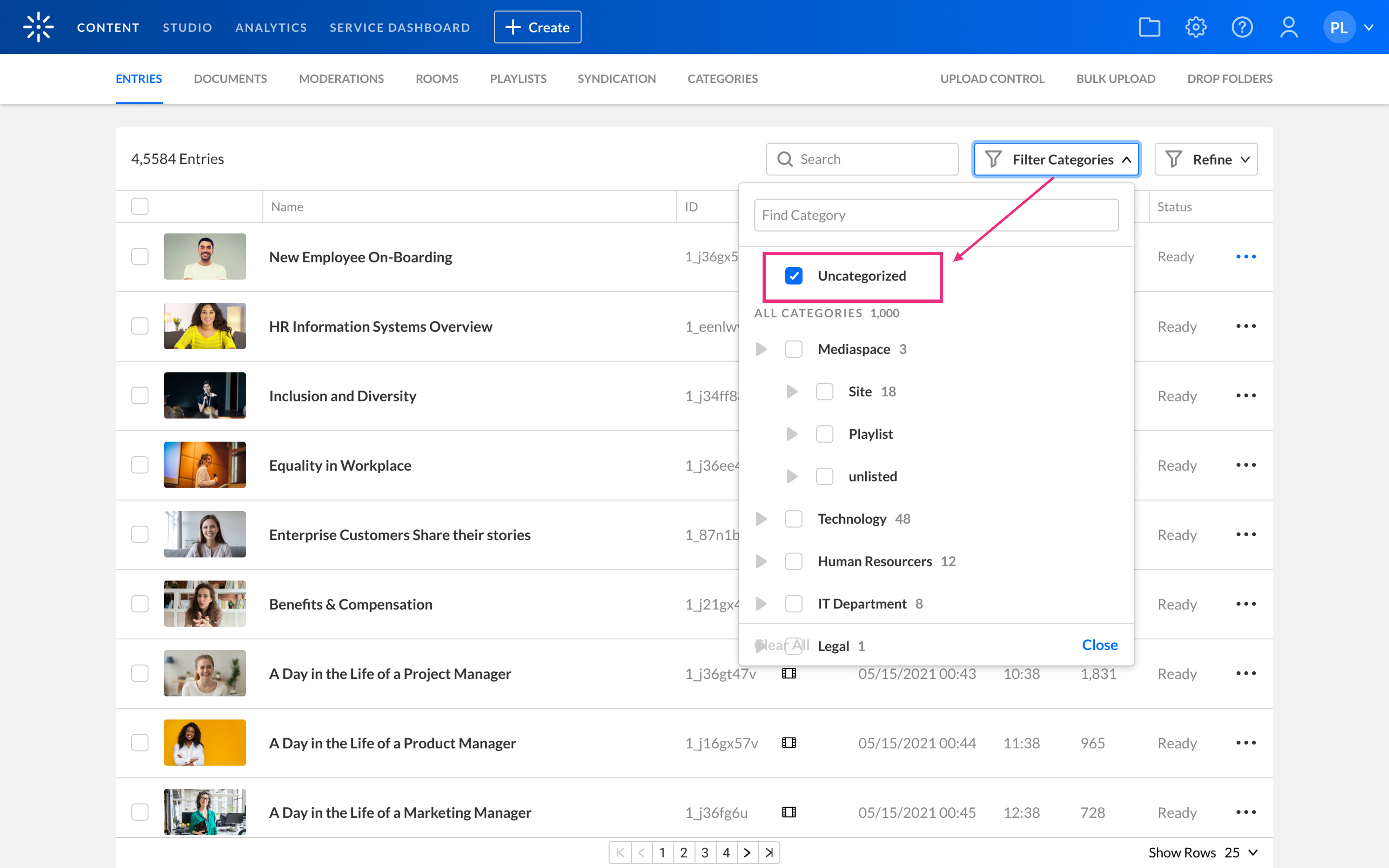
When you select Uncategorized:
- All other category filters are cleared automatically.
- The list updates to display only entries without assigned categories.
Clear search
Click Clear All at the far right, or click the X on the blue box to remove a single search criteria.

Search rules
The search engine compares your search terms against searchable category information, including:
- Category name
- Category ID
- Tags
- Description
- Reference ID
- Custom data fields configured as searchable
The following search rules apply:
| Search type | Example | Result |
|---|---|---|
| AND | hello world |
Returns categories containing both hello and world in searchable category attributes. |
| OR | hello, world |
Returns categories containing either hello or world. |
| AND NOT | hello ! world |
Returns categories containing hello but not world. The exclamation mark (!) isn't supported at the beginning of a search term. To search for text that begins or ends with an exclamation mark, use a backslash before it (\!). |
| Exact match | "hello world" |
Returns categories containing the exact phrase "hello world". |
Search criteria can include alphanumeric characters and special characters, including:
~ ! @ # $ % ^ & * ( ) - _ = + [ ] { } ; : ' , | / ? < >
When a search contains more than two words:
- All search words must appear in the results, regardless of order.
- Demonstrative words (such as this and that) and common prepositions are ignored.
