About
You can restream your live session to social media platforms that support RTMP streaming, such as Facebook, YouTube, LinkedIn, or other broadcast services via the Share & Embed tab in the session settings panel.
Restreaming sends your live session feed from Kaltura to one or more external destinations at the same time, helping you reach additional audiences outside your Kaltura event site.
Restreaming is available only for future sessions. Before restreaming, make sure that:
- Your session is scheduled and has not started yet.
- The social media platform you plan to use provides an RTMP stream URL and Stream key.
- You have the necessary permissions on the external platform to create a live stream.
Single-session events
Access session settings
- From the Events homepage, click the event you want to manage.
- In the Event controls area, select the edit icon next to Share & Embed.

The Overview page displays.


Multi-session events
Access session settings
There are two ways to reach session settings:
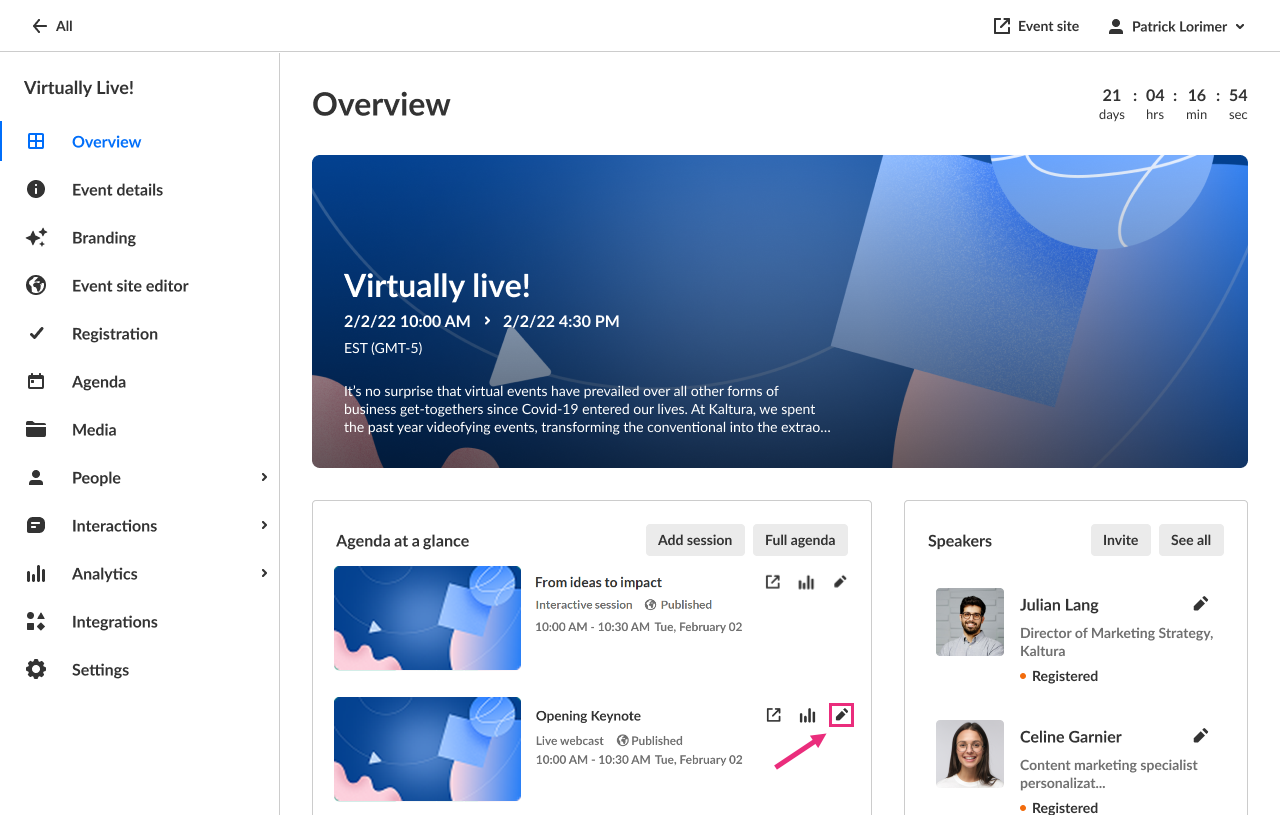
- On the Overview page, in the Agenda at a glance section, click the pencil icon next to the session.
- On the Agenda page, click the three-dot actions meu to the right of the session and choose Edit.
The session settings open in a side panel with the Basics tab selected by default.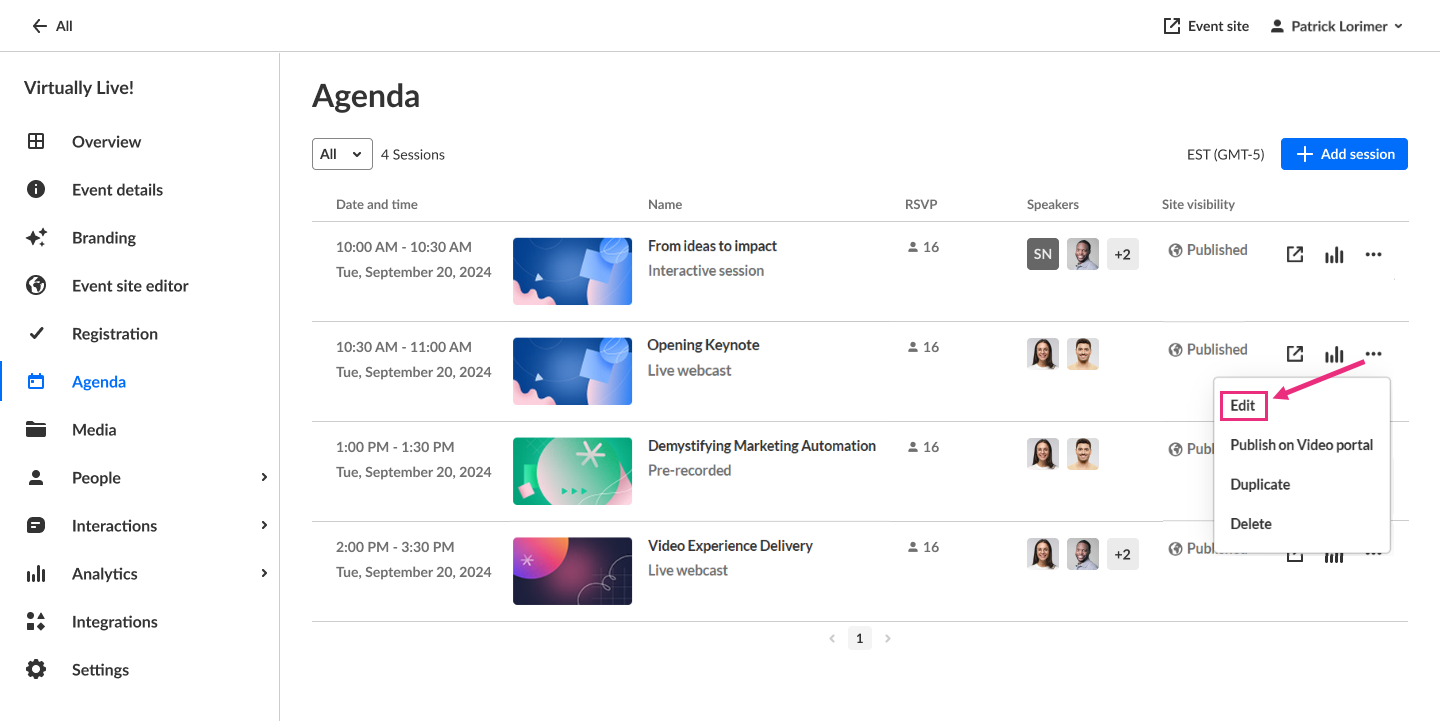

Click Share & Embed.

Add a social stream
- In the Social media streams section, click + Add stream.
- Enter the required information:
- Social channel – the name of the destination (for example, Facebook, YouTube, LinkedIn, etc.).
- Stream URL (RTMP) – paste the RTMP URL provided by the destination platform.
- Stream key – paste the platform’s stream key.
- Click Add.

The Add a social stream window displays.

Your new social stream appears under Social media streams.

Edit a stream
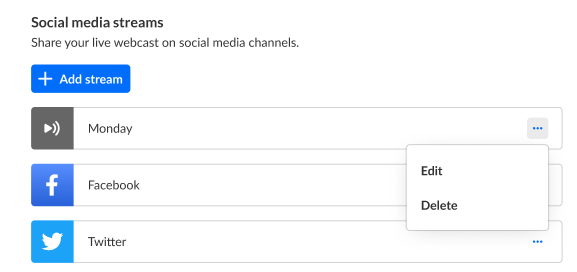
- In the Social media streams section, click the three-dot action menu to the right of the desired stream. and select Edit.
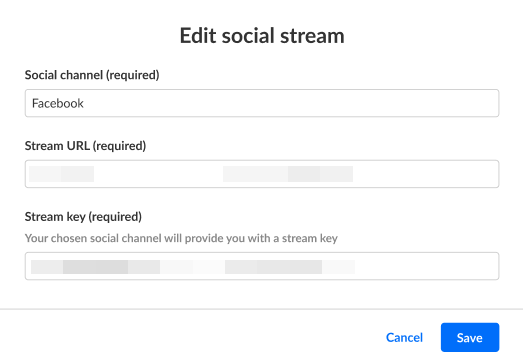
- Update the RTMP URL, stream key, or channel name.
- Click Save.
The Edit social stream window displays.
Delete a stream
- In the Social media streams section, click the three-dot action menu to the right of the desired stream.
- Click Delete.
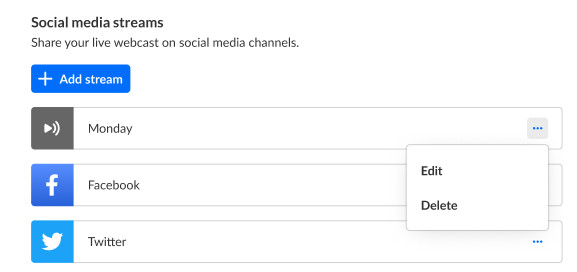
After adding, editing, or deleting a stream, click Save changes in the bottom-right corner of the page to apply your updates.
Notes
- Viewers who watch your session through a restream are anonymous in analytics because they are not required to register.
- External platforms do not support enrichment features such as dual screen or cue points.
- You can add multiple social streams if you want to restream to several platforms at once.
- RTMP behavior varies by platform; always verify your Stream URL and Stream key on the destination service before starting the broadcast.
