About
The Live Stage tab is only for a specific context, for example, a specific session, and displays differently for an attendee, speaker, and moderator.
The Live Stage tab includes the following sub-tabs:


 Backchannel (Only for moderators and speakers in a specific context/session.)
The default view of the Live stage sub-tabs are icons only. Text labels may be added beneath icons.
 Attendee View
Please note - The chat and collaboration features in the Live Stage tab vary depending on whether your account administrator has enabled a Public Q&A experience. Public Q&A is controlled from the Configuration Management console in the Chat and Collaboration module, under mediaChat settings.
This article details the Live stage experience with Public Q&A enabled. For the non-Public Q&A experience, see here.
Activity indicators across all tabs
Activity indicators help you stay in sync across all tabs by signaling when there's new activity in tabs you're not currently viewing. These visual cues make sure you never miss what matters - even when you're multi-tasking across multiple tabs.
- A notification dot on the Chat or Backchannel sub-tabs indicates there is a new message.
- A notification dot on the Q&A sub-tab indicates new questions or new chat under existing answers.
- A notification dot on the Feed tab indicates that a new item has been published to the feed.
In our example below, the user is focused on the Q&A sub-tab of the Live stage. A notification dot on the Feed sub-tab indicates that a new item has been published to the feed.

A notification dot also displays on the Live Stage icon when widget is closed and there's activity in any tab.
Chat tab
The Chat tab presents the group chat for a specific context/session. Attendees can write, like, and reply to messages. They can also delete their own messages. Moderators have the additional abilities to pin and delete all messages, block users from the group chat, and access interaction capabilities. The Chat tab displays differently for an attendee, speaker, and moderator.
Attendee View
- Type your message in the "Write your message" field to start chatting.
- Hover over a message and select the "Like" icon to like a message.
- Hover over a message and select the "Reply" icon to reply to a message.
- Hover over your own message and select the "Trashcan" icon to delete your message.
 Moderator View
- Click the three-dot action menu and choose Clear chat history to clear your chat history. Once confirmed, the chat history will not be available to your attendees. (moderator only)
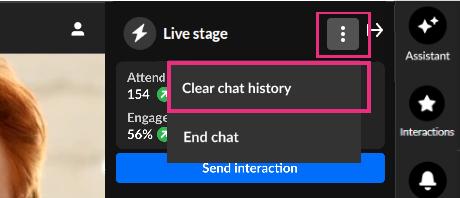 Note: When chats are cleared the data is not permanently deleted. It remains hidden from view but is still available in the session reports for future reference.
 -
Click the three-dot action menu and choose End chat to disable/end the group chat. This action affects all session users. Once disabled, existing chats will close and users who join the session will see that the chat is closed. Chat history will still be visible.
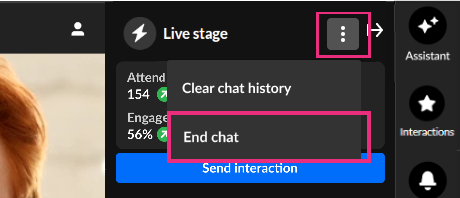 To enable/re-start the group chat, click Start chat. Attendees will be able to view past messages and send new ones.
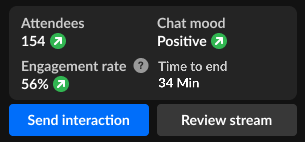
 - Review crucial data points, including attendee numbers, chat mood (results of sentiment analysis) or turnout rate (percentage of those registered who are actually logged into the session), engagement rate (viewers who watch in full screen or with the focus on the tab and sound on), and time to end. (moderator only)
- Click Send interaction to access interaction capabilities. (moderator only)
- Click Review stream to view essential stream health analytics and monitor the live player during your Live webcast session. Want more information on this feature? See Stream health analytics and player preview. This feature is only available in the Kaltura webcast studio during a live stream. (moderator only)
- Hover over a message and select the "Like" icon to like a message. (speaker and moderator)
- Hover over a message and select the "Reply" icon to reply to a message. (speaker and moderator)
- Hover over your own message and select the "Trashcan" icon to delete your message. (speaker and moderator)
- Hover over any message and select the "Trashcan" icon to delete the message. (moderator only)
- Hover over a message and select the "Pin" icon to pin the message to the top of the list. (moderator only) A message that was pinned can also be unpinned by a moderator.
- Hover over a message and select the "Block" icon to block the user. (moderator only)
- Type your message in the "Write your message" field to start chatting. (speaker and moderator)
 Note: When chats are cleared the data is not permanently deleted. It remains hidden from view but is still available in the session reports for future reference.
 To enable/re-start the group chat, click Start chat. Attendees will be able to view past messages and send new ones.
Q&A tab
Q&A is a public, community-driven platform that enables immediate visibility and collaborative responses while providing moderators with enhanced filtering and management capabilities.
The Q&A tab displays differently for an attendee, speaker, and moderator.
Attendee experience
Before the first question is posed, the Q&A tab is empty.
 Attendee view
Type your question in the "Ask a question" field and press Enter. (Maximum 500 char.)
 Attendee view
Once the session is underway, the Q&A tab may appear similar to the example below, filled with active question and responses.

Verified badges indicate users assigned a session management role.
Attendees have the following capabilities in the Q&A tab:
- Click the My items button to filter by My items only. When any filter is enabled, the filter icon is gray. When the My items only filter is on, the My items icon is gray as well and only the items you submitted are displayed.
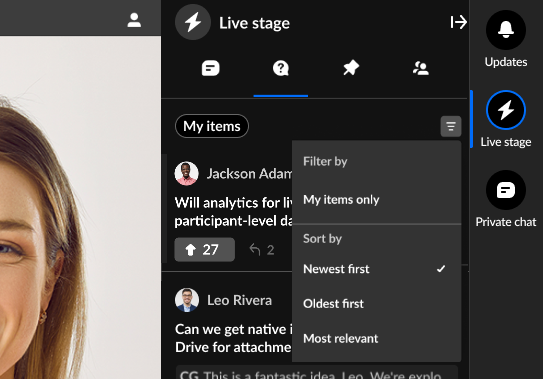
- Click the Filter icon-
- Filter by My items only. When any filter is enabled, the filter icon is gray. When the My items only filter is on, the My items icon is gray as well and only the items you submitted are displayed.
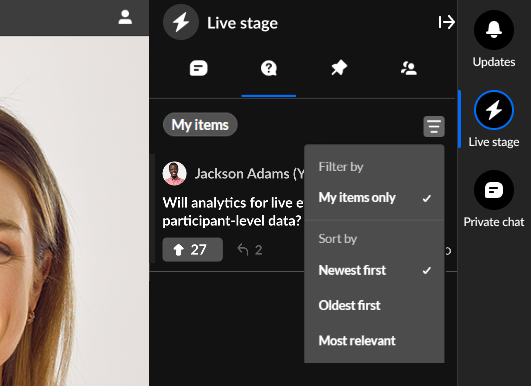
- Sort items by newest first, oldest first, or most relevant.
- A red dot on the Filter icon indicates a new message is available. Click the Refresh button to the right of Newest first. The list will refresh with the latest message, and the red dot will be removed.
 Note - If My items only AND Newest first filters are both selected when you click the Refresh button, the filter will be reset to Newest first only.
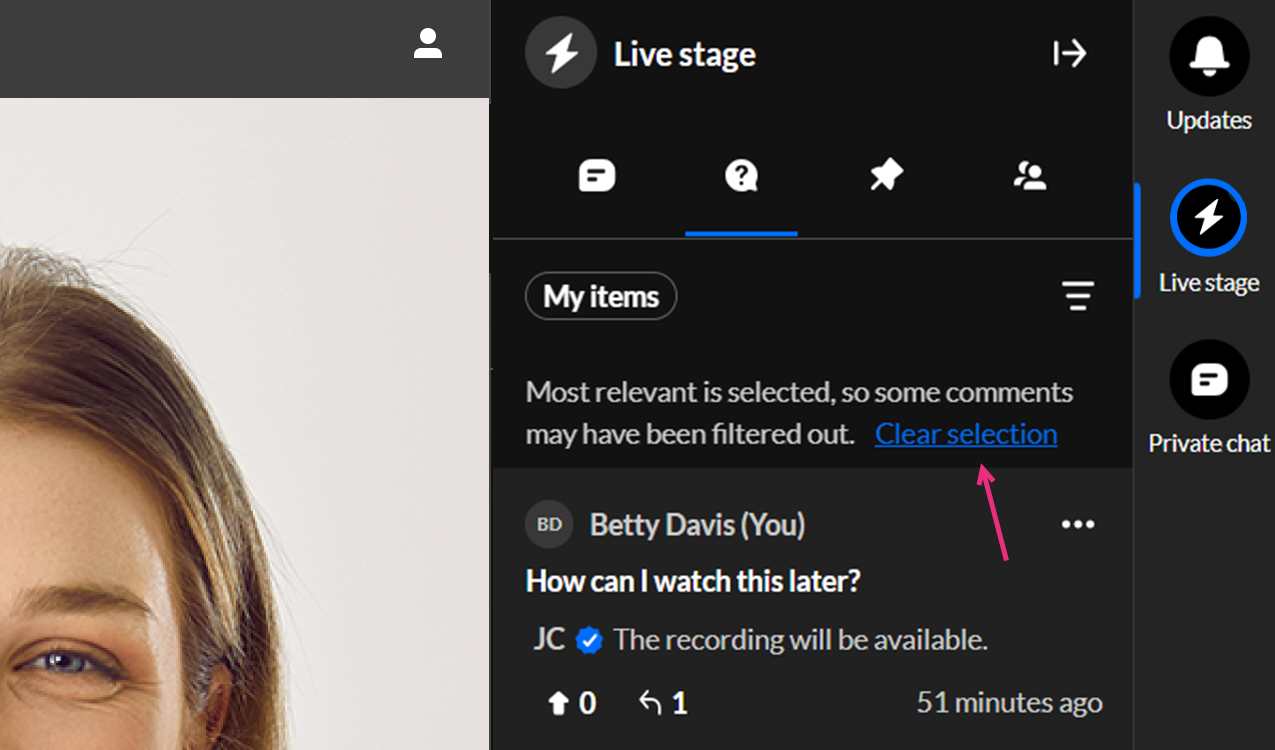
 - When the Most relevant filter is selected, some comments may be hidden. To view all comments again, simply click Clear selection to remove the filter.
- Filter by My items only. When any filter is enabled, the filter icon is gray. When the My items only filter is on, the My items icon is gray as well and only the items you submitted are displayed.
- Click the "Upvote" icon to upvote a message.

- Click the "Like" icon to like/unlike a message.

- Select the "Reply" icon then type a reply to a message. (Maximum 500 char. Only for open threads.)
- Click to select a reply, then click the three-dot menu on the reply and select "Delete" (archive) the item. (As an attendee, you can only delete replies made by you.)
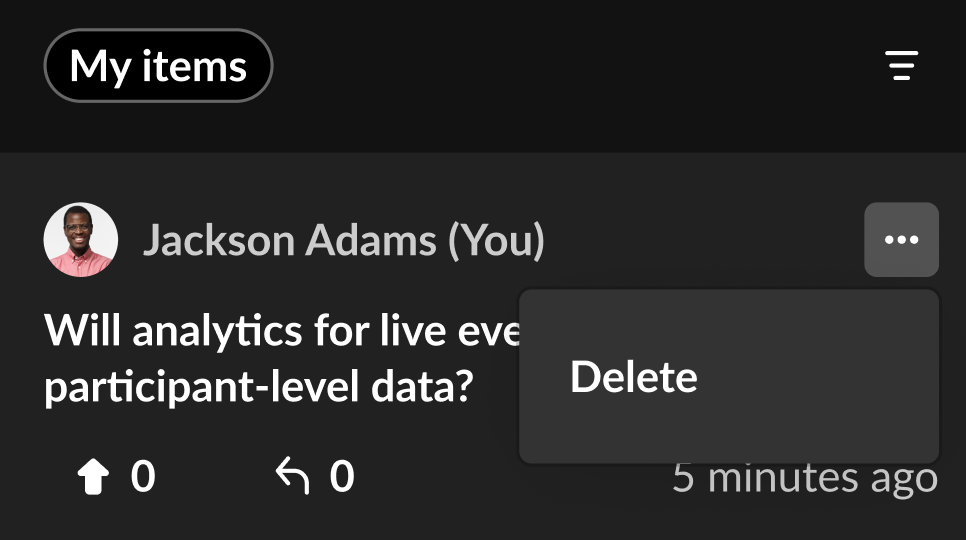
- Click the three-dot menu on your message and select "Delete" (archive) the item. (As an attendee, you can only delete items created by you.)
 Note - If My items only AND Newest first filters are both selected when you click the Refresh button, the filter will be reset to Newest first only.
Speaker & Moderator experience
Before the first question is posed, the Q&A tab is empty.
 Speaker and Moderator View
Once the session is underway, the Q&A tab may appear similar to the example below, filled with active question and responses.
 Speaker and Moderator View
Verified badges indicate users assigned a session management role.
Speakers and Moderators choose from the following views:
All - (Default) Displays all items regardless of their status. Only items that were deleted/archived are not shown.
Pending - Displays all items that the moderator of that session has not commented on.
Active - Displays all items that the moderator of that session has commented on.
Done - Displays all comments thread that has correct answer or thread is closed.
When the My items only filter is not on - Displays any question answered by a moderator not marked as correct and not closed for reply.
When My items only filter is on - Displays any question answered by me not marked as correct and not closed for reply.
Speakers and Moderators have the following capabilities in the Q&A tab (unless otherwise noted):
- Click the Filter icon -
- Filter items by My items only. When any filter is enabled, the filter icon is gray. When the My items only filter is on, only the items you contributed to are displayed (for example, the items you replied to).
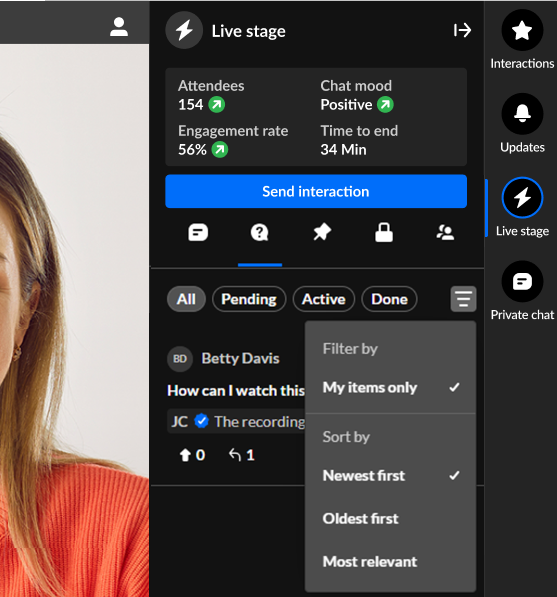
- Sort items by newest first (default), oldest first, and most relevant.
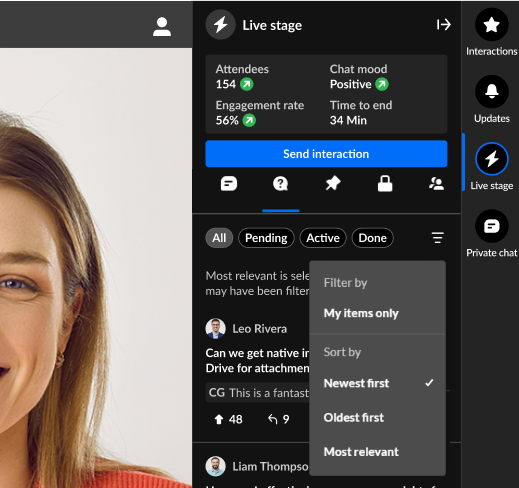
- A red dot on the Filter icon indicates a new message is available. Click the Refresh button to the right of Newest first. The list will refresh with the latest message, and the red dot will be removed.

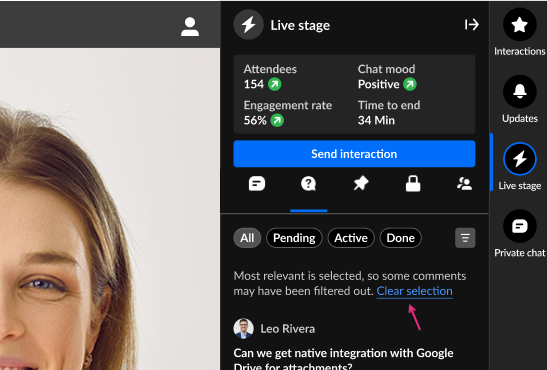
- When the Most relevant filter is selected, some comments may be hidden. To view all comments again, simply click Clear selection to remove the filter.
- Filter items by My items only. When any filter is enabled, the filter icon is gray. When the My items only filter is on, only the items you contributed to are displayed (for example, the items you replied to).
- Click the "Upvote" icon to upvote a message.

- Click the "Like" icon to like/unlike a message.
- Select the "Reply" icon then type a reply to a message. (Maximum 500 char. Only for open threads.)
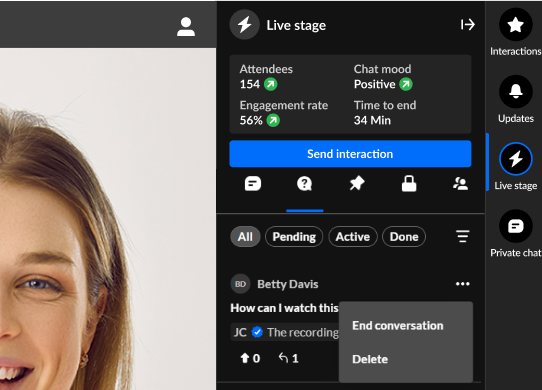
- Click the three-dot menu on a question and select:
- End/start conversation (Users cannot reply to conversations that are ended.) (Moderators only)
- Delete (archive) the item (Moderators only)
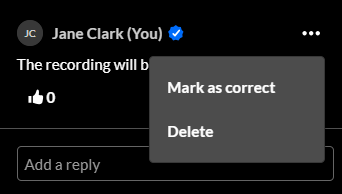
- Click to select a reply, then click the three-dot menu on the reply and select:
- Mark as correct/unmark as correct (Moderators only)
- Delete (archive) the item (Moderators only)
Items marked as correct will display as follows:
Question focus view - white circle with check mark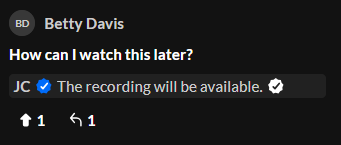 Reply focus view - white circle with check mark and "Marked as correct"
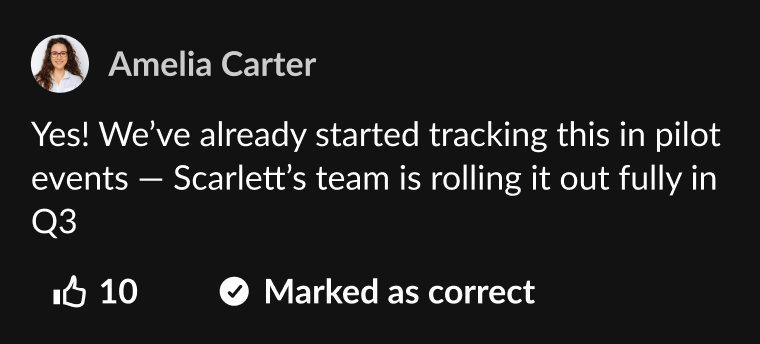

 Reply focus view - white circle with check mark and "Marked as correct"
Speakers and Moderators have the following additional capabilities in the Q&A tab.
- Review crucial data points, including attendee numbers, chat mood (results of sentiment analysis) or turnout rate (percentage of those registered who are actually logged into the session), engagement rate (viewers who watch in full screen or with the focus on the tab and sound on), and time to end.
- Click Send interaction to access interaction capabilities.
- Click Review stream to view essential stream health analytics and monitor the live player during your Live webcast session. Want more information on this feature? See Stream health analytics and player preview. This feature is only available in the Kaltura webcast studio during a live stream.
- Type your question in the "Ask a question" field and press Enter. (Maximum 500 char.)
Feed tab
The Feed tab contains several components, similar to a social media feed. Attendees, speakers, and moderators use this tab to view items such as messages pinned by moderators and interactions (polls, rating scale polls, and crowd vote polls). The Feed tab displays differently for an attendee, speaker, and moderator.
 Attendee View
Attendees may:
- View messages pinned by moderators
- View and participate in interactions (polls, rating scale polls, and crowd vote polls)
 Speaker view
Speakers may:
- View messages pinned by moderators
- View and participate in interactions (polls, rating scale polls, and crowd vote polls
 Moderator View
Moderators may:
- Review crucial data points, including attendee numbers, chat mood (results of sentiment analysis) or turnout rate (percentage of those registered who are actually logged into the session), engagement rate (viewers who watch in full screen or with the focus on the tab and sound on), and time to end.
- Click Send interaction to access interaction capabilities.
- Click Review stream to view essential stream health analytics and monitor the live player during your Live webcast session. Want more information on this feature? See Stream health analytics and player preview. This feature is only available in the Kaltura webcast studio during a live stream.
- See the results of a poll before submitting an answer. Notice the results are visible to the moderator in our example above. Click the "Voting view" button, then click to choose your answer.
- Stop sharing/share results of, end, and unpublish poll questions, quiz questions, rating scales, crowd votes, and open-ended questions; end surveys; end and unpublish Word clouds on the Feed tab.
- Pin a message from the Chat tab and Q&A tab and it will display on the Feed tab as a "pinned message". (A message that was pinned can also be unpinned by a moderator.)
Participants tab
The Participants tab is where you can see all the users in the session and, as a moderator, you can also manage user capabilities.
The Participants tab is available for sessions with a Kaltura Room component, such as Interactive sessions.
The Participants tab is automatically applied to some custom event templates. If you are using a custom event template and the Participants tab is not visible, feel free to contact your Kaltura representative to have it added.
 Attendee View
On the Participants list, users are listed under the following section(s):
- Raised hands
- On stage
- Viewers
Each section indicates the number of users in that section, as well as the names of the users, with a label for moderator or custom permissions. Icons for raised hand and microphone are displayed when relevant, to the right of each name.
You can click on the v to the left of each section name to collapse the section, and then the > to expand it. When there are many users listed in a section, you will also see the clickable options to See more and then See less.

Search the Participants list -
Wondering if someone is in your session? Or who is on stage? The search bar is a handy tool to navigate the Participants list. You can start typing in the search bar, and the list will display results for the text you've entered as well as in which section the user(s) appear.

Manage participants (moderator only)
At the top of the list, you'll see All participants with the number, and a three dots menu. Clicking the 3 dots menu will offer the following options:
- Mute all microphones (except yours)
- Turn off all cameras (except yours)
- Clear raised hands

You can manage users individually by navigating to a name in the list, and hovering to click a raised hand icon to lower it, or clicking a microphone icon to mute or unmute a user (when the user is on stage).


There is also a three dots menu next to each name which offers more actions:
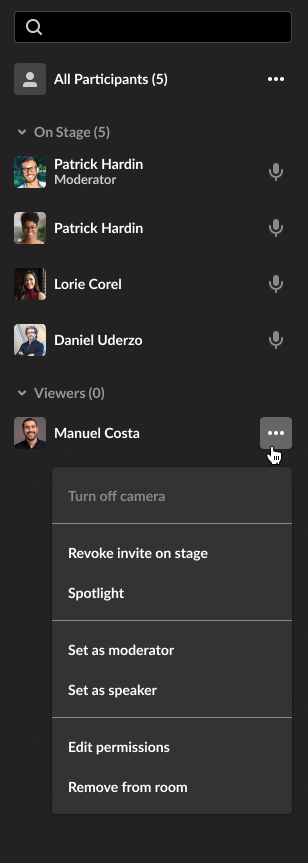
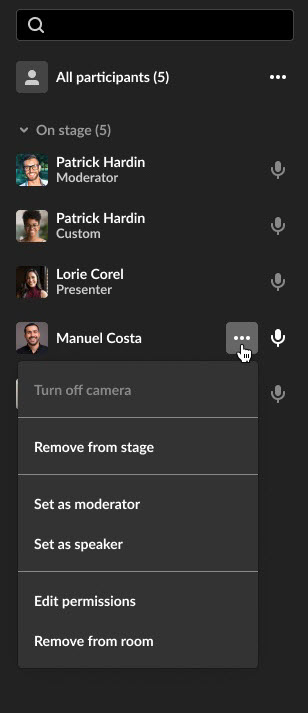
- Invite to stage/Remove from stage
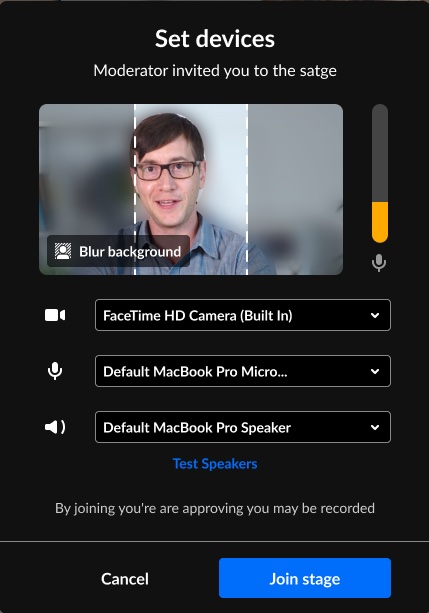
- Invite to stage send the user a Set devices popup window where they can Decline invitation or Join stage.
- Until the participant responds to an invitation, you'll have the option to Revoke invite on stage (even if another moderator initiated the invitation).
- Invite to stage send the user a Set devices popup window where they can Decline invitation or Join stage.
- Spotlight
- Set as moderator
- Set as speaker
- Edit permissions (see Users' Permissions)
- Remove from room
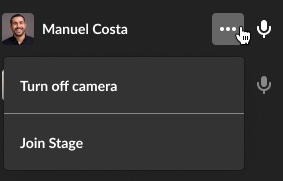
- When clicking the three dots menu next to your own name, you'll have the options to Turn off camera if on stage, and Join stage/Remove from stage.
Items available in the three dots menu depend on user relevant capability and only those with relevant capability can manipulate participants' streams.
- Turn off camera - Turns off the participant's camera.
- Remove from stage - Adds/removes the participant from the stage. That participant can always join the stage again if enabled by a moderator.
- Set as moderator - Sets that participant as a moderator.
- Set as speaker - Sets that participant as a speaker.
- Edit permissions - Edits the participant's user permission. See User permissions.
- Remove from room - Removes the user from the room.
Backchannel tab (moderators and speakers only)
The Backchannel tab is a space where moderators and speakers can chat privately with other speakers and moderators. This tab contains several components similar to the Chat tab, but only for moderators in a specific context/session. In other words, the Backchannel tab displays only for moderators and speakers who have been added as such in a particular session. Moderators and speakers can write, like, and reply to messages from other speakers and moderators. They can also delete their own messages.
The following figure depicts a portion of the Backchannel tab for a moderator with no messages posted.

The following figure depicts a portion of the Backchannel tab for a moderator populated with messages.

- Click the three-dot action menu and choose Clear chat history to clear your chat history. Once confirmed, the chat history will not be available to your attendees. (moderator only)
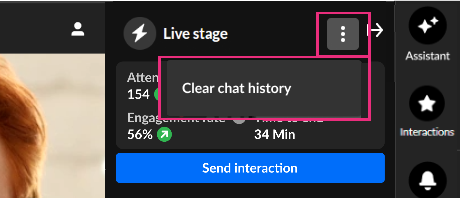 Note: when chats are cleared the data is not permanently deleted. It remains hidden from view but is still available in the session reports for future reference
 - Review crucial data points, including attendee numbers, chat mood (results of sentiment analysis) or turnout rate (percentage of those registered who are actually logged into the session), engagement rate (viewers who watch in full screen or with the focus on the tab and sound on), and time to end. (moderator only)
- Click Send interaction to access interaction capabilities. (moderator only)
- Click Review stream to view essential stream health analytics and monitor the live player during your Live webcast session. Want more information on this feature? See Stream health analytics and player preview. This feature is only available in the Kaltura webcast studio during a live stream. (moderator only)
- Hover over a message and select the "Like" icon to like a message.
- Hover over a message and select the "Reply" icon to reply to a message from another moderator or speaker.
- Hover over any one of your own messages and select the "Trashcan" icon to delete the message.
- Type your message in the "Write your message" field to start chatting with other moderators and speakers.
 Note: when chats are cleared the data is not permanently deleted. It remains hidden from view but is still available in the session reports for future reference
The following alert is shown at the bottom of the Backchannel tab. Because the Backchannel and Chat tabs function similarly, this alert helps remind moderators and speakers that they are in a "Moderator/Speaker-only" area.

Interested in exploring other tabs of the Chat and Collaboration widget menu? Click here!
