About
Moderators can present media in a Kaltura Room using the storyboard. Media added to the storyboard can be presented, reordered, edited, or removed at any time, making it easy to manage content during a session.
For instructions on preparing content in advance, see Add files to your storyboard.
Want to share a storyboard with your team? Make it global! To unlock the benefits of a Global Storyboard, contact your Kaltura representative.
To get started, watch the video tutorial or follow the steps below.
Mobile users, including moderators, can view storyboard content (videos, slides, images, etc.) when it's presented on stage, but cannot add, remove, or control items in the storyboard.
Open the storyboard
In your room, click the storyboard icon at the bottom right of the toolbar.

The storyboard opens as a horizontal panel at the bottom of the screen.

All media added to the storyboard appears here as thumbnails, ready to be presented on stage.
Present content
Locate the desired item on the storyboard and click on it.

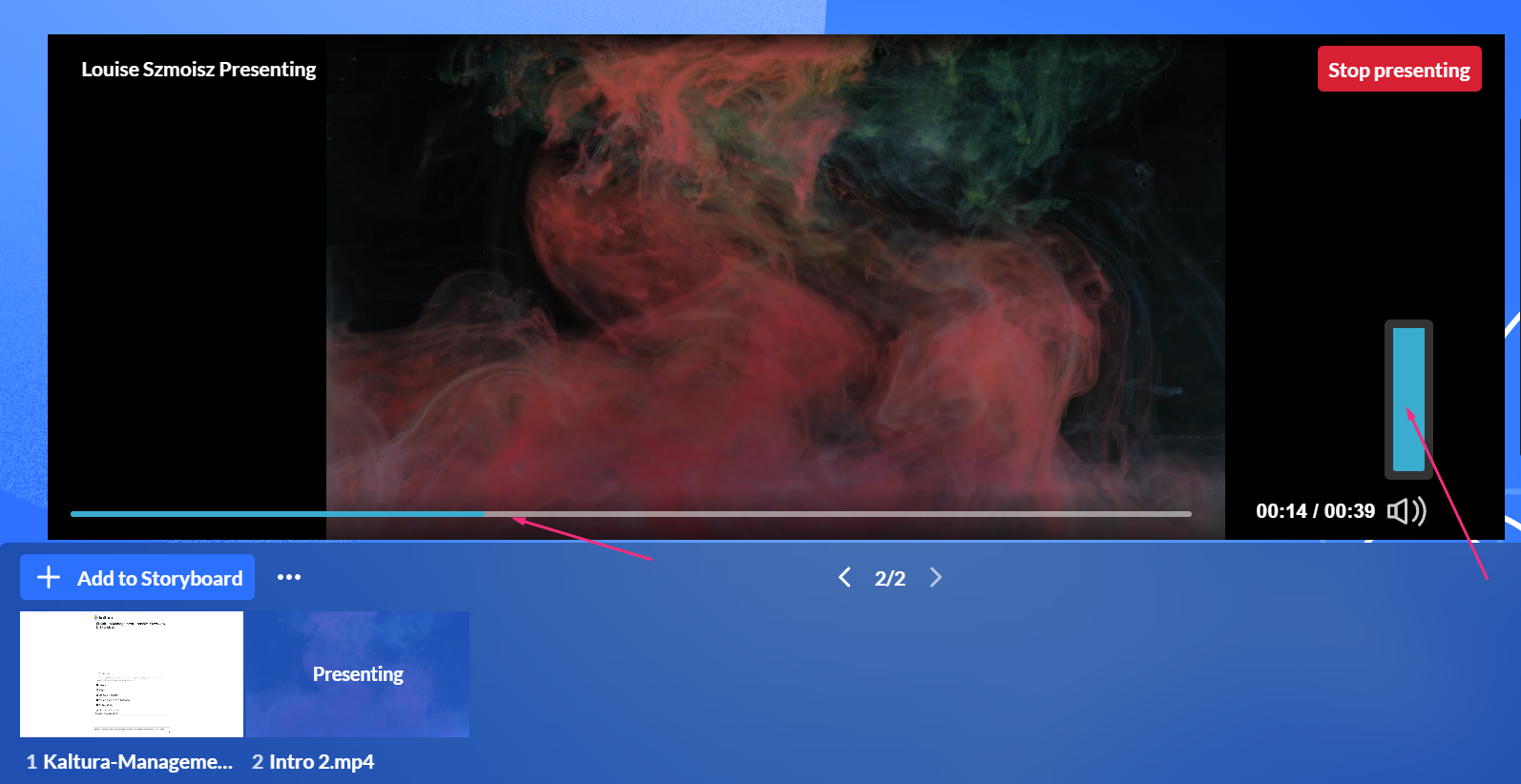
The item appears on the stage for all participants, and the storyboard thumbnail changes to 'Presenting'.

Play videos and audio
When you present a video or audio file, playback begins automatically with sound enabled. You can control playback using the player controls:
- Click the center of the player to pause or resume playback
- Use the progress bar to move forward or backward
- Hover over the volume icon to adjust audio levels
Participants do not see the storyboard. They only see the content presented on stage, without player controls such as the progress bar or volume buttons.
Present and annotate documents
When presenting documents (such as slides), you can:
- Hover over the stage to display a pencil icon, then click it to open annotation tools and zoom controls.

Switch between storyboard items
When multiple items are available, you can switch between them at any time.
- Locate the next item on the storyboard.
- Click Start presenting.

The newly selected item replaces the currently presented content.
Stop presenting content
To end the presentation, click the Stop Presenting button on the stage.

You can also click on the file in the storyboard.

Preview items
You can preview storyboard items without presenting them.
When you hover over an item, a preview popup appears showing the content.

This allows you to quickly review slides, videos, or scenes without presenting them.
You can also hover over the next or previous arrows to preview upcoming or previous items.

The preview closes automatically when you move your cursor away.
If the storyboard is collapsed, you can still preview upcoming or previous items by hovering over the arrows.

Target active content
If you scroll through the storyboard and the currently presented content is no longer visible, the target active content button appears at the far right of the storyboard.

Clicking this button automatically scrolls the storyboard so the active item becomes visible again. This makes it easier to manage the content currently shown on stage.
Remove files from storyboard
- Hover over the thumbnail of the file you want to remove.
- Click the X in the top right corner.
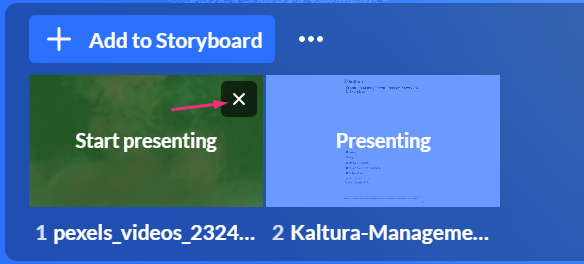
The file is removed.
Removing a file from the storyboard does not delete it from the media library.
Rearrange files
You can change the order of items in the storyboard.
- Click and drag the file to the position you want.
- Release the file.
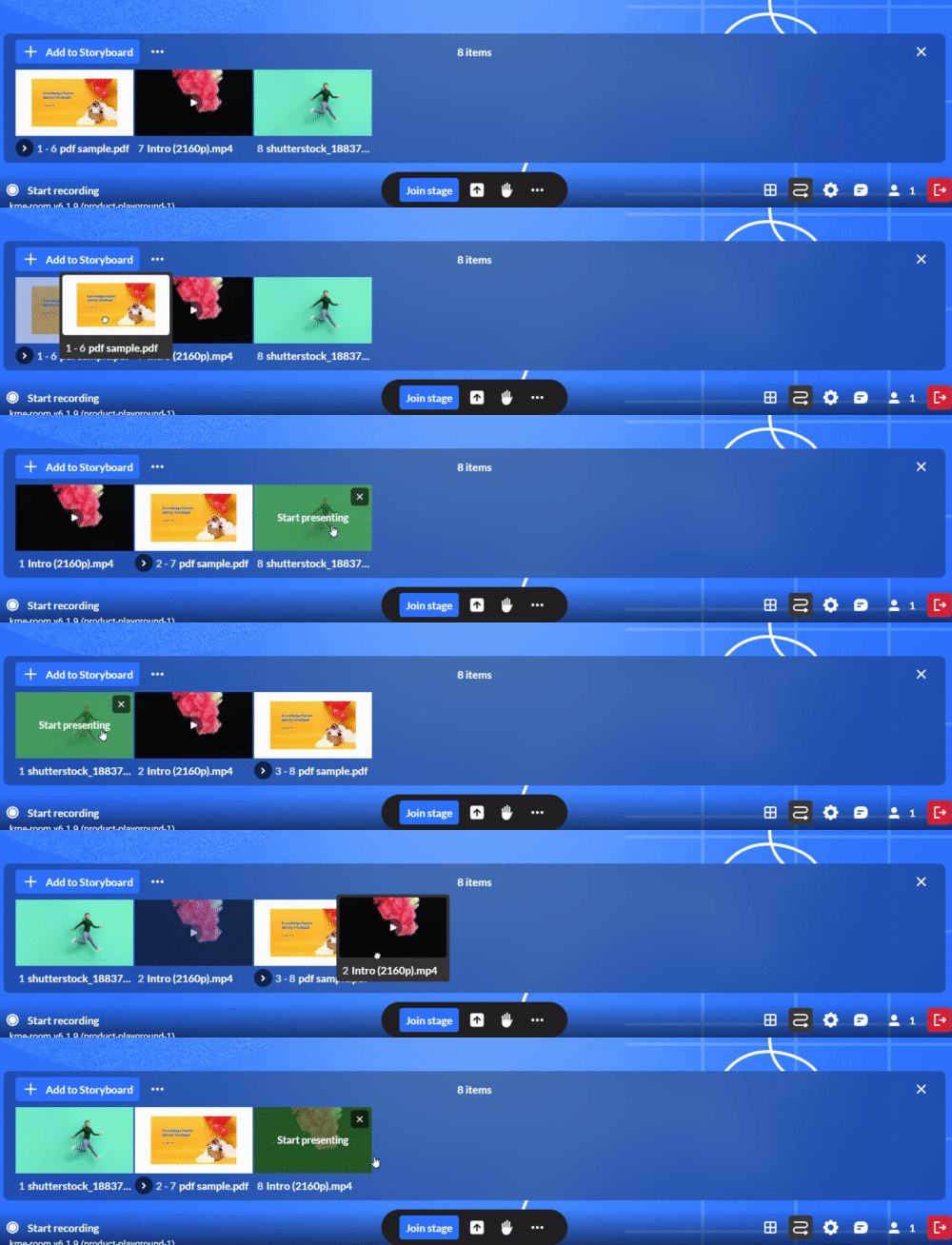
The new order is saved automatically.
Clear storyboard
- On the storyboard, next to the Add to storyboard button, click the three dots.
- Click Clear Storyboard.
- Click Clear. The storyboard is cleared of all its contents.


A confirmation displays: Are you sure you want to clear the storyboard?
