About
This article explains how to prepare a CSV file for media bulk upload in the Rich Media Content Management System (Rich Media CMS).
Use this guide to understand the CSV template provided in Rich Media CMS and the formatting rules required for a successful upload.
To learn how to upload your file in the Rich Media Content Management System (Rich Media CMS), see Upload media in bulk.
What you can do with a CSV file
Using a CSV file, you can create multiple media entries at once and assign metadata during ingestion.
For example, you can define:
- Entry titles and descriptions
- Tags and category assignments
- Transcoding profiles
- Thumbnail images
- Media file locations
This helps automate the ingestion process and apply metadata to many entries at the same time.
CSV file structure
A CSV file is a spreadsheet-style file where:
- Each row represents one media entry.
- Each column represents a metadata field.
- The first row defines the field names used in the upload.
The easiest way to prepare the file is to start with the CSV template provided in Rich Media CMS.
Example:
 CSV bulk upload template downloaded from Rich Media CMS
The template includes instructions and field descriptions in comment lines that begin with #.
Understand the CSV template
The CSV template contains several important rules:
- Lines beginning with # are comments and are ignored during processing.
- The first non-comment line must start with *, followed by the column names separated by commas.
- Each column maps to a metadata field in Kaltura.
The CSV template includes fields such as the following:
| Field | Description |
|---|---|
| title | Entry title |
| description | Entry description |
| tags | Tags assigned to the entry |
| url | Location of the media file |
| contentType | Type of media (video, audio, or image) |
| conversionProfileId | Transcoding profile applied to the entry |
| category | Category assignment |
| thumbnailUrl | URL of the thumbnail image |
Your account may include additional fields depending on configured metadata profiles.
Download a CSV template
You can download ready-to-use CSV templates directly from the Rich Media CMS.
- Log into your Rich Media CMS and click +Create in the top navigation bar.
- Under the Bulk Upload option, click Download CSV/XML Samples.
- Open the downloaded folder (kaltura_batch_upload_sample).
- Choose the sample named kaltura_batch_upload.

The download page opens.
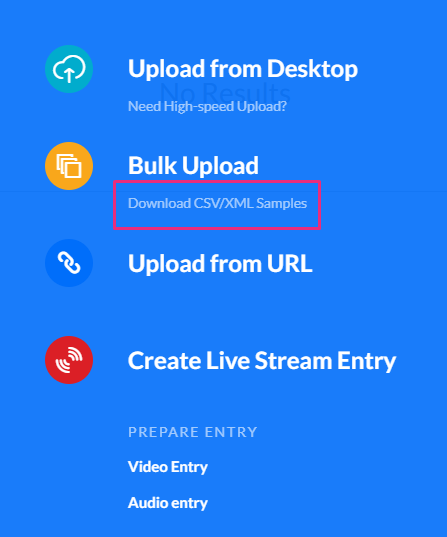

The sample files include the correct column structure and example values.
Specify the media file location
The url field defines where the media file is located. The file can be stored in several locations:
- a publicly accessible URL
- an FTP server
- a file location used by your ingestion workflow
Kaltura supports the following protocols:
- http
- https
- ftp
Make sure the file path or URL is valid and accessible to the ingestion process.
CSV formatting rules
Follow these guidelines when preparing your CSV file:
- The first data line must begin with * followed by the column names
- Each row creates one media entry
- Multiple tags can be assigned using quotation marks and commas
- Lines beginning with # are ignored during processing
For bulk uploads larger than 5,000 entries, contact your Kaltura representative.
