About
You can order audio description to make videos accessible for viewers with vision impairments.
Audio description (also called standard audio description) adds short narration during natural pauses in the video to describe important visual details. It’s best for videos with longer pauses or minimal dialogue.
- Audio descriptions are managed separately from captions. Deleting a caption file won’t affect them.
- To manually add your own audio file, see our article Manually add audio files to video.
- Not supported in V2 player, mobile or non-VOD entries.
If Content Lab is available on your account, you can also order REACH services through Content Lab. See Accessibility and localization.
Order audio description
- Open the media page for the desired video, then click the three dots below the player.
- From the menu options, select Reach captions & enrich.
- Complete the following fields:


The Reach captions & enrich window displays.

- Feature - Select Audio Description.
- Service type - Choose Professional.
- Source Media Language - Select English from the drop-down menu. (This service is only available in English)
- Turnaround Time - Select the turnaround time. (The TAT options are set by your administrator.)
- Instructions & notes - Enter any specific details for the professional transcriber, such as specialized terminology or names used in the video.
4. Click Order.
A success message displays: Your request has been received. Your video will automatically be updated upon completion.
If an identical request already exists, you'll see: Service was already requested for this video.
If there is insufficient credit, the system displays a message: The request cannot be fulfilled. Your account credit is depleted. Please contact your administrator.
You can follow the order status in the Existing Requests section at the top of the screen. If your requests require approval, the request status will be 'Pending approval' until the requests are approved.
The audio description will be uploaded when completed, and you'll receive a notification that your request has been received.
Notifications must be enabled by your system administrator.
User experience
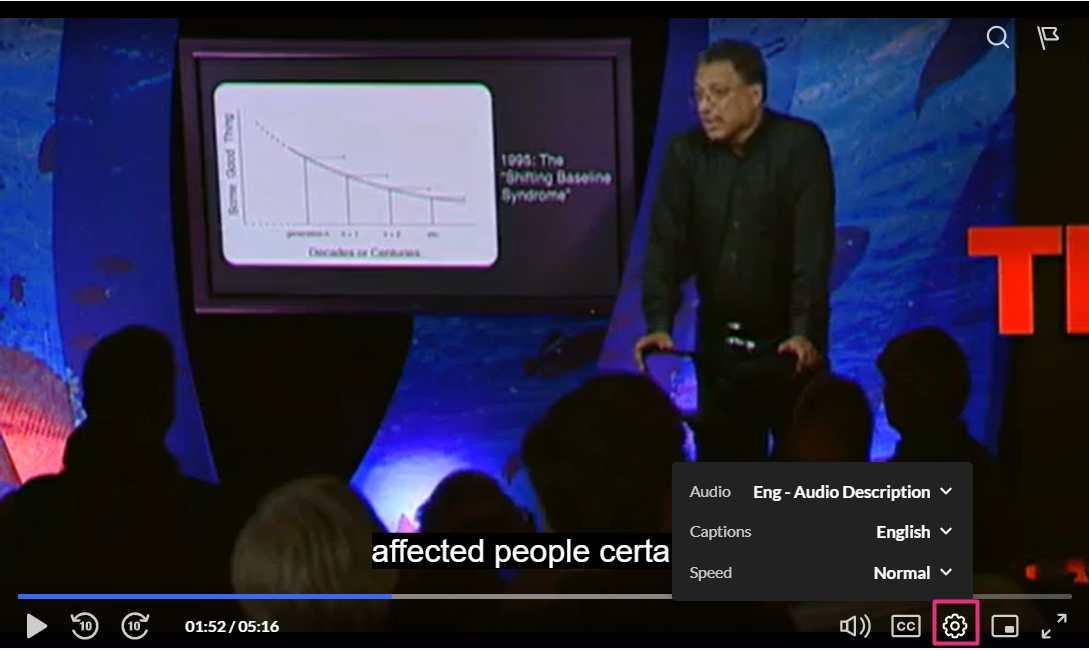
Users can enable audio description on the v7 player by selecting Audio Description from the settings menu.
Want audio description to be ordered automatically? Check out our article Create captioning & enrichment rules in Rich Media CMS.
