About
The REACH Services Dashboard gives administrators one place to track captioning, translation, and enrichment requests.
In the legacy Video Portal, you can use it to monitor usage and credit, review and filter requests, manage department-level billing, and approve or reject pending orders.
Access the Services Dashboard
Select Services Requests from the user menu.

The Service Requests page displays.

For moderation to work, set it up in both the legacy Video Portal and Rich Media CMS:
- In the legacy Video Portal, go to the Configuration Management console, and set up moderators and entitlements in the REACH module.
- In the Rich Media CMS, turn on moderation for each REACH profile ID. For more information, see REACH profiles and services.
Dashboard overview
The Services Dashboard provides a snapshot of your organization's captioning and translation activity. It includes:
- Your available line of credit for ordering services
- The unit or department that submitted requests (shown only if you have more than one)
- A graph of total service requests and their statuses
- A download icon to export a report of all orders
- Filters to refine the view by language, service type, turnaround time (TAT), and more
- A moderation section to manage pending approvals
- Usage metrics and historical request data
Use the dashboard to track service usage, monitor departmental activity, and manage approvals across your organization.
For department-level billing and moderation setup, see REACH department level billing and moderation.
Display department-level billing and moderation
If your site has multiple REACH profiles (units or departments), a Unit/Department dropdown appears at the top of the dashboard. Use it to switch between departments at any time, and to view or compare their service usage and requests.
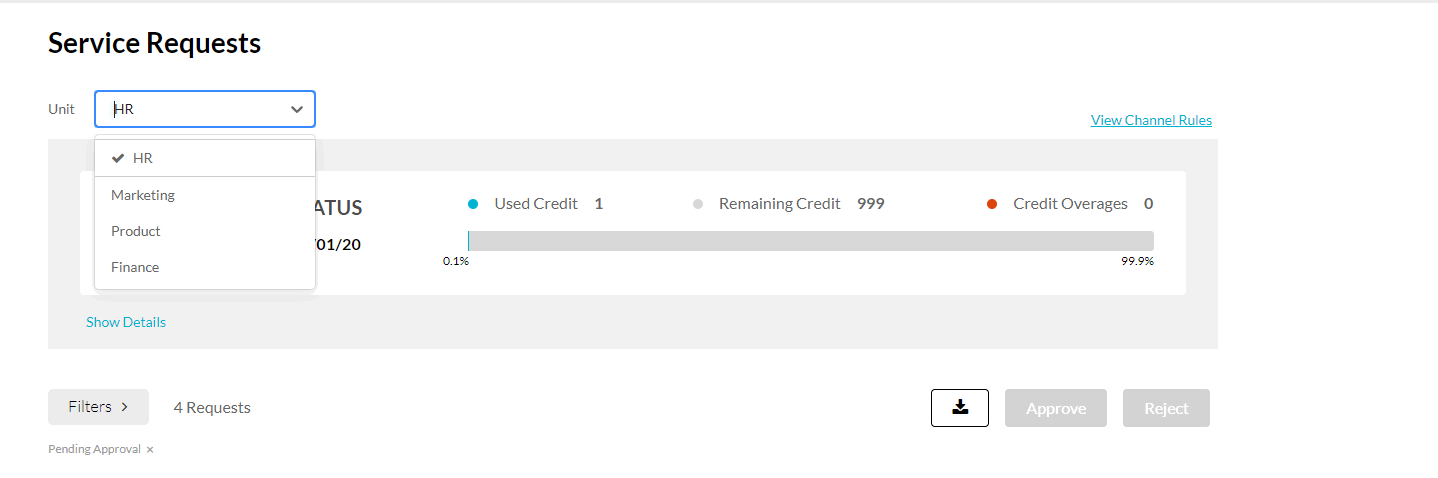
Credit status
The dashboard displays the current credit status, including:
- Credit expiration date
- Used credit
- Remaining credit
- Credit overages
Select Show details to open the Services Status Dashboard. Select Hide details to close it.

Services status dashboard
The Services Status Dashboard displays information and status for machine and human caption requests and for translation requests.
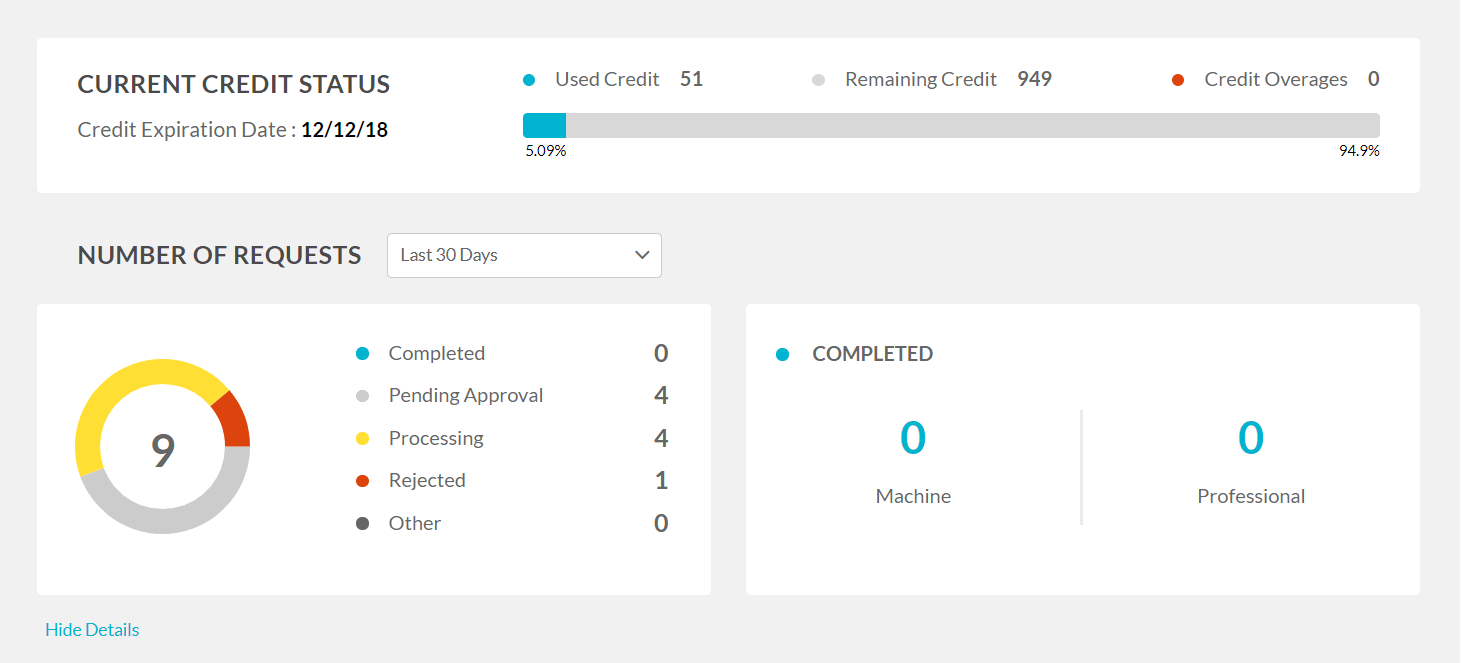
By default, the list shows only requests with the Pending Approval status. To view all requests, select Filters and remove the status filter.

Filter service requests by period
Select an option from the Number of Requests dropdown.
Display statistics for each status
Select a status. In the following example, Pending Approval shows that four requests are waiting for approval. The Processing section shows one Machine request and three Professional caption requests pending approval.
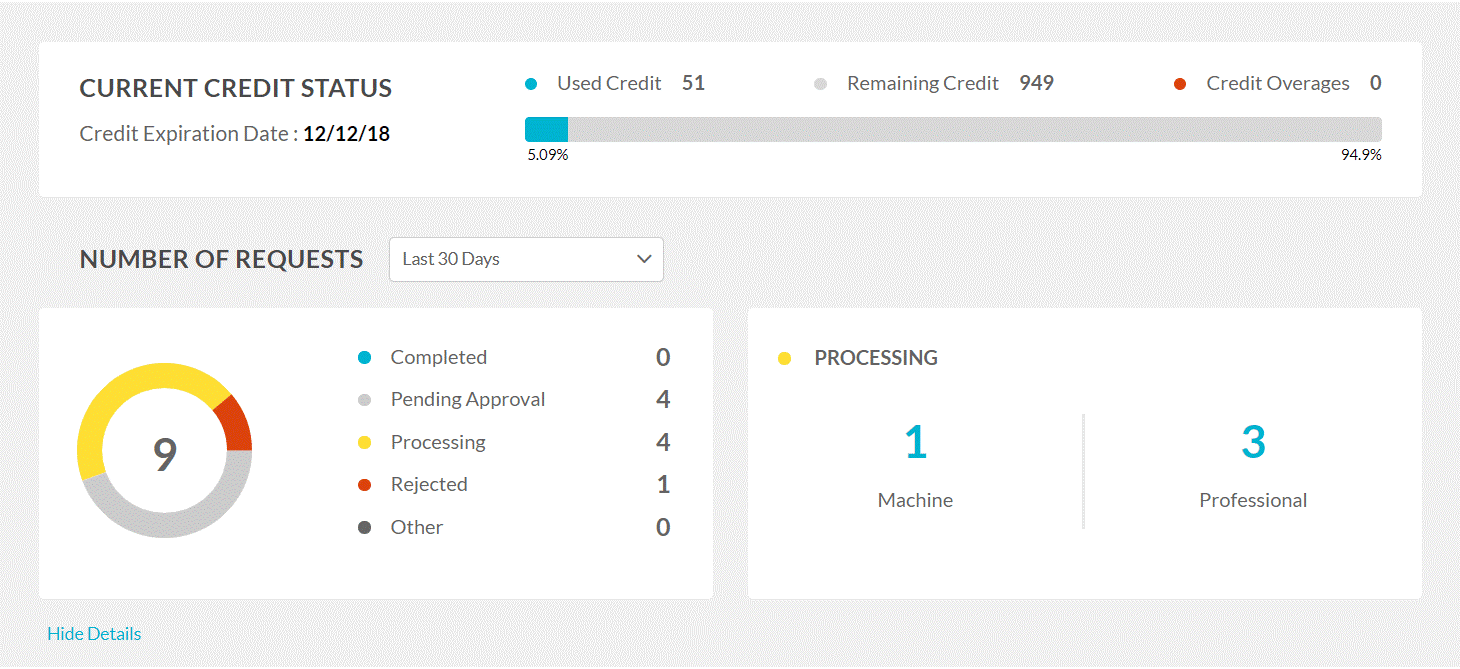
Services moderation dashboard
This section lists service orders that are waiting for approval. You can approve or reject individual requests from here.
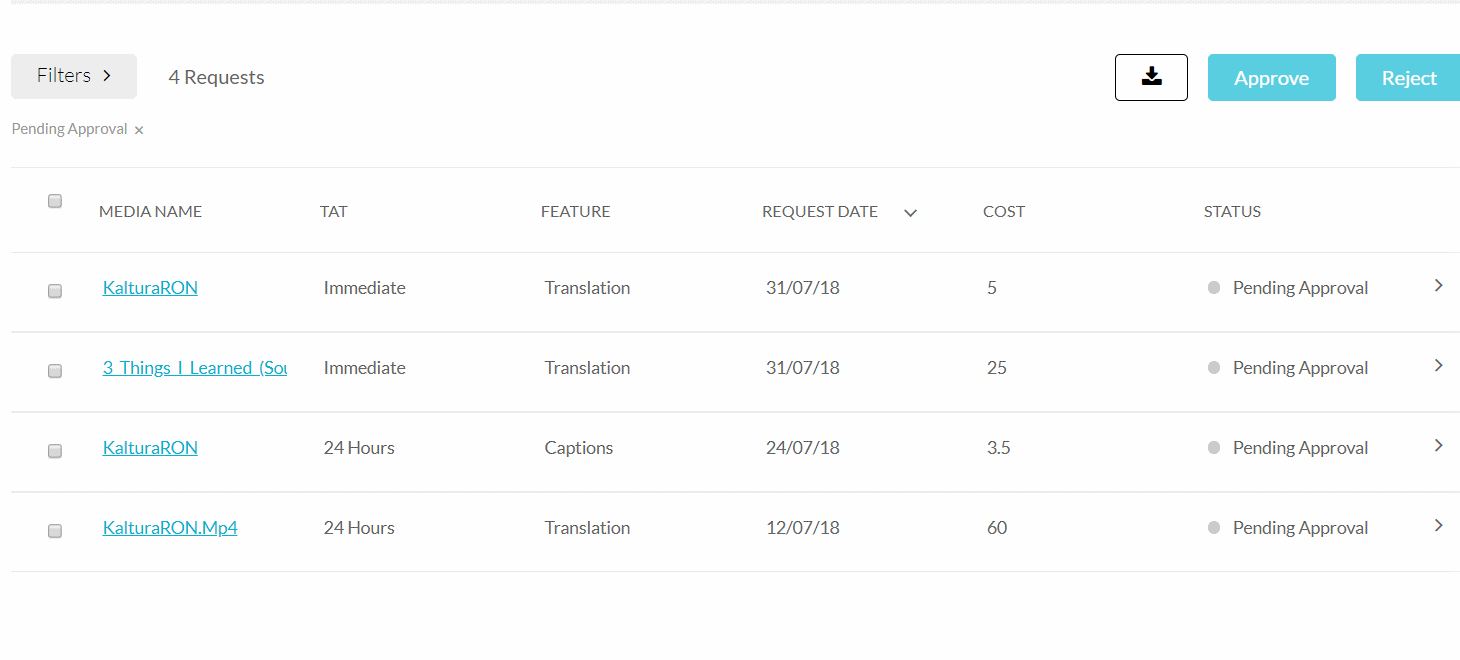
Approve or reject a service order
- Select the checkbox next to an order.
- Select Approve or Reject.
A confirmation message appears.
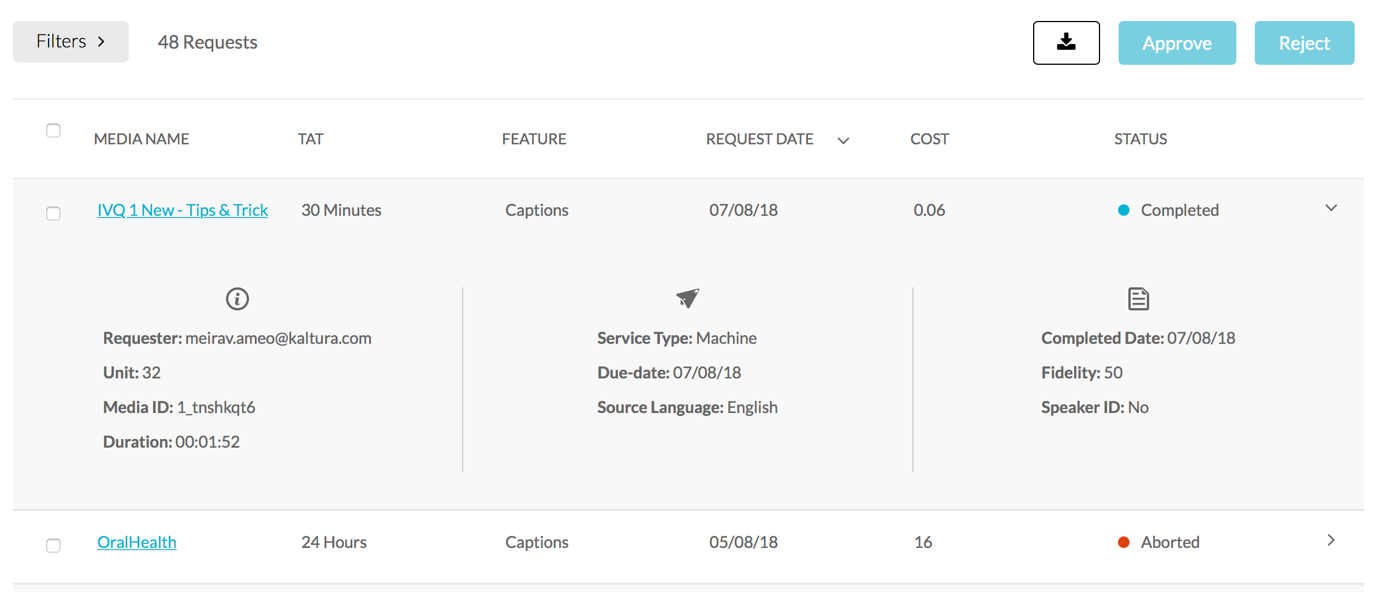
View more details for each request
- Select the arrow next to a service request to expand its details. The requester, unit, media ID, duration, service type, source and target languages, and any speaker ID options display.
- Select the arrow again to collapse the details.
Filter requests and orders
Select Filters to filter requests and orders. The number of Requests displays. If you select an order to view or change it, the order is marked as selected.
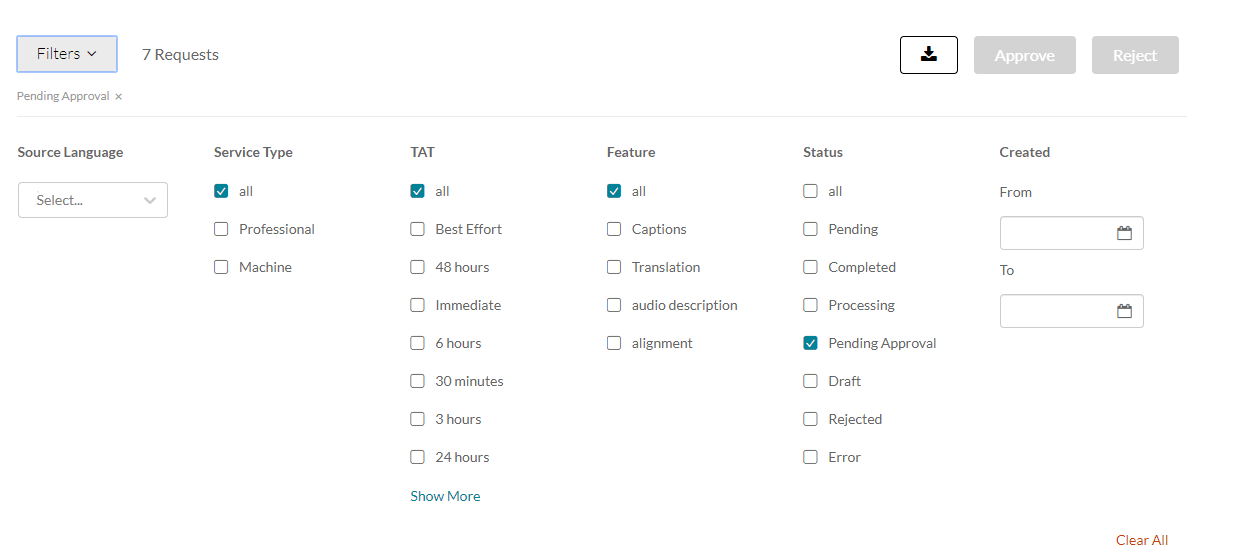
You can filter your order requests by:
- Source language - select a language from the dropdown.
- Service type
- Feature
- Turnaround time (TAT)
- Status
- Date created - enter the From and To values.
To see all requests, select All under each filtering option. Select Show more to see more information.
