About
After you create and configure breakout rooms, you can launch the breakout session and manage participant activity across rooms.
This article explains how to launch breakout rooms and manage the breakout session using the available controls and dashboard tools.
Launch a breakout session
This article assumes you have already created and configured breakout rooms. If you haven’t done this yet, see Create and configure breakout rooms.
Once your breakout rooms are configured, you can start the breakout session.
If the breakout rooms dashboard is already open
Click Start breakout in the upper right corner.
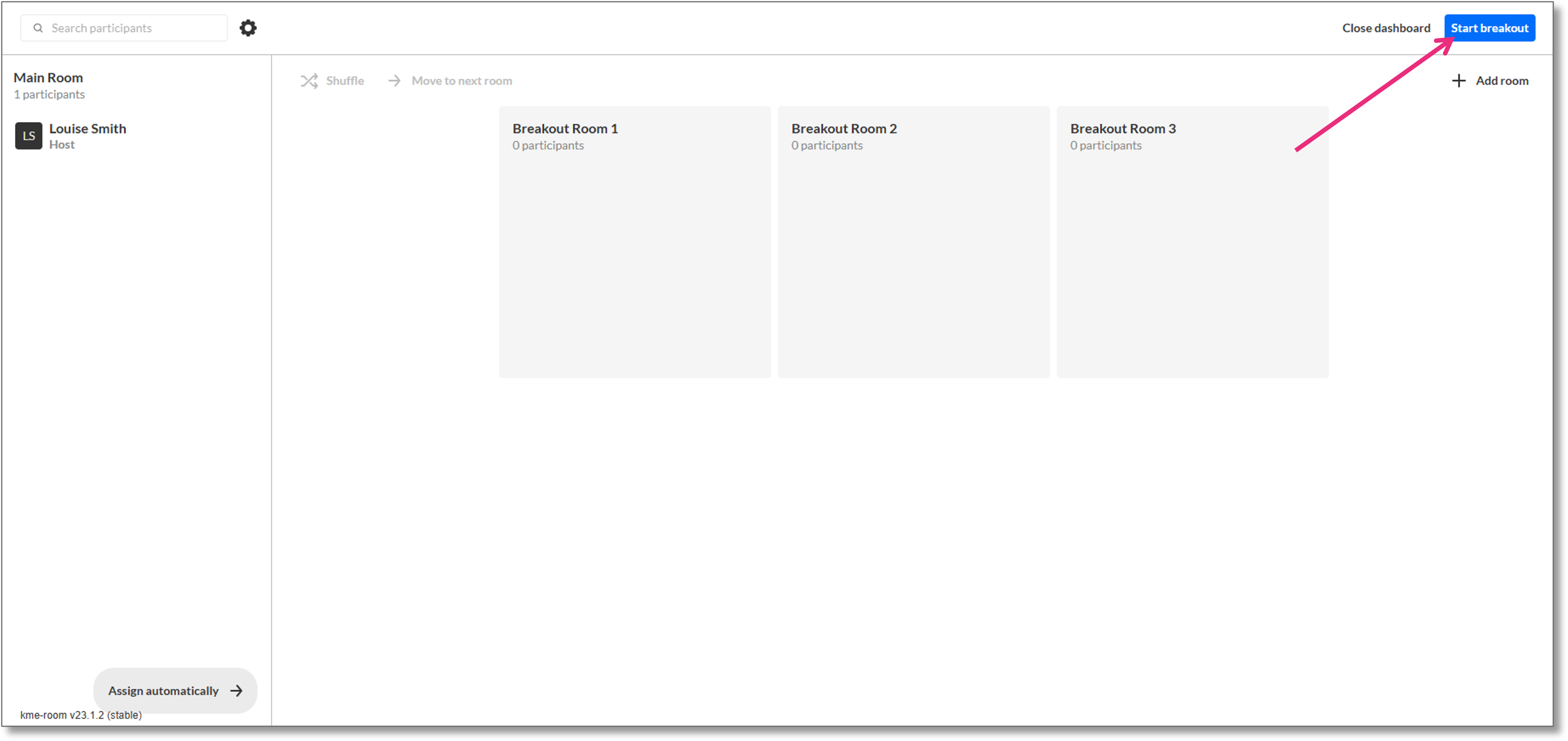
If you are in the main room
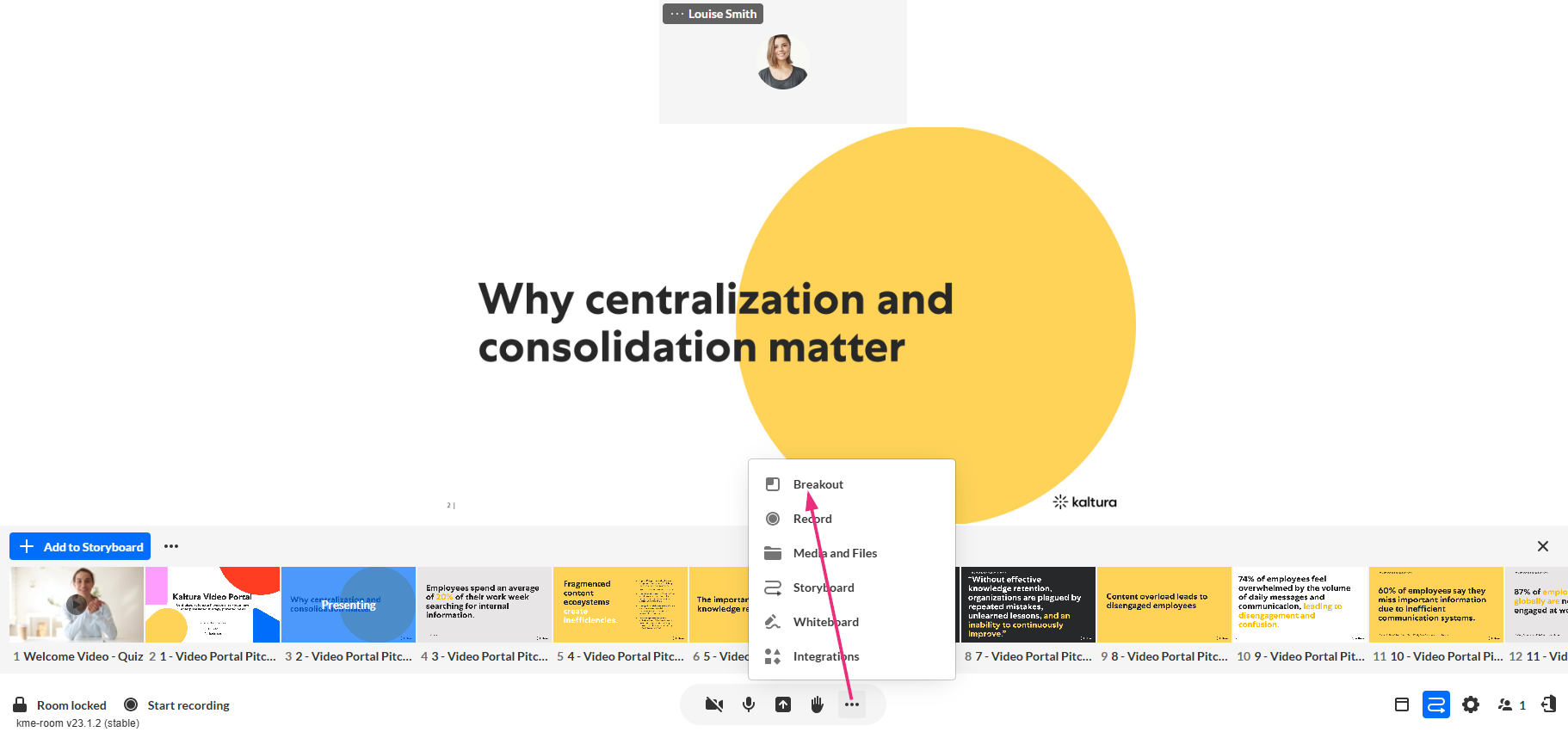
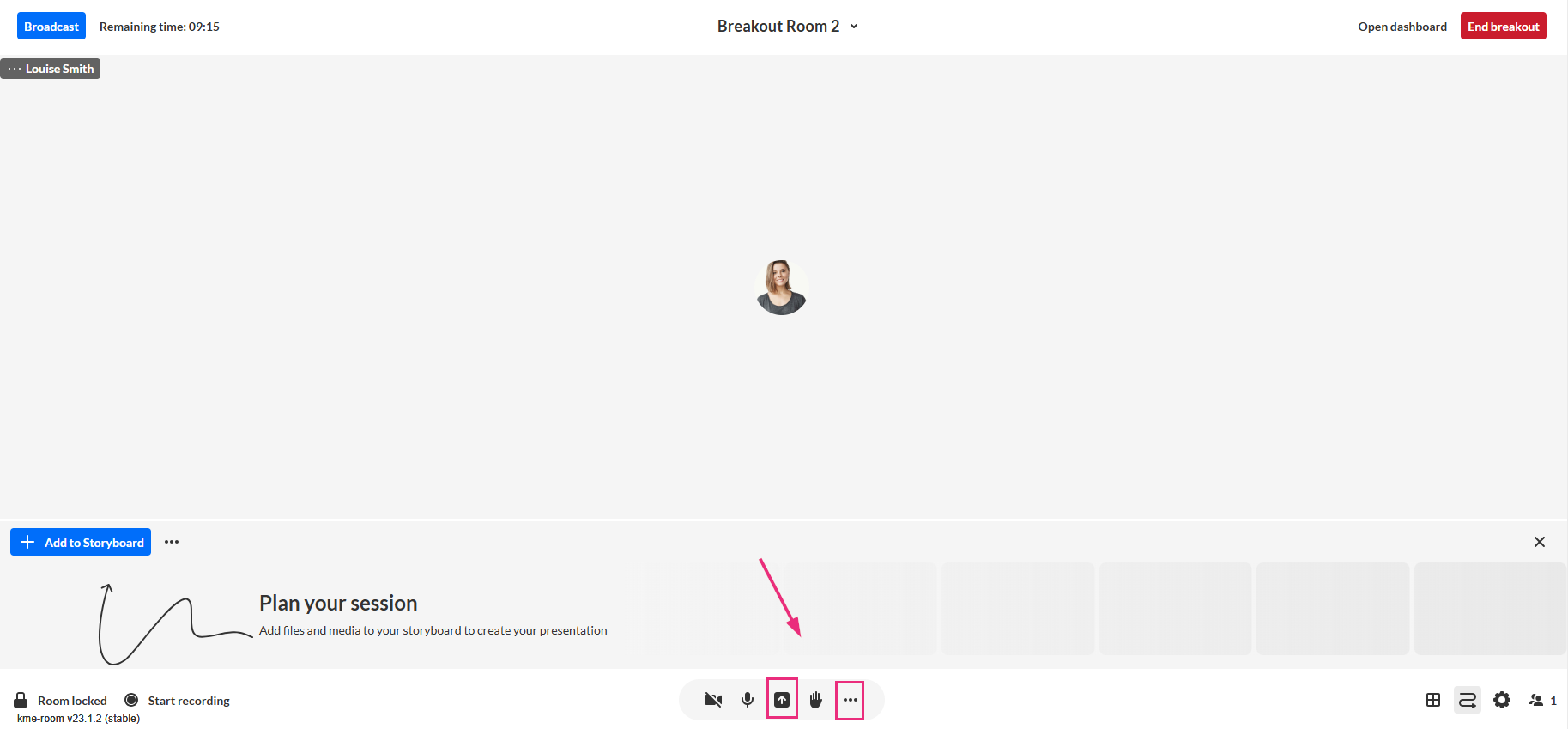
- Click the three dots on the bottom toolbar and select Breakout.
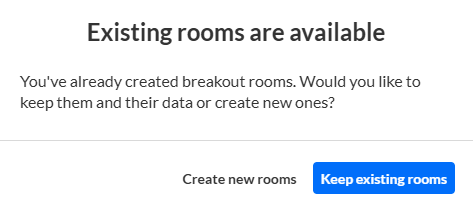
- If prompted, click Keep existing rooms to use the breakout rooms you previously configured.
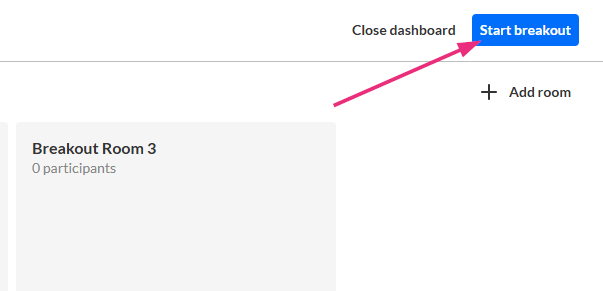
- Click Start Breakout in the upper right corner.
- Moderators can click Join room to enter a room.
A screen displays the breakout rooms you created. Each room includes a Join room button.
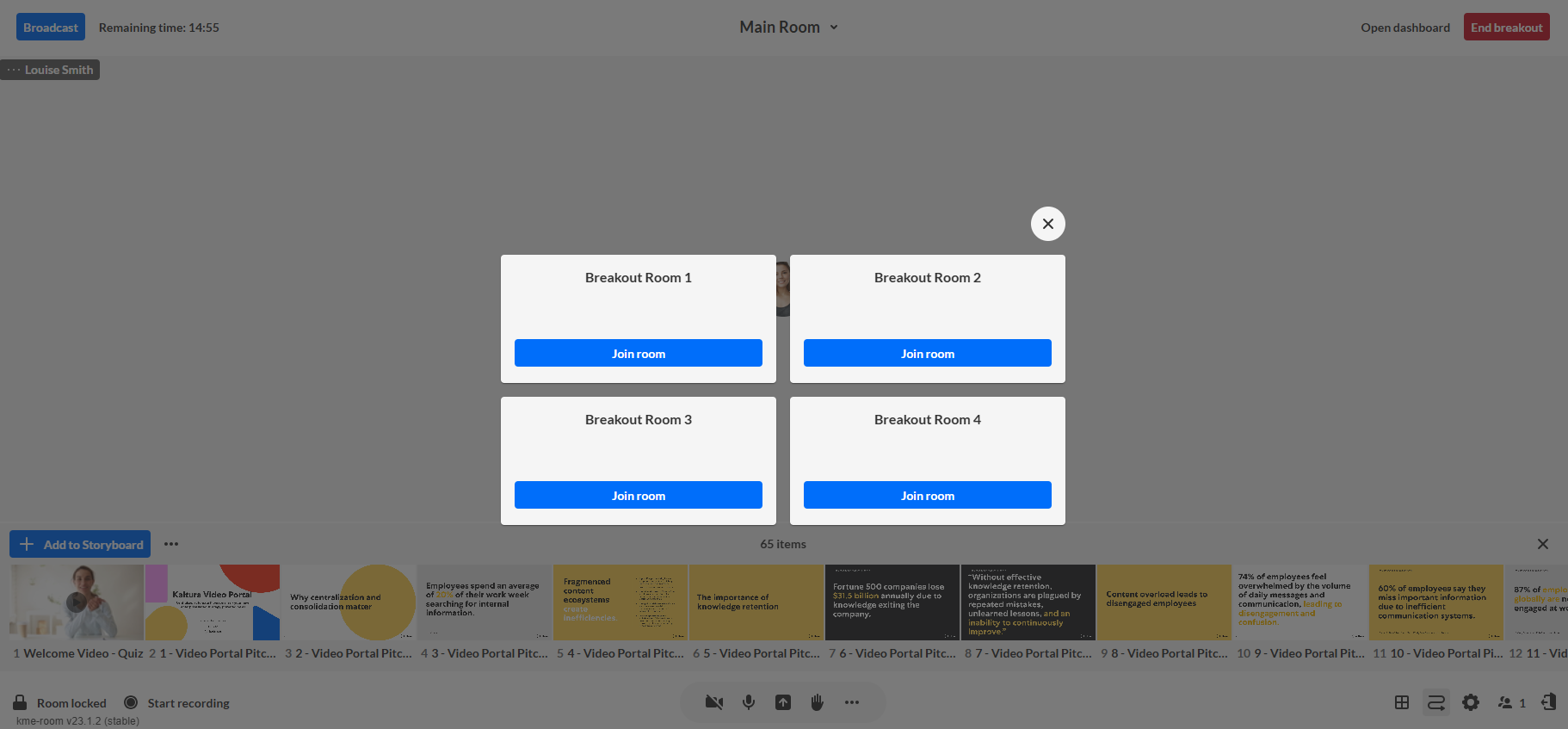
Participants assigned to breakout rooms see a countdown before entering their rooms.
Use the control bar
Once the breakout session starts, a control bar appears at the top of the screen. This control bar provides quick access to key breakout room management tools.

Broadcast messages
You can send a message from the main room to all breakout rooms.
- Click Broadcast on the top left of the control bar.
- Click Message in the broadcast panel, then type your message in the text box.
- Click Broadcast to send the message to participants in all breakout rooms.
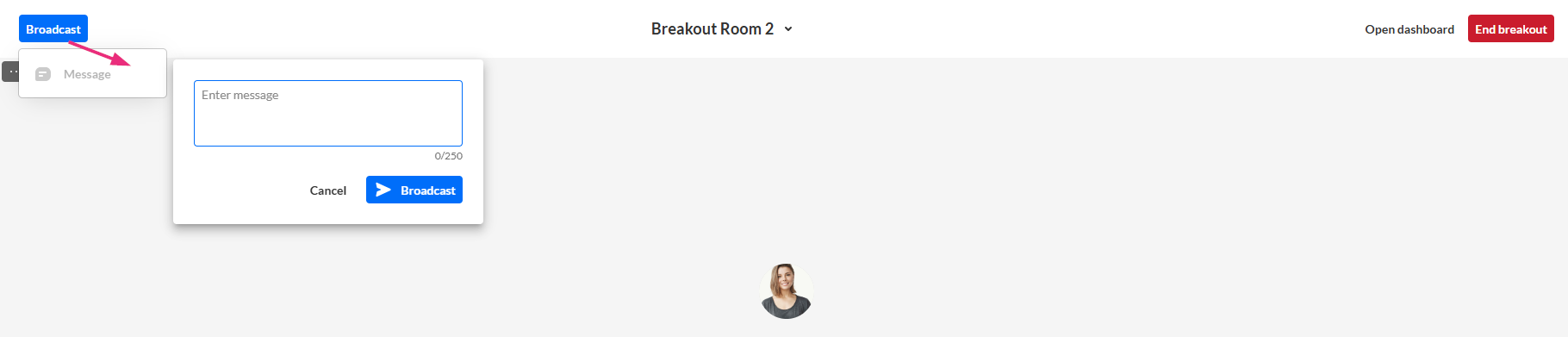
At this time we only support sending text messages and not files.
Adjust session time
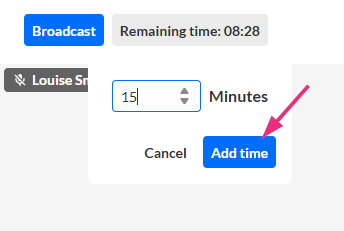
If you set a time limit when configuring the breakout rooms, the Remaining time indicator appears at the top left of the control bar and displays how much time is left in the session.
(If no time limit was set, the indicator does not appear.)
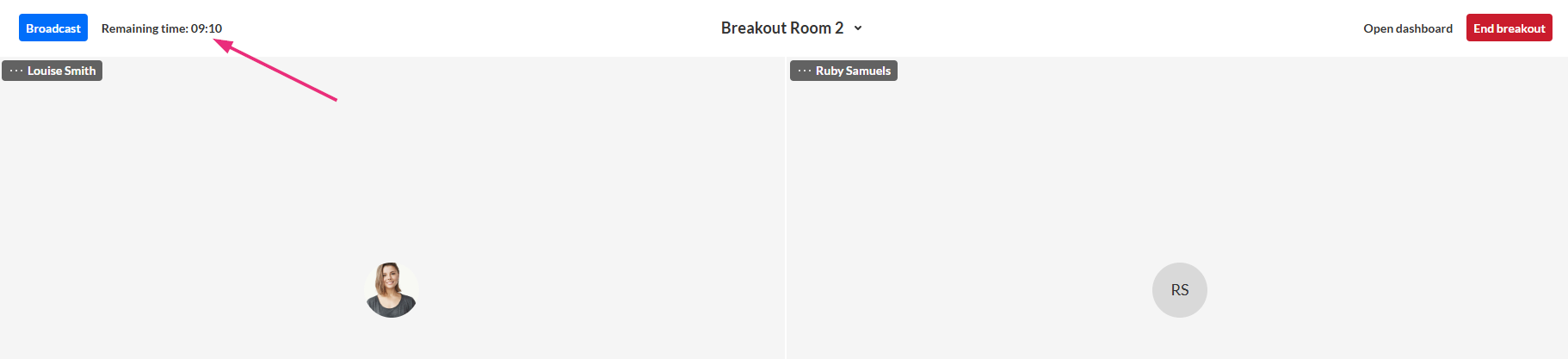
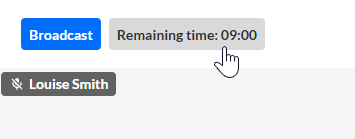
You can adjust the time from the breakout rooms dashboard:
- Click the Remaining time field.
- Adjust the number of minutes then click Add time.
Switch rooms
You can move between breakout rooms during the session to monitor discussions or assist participants.
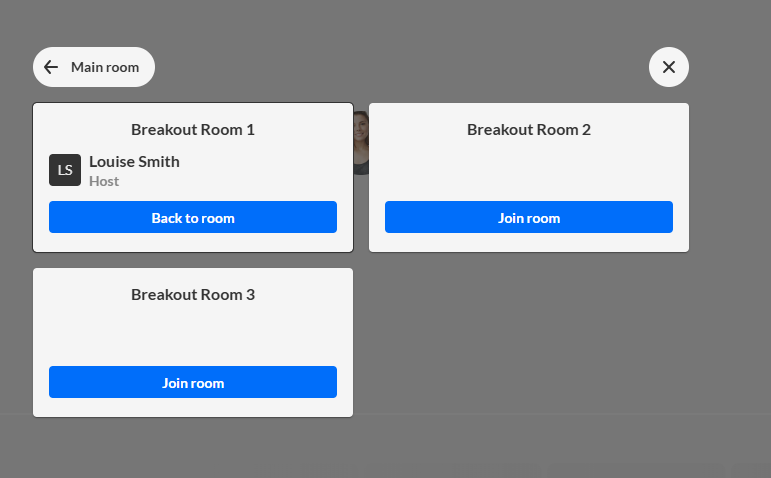
- Click the room name at the top center of the control bar.
- Select the breakout room you want and click Join room.

A window displays all available breakout rooms.
Respond to calls
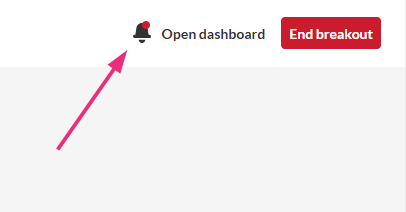
Participants in breakout rooms can call a moderator. When this happens a bell icon appears on the control bar.
- Click Open dashboard and see who requested help.
- You can:
The breakout rooms dashboard opens.
The participant who requested help is highlighted in blue within their room.
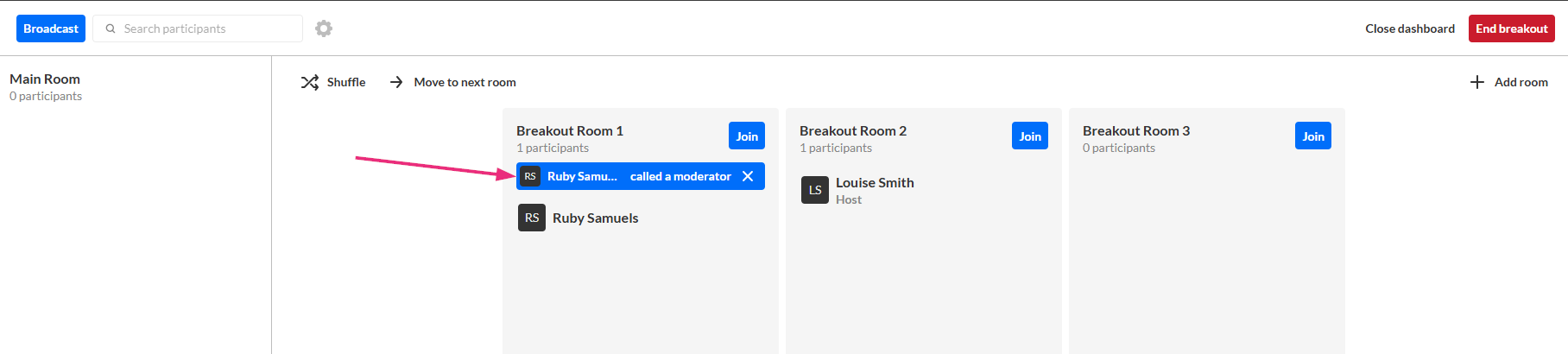
- Click Join to enter the breakout room and assist the participant.
- Click X to dismiss the notification if assistance is no longer needed.
Use the breakout dashboard
Click Open dashboard at the top right of the screen to access the breakout rooms dashboard.
While breakout rooms are active, the dashboard provides additional tools for managing the session.
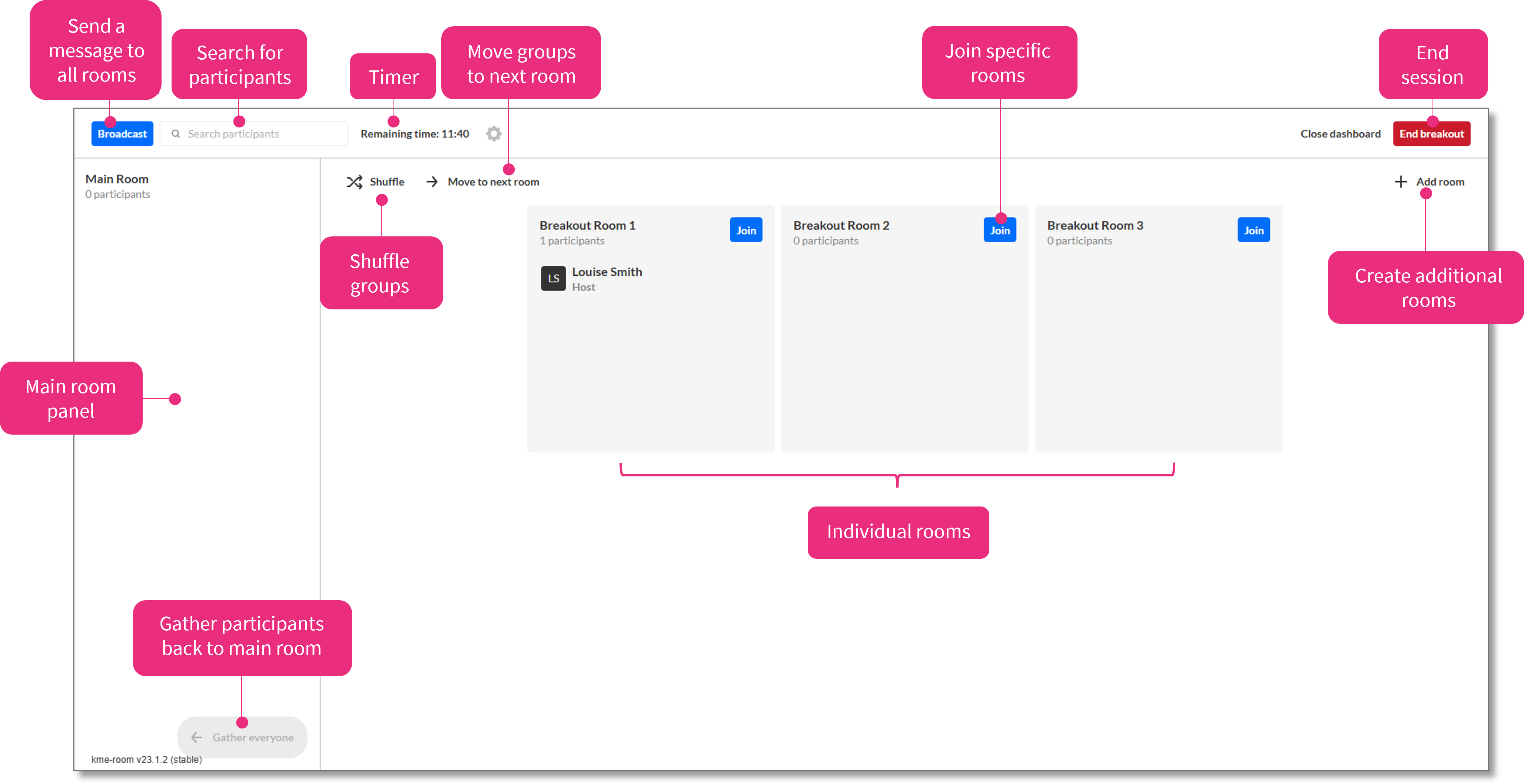
The following sections explain the main actions you can perform during a breakout session.
Move participants
To move a participant to another room, click their name and drag it to the desired room.
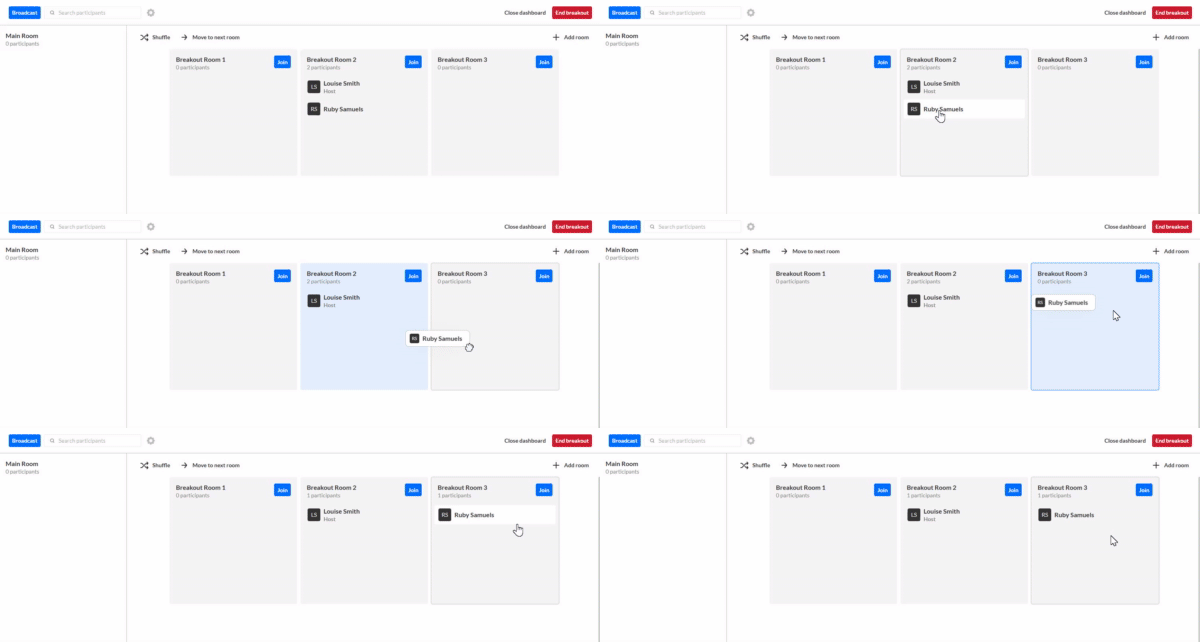
Participants will see a short countdown before being moved to the new room.
You can also drag your own name into another room. When you close the dashboard, you will join the selected room.
Shuffle participants
Click Shuffle to randomly assign participants to breakout rooms.
Use round robin
Click Move to next room to enable Round Robin mode, which moves participants sequentially between rooms.
This can be useful when participants need to rotate through discussion topics.
Gather everyone
Click Gather everyone at the bottom of the Main room panel to move all participants from breakout rooms back to the main room.
Participants will see a short countdown before being returned to the main room.
You can use this option to quickly bring everyone back together without ending the breakout session.
Share files and media in breakout rooms
To share media or files with participants in breakout rooms, use the Share content or Media and files options on the bottom toolbar.
For more information, see Share content during a session in your Kaltura Room.
End breakout session
You can end the breakout session by clicking End breakout at the top right of the screen.
Participants receive a countdown before returning to the main room.
