About
In Content Hubs and the legacy Video Portal, your site shows default messages when users do certain things, such as completing a registration or trying to open content they don't have access to.
You can change the wording of any message, or rewrite it completely to match your brand's voice. To do this, you use language exceptions in the Languages module.
The following sections use two common messages as examples. If you don't know the exact text of a message, you can also edit your site's text in a PO file.
Change a default message
In this example, you change the message users see after they register for a media item.

Each line of a message is a separate exception, so change one line at a time. Copy the text exactly as it appears in the message, including capital letters and punctuation. In this example, Thank You! is one line. To find the exact text, download your site's text and search the English PO file, as described in Change text in the PO file.
- Go to your Configuration Management console, locate the Languages module in the left panel, then select it. You can also navigate directly using a link:
https://{your_site_url}/admin/config/tab/languages - In the LanguageException section, click + Add LanguageException.
- Configure the following:
The Languages page displays.


Additional fields display.

- Language - If the change applies to only one language, select that language.
- msgid - Enter the exact text of the line you want to change, for example,
Thank You! - Exception - Enter the new text, for example,
You're the greatest!
4. Click Save.

Repeat steps 2–4 for each line you want to change.
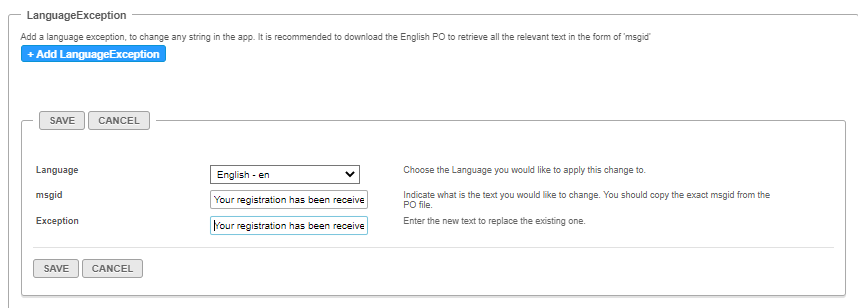
When you're done, scroll down, and click Save at the bottom of the page.
The next time a user registers for a media item, they see your new message.

Change the Access Denied message
The Access Denied message appears when a user doesn't have permission to open content. For example, it appears when someone shares a channel subscription link with users who aren't members of the channel, or who weren't invited to it.
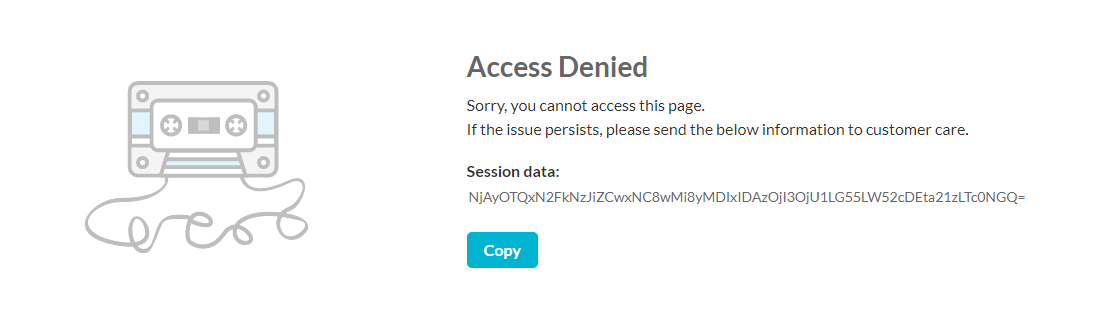
To change this message, follow the steps in Change a default message. In this example, the top three lines of the message were changed.
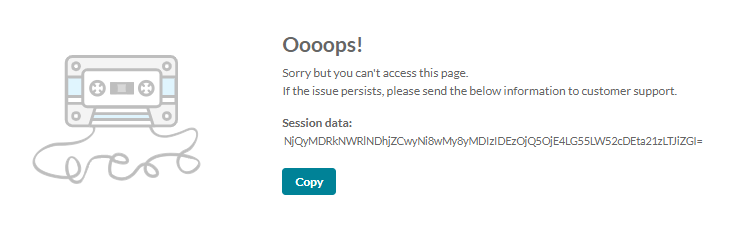
To hide the session data and the button in this message, you can use the following CSS.
.error-msg .sub_heading .bold {
    display: none;
}
.error-msg .copy-wrap {
    display: none;
}
Change text in the PO file
If you don't know the exact text of a message, you can download all your site's text and edit it in the PO file.
- In the Languages module, go to the DownloadLocaleText section, and click Download texts. A ZIP file with your site's text in all languages downloads.
- Open the PO file for the language you want in a text editor, such as Notepad++ or Poedit.
- Find the text you want to change. To search, press Ctrl+F.
- Leave the
msgidas it is, and change themsgstrto your new text.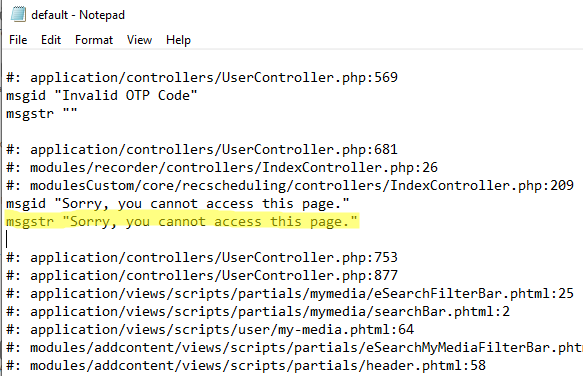
- Save the file, and upload it in the UploadCustomLanguage section of the Languages module. For instructions, see Languages module.
Export and import language exceptions
You can download all your language exceptions as a CSV file, for example to keep a backup or to copy them to another site. Use the importAndExportExceptions section of the Languages module.
Importing a file replaces all your existing language exceptions.
- Export - Click Export Exceptions to download the list of all your language exceptions.
- Import - Click Choose File, and select a CSV file of language exceptions to upload.
The CSV file has no header line and three columns: the language's short name (for example, en), the msgid, and the exception text.
To change the look of your site, see Theming module.
