About
You can use the Embed Kaltura Media tool in Kaltura's LMS Extensions to embed Kaltura Rooms directly in LMS course content. This gives students a convenient way to join a room from within their course.
You can embed the same room in multiple courses and locations. Regardless of where students access it, they all join the same room.
- This feature is available only for LMS Video integrations that use Theming.
- Your administrator must enable this feature before you can use it. For setup instructions, see Enable Kaltura Room embedding in Canvas.
Access the embed tool
You can embed a Kaltura Room in any area that includes the rich-text editor, such as announcements or assignments.
- Navigate to the area where you want to embed the room.
- Create a new post or page. The rich-text editor opens.
- Enter your text, and then click the Embed Kaltura Media icon.

The Embed Kaltura Media window opens.
Embed a room
In the embed window, use the search and filters to locate Kaltura Rooms.
Click Embed on a room entry to insert the room 'card' into your content. (Read more about room cards below.)

If a room appears greyed out in the embed window, it usually means it’s a legacy room. Only the Kaltura Room can be embedded through BSE. Contact your administrator if you’re unsure which rooms are enabled for embedding.
Once you have embedded the room, the card shows the session title, description, thumbnail, and a 'Join now' button.

Room card details
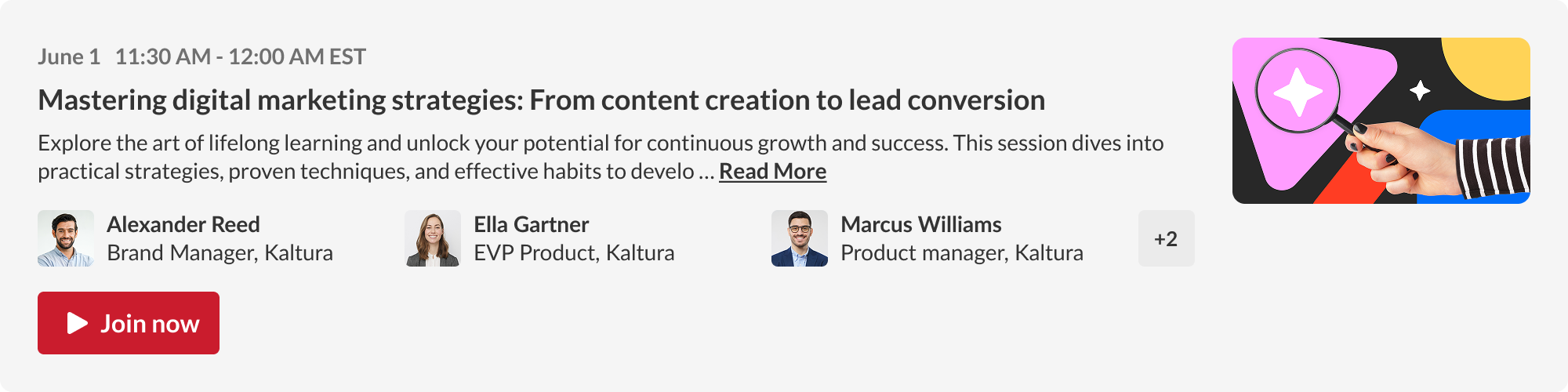
The embedded card displays key session information in a compact, visual layout. It includes:
- Date and time of the session (if scheduled)
- Session title
- Short session description, with a 'Read more' link that opens the entire text
- 'Join now' button - always visible for teachers and co-editors; for students, it's shown based on session timing
- Speaker information (if enabled) - up to three speakers shown with a plus (+) indicator if there are more
- Thumbnail image on the right (if enabled)
The card adjusts its appearance depending on the session status ('Live' or 'Out of Schedule').
What students see
When a student clicks Join now, the session opens in a new tab. They’re authenticated through the LMS and depending on how your Room is configured, they might:
- Land in the waiting room first
- Be taken straight into the live session in the Kaltura Room in a focused view that includes the Chat and Collaboration panel on the right.
- Be prompted with “Access denied” if they're not entering through the LMS.


Access is role-based, using existing Kaltura permissions. Unauthorized users will also see an error message.
