About
Lecture Capture automatically uses the highest available audio quality by default. You can select a different microphone and adjust the audio settings before you start recording.
Configure audio settings
- In the audio section, click the audio settings icon.
- Select the input source (microphone) you want to use.
- Select the input type. Lecture Capture automatically selects the optimal audio settings based on the input type.
- Select On to capture system audio, or Off to disable the audio input.
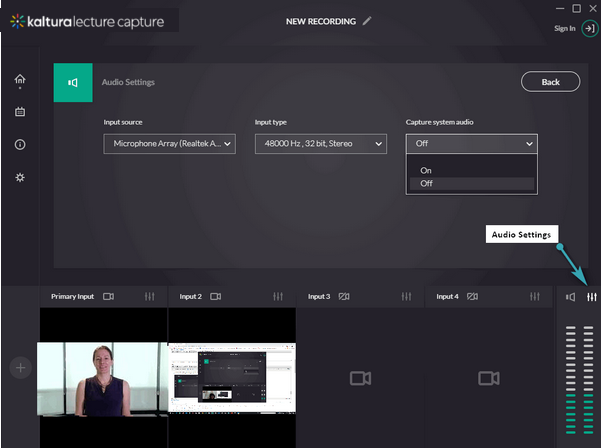
- Click Back to return to the main recording window.
