About
Lecture Capture automatically uses the highest available screen quality by default. You can select the screen you want to record and adjust its recording settings before you start recording.
Configure screen settings
You can’t change screen settings during a recording. Configure your screen before you start recording.
- Click the settings icon.
- Scroll down and select Set as Primary.
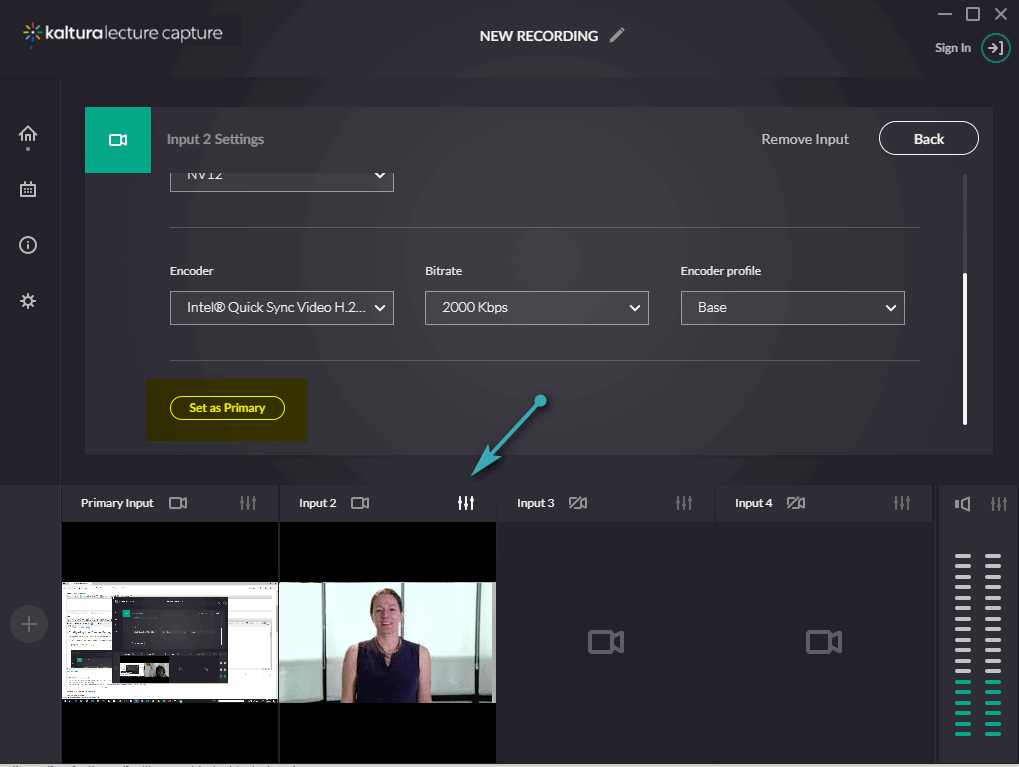
- From the input source dropdown, select the screen you want to record.
- If more than one screen is connected, click Identify to identify the screens, then select the screen you want to use.
- Lecture Capture automatically selects the optimal screen settings. Change any of the following settings as needed:
- Resolution - Select the recording resolution. A higher resolution provides higher recording quality and produces a larger file.
- FPS - Select the number of frames per second. We recommend 30 FPS. A lower frame rate can cause fast movement to appear blurred.
- Color Space - Select the color space for the video.
- Encoder - Select the encoder.
- Bitrate - Select the bitrate.
- Encoder Profile - Select High, Main, or Baseline.
- Click Back to return to the main recording window.
Remove a configured input
Click Remove Input.
The removed camera or screen is no longer available for that input. The device isn’t deleted, and you can select it as the source for another input.
