About
The Q&A tab (question mark icon) lets you ask moderators and speakers questions during a live session.
The Q&A experience can vary depending on the session configuration. Your Q&A tab might display questions as conversation threads or in a question list.
Follow the instructions below that match what you see in your session.
If your questions appear as conversation threads
Understand question threads
Depending on the session configuration, your questions can be organized in a single thread or multiple threads:
- Single thread – All your questions and responses with moderators and speakers appear in one conversation thread. This is the default experience.
- Multiple threads – Each question starts a separate conversation thread, so you can have multiple Q&A conversations at the same time.
Single thread (default):

Multi thread:

The steps below show the multi-thread experience.
Ask your first question
- Type your question in the Write your message field and press Enter.
-

Your question opens in a conversation thread. A moderator or speaker can respond to your question in the thread.

- Click the back arrow next to the question at the top of the panel to return to the question list.
- Select the question thread to open it again and continue the conversation.


Ask another question
If you're using the multiple-thread experience, you can start a separate thread for another question.
- Click the Ask new question button.
- Enter your question in the Write your message field and press Enter. Your question opens in a new conversation thread.
- Click the back arrow next to the question at the top of the panel to return to the question list.
- Select a question thread to open it and continue the conversation.

The Write your message field displays.


Interact with messages
- To like a message, hover over it and click the Like icon.
- To reply to a message, hover over it and click the Reply icon.
- To delete a message you sent, hover over it and click the trash can icon.
If your questions appear in a question list
Ask a question
Before any questions are posted, the Q&A tab displays the Ask a question field.

Enter your question in the Ask a question field and press Enter. Questions can contain up to 500 characters.
Your question appears in the Q&A list.

Find questions
Click Filter to:
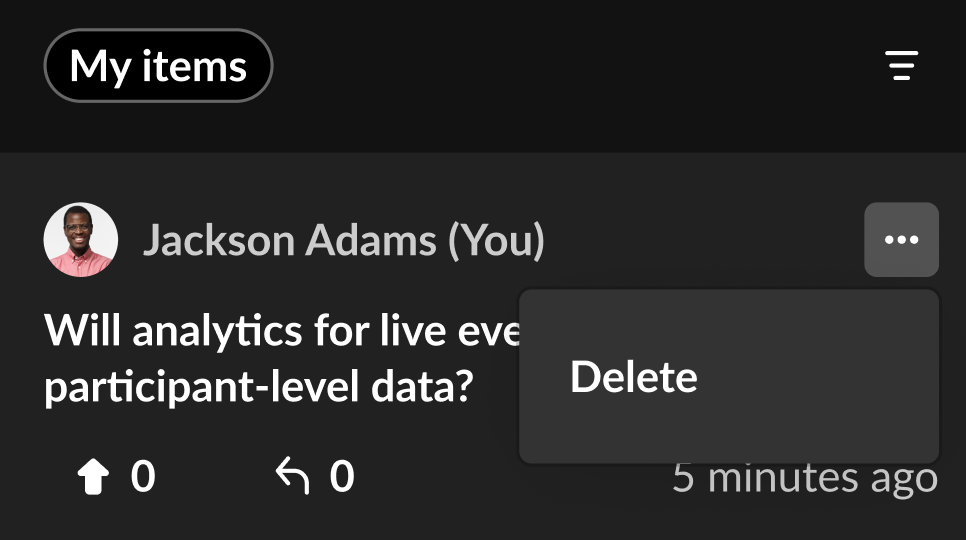
- Display only questions you submitted by selecting My items only.
- Sort questions by Newest, Oldest, or Most relevant.

When Most relevant is selected, some items can be hidden. Click Clear selection to display all items again.

A red dot on the Filter icon indicates that new Q&A activity is available. Click the Refresh icon next to Newest first to display the latest activity. The red dot disappears after the list refreshes.

Interact with questions and responses
- Click the Upvote icon to upvote a question.
- Click the Like icon to like/unlike a message.
- Click the Reply icon then type a reply to a message. Replies can contain up to 500 characters and are available for open threads.
- To delete an item you created, click the three dots and select Delete.