About
The Post Message Bridge plugin lets you forward Kaltura HTML5 player events from the player iframe to the embedding page via window.postMessage so host applications can enrich and route them to analytics or backends.
You can enable this plugin through the player’s Advanced settings. This configuration is not exposed in the standard Player Studio interface.
Access the advanced settings
VOD Audio Reels
- Log in to your Rich Media CMS and click the Studio tab.
- Click the player you want to edit from the list (or use the search bar in the top right).
- Scroll to the bottom of the player settings and click Advanced Settings.

The Player Studio page displays.
If you haven't created a player yet, check out our article Create a player for guidance.

The player settings display.


The advanced settings editor opens.

Configure Post Message Bridge
You may configure the Post Message Bridge plugin in the player configuration (uiconf) by adding/enabling the plugin block and its options.
Enable the plugin
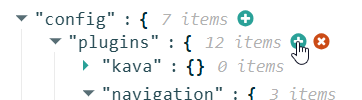
- In the Advanced Settings tab, hover over "plugins" then click the green + icon.
- In the Key Name box, enter
postMessageBridgethen click the green checkmark or press 'Enter' on your keyboard.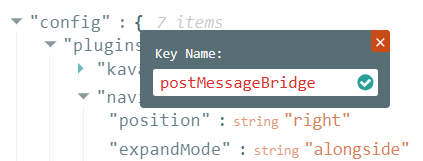
You'll see the new plugin listed and enabled and labeled as "null".

- Hover over the plugin name and click the green edit icon.

A box containing a "null" value displays.

- Replace "null" with "{}" then click the second small green checkmark next to the {...}.

- The new plugin name is now followed by an empty array.

- Click Save at the top right before exiting.


Configure which events to send
To send all events:
- Hover over "postMessageBridge" then click the green + icon.

- In the Key Name box, enter
sendAllEvents, then click the green checkmark or press 'Enter' on your keyboard.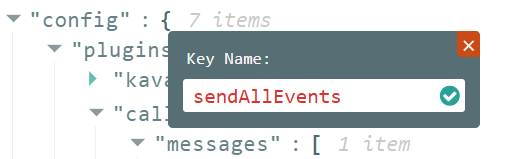
You’ll see the new setting listed and labeled as "null".
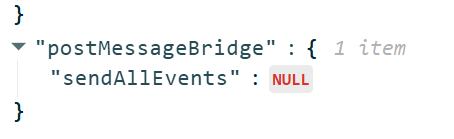
- Hover over "sendAllEvents" and click the green edit icon.
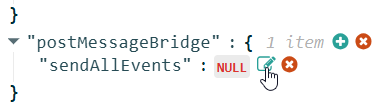
A box containing a "null" value displays.
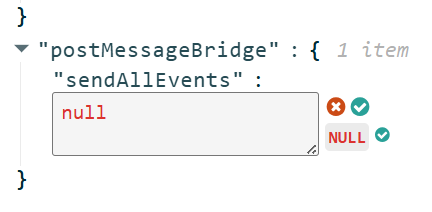
- Replace "null" with "true" then click the small green checkmark.
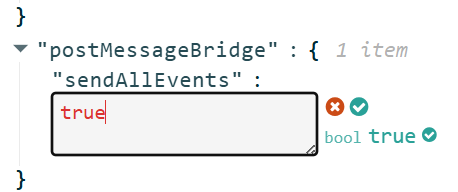
The item is now labeled as "true".
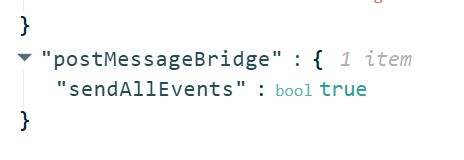
WhensendAllEventsis true, the plugin listens to all supported PlayKit HTML5 events (including custom and ad events) and forwards them to the host page viawindow.postMessage. - Click Save at the top right before exiting.
To select which events are forwarded (optional):
- If "sendAllEvents" has been added, set it to "false".
- Hover over "sendAllEvents" and click the green edit icon.
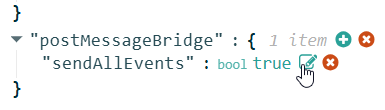
A box containing a "true" value displays.
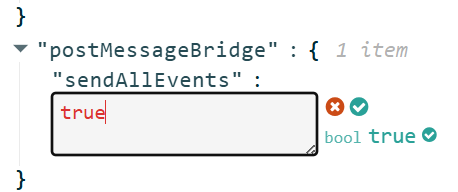
Replace "true" with "false" then click the small green checkmark.
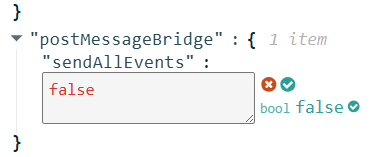
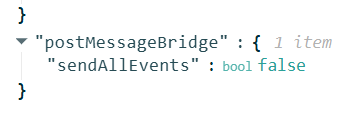
The item is now labeled as "false".
-
Click Save at the top right before exiting.
- Hover over "sendAllEvents" and click the green edit icon.
- Add "eventsToSend" and select events.
- Hover over "postMessageBridge" then click the green + icon.
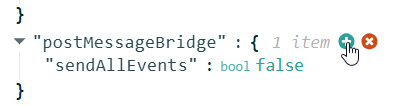
In the Key Name box, enter
eventsToSend, then click the green checkmark or press 'Enter' on your keyboard.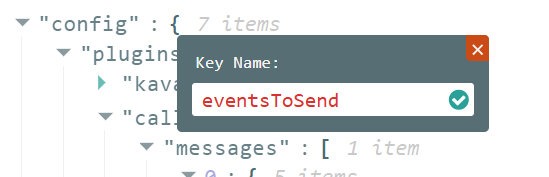
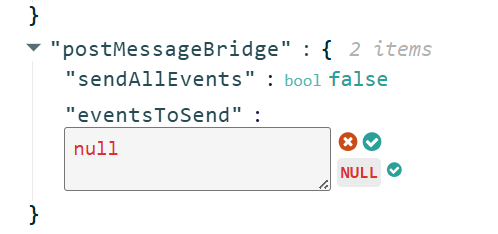
You’ll see the new setting listed and labeled as "null".
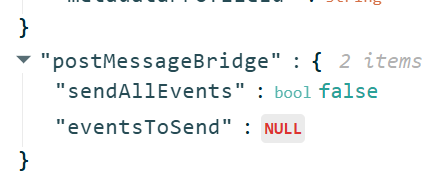
- Hover over "eventsToSend" and click the green edit icon.
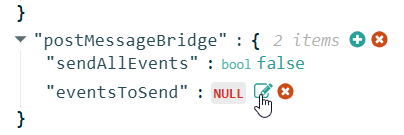
A box containing a "null" value displays.
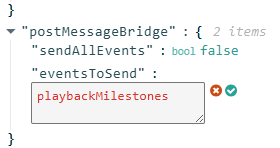
- Enter groups, event names, or a mix, as a comma-separated string then click the green checkmark or press 'Enter' on your keyboard. In the following example, we are adding one event group - playbackMilestones.
 The Events are listed.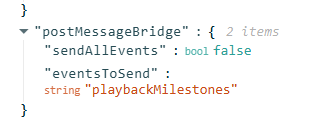
- Click Save at the top right before exiting.
- Hover over "postMessageBridge" then click the green + icon.
 The Events are listed.
Supported event groups:
core– Core playback events such asmedia_loaded,play,pause,resume,seek,endedplaybackMilestones– Milestone events such asplay_reached_25,play_reached_50,play_reached_75,play_reached_90,play_reached_100errorEvents– Error events such aserroradEvents– Ad plugin events mapped toad_start,ad_complete,ad_click(and any other ad events supported by the player)
Add optional context fields (optional)
You can include additional identifiers in every message using the optional contextId and channel fields. These values are passed through as‑is in the event payload and can be used by the host page to route or filter events.
"plugins": {"hostPageEventBridge": {"sendAllEvents": true,"contextId": "my-company-site-or-page-context","channel": "company"}}
contextId– optional string that identifies the context of the player (for example, a site, page, or template identifier).channel– optional string that identifies the “channel” or namespace for this bridge (for example,"company"if you use it in multiple integrations).
Event payload
Example payload:
{
  "source": "kaltura-player",
  "version": "1.1",
  "event": "play",
  "timestamp": "2026-02-26T12:34:56.789Z",
  "entryId": "1_abcd1234",
  "entryName": "Welcome to Kings",
  "playerId": "1234567",
  "partnerId": 123456,
  "sessionId": "sess_01",
  "isLive": false,
  "positionSeconds": 12.34,
  "durationSeconds": 300,
  "playbackRate": 1.0,
  "contextId": "prod:/content/site/page-x",
  "ad": null,
  "error": null
}
Notes:
sourceandversionare always sentOther fields are sent only when available (if a value is missing, that field is omitted)
eventmatches the logical event name selected bysendAllEvents/eventsToSendentryName- the display name of the currently playing entry. Empty string if unavailable.
