About
Want to add YouTube videos in your LMS? We'll guide you through integrating public domain videos, enhancing your content library while ensuring full copyright compliance.
Adding content from YouTube requires the YouTube module to be enabled.
Add a YouTube video
- Navigate to your My Media page.
- Click the Add New menu and select YouTube.
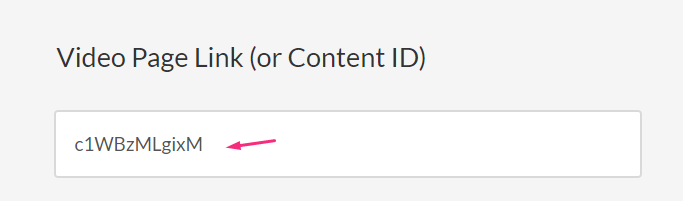
- Paste the YouTube link into the empty field below Video Page Link (or Content ID).
- Click Preview to edit the YouTube entry.
- Edit the name, description, and other metadata as desired.
- Choose a Publishing Status, if desired.
- Click Save.

The YouTube page displays.

Only public domain videos are supported.


You can also click Go to Media to view the media page or click Go to My Media to view the video in My Media.
You can access the edit media page to edit and manage your entry just like any media entry.
To avoid issues, always check the availability of YouTube videos ingested into Kaltura. If a video is deleted or unpublished on YouTube, users will see a spinning wheel in the Video Portal.
Analytics
YouTube videos linked to Kaltura via the YouTube module have their own analytics, tracking engagement within your LMS. These stats are separate from YouTube's playback analytics.
Captioning
If a YouTube video has captions, you might see overlapping captions with the Kaltura REACH captions. Check out Overlapping YouTube Captions to learn how to manage this.
The V7 player currently does not ingest captions from YouTube videos.
To order REACH captions, see Order captions & translations.
