About
You can add a channel to one or more galleries or sub-galleries and manage existing gallery associations, depending on your entitlements.
This feature requires the channelcategories module to be enabled.
To manage channel associations from the gallery side, see Manage channels in a gallery.
Access the channel edit page
- Select My Channels from the user menu.
- Locate the desired channel and click Go to channel.
- Click the Actions menu at the far right and select Configure.
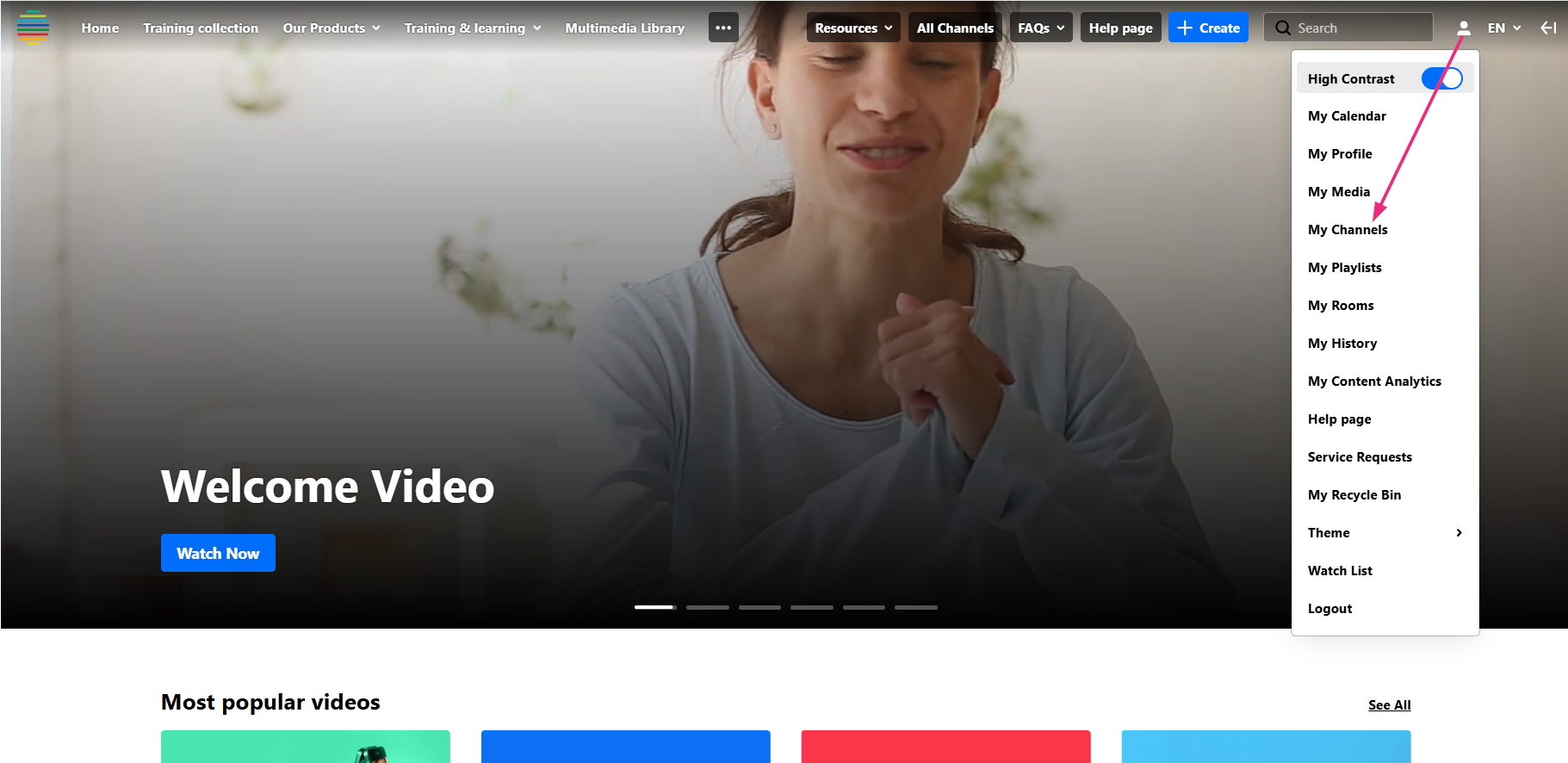


The channel page opens.

The Details page opens.

Add a channel to a gallery
- On the Details page, scroll down to the Galleries section and click Add to gallery.
- Select one or more galleries or sub-galleries.
- Click Save changes.

The 'Assign to gallery' window opens and displays all available galleries and sub-galleries.

If you don't see any galleries in the Galleries section, it means your administrator hasn't created any yet. To learn how to create galleries (also known as 'categories'), visit our article Create categories in the Rich Media CMS.
The galleries you select appear at the top of the window, and the number of selected galleries is displayed at the bottom.

A success message displays, and the channel is added to the selected galleries.
View gallery associations
The Appears In field displays all galleries the channel is associated with.

Remove a gallery association
Channel owners and managers can remove gallery associations, including associations with galleries they don't own.
- In the Galleries section, click Add to gallery. The 'Assign to gallery' window opens.
- Remove the gallery association by clicking the X next to the gallery name or clearing the gallery selection.
- Click Save changes.

The channel is removed from that gallery.
