About
Media owners can add collaborators such as co-editors, co-publishers, co-viewers, and Webcasting moderators to their media. This will make the media available in the collaborators' personal My Media.
- This feature requires the MediaCollaboration module to be enabled.
- Your administrator can allow adding collaborators during upload.
- Adding a collaborator does not change the user’s overall role in the application. Permissions apply only to the selected media.
- You can also manage collaborators from the edit media page. See Manage roles and permissions for details.
- For detailed information about collaborator permissions, see Collaborator roles and permissions.
Add collaborators
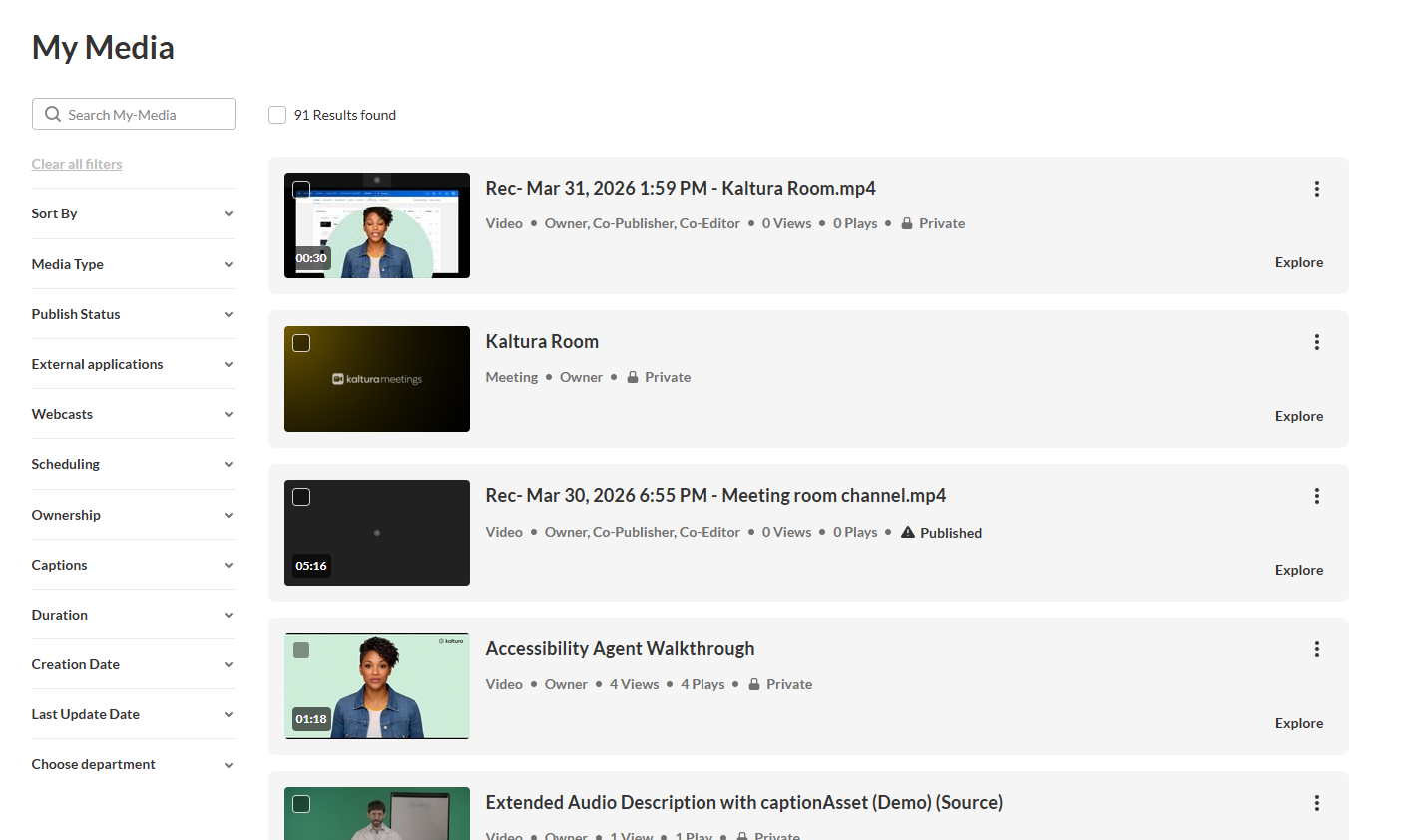
- From the user menu, click My Media.
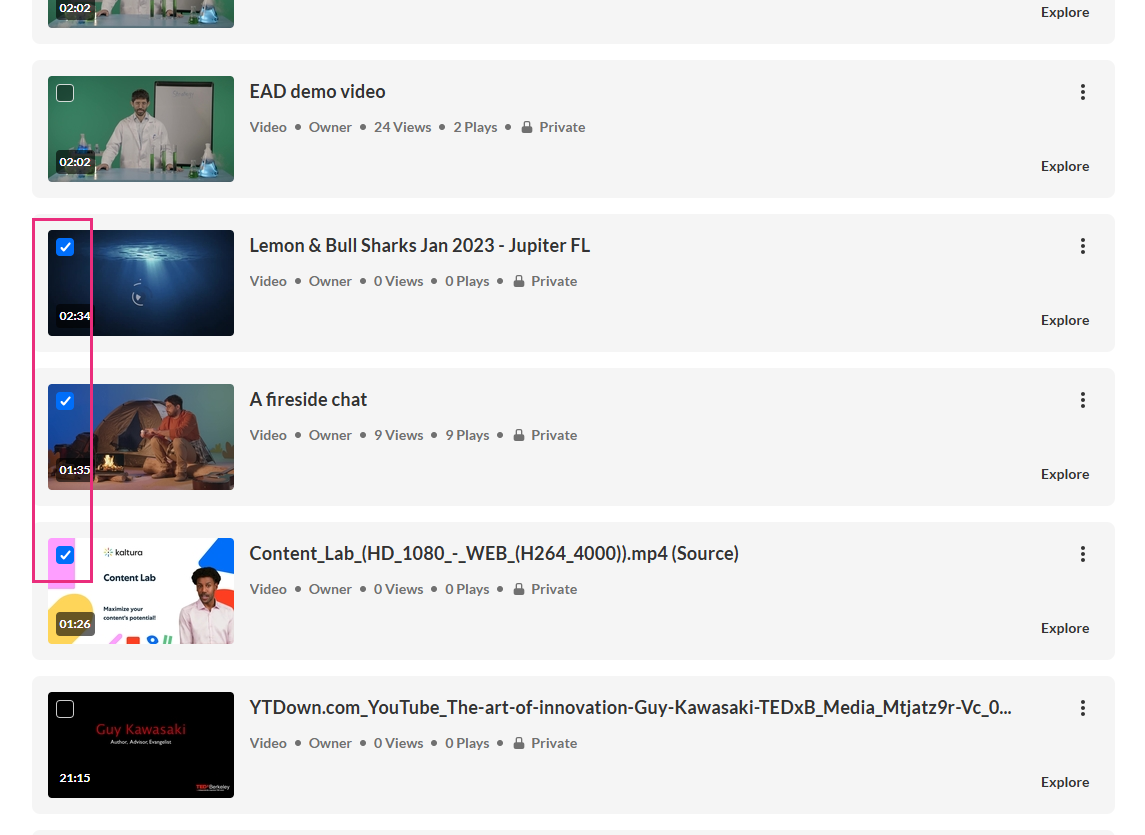
- Check the box(es) on the top left of the desired entries.
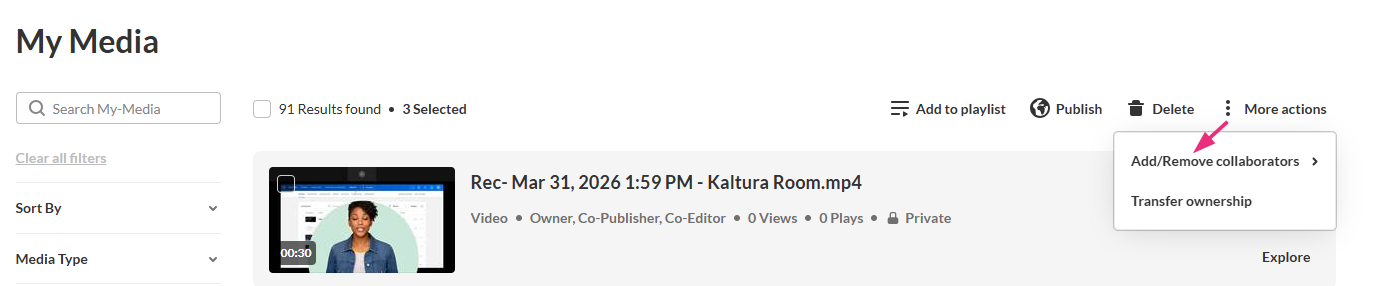
- At the top of the page, click the More actions menu and choose Add/Remove collaborators.
- Choose Add collaborators from the sub-menu.
- Select the permissions for the collaborator:

The My Media page displays.

The 'Add collaboration' window opens.
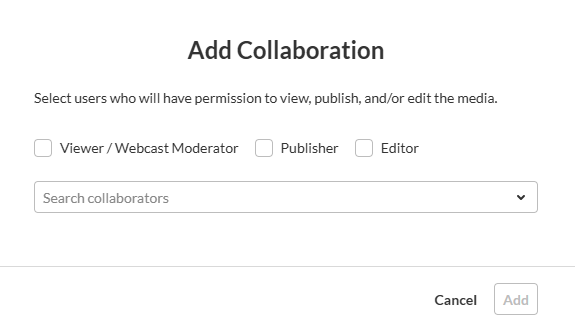
- Viewer / Webcast moderator
- Publisher
- Editor
- Start typing a name in the text field and select users or groups from the list.
- Click Add to apply your changes.
Only users who already have an account in the application can be added as collaborators.

A success message displays: Media successfully updated.
Remove collaborators
- From the user menu, click My Media.
- Check the box(es) on the top left of the desired entries.
- Click the More actions menu at the top of the page and choose Add/Remove collaborator.
- Choose Remove collaborators from the menu.
- Select the permissions to revoke:
The My Media page displays.
This option only appears in the menu if the MediaCollaboration module is enabled.

The Remove collaboration window displays.
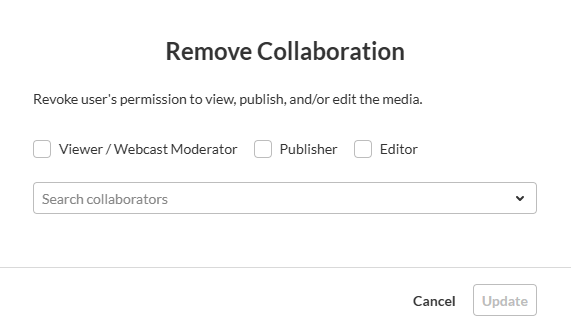
- Viewer / Webcast moderator
- Publisher
- Editor
- Start typing a name in the text field and select users or groups from the list.
- Click Add to apply your changes. A success message displays: Media successfully updated.
