About
Kaltura's Watch List is a nice quick way to store videos for later consumption. When you have time to watch your saved videos, simply access your Watch List.
This feature requires the WatchLater module to be enabled.
Access the Watch List page
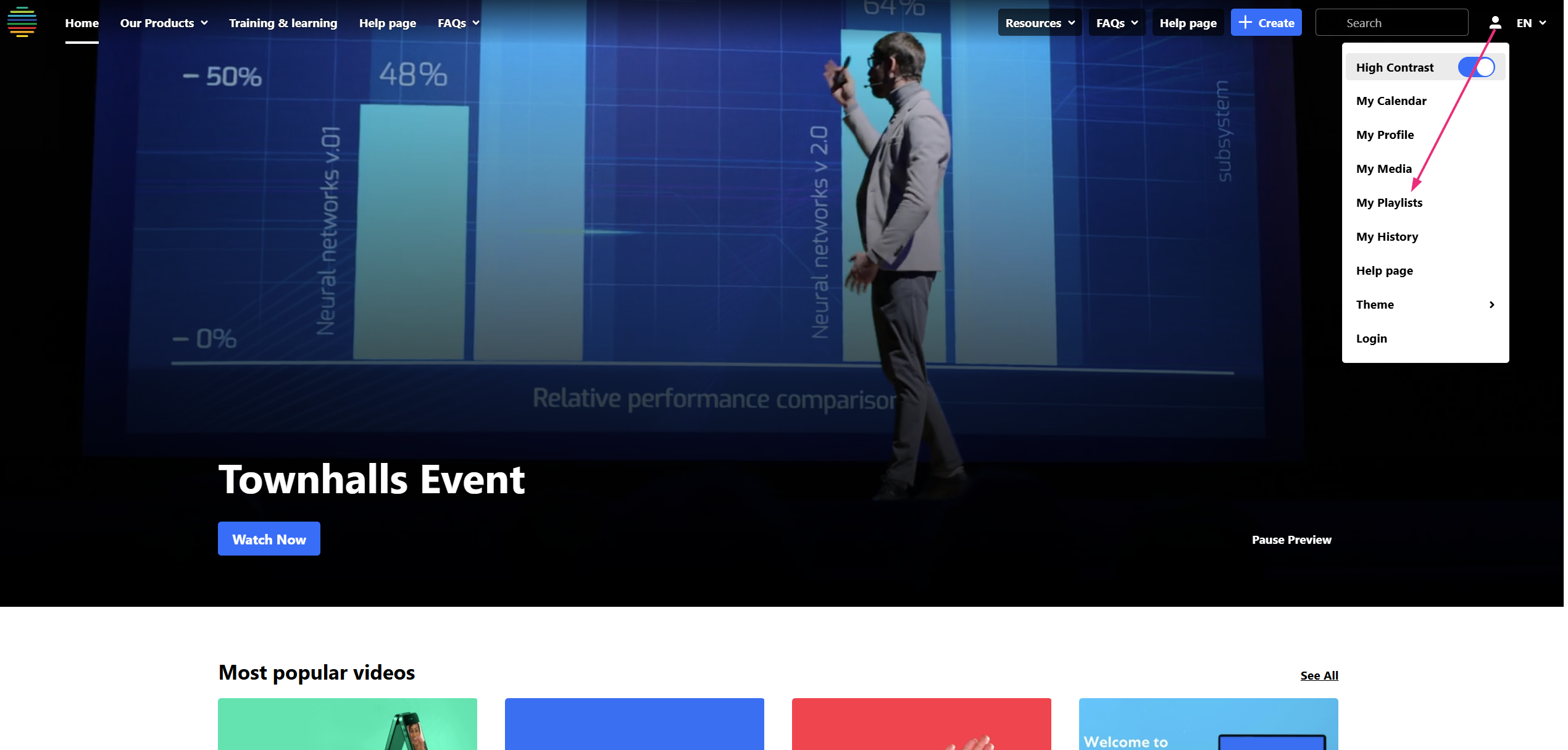
From the user menu
Select Watch List from the user menu.

If you don't see the Watch List option, contact your administrator to enable it in the WatchLater module.
The 'Watch List' page displays.

From My Playlists
Select My Playlists from the user menu.
The My Playlists page displays.
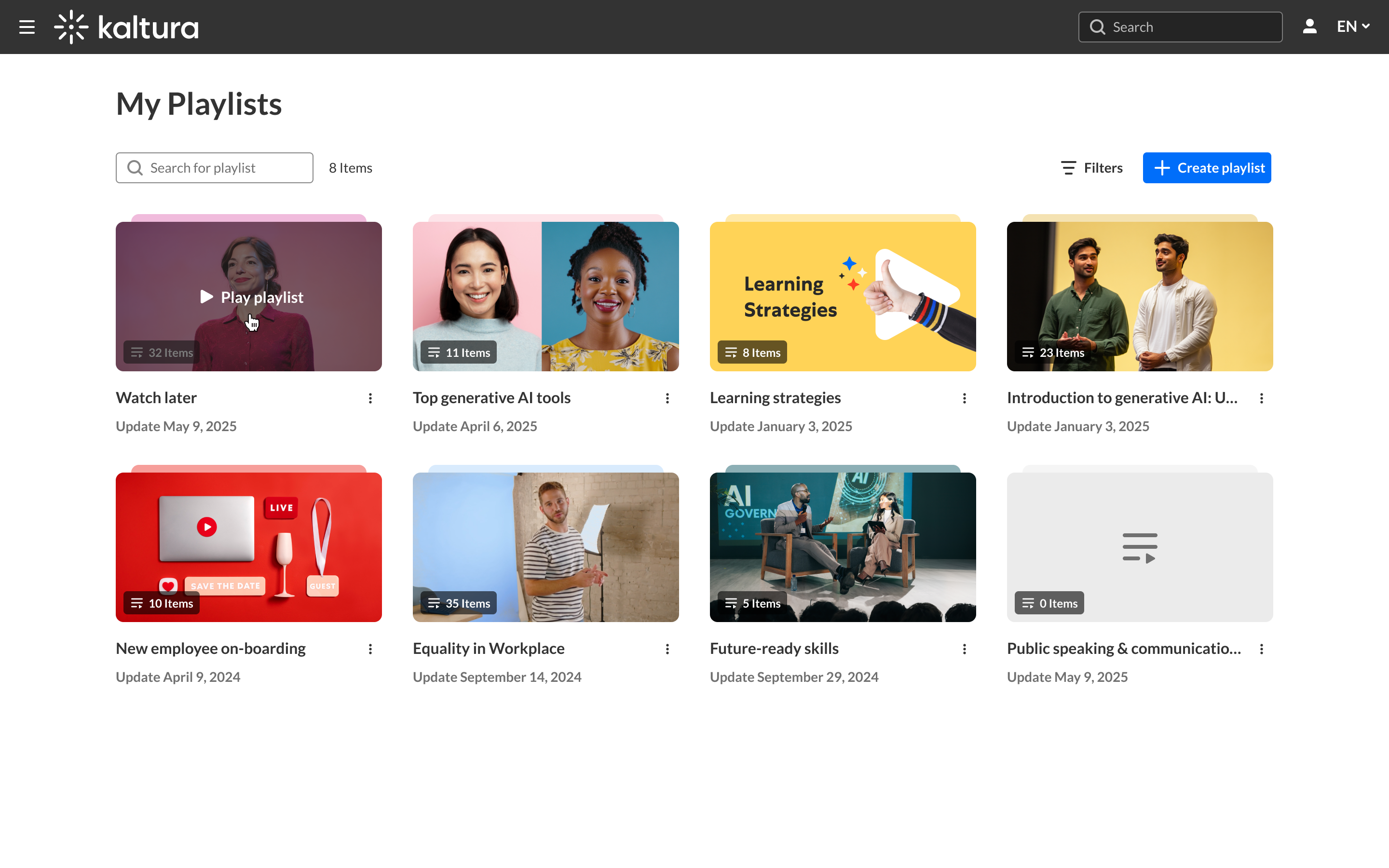
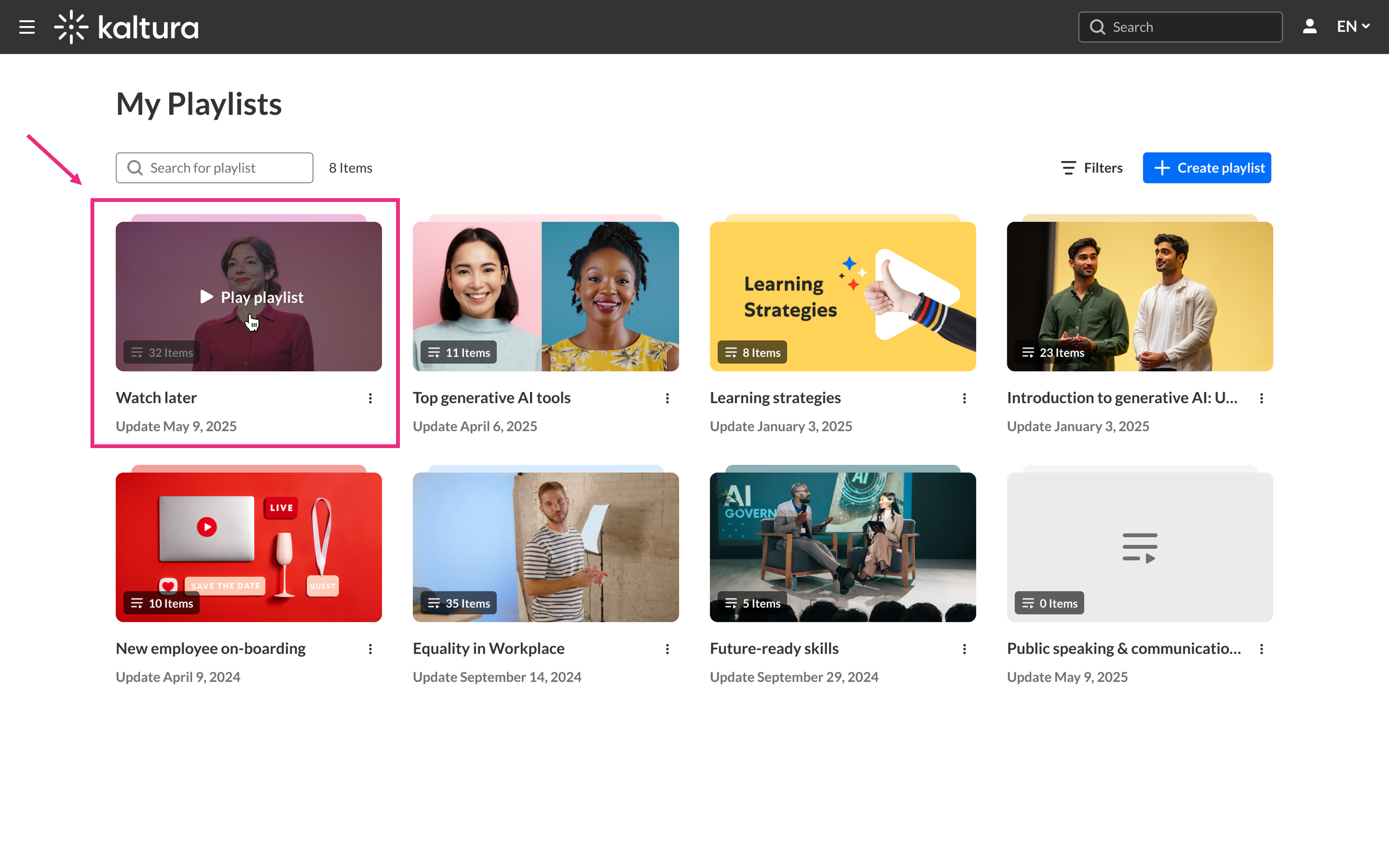
The Watch List is always located at the top of the page.
Watch videos
- Click the play icon next to a video to watch a specific item.
- Click Play All to start playing the list.
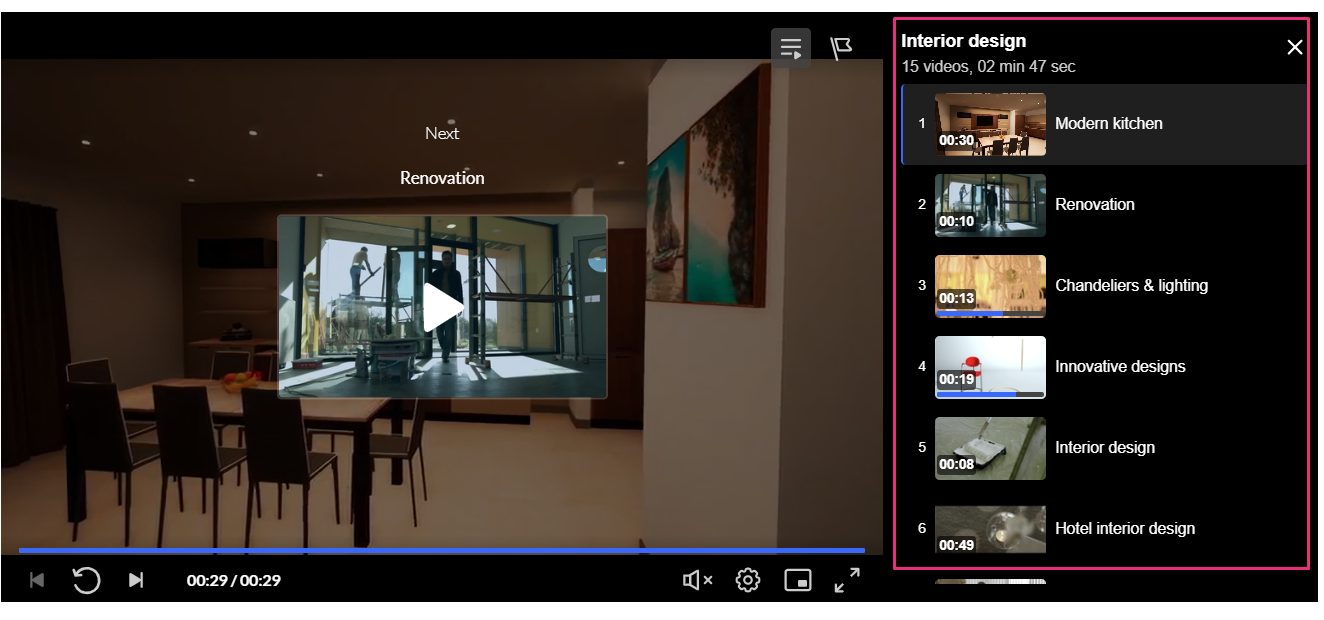
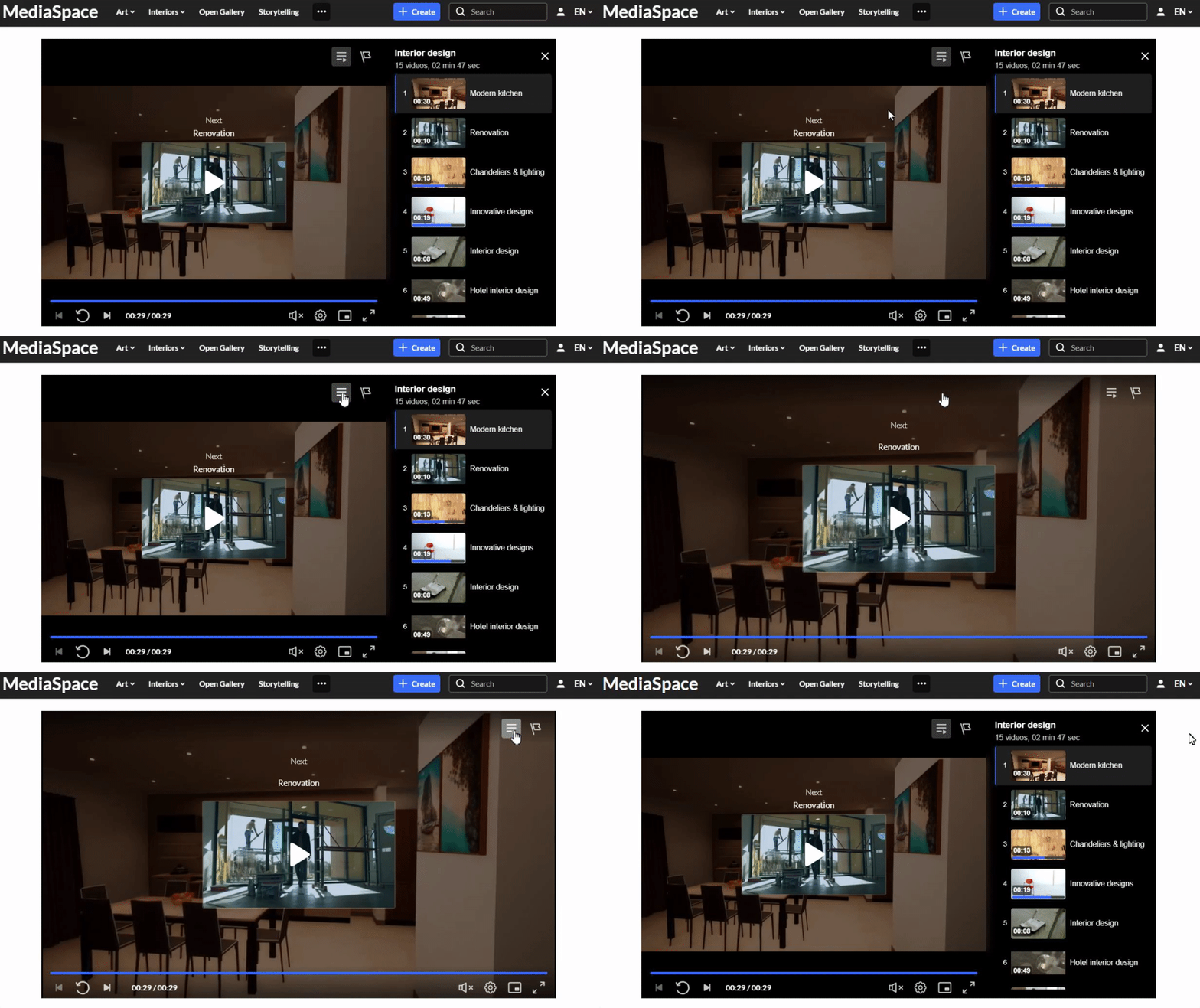
The player opens in playlist view, where you can see the current video and the upcoming items. In playlist view, you can see:
- The name of the currently playing video
- The number of videos in the list
- The total duration
- The upcoming media queue on the right
For more information about media entries, visit our article Media page.
Hide or show the playlist
- Click the icon at the top of the player to hide the upcoming media list.
- Click it again to show the list.
Remove entries from the Watch List
- Click the three dots at the top and select Edit.
- Click the remove icon next to the item you want to delete.
- Click Save at the top right.

The edit page opens.


The item is removed from the list.
