About
The V7 player is fully accessible and meets the general accessibility requirements. The design includes requirements such as color contrast, focus on fields, fonts.
Viewers can control the player options with a standard keyboard (arrows, tab, space, enter, escape). Each of its controls is set with an aria-label, enabling screen readers to render the text as speech.
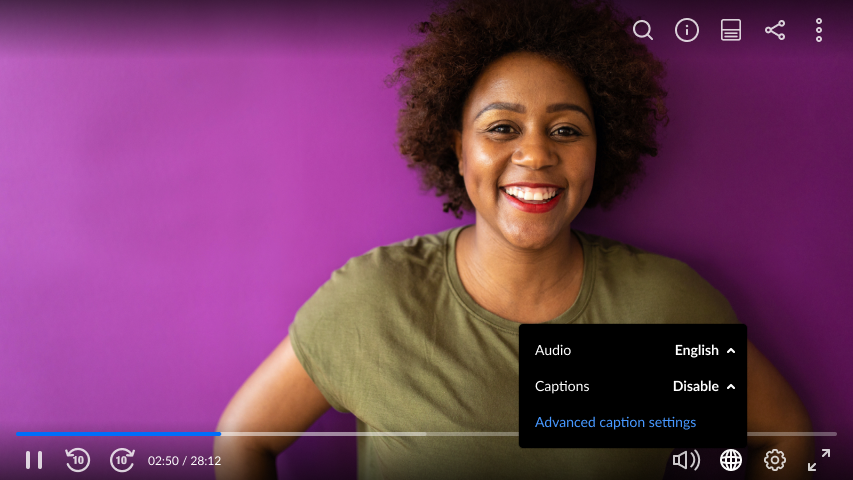
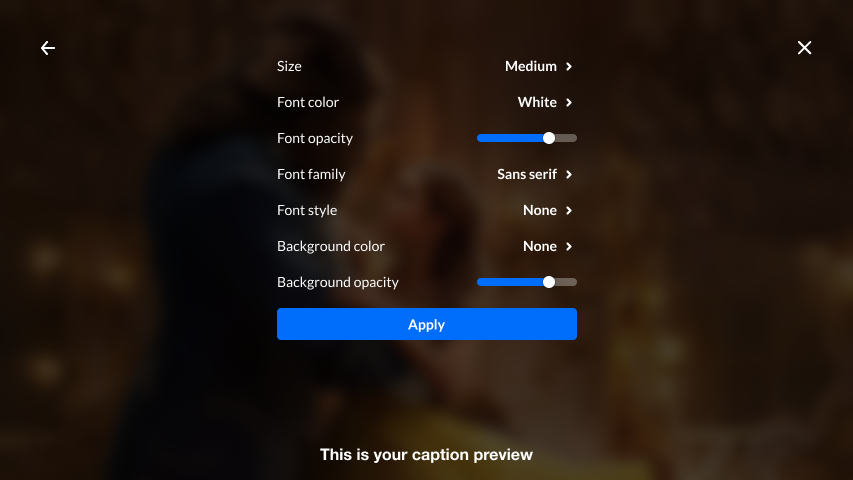
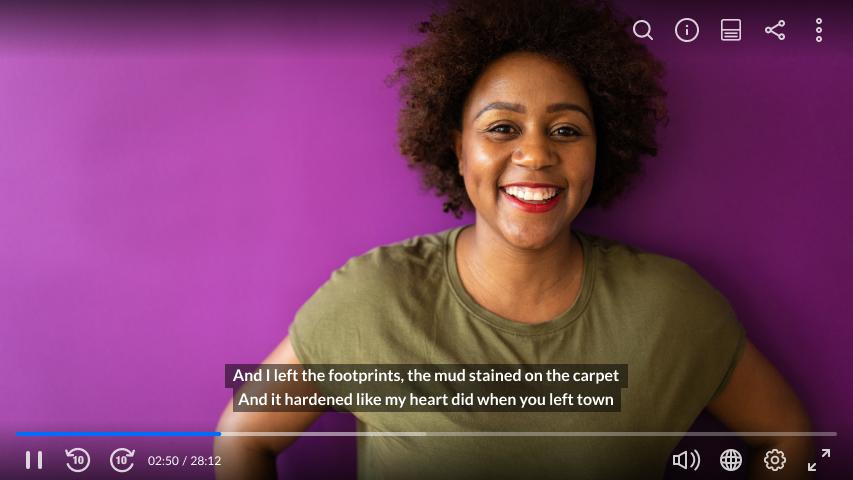
Viewers also have the ability to customize the look of the captions. See Captions and Audio Tracks for more information. Click Advanced captions settings to customize the captions display.
Setup
To learn how to set captions to display by default in the player, see Set captions to display by default in the player, or to enable localization, see Enable localization in the player.
Features
- Screen reader support
- Built with accessible web standards to support assistive technologies
- Multi-audio track support
- Customizable captions (text style, size, and colors)
- Keyboard navigation across all interactive elements
- Full keyboard navigation support across all player controls, including sliders (such as the seek bar and volume), with proper labels for accessibility
- Keyboard shortcuts aligned with common video player standards (with extended controls and customization options)
Keyboard shortcuts
Note that these shortcuts will work only if the respective player button/plugin is the focused element on the page.
|
Plugin |
Action |
Keyboard |
|---|---|---|
| Playback | Play/Pause | space / K * |
|
|
Volume controls | up/down arrows |
|
|
Mute/unmute | M |
|
|
Go to full-screen | F |
|
|
Exit full screen | Esc |
|
|
Seek (jump 5 sec) | side arrows |
|
|
Jump to video start | Home |
|
|
Jump to video end | End |
| Speed selector | Increase / decrease / back the original (0) | Shift + < / > / : |
| Multi Audio |
Change audio (next stream / previous stream) |
[ ] |
| 360 video | Navigate up, down, sideways | W / A / S / D |
| Captions | Show/hide | C |
| Jump back to live | Fast forward directly to the real-time broadcast |
L |
* Non Visual Desktop Access (NVDA) screen reader uses 'Browse mode' by default when navigating web pages, which reserves K for "jump to next link." To use the Kaltura player's keyboard shortcuts (including K for Play/Pause), NVDA users must first switch to 'Focus mode'.
To switch to Focus mode:
1. Navigate to the player using Tab or arrow keys.
2. Press NVDA + Space or Enter on a focusable control inside the player.
Captions display
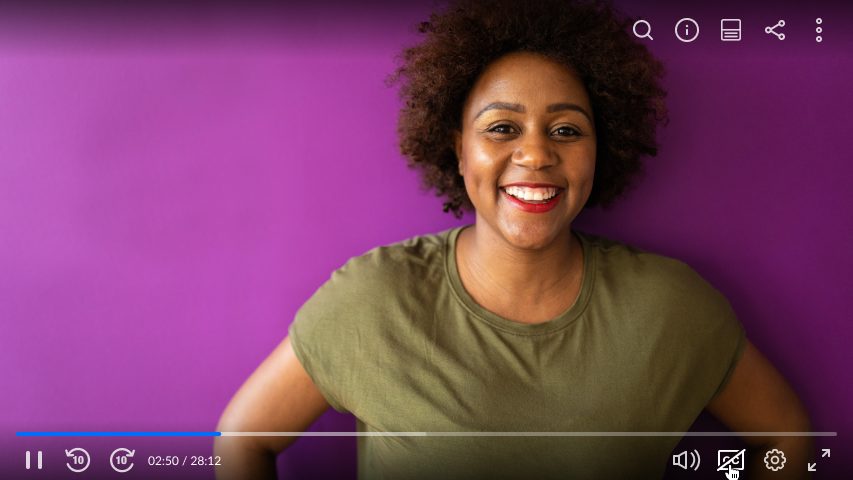
The following displays the player with the captions feature turned off. Click to enable the Closed Captions.
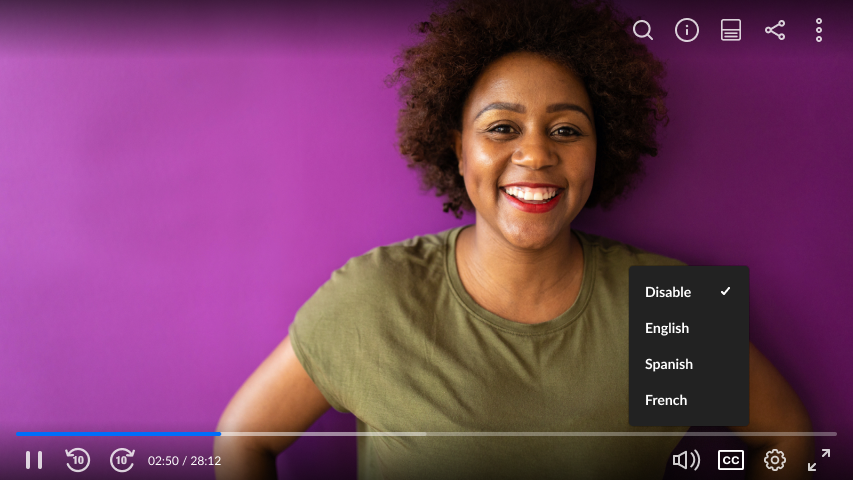
The following screen displays the player with several captions files available in different languages.
The following displays captions on the player with the control bar.
Localization
Set the language of the Kaltura player user interface. Supports language code or auto to take the browser-requested language from JavaScript vars.
Localizations will use the English language as a fallback where missing translations.
Supported Languages (17): English, German, French, Spanish, Italian, Dutch, Russian, Portuguese (Brazilian), Japanese, Chinese (Simplified), Chinese (Traditional), Hindi, Arabic, Hebrew, Korean, Canadian French, and Finnish.
For the admin guide, please visit Enable localization in the player.
Try it out
