About
This guide will show you how to share video entries using a customized embed code.
This guide is for both Theming and non-Theming users.
For technical support, contact Kaltura Customer Care. For all other inquiries, reach out to your Customer Success Manager.
Copy the customized embed code from Video Portal content
Theming users:
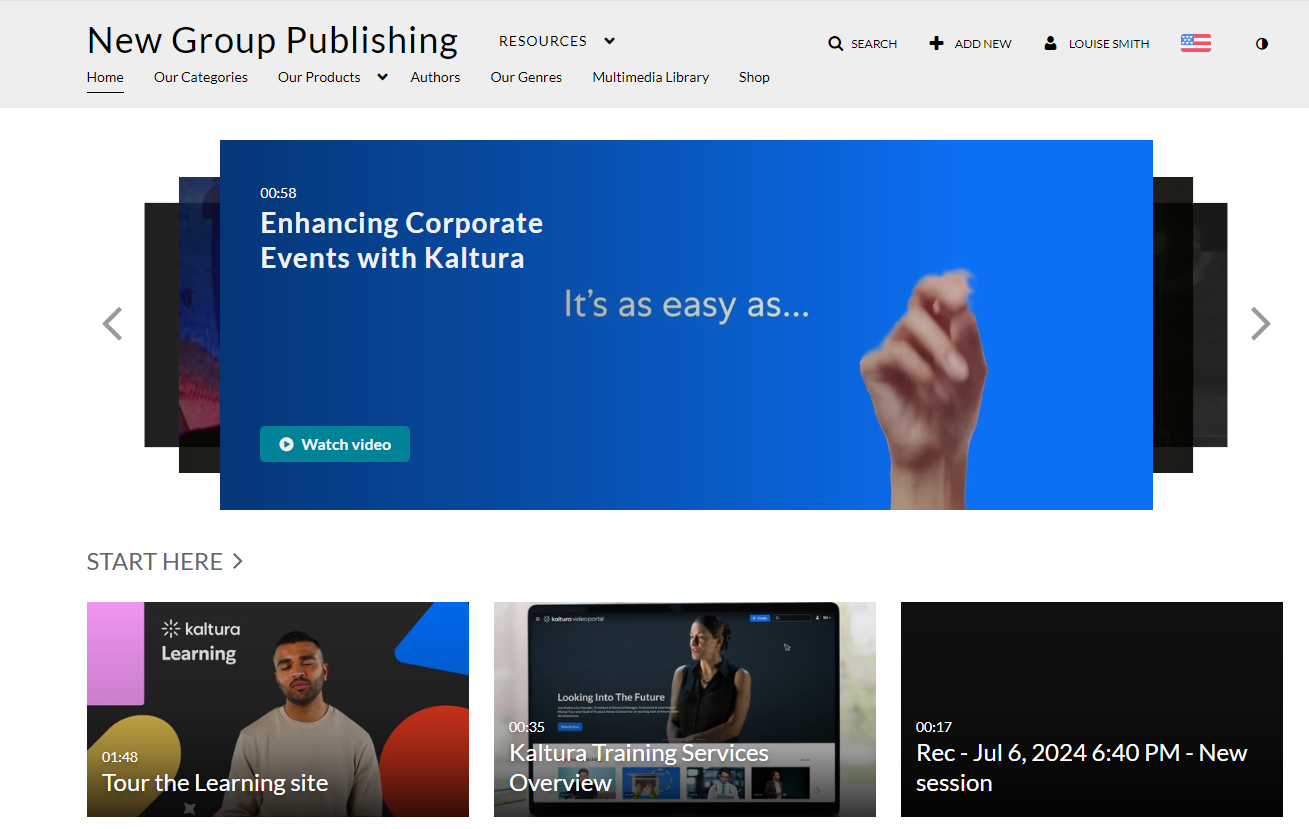
- Log into your Video Portal. If you need help, follow the instructions in our article Log into your Video Portal.
The Video Portal homepage displays.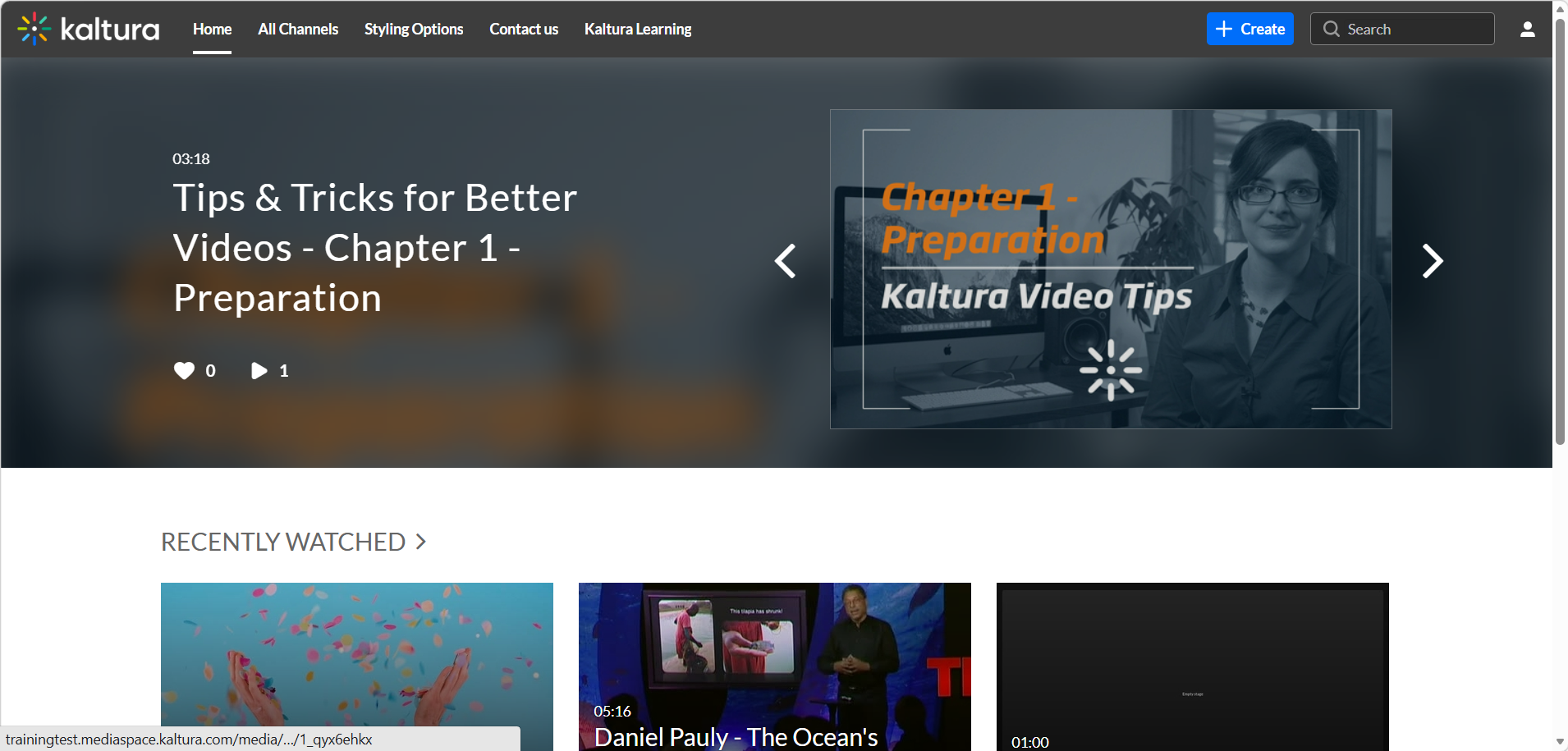
- On the homepage of the Video Portal, choose My Media from the user drop-down menu.
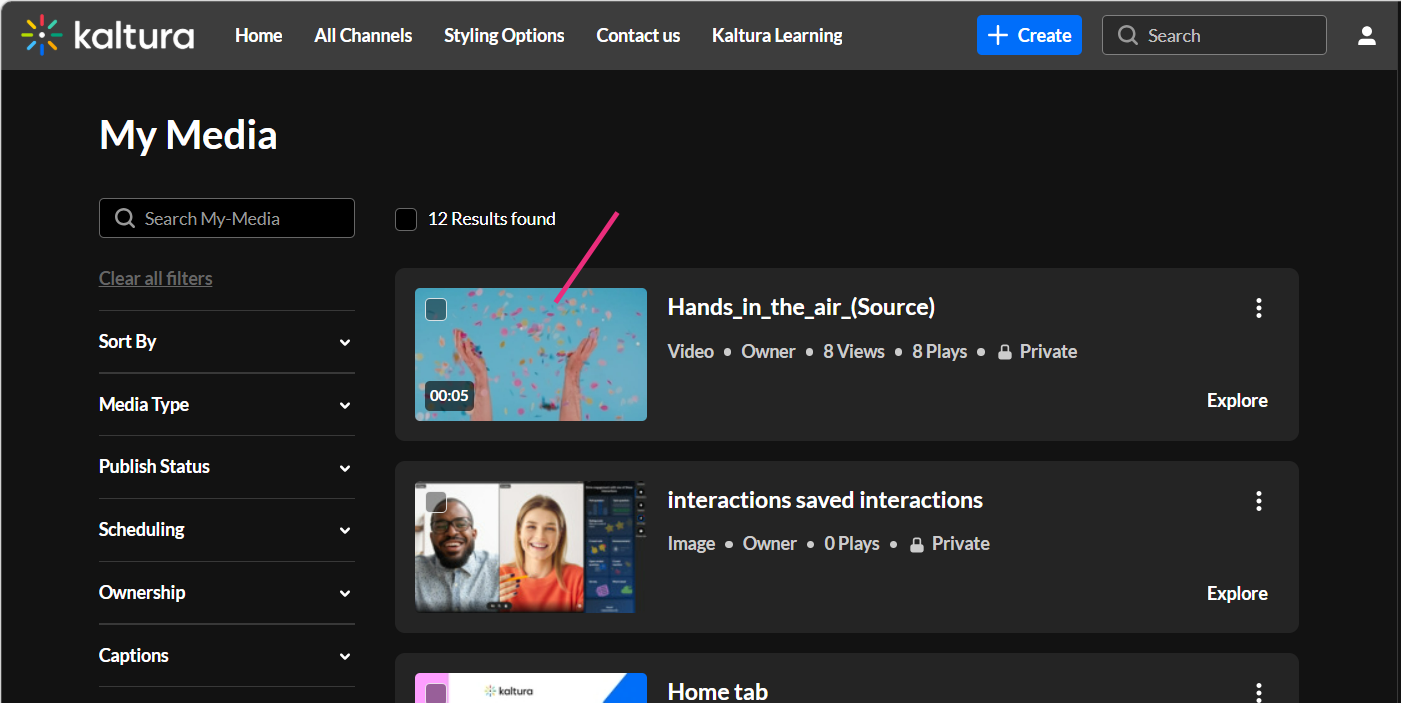
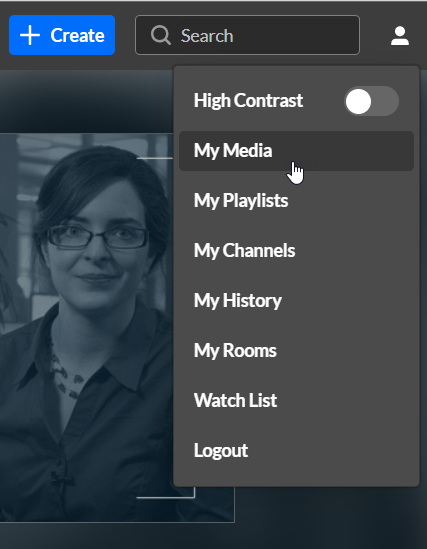 The My Media page displays.
 - Click on the thumbnail or name of the desired media.
 The entry page displays.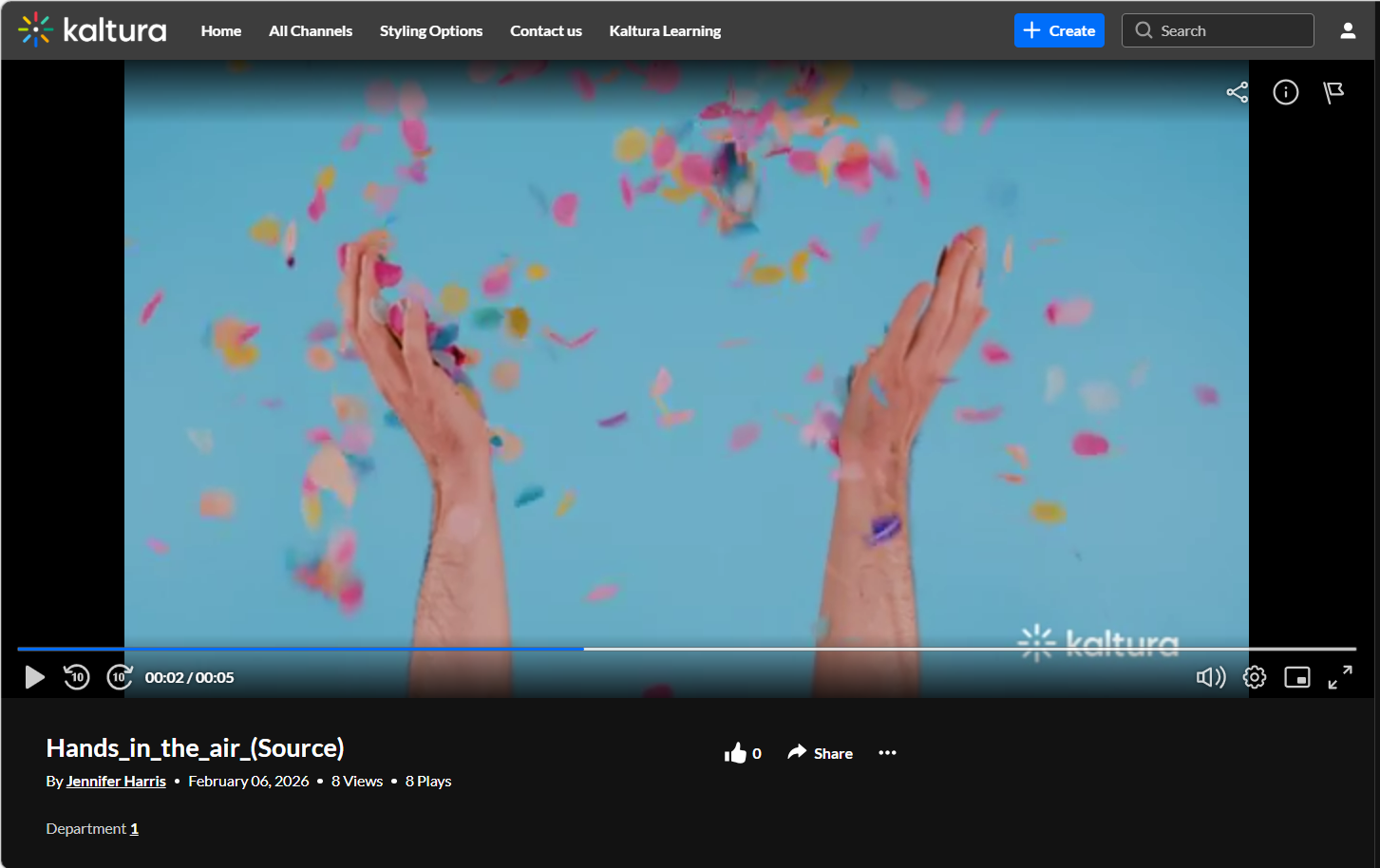
- Below the media, click on the three-dot action button.
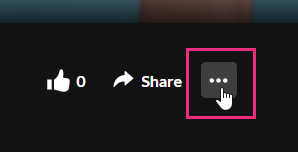 A pull-down list displays.
 - Choose the Templatized Embed Code tab (the tab’s name is set by your administrator, but in our example below it's called "Test").
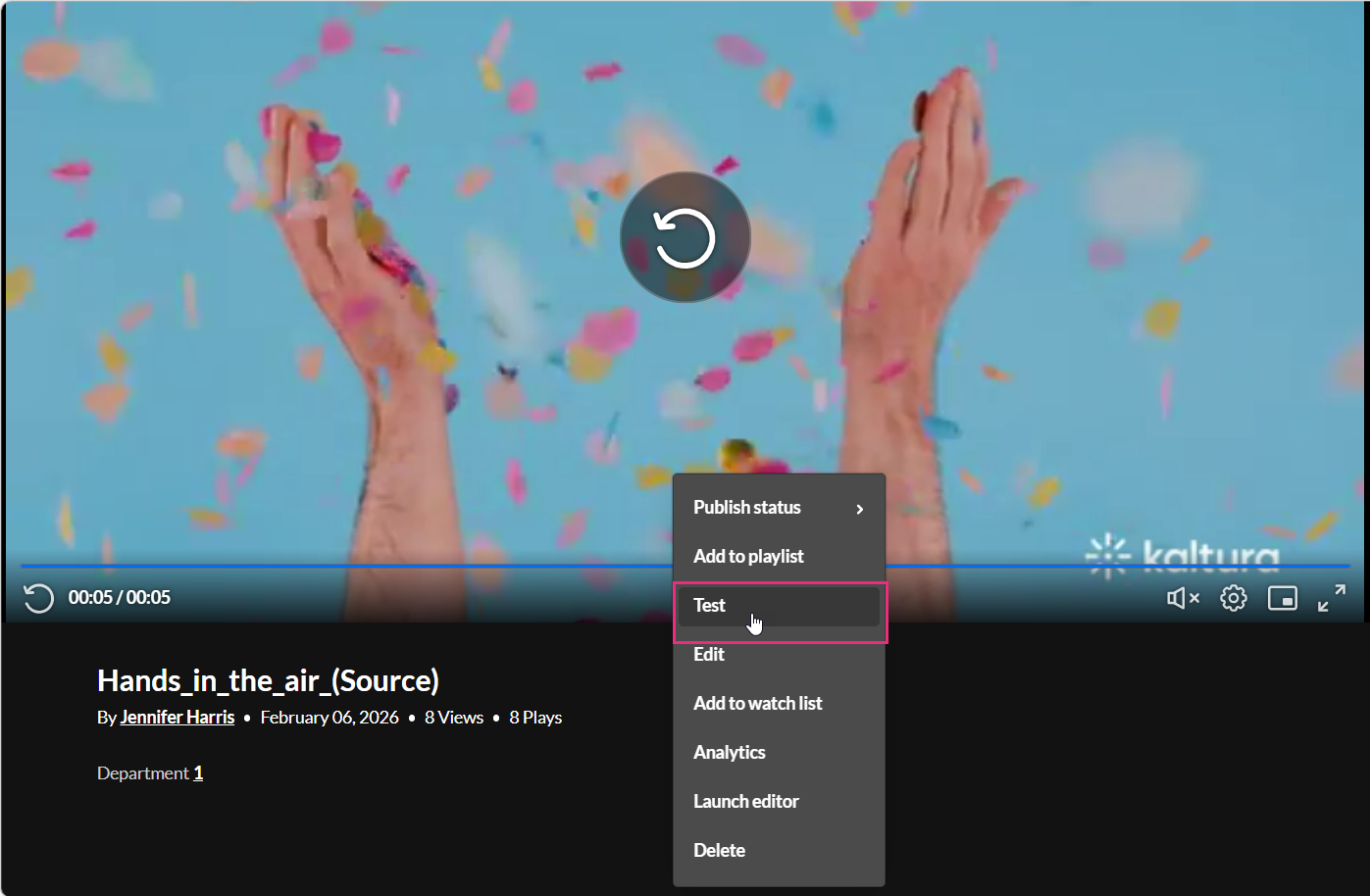 A new screen pops up.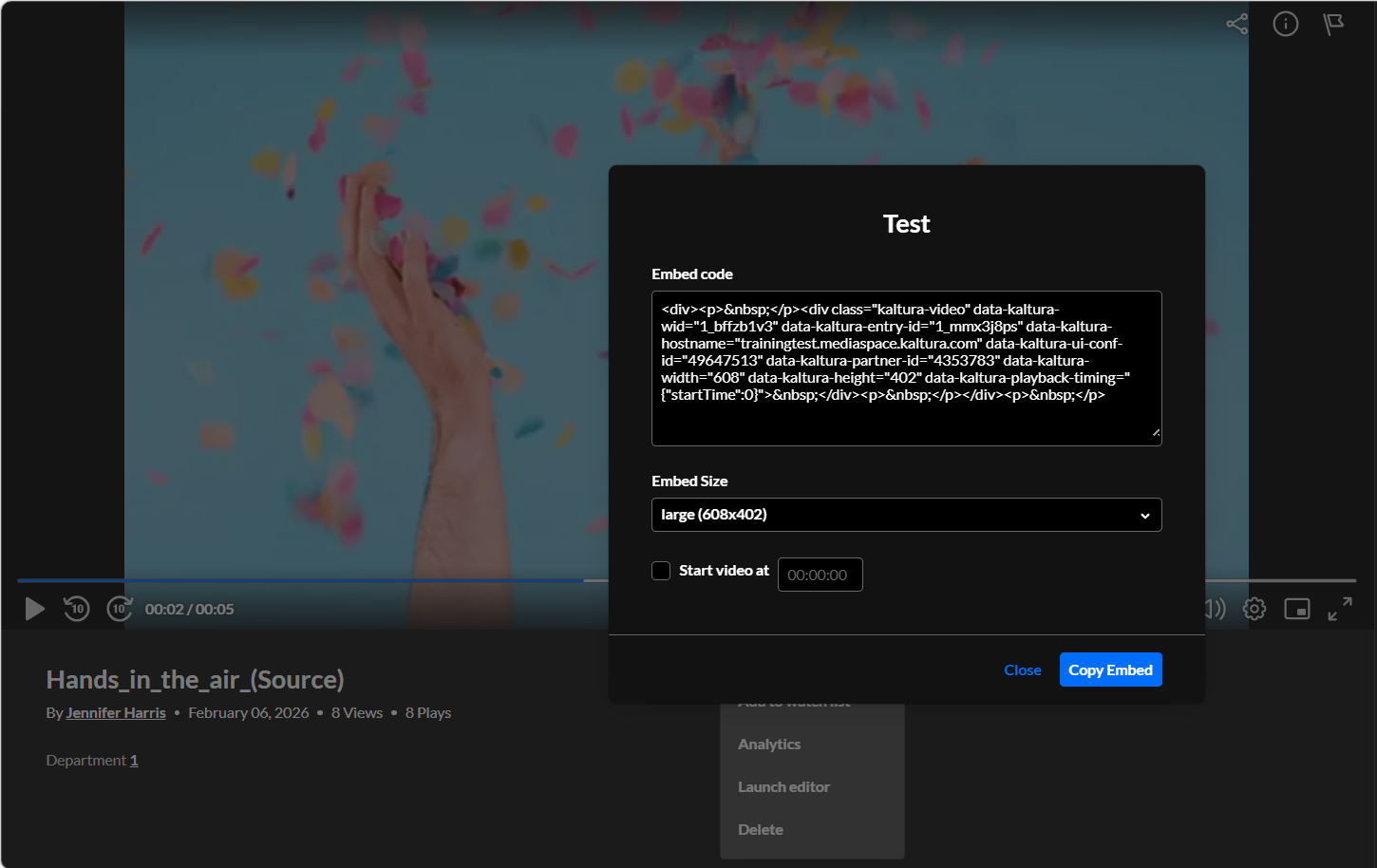
- Choose the desired Embed Size, then click the Copy Embed button.
 The My Media page displays.
 The entry page displays.
 A pull-down list displays.
 A new screen pops up.
Non-Theming users:
- Log into your Video Portal. If you need help, follow the instructions in our article Log into your Video Portal.
The Video Portal homepage displays. - On the homepage of the Video Portal, choose My Media from the user drop-down menu.
The My Media page displays.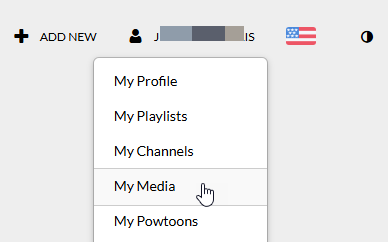
- Click on the thumbnail or name of the desired media.
The entry page displays.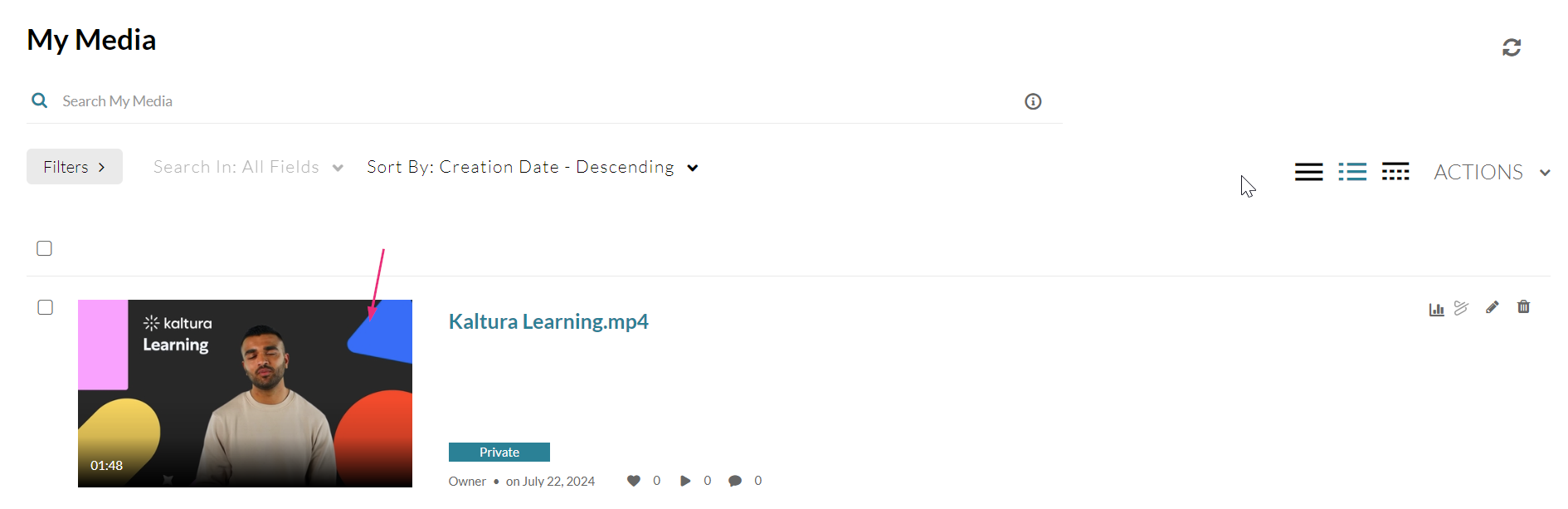
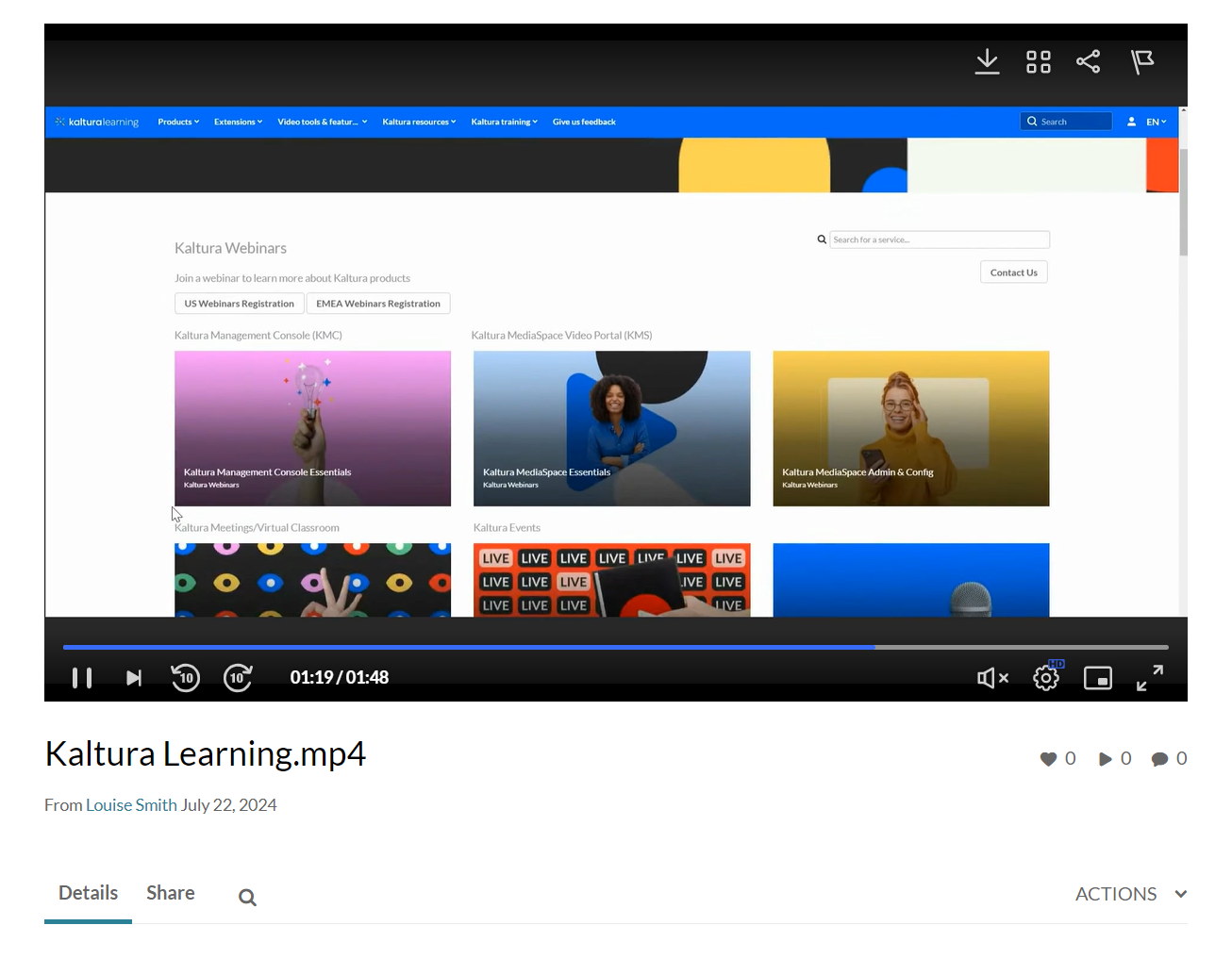
- Below the media, click on the Share tab, then click on the Templatized Embed Code tab (the tab’s name is set by your administrator, but in our example below it's called "Test").
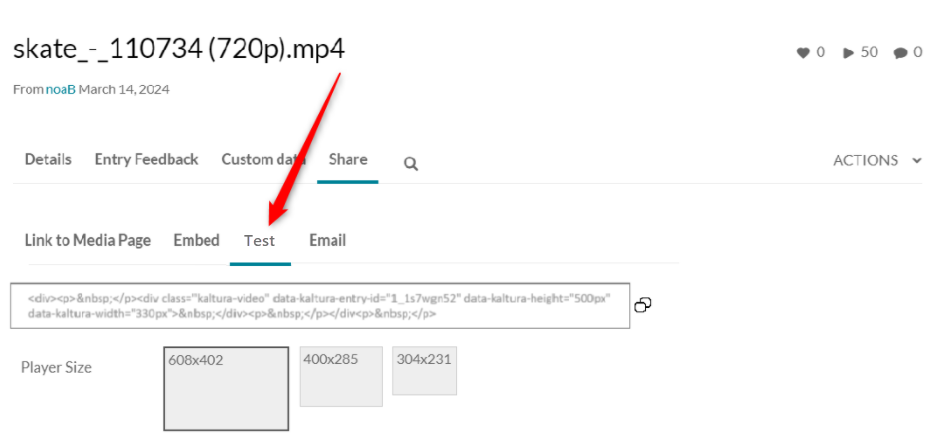
- Choose the desired Player Size, then click the "Copy Code" button to the right of the embed code.
This document is maintained by Kaltura’s Professional Services team. Please send comments or corrections to your Customer Success Manager. Ask them to forward it to the Professional Services team. We are committed to improving our documentation and your feedback is appreciated.
