About
During a live session, the host or moderator can give you access to the stage, where you can appear on camera and use your microphone.
Depending on the session settings, you can join directly, request approval, or accept an invitation.
This guide explains each option and how to get ready to join from a desktop or mobile device.
Join the stage directly
In sessions where open stage access is enabled, you can join the stage at any time.
- Click Join stage at the bottom of your screen.
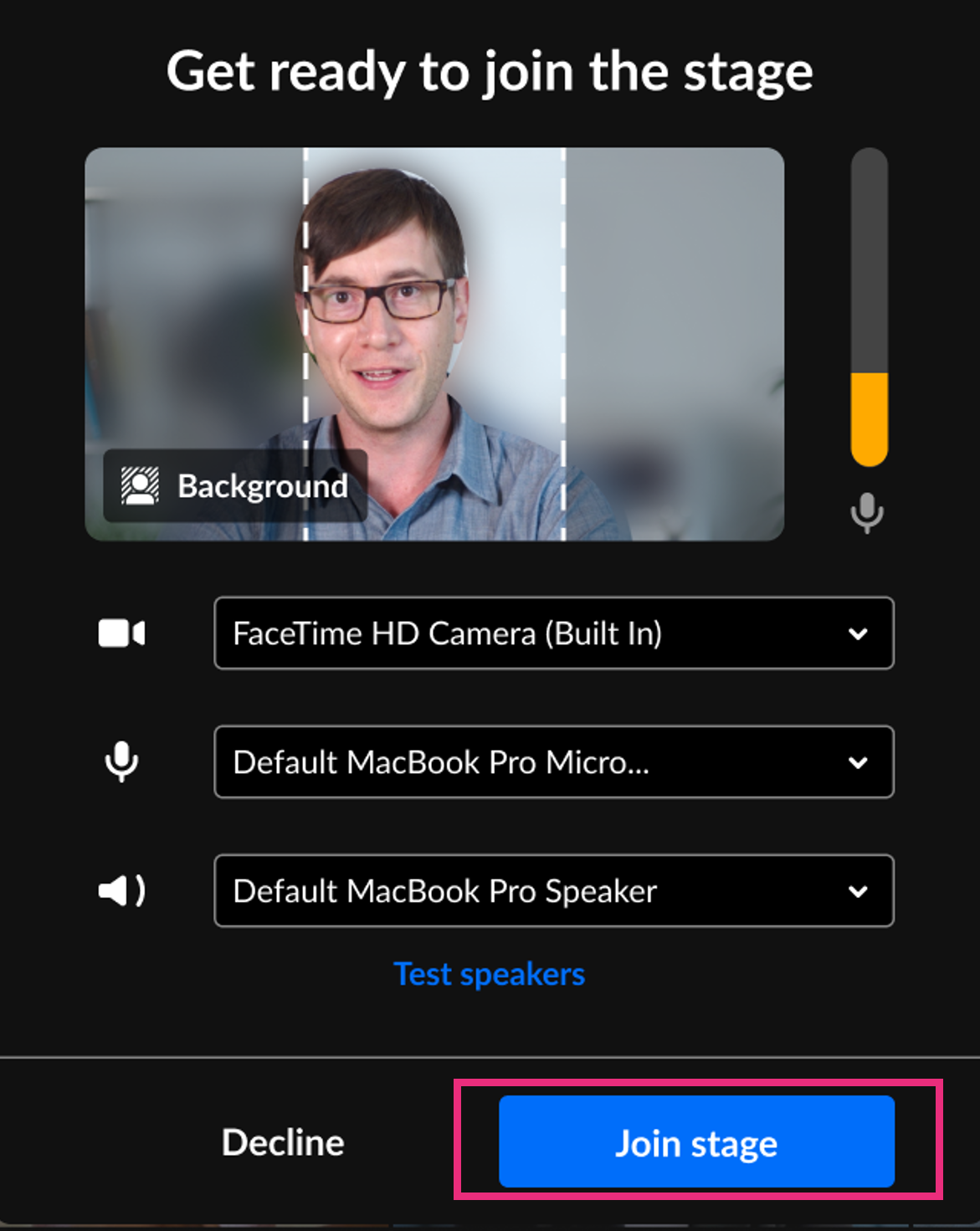
- You can configure your devices, then click Join stage to go live.

A Get ready to join the stage window appears.
Request to join the stage
In some sessions, you must request approval before joining the stage.
- Click the Ask to join stage button at the bottom of your screen.
- The moderator receives a notification that you want to join the stage.
- If your request is approved, you receive an invitation to join. You can confirm or configure your devices before clicking Join stage.

If your request is declined, you will receive a notification. You can request to join the stage again later.

You can also withdraw your request by clicking Cancel request.

Join by invitation
If stage access is restricted, moderators may invite attendees to join the stage.
- When the moderator invites you to join the stage, a pop-up appears allowing you to:
- Join the stage
- Decline the invitation
- If you choose to join, you can configure your devices before clicking Join stage.

Only the 'Decline invitation' button appears
When you enter a Kaltura Room, your browser asks to use your camera and microphone. If you didn’t allow access, a stage invitation shows only Decline invitation.

The camera and mic boxes say Camera blocked and Mic blocked, and you can’t select them.
To get the Join stage button:
- Refresh the page. To do this, select the reload icon next to your browser’s address bar, or press F5 (Command+R on a Mac). If the host has to approve people before they enter the room, a Waiting to join message appears until the host admits you.
- When your browser asks to use your camera and microphone, select Allow while visiting the site. The Set devices screen opens.
- Check that the correct camera and mic are selected.
- Select Join stage.

If your browser doesn’t ask to use your camera and microphone, it’s set to block them. To allow access:
- Select the site information icon to the left of the URL in your browser’s address bar, and then select Site settings. In Chrome, the icon looks like two small sliders. In most other browsers, it’s a lock.
- Set Camera and Microphone to Allow.
- Refresh the page.
If your camera and mic are still blocked, close any other apps that are using your camera, and check that your computer or device’s privacy settings let your browser use them.
You don’t see an option to join the stage
If you don't see Join stage, Ask to join stage, or receive an invitation to join the stage, it means the moderator hasn't enabled stage access for attendees.
You will remain in viewer mode, where you can:
- Watch what’s happening on stage
- Use chat and reactions
- Raise your hand
- Participate in polls and quizzes (if enabled)
What happens when you join the stage
When you join the stage:
- Your mic and camera controls appear on the bottom toolbar.
- You’ll appear in the On stage section of the Participants List.
- Your video tile will be visible on the main stage.
To learn how to use your mic and camera in the room, see Manage device settings in a Kaltura Room.
Leave the stage
Participants cannot leave the stage themselves. To stop appearing on stage, a moderator must remove you. You can still turn off your microphone or camera at any time.
