About
If something isn't working during a Kaltura Room session, such as your webcam, microphone, or content playback, you can report it without leaving the room.
When you submit your feedback, a support log from your session is attached automatically, so technical support has what they need to investigate the issue.
Send feedback or report an issue
- Select the settings icon at the bottom right of the screen, and then select Give feedback from the menu.
- Enter your feedback in the Give feedback field.
- In the Choose an area drop-down menu, select the category that best describes the issue:
- Webcam quality
- Microphone quality
- Content playback
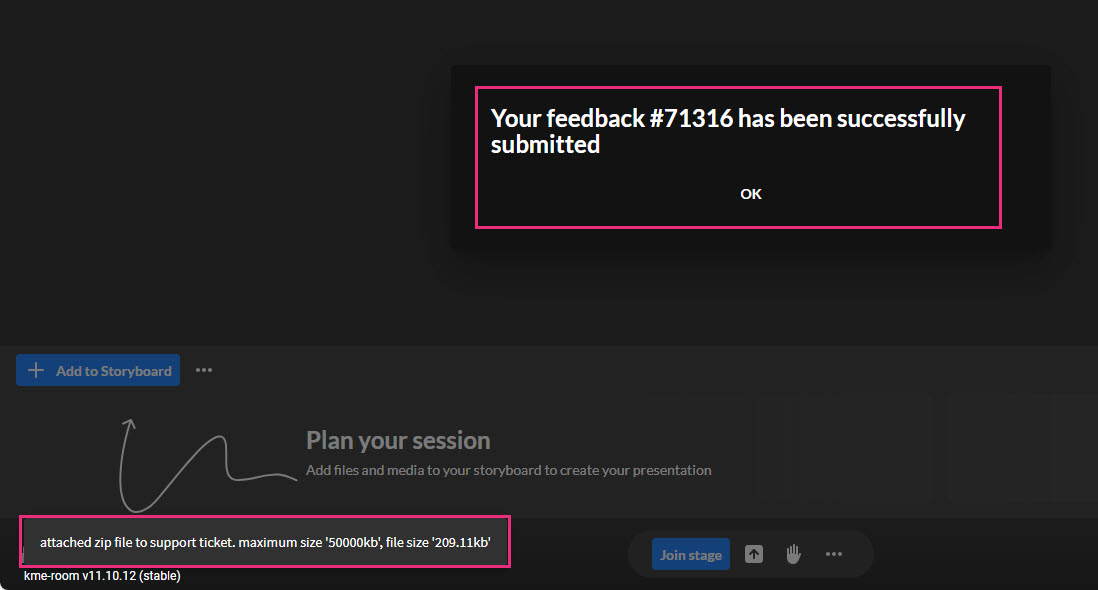
- Select Submit. A confirmation message appears. It confirms that your feedback and a support log were submitted.
- Select OK.