About
KMS Go on your iPhone lets you save media to the Watch Later playlist, and organize it in your own playlists.
Watch Later
If your administrator turns it on, the Watch Later playlist lets you set media aside to watch later.
Open the Watch Later playlist
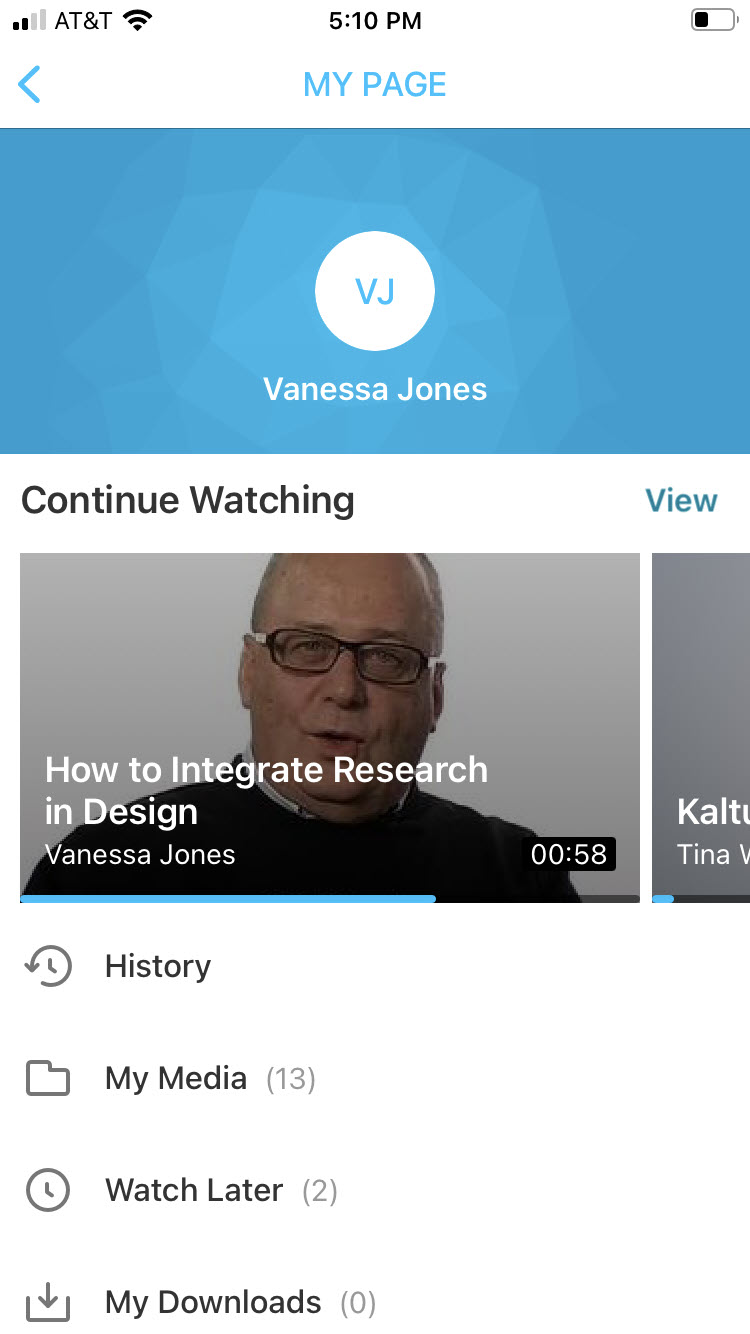
- Select the My Page icon.
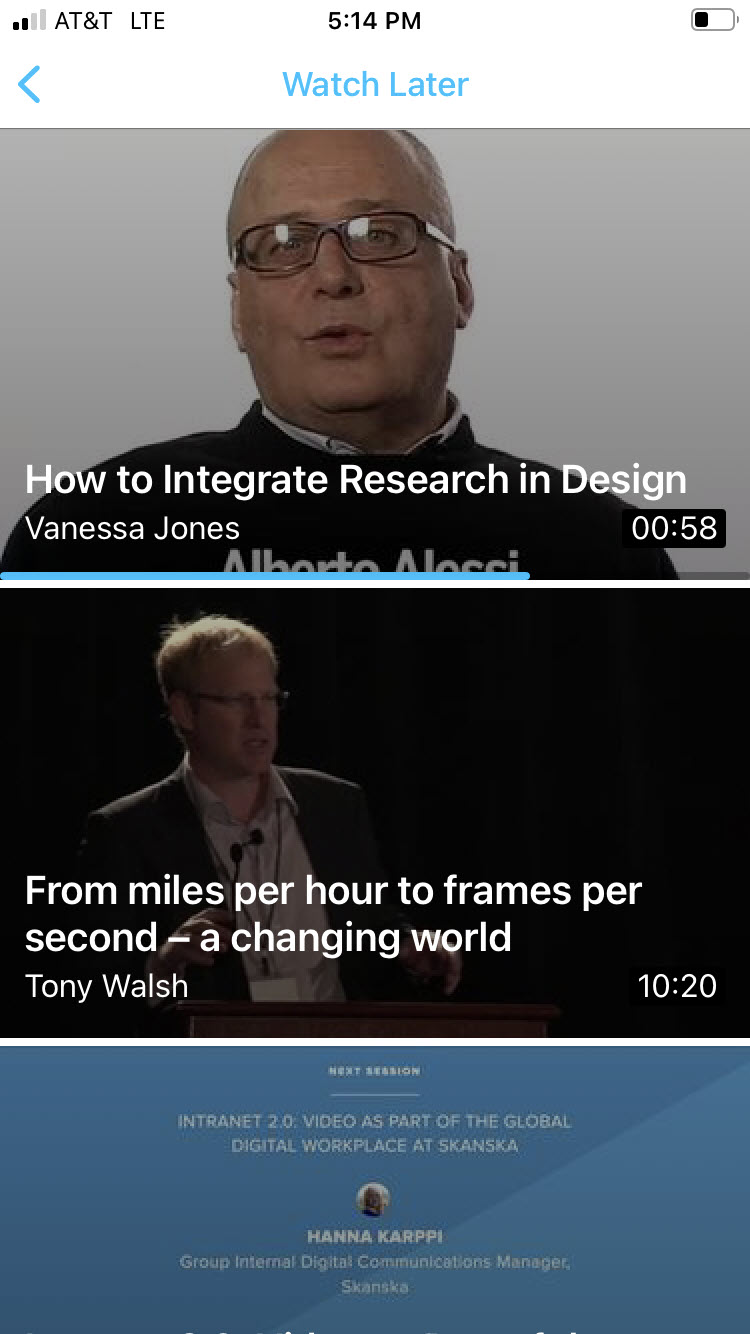
- Select Watch Later. Your Watch Later media appears.
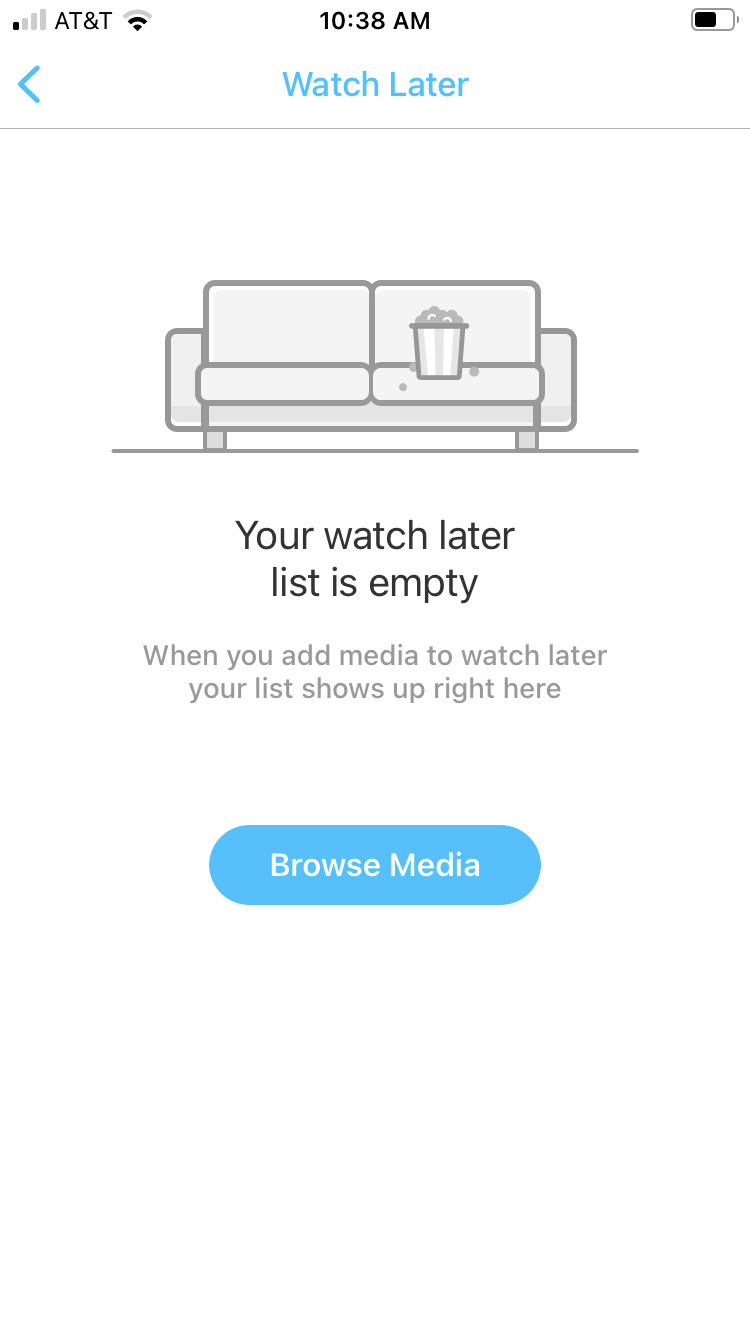
If the playlist is empty, a message says so and offers to take you to the homepage.
Add media to the Watch Later playlist
You can add media in three ways: with the Add to Watch Later quick action, with the Add media to quick action, or from a media page.
Use the Add to Watch Later quick action
- Select a gallery or playlist.
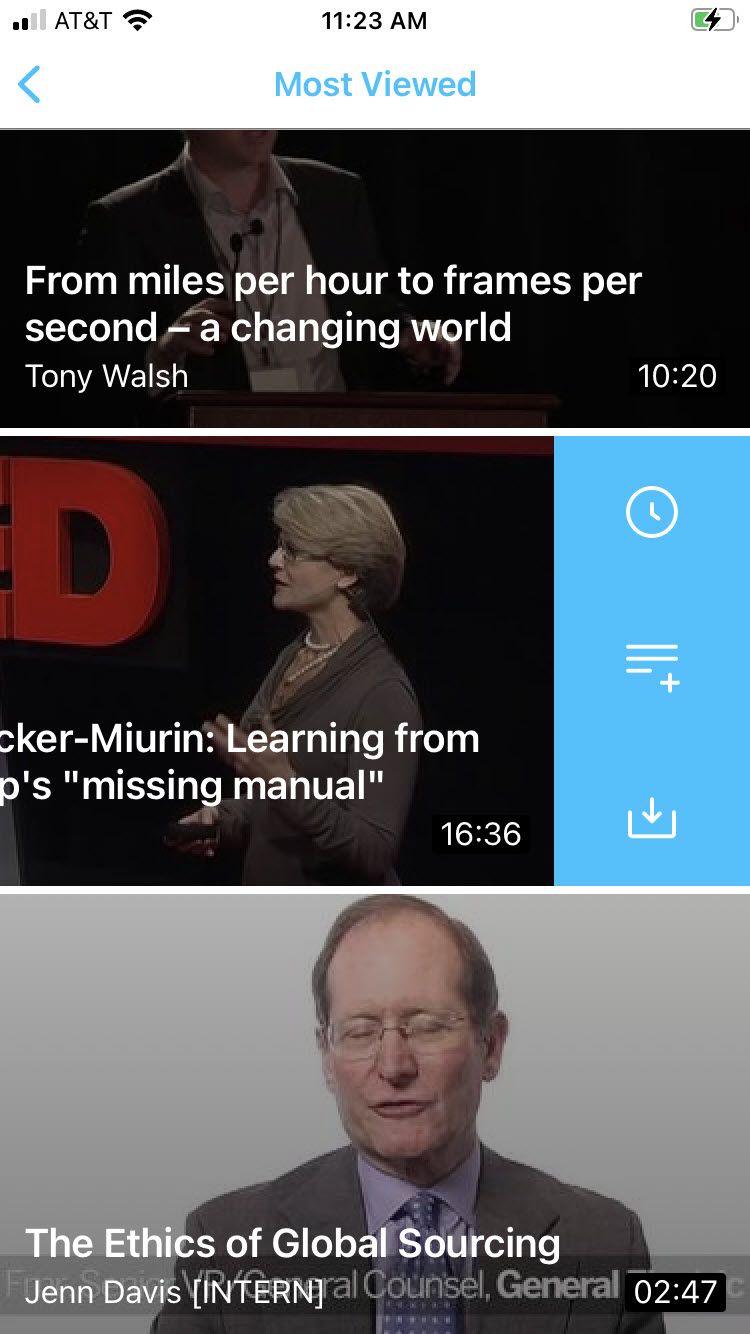
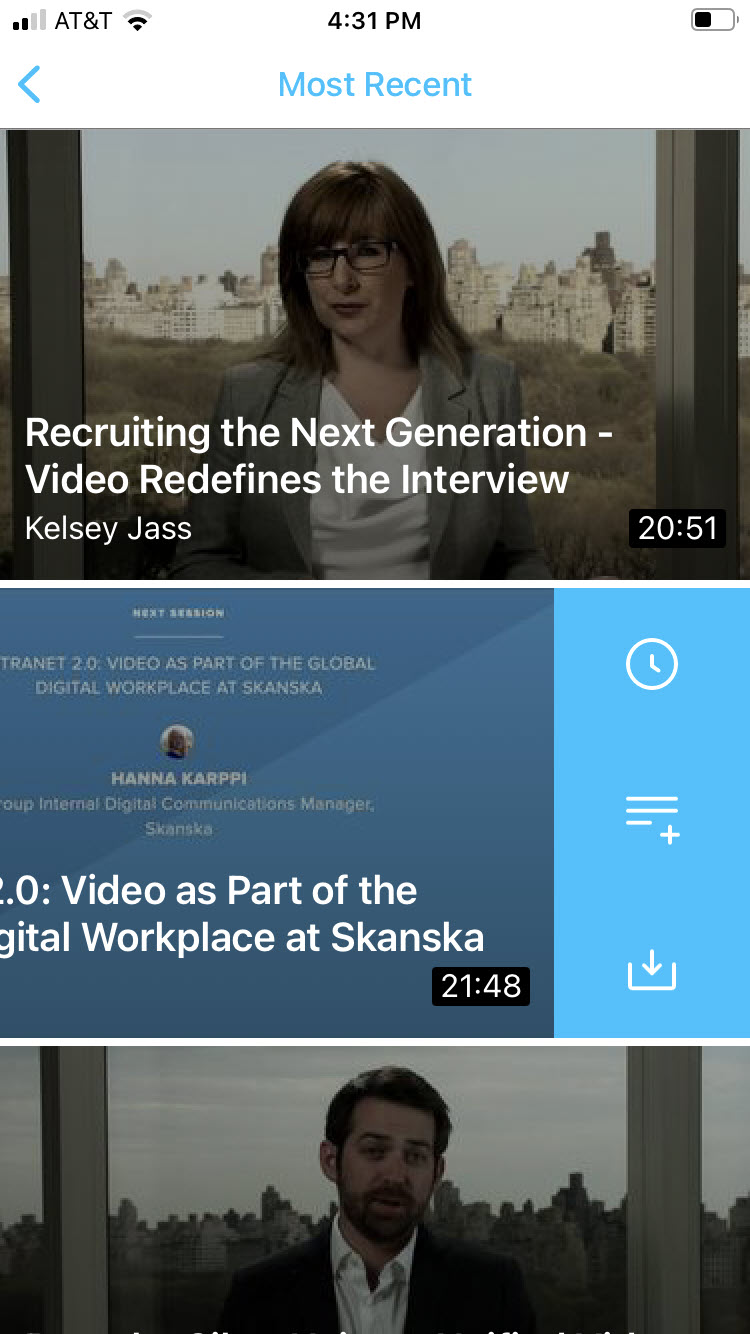
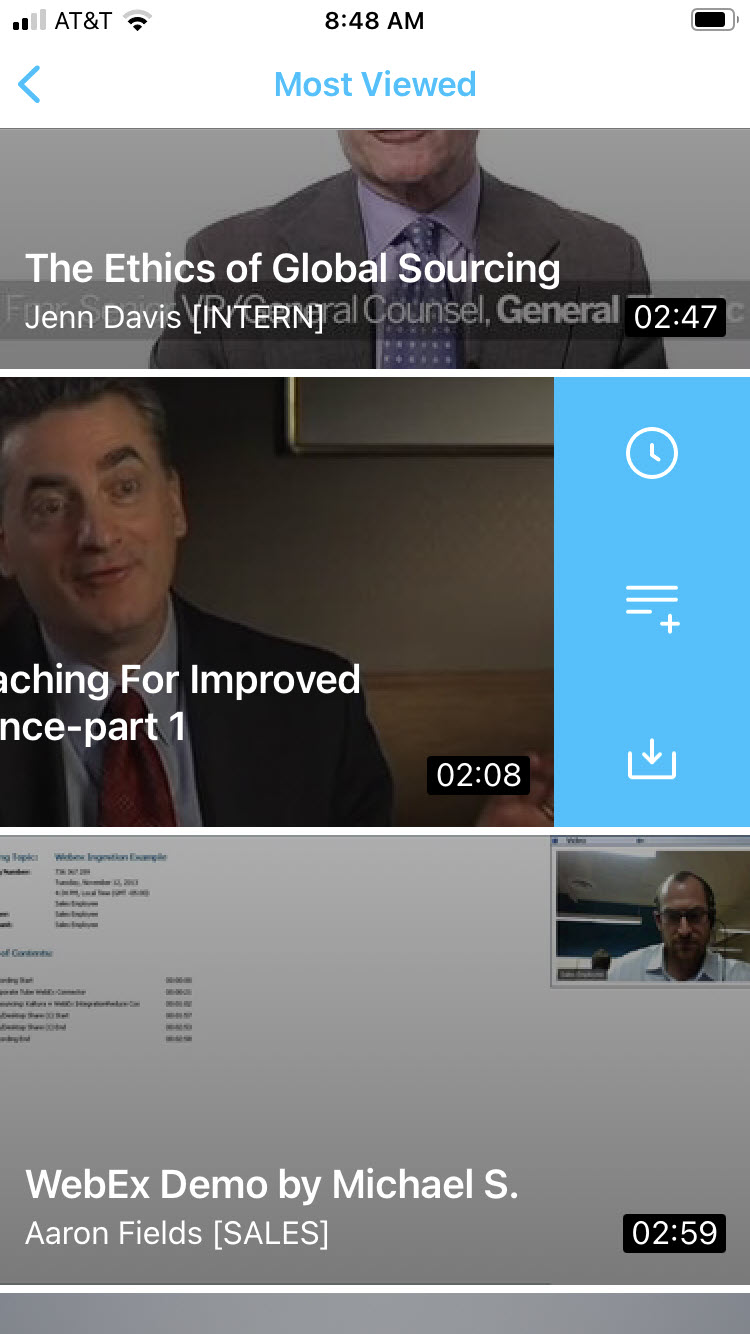
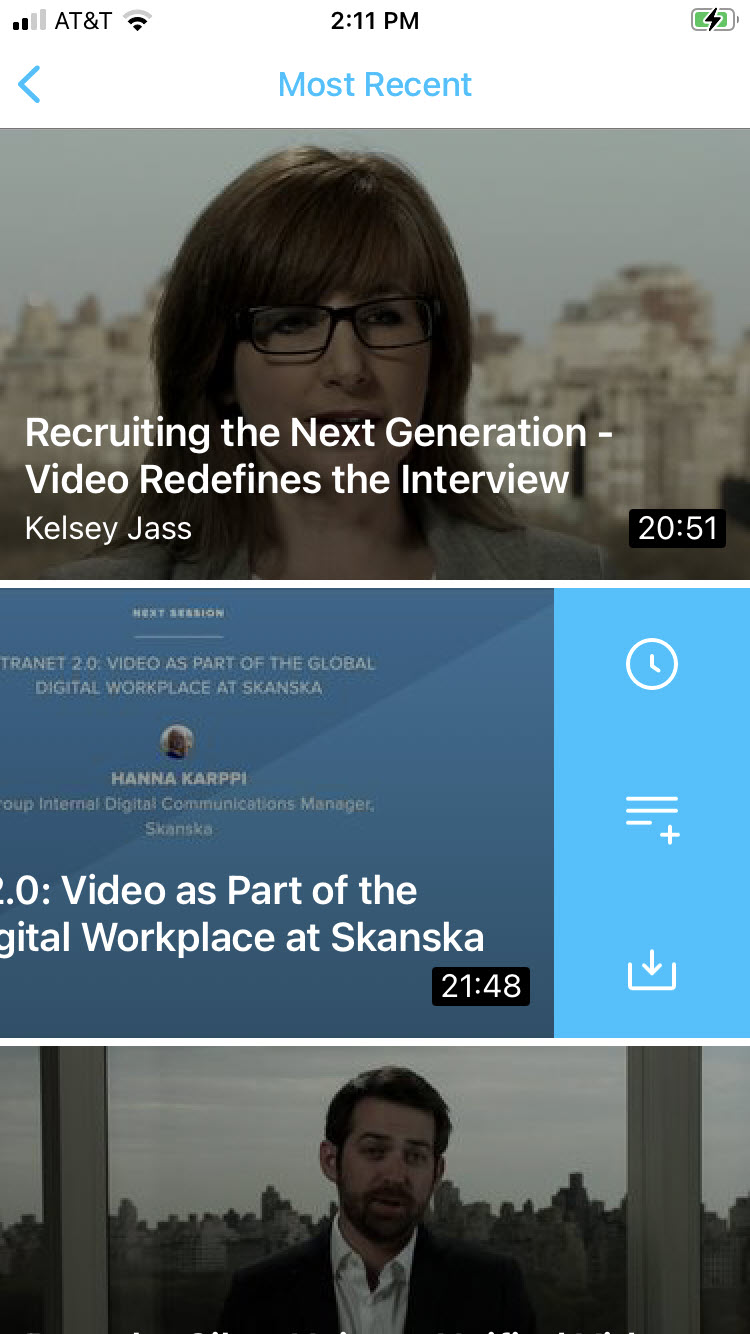
- Swipe the media item to the left. The quick action icons appear to the right of the media.
- Select the Add to Watch Later (clock) icon.
Use the Add media to quick action
- Select a gallery or playlist.
- Swipe the media item to the left.
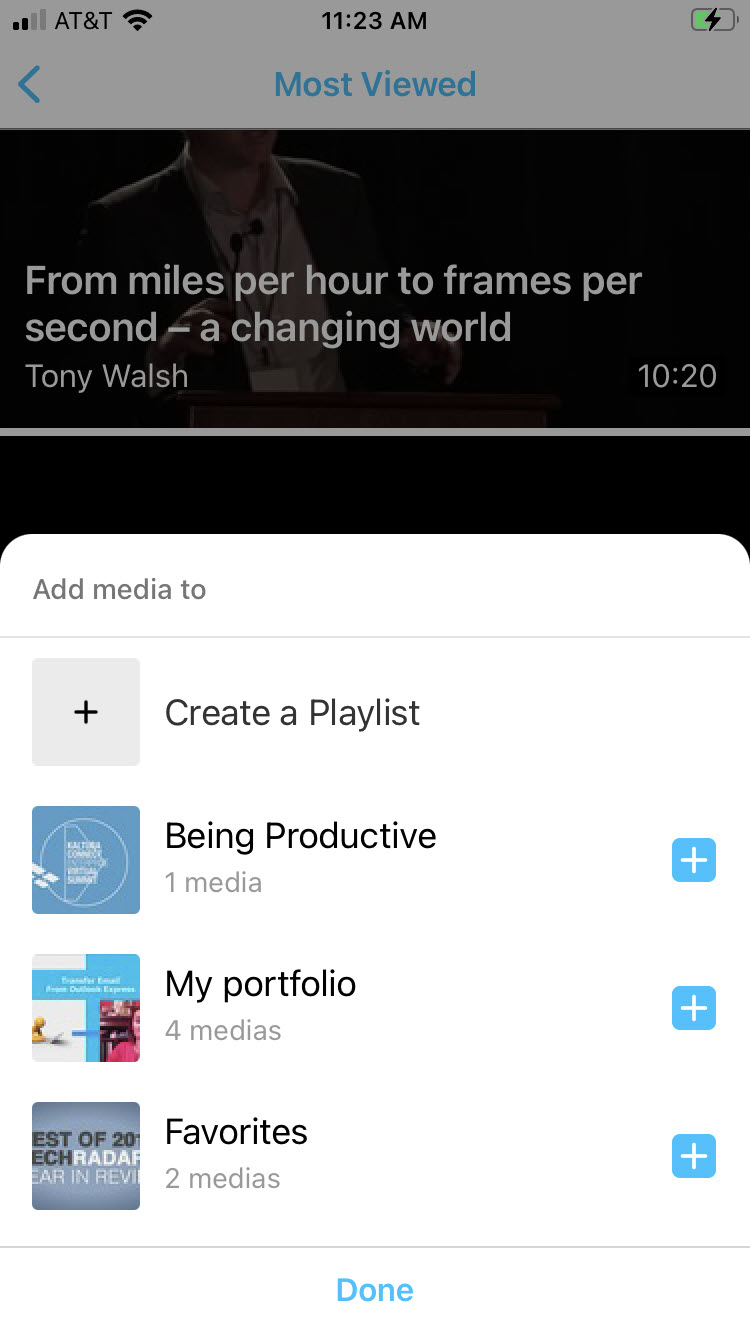
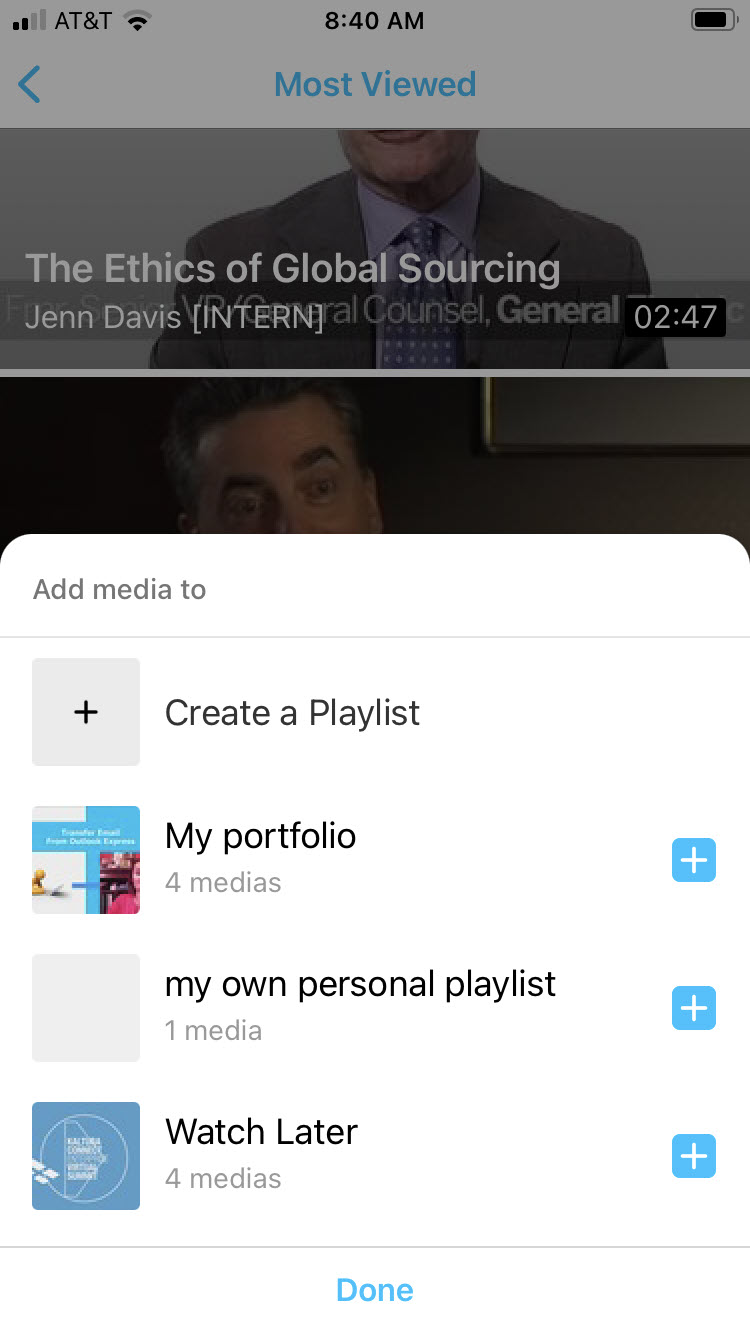
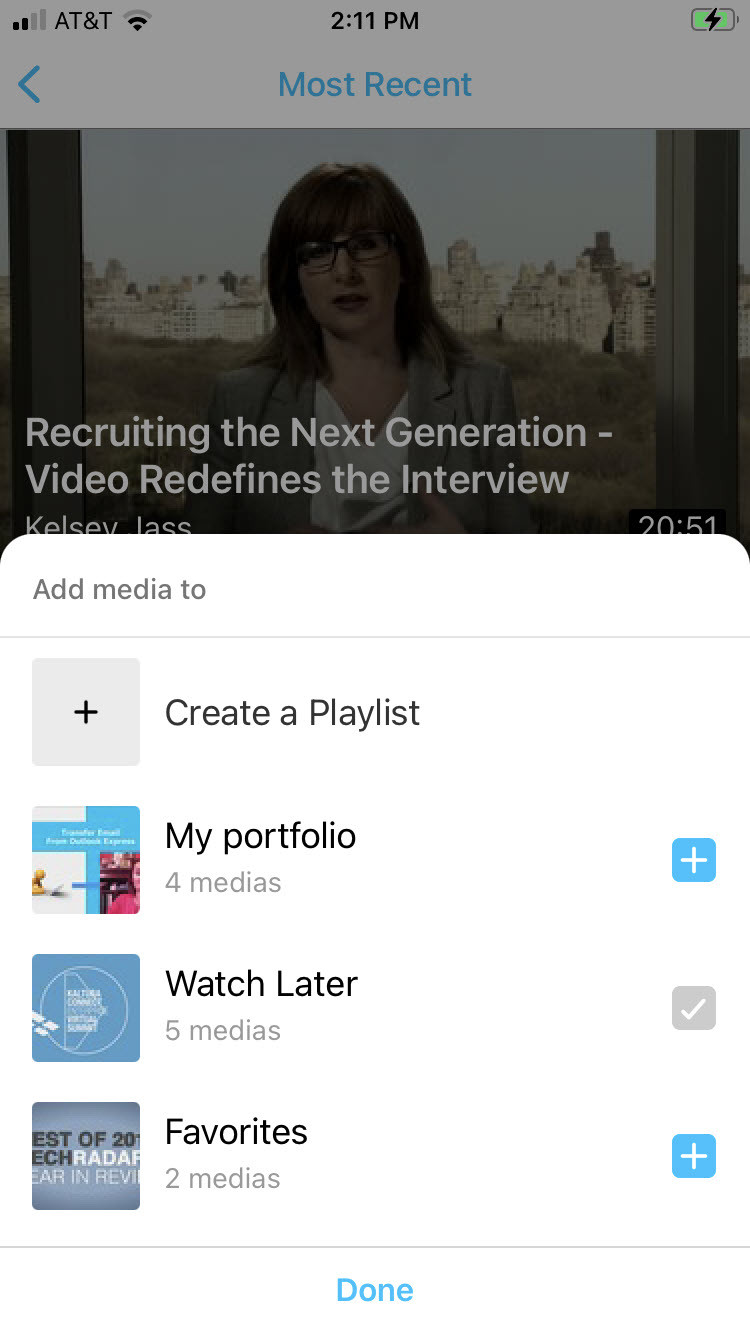
- Select the Add media to (lines with plus sign) icon. The Add media to screen opens.
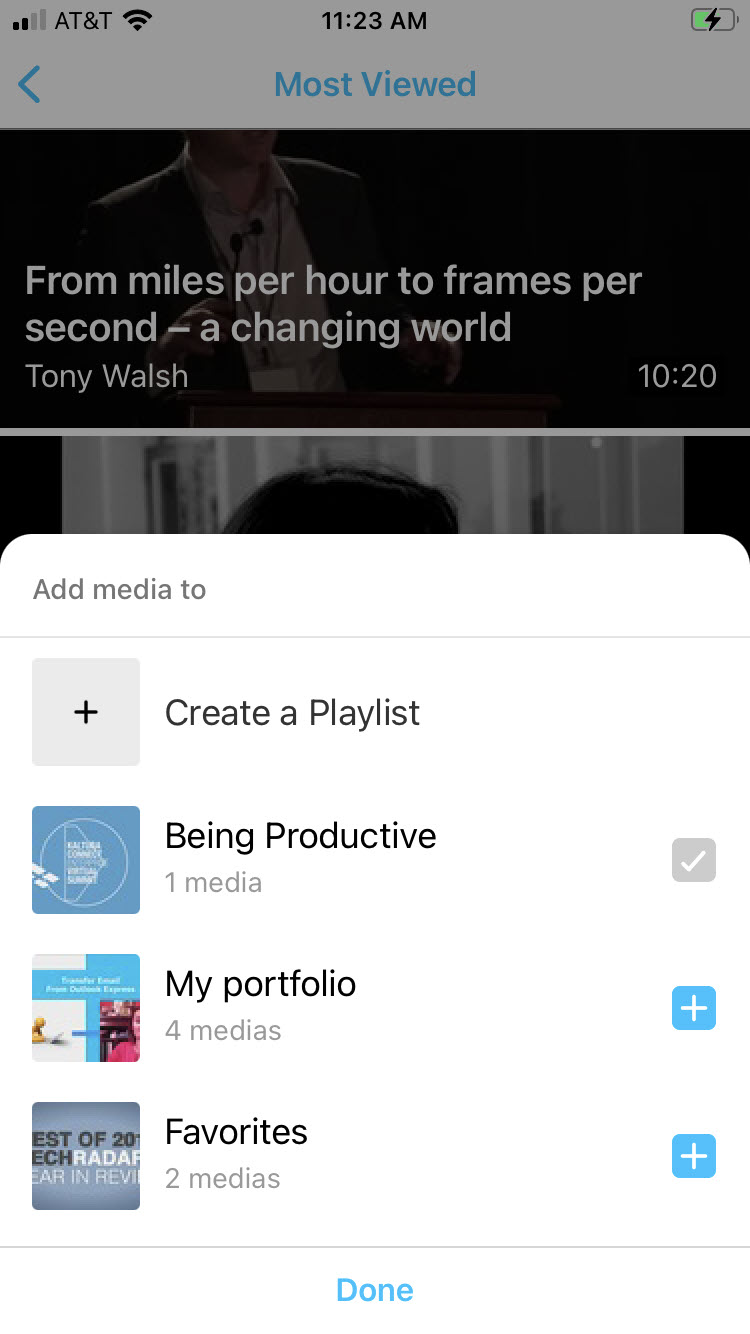
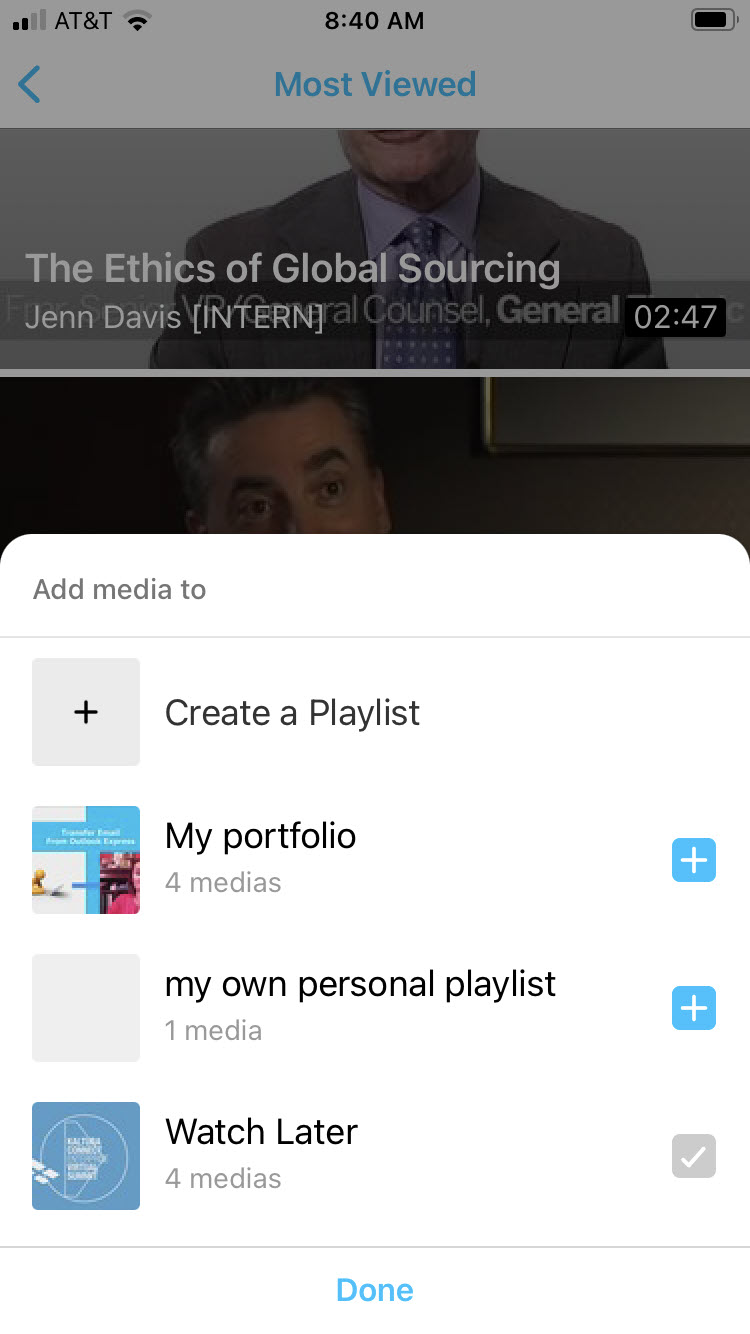
- Select the blue plus sign next to Watch Later. The plus sign changes to a gray checkbox.
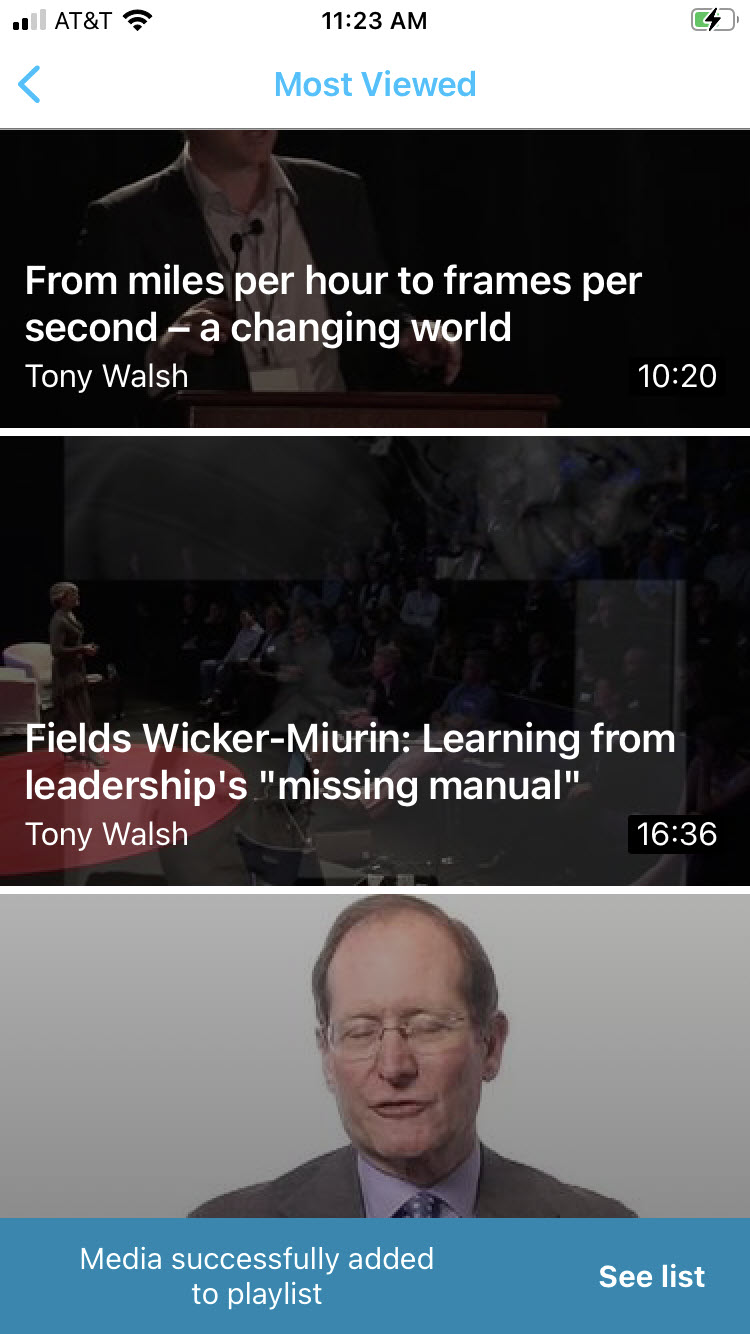
- Select Done. A message confirms that the media was added and offers to take you to the playlist.

Add media from a media page
- Go to My Media.
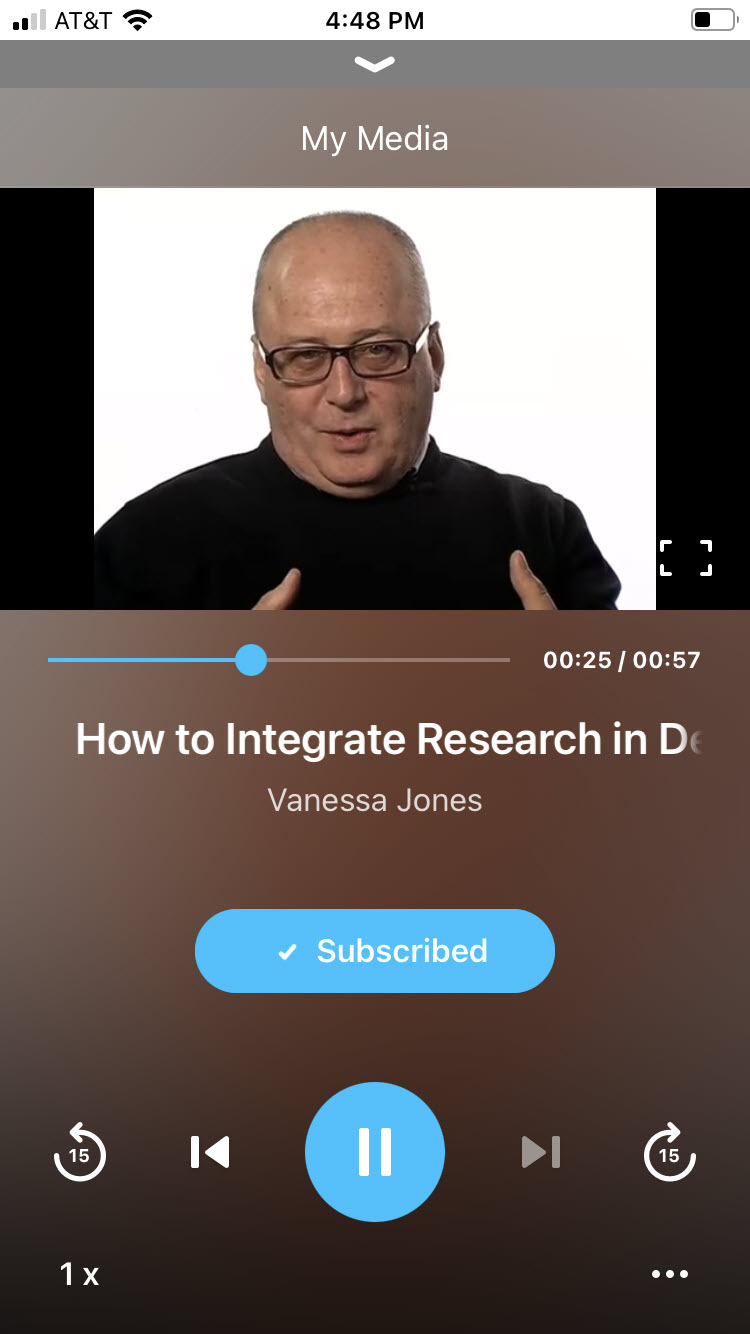
- Select a media item. The media page opens.
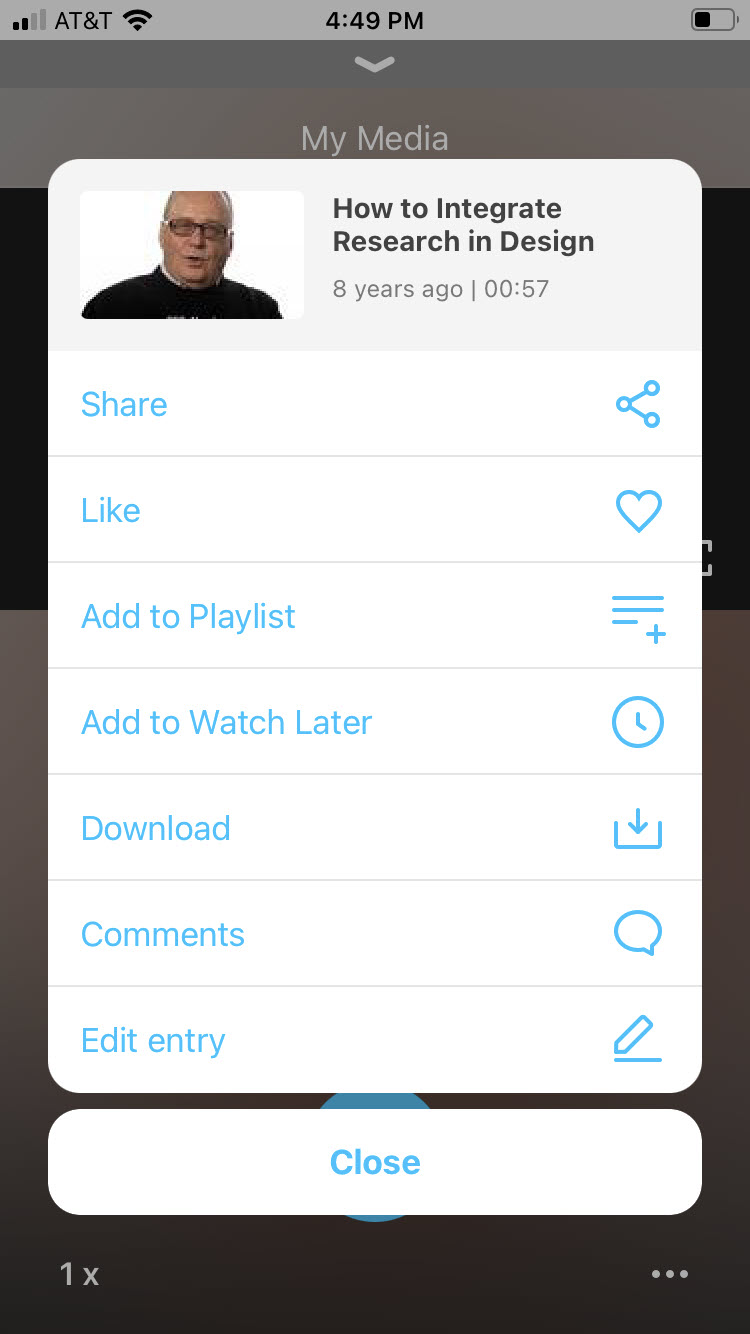
- Select the ellipsis (...) in the lower right corner. More options appear.
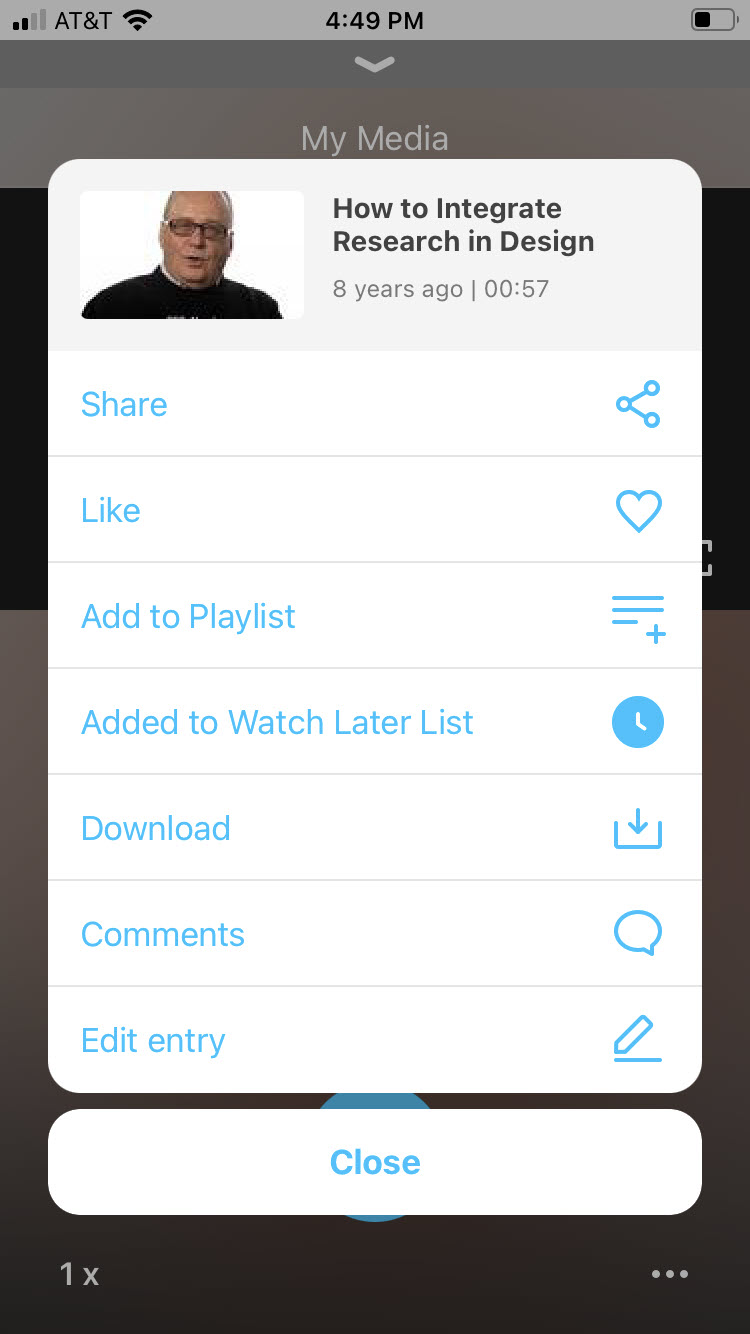
- Select the Add to Watch Later (clock) icon. The icon turns blue.
- Select Close.
Remove media from the Watch Later playlist
You can remove media in three ways:
- In the Watch Later playlist, swipe the media item to the left, and select the blue Add to Watch Later (clock) icon.
- In My Media, swipe the media item to the left, and select the blue Add to Watch Later (clock) icon.
- On the media page, select the ellipsis (...), and then select the blue Add to Watch Later (clock) icon.
Playlists
Besides adding media to your Watch Later playlist, Add media to lets you create playlists and add media to them.
Create a playlist from a gallery or playlist
You can also create a playlist from My Page.
- Select a gallery or playlist.
- Swipe the media item to the left. The quick action icons appear to the right of the media.
- Select the Add media to (lines with plus sign) icon. The Add media to screen opens.
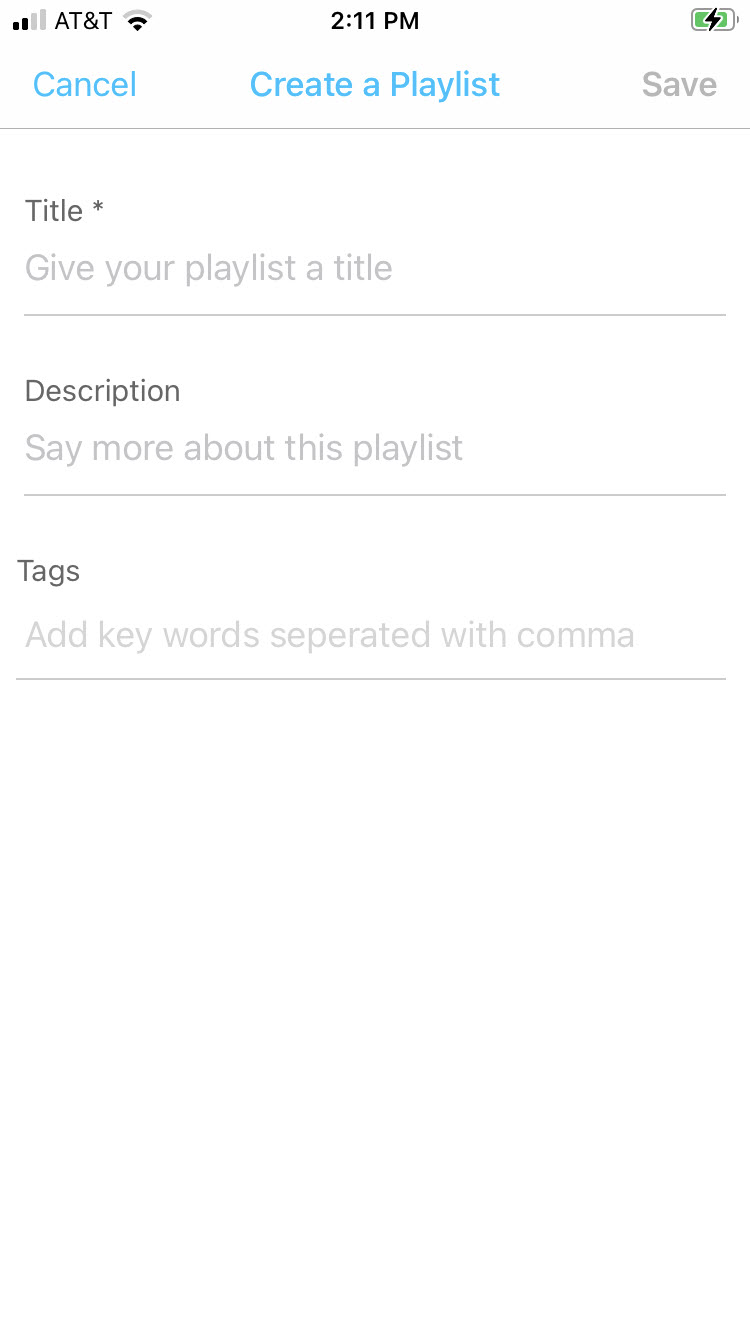
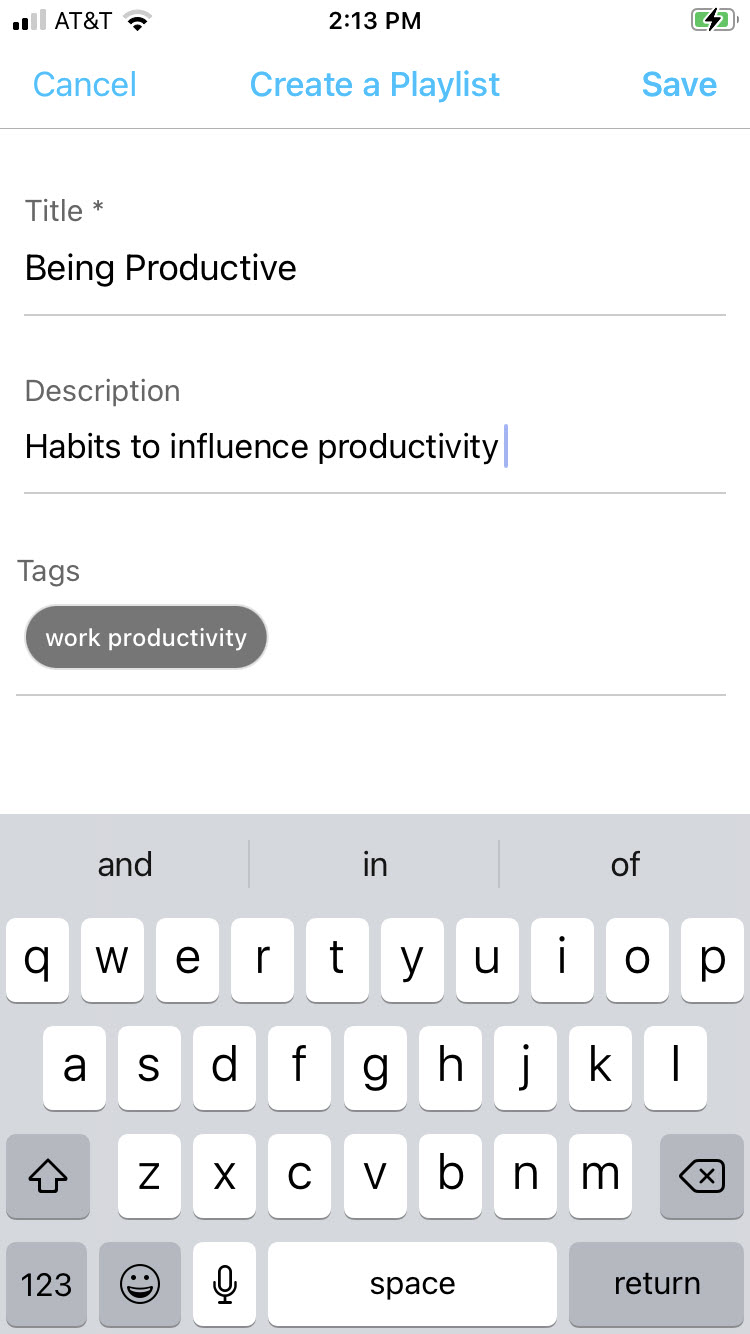
- Select Create a playlist. The Create a playlist screen opens.
- Enter a title, description, and tags for the playlist.
- Select Save.
Create a playlist from My Page
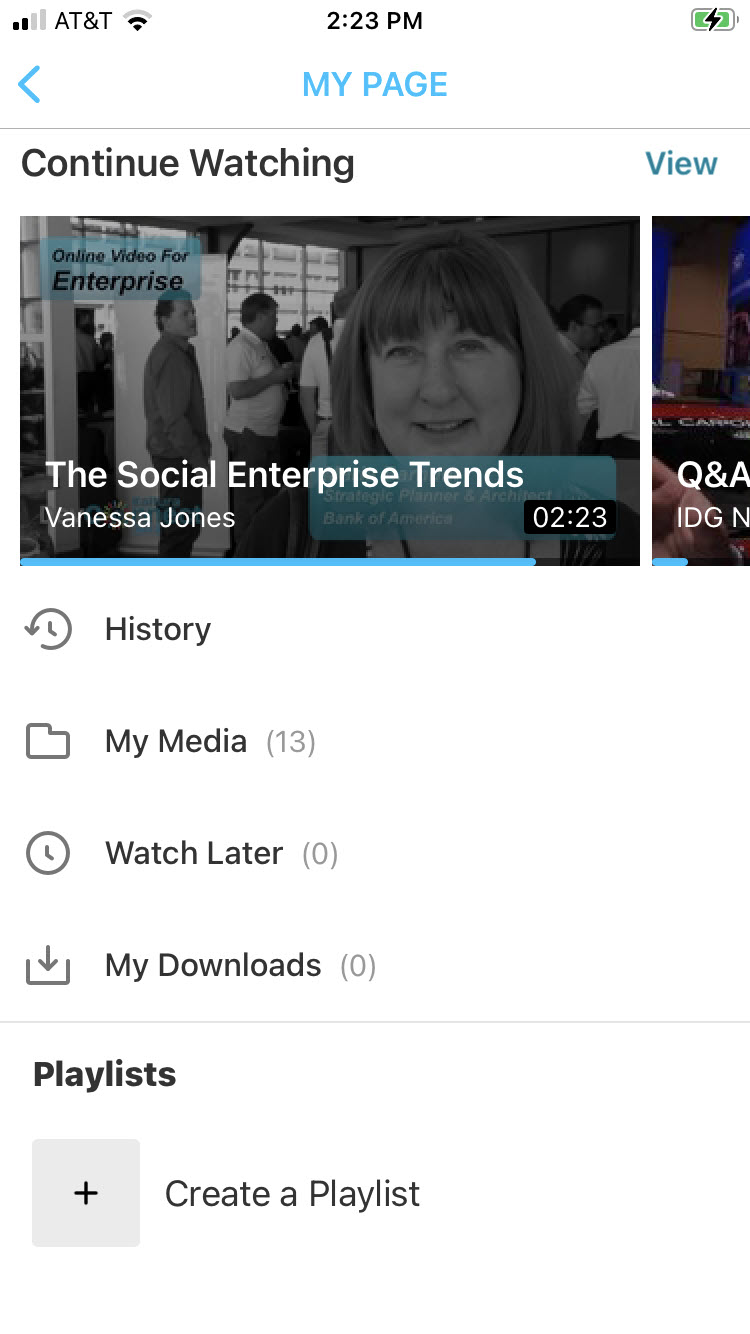
- Select the My Page icon.
- Scroll down, and select Create a playlist.
- Enter a title, description, and tags for the playlist.
- Select Save.
Add media to other playlists
- Select a gallery or playlist.
- Swipe the media item to the left.
- Select the Add media to (lines with plus sign) icon. The Add media to screen opens.
- Select the blue plus sign next to the playlist you want. The plus sign changes to a gray checkbox.
- Select Done. A message confirms that the media was added and offers to take you to the playlist.