About
With KMS Go, you can download media to your iPhone and manage your downloads.
Download media
If your administrator allows it, you can download media.
Downloaded files stay in the app. You can play them only in the KMS Go player.
Open your downloads
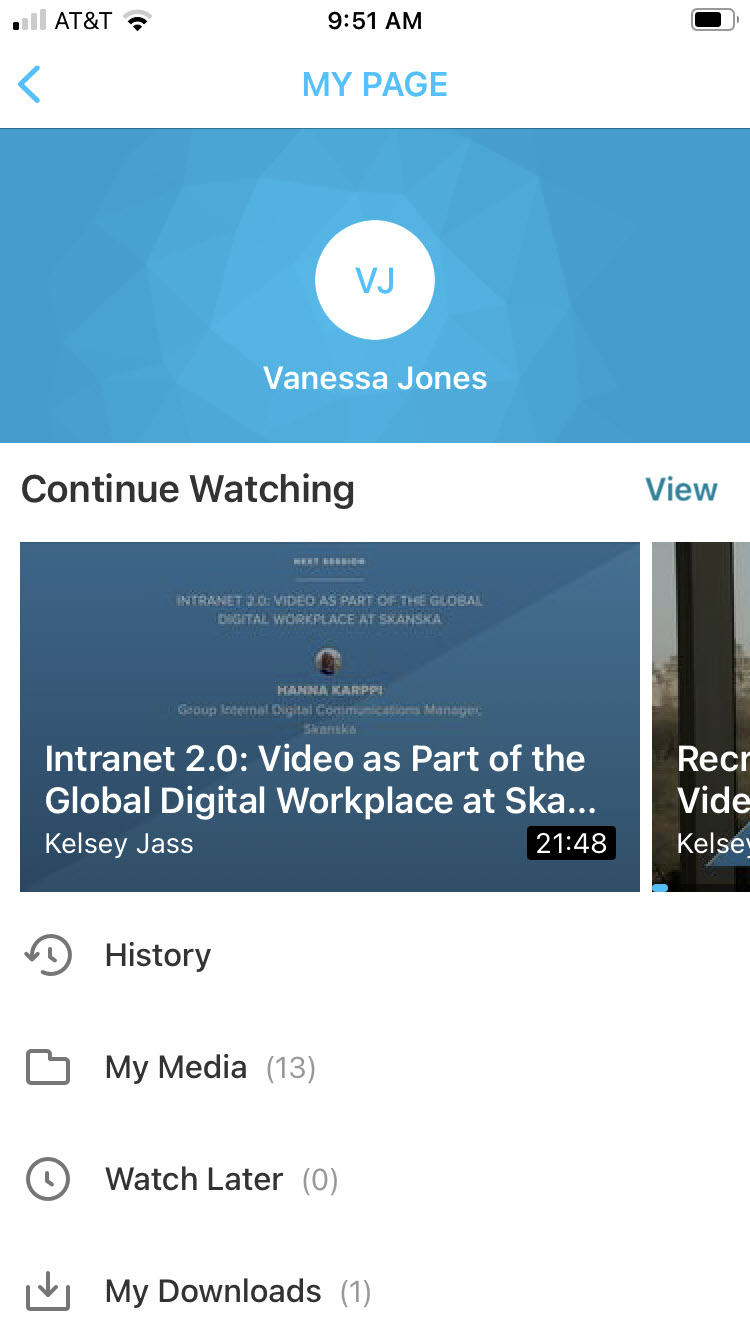
- Select the My Page icon.
- Select My Downloads. Your downloaded media appears.

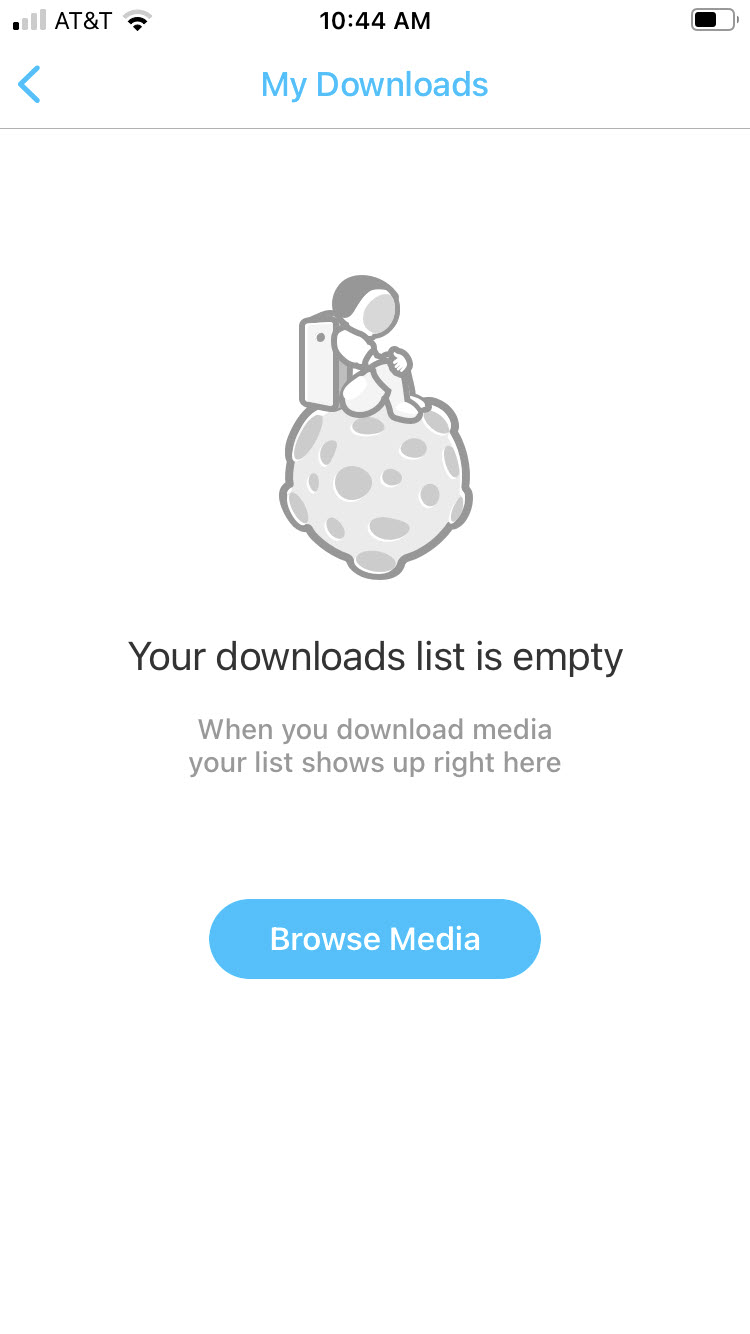
If you haven't downloaded any media, a message says the list is empty and offers to take you to the homepage.
You can download media from a gallery or playlist, or from a media page.
Download from a gallery or playlist
- Select a gallery or playlist.
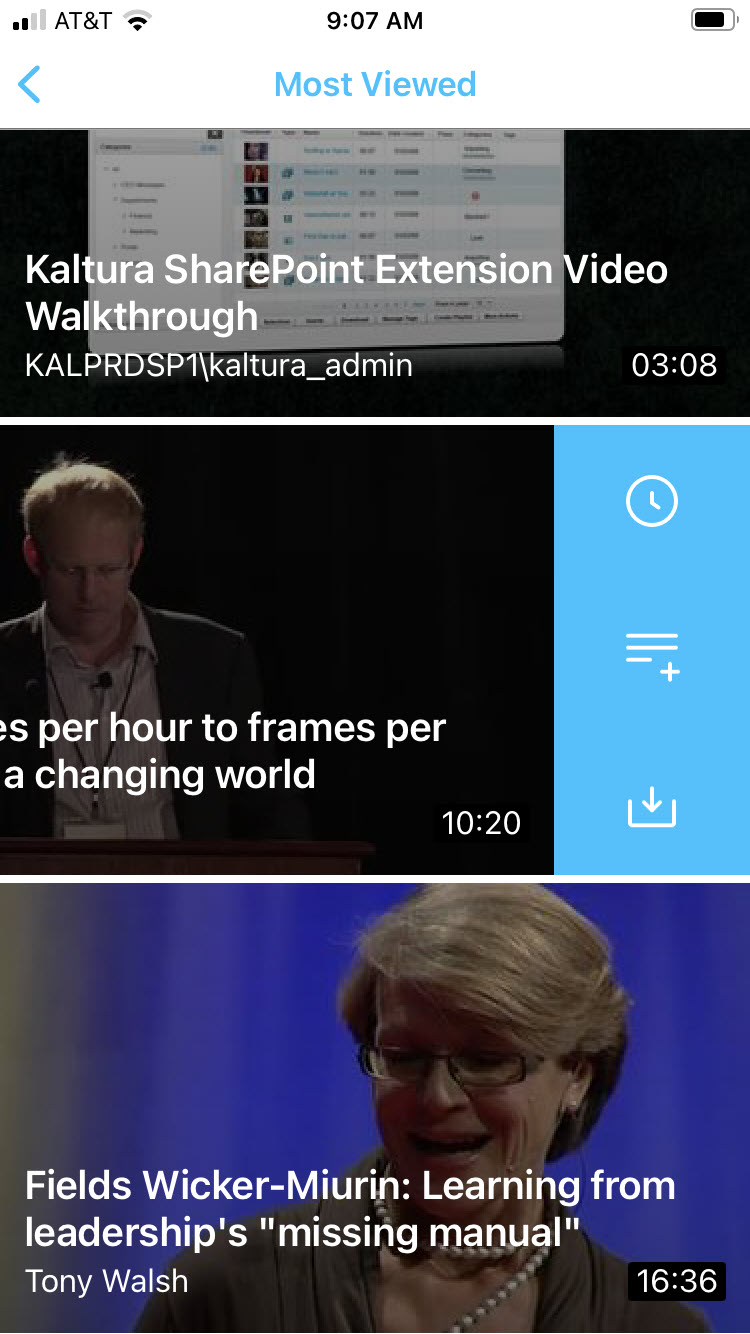
- Swipe the media item to the left. The quick action icons appear to the right of the media.
- Select the Download media (down arrow) icon. The download starts, and a circle with an X and a blue progress indicator appears.
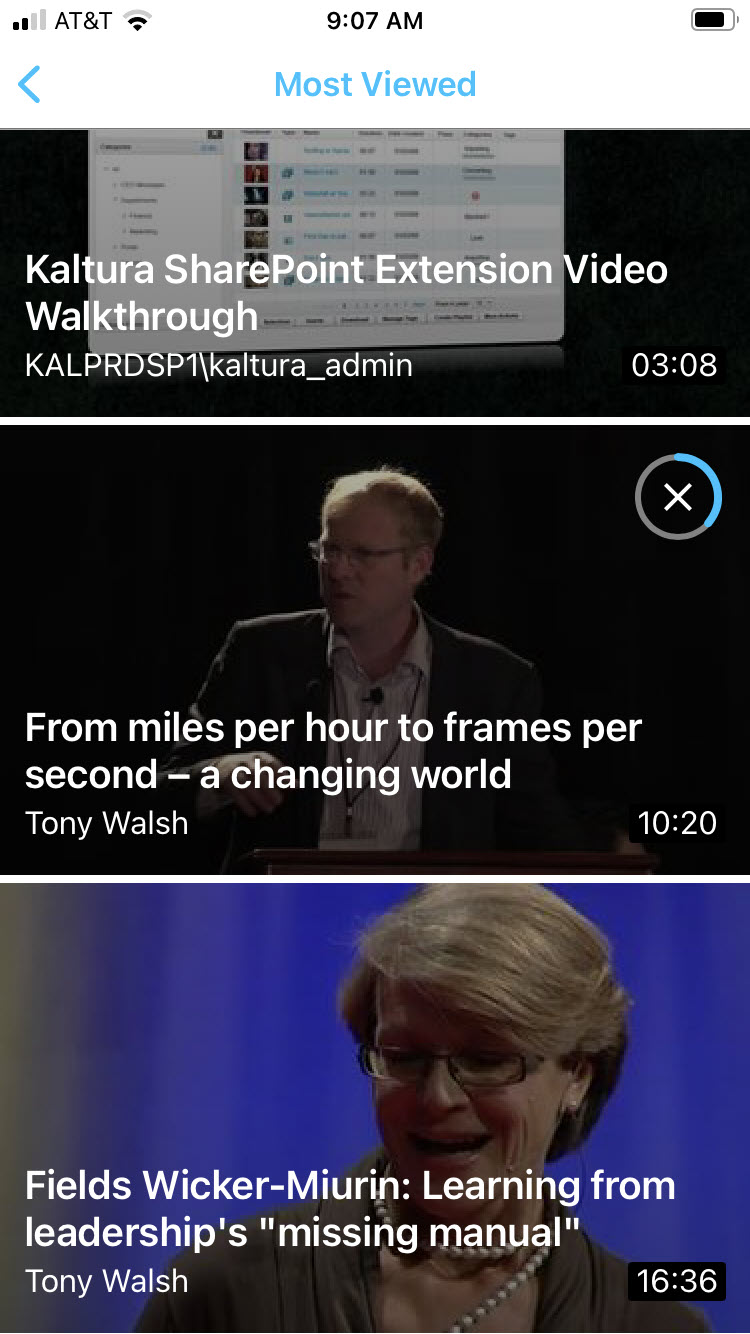
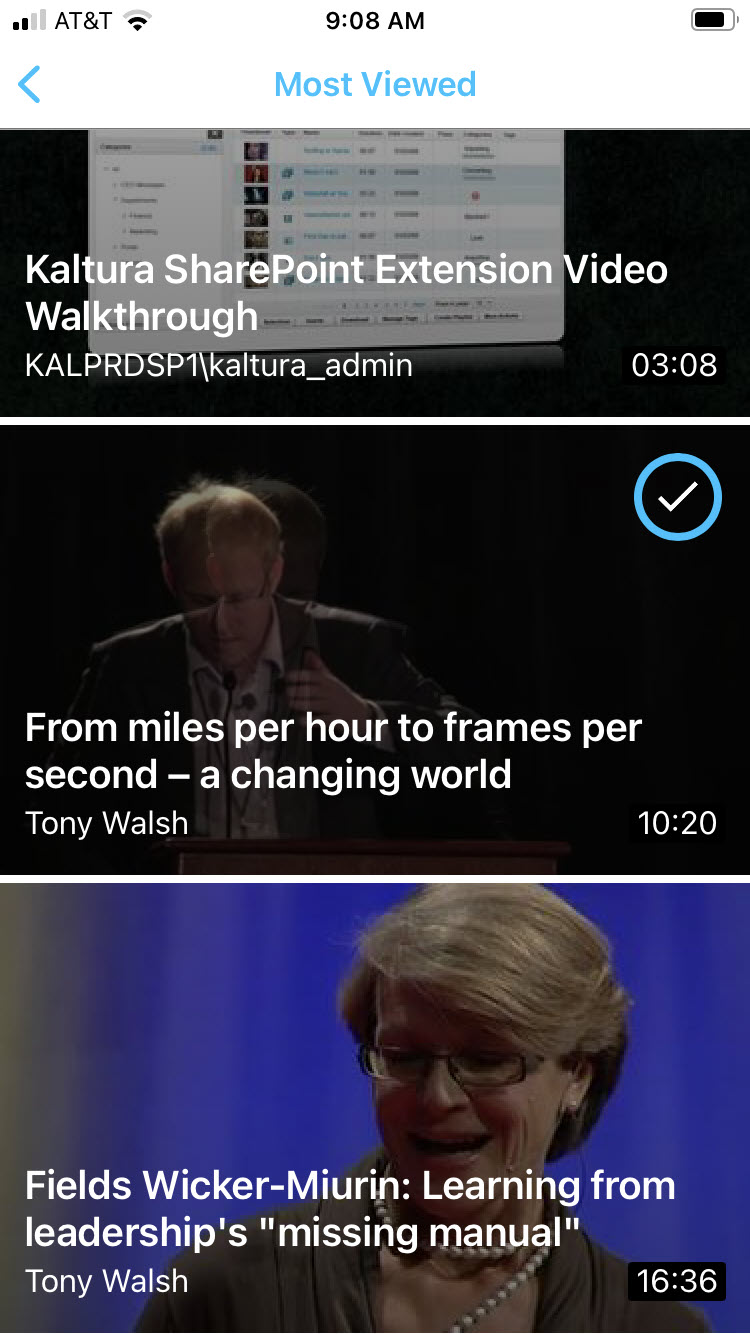
To stop a download, select the X, and confirm. When a message says the item was deleted from your device, select OK.
Download from a media page
- Go to My Media.
- Select a media item. The media page opens.
- Select the ellipsis (...) in the lower right corner. More options appear.
- Select the Download media (down arrow) icon. The download starts, and a circle with an X and a blue progress indicator appears.

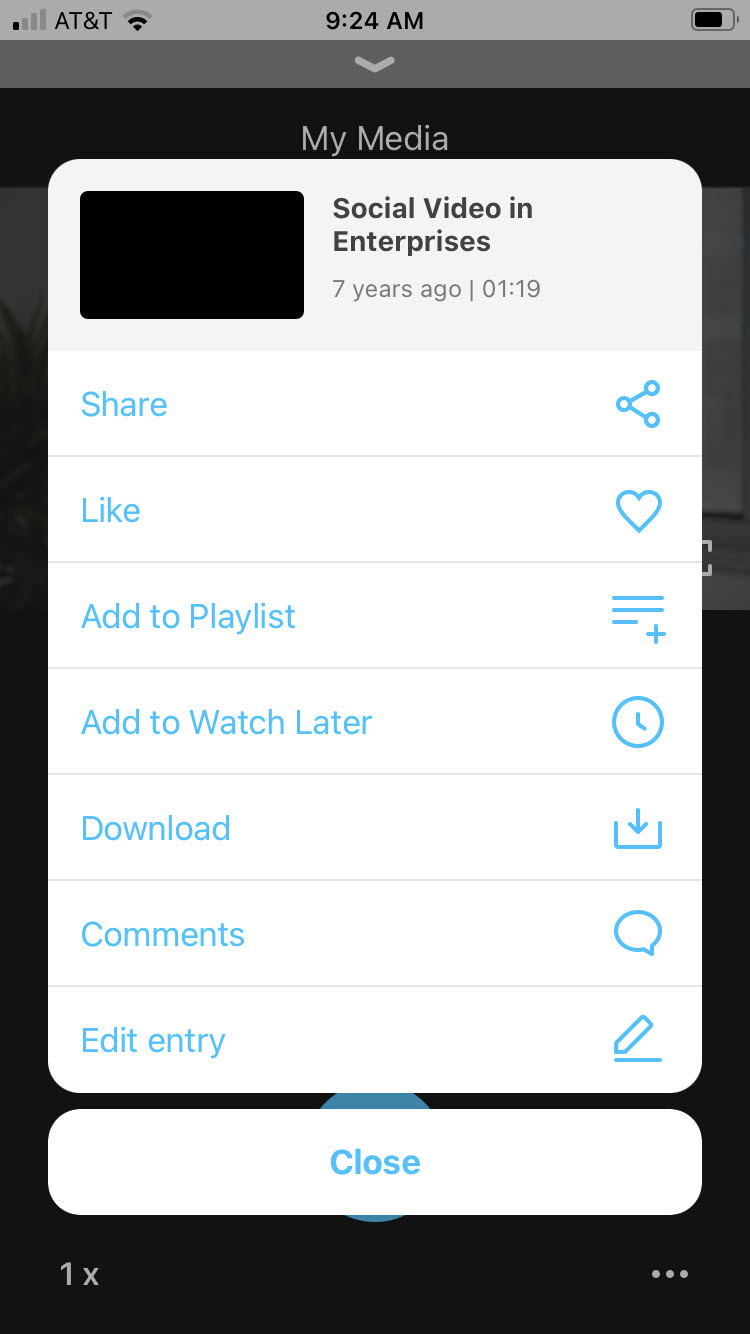
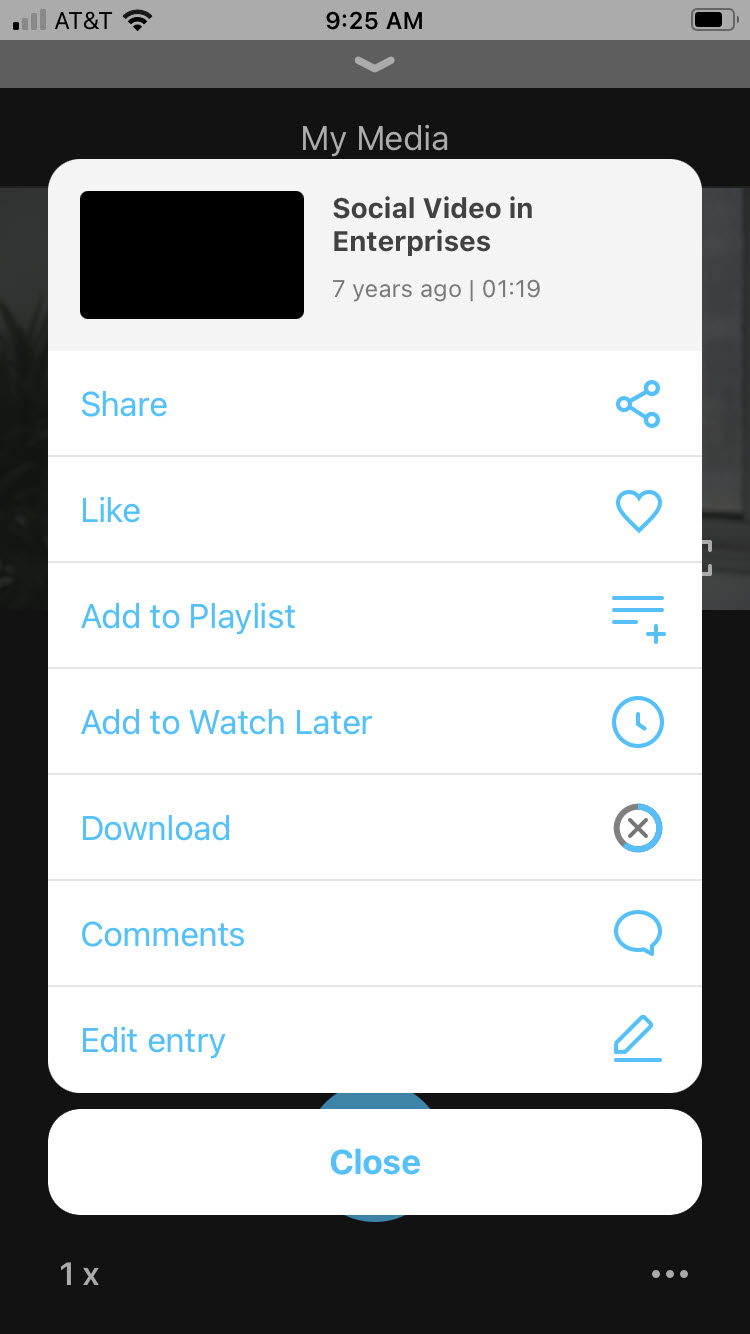
To stop a download, select the X, and confirm. When a message says the item was deleted from your device, select OK.
Remove downloaded media
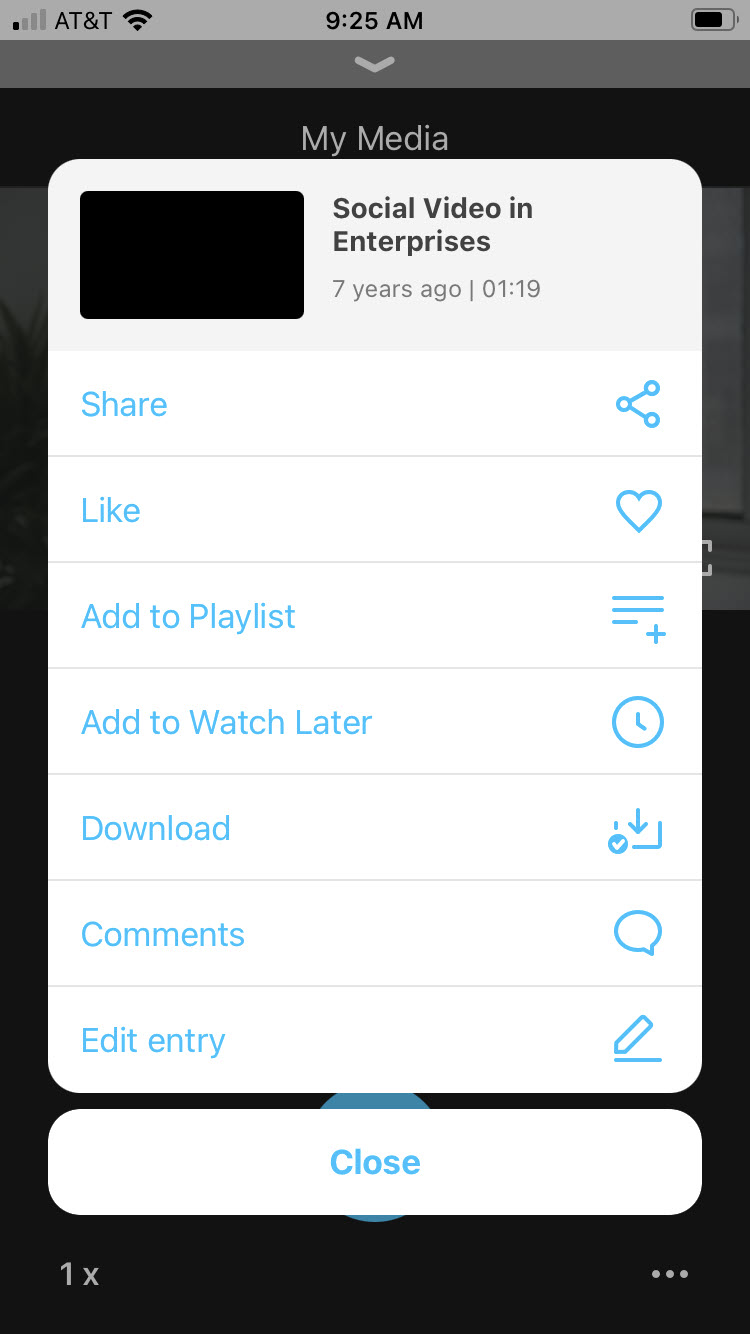
You can remove downloaded media from your device in four ways. In each case, select the Download media icon with a checkmark:
- In My Downloads, swipe the media item to the left, and select the icon.
- In My Media, swipe the media item to the left, and select the icon.
- On the media page, select the ellipsis (...), and then select the icon.
- In the Watch Later playlist, swipe the media item to the left, and select the icon.